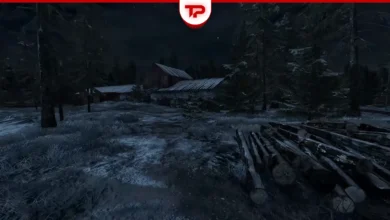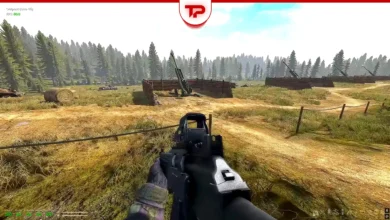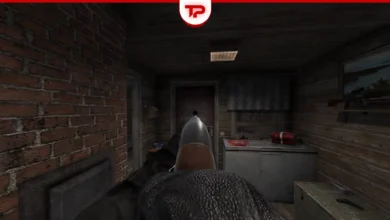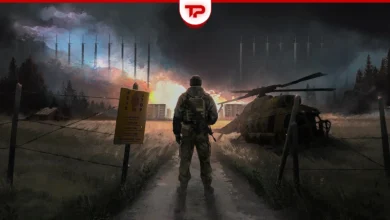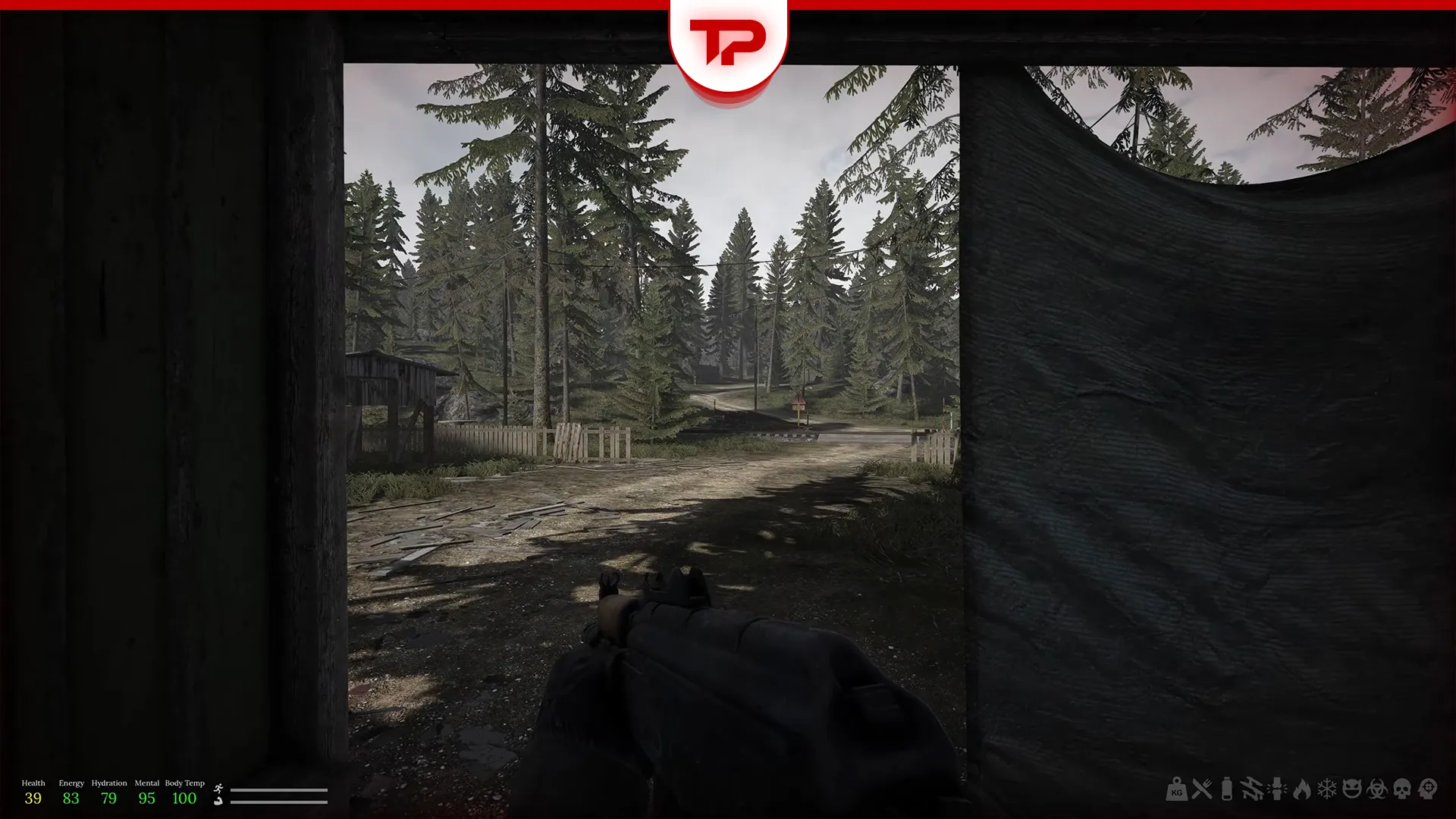


Road to Vostok does not have a traditional save button. You can only save your progress automatically by entering or exiting a shelter. When you trigger a loading screen at these safe zones, the game records your current state. If you close the game while standing in the open world, you will lose everything you carry. In this guide, we will explain everything about this system and show you safe ways to secure your loot.
What we cover here:
Save Mechanic: Shelters and Checkpoints
Your survival relies entirely on safe zones. The game triggers an automatic save the moment you step inside one. You must reach a safe house to secure your earned items.
- Items placed inside shelter containers stay safe forever, even if you die later.
- Items kept in your active backpack are always at risk.
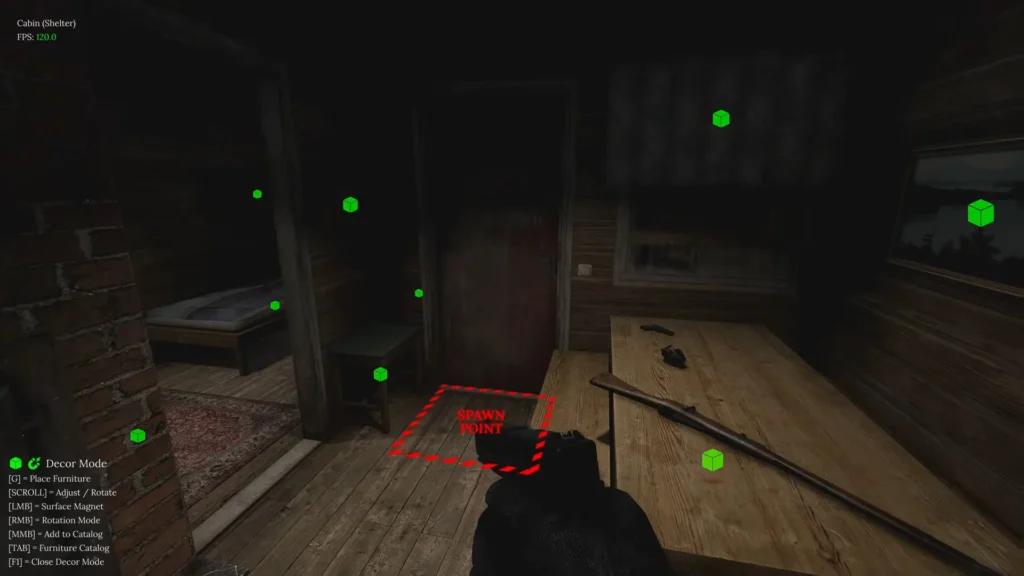
Since the game only records data during these specific map transitions, finding all shelter locations is so important. You start with a basic cabin, but you can unlock more spots like the school classroom or the border tent later.
The “Save and Quit” Problem
Players often look for a simple way to pause their life and close the game. Unfortunately, a manual exit option does not exist right now. The developer built this experience as a hardcore extraction shooter. This means expeditions require a real time commitment.
Many players feel frustrated when real-world emergencies happen. You still have a few safe workarounds if you need to step away:
- The Pause Menu Method: Press the ESC key to pause the action. Time stops and your survival stats freeze. You can leave your computer running for hours and come back later.
- Rush to Small Shelters: You don’t always need to run back to your main cabin. Smaller safe zones exist across the map. The Outpost tent is a great example of a quick, free spot to save your run.
What Happens if You Quit or Die?
If you close the game in the wild, it counts as a death. The ALT+F4 command brings the exact same result. The punishment depends heavily on your current map location. You need to prepare well. A comprehensive Road to Vostok beginner guide helps you understand these risks before you explore deeper.
| Map Zone | Danger Level | Penalty for Dying or Quitting |
|---|---|---|
| Area 05 | Medium | You lose all items in your active inventory. Your shelter stash remains safe. |
| Border Zone | High | You lose your backpack loot. You respawn back at your last shelter. |
| Vostok | Extreme | The game deletes your entire save file. You lose everything and start from zero. |
How to Manually Backup Your Save File
The Vostok zone deletes your save file if you fail. Some players use a manual backup method to protect their progress before crossing the border. The game lacks server-side anti-cheat, so this local file trick works perfectly without any ban risks.
Follow these exact steps to secure your data:
- Wait a few seconds after a loading screen finishes inside your shelter.
- Open your Windows Run box and type %appdata%.
- Navigate through the folders to find Godot, and then open app_userdata.
- Copy the entire Road to Vostok folder and paste it safely on your desktop.
If disaster happened in the permadeath zone, simply delete the active folder. You can then paste your backup copy back into the directory to restore your character.
Save File Secrets
The community found some advanced tricks hidden inside the save folder. You can manipulate the character.tres file using a simple text editor like notepad. This allows you to cheat death or save money.
- Revive Your Cat: Open the file and search for the word “catDead”. Change the value from true to false. Then, find the “cat” line and change the number to 100. This restores the pet to full health.
- Repair Gear for Free: You do not need expensive repair kits. Search for your broken weapon inside the file. Look for the “condition” line below it. Change that number to 100 to fully fix your gear.
- Duplicate Rare Items: First, copy your character.tres file to your desktop. Next, place the item you want to copy inside a shelter stash. Exit to the main menu. Finally, paste your backup file back into the game folder. When you load the game, the item exists in both your inventory and the stash.
FAQs
Can I save my game at a campfire?
No. Campfires do not act as save points right now. You must use official indoor locations or specific tents to trigger the loading screen.
Will the developer add a native exit save feature?
The solo developer currently stands by his hardcore vision. A quick exit option is not a priority right now, though the community continues to request it.