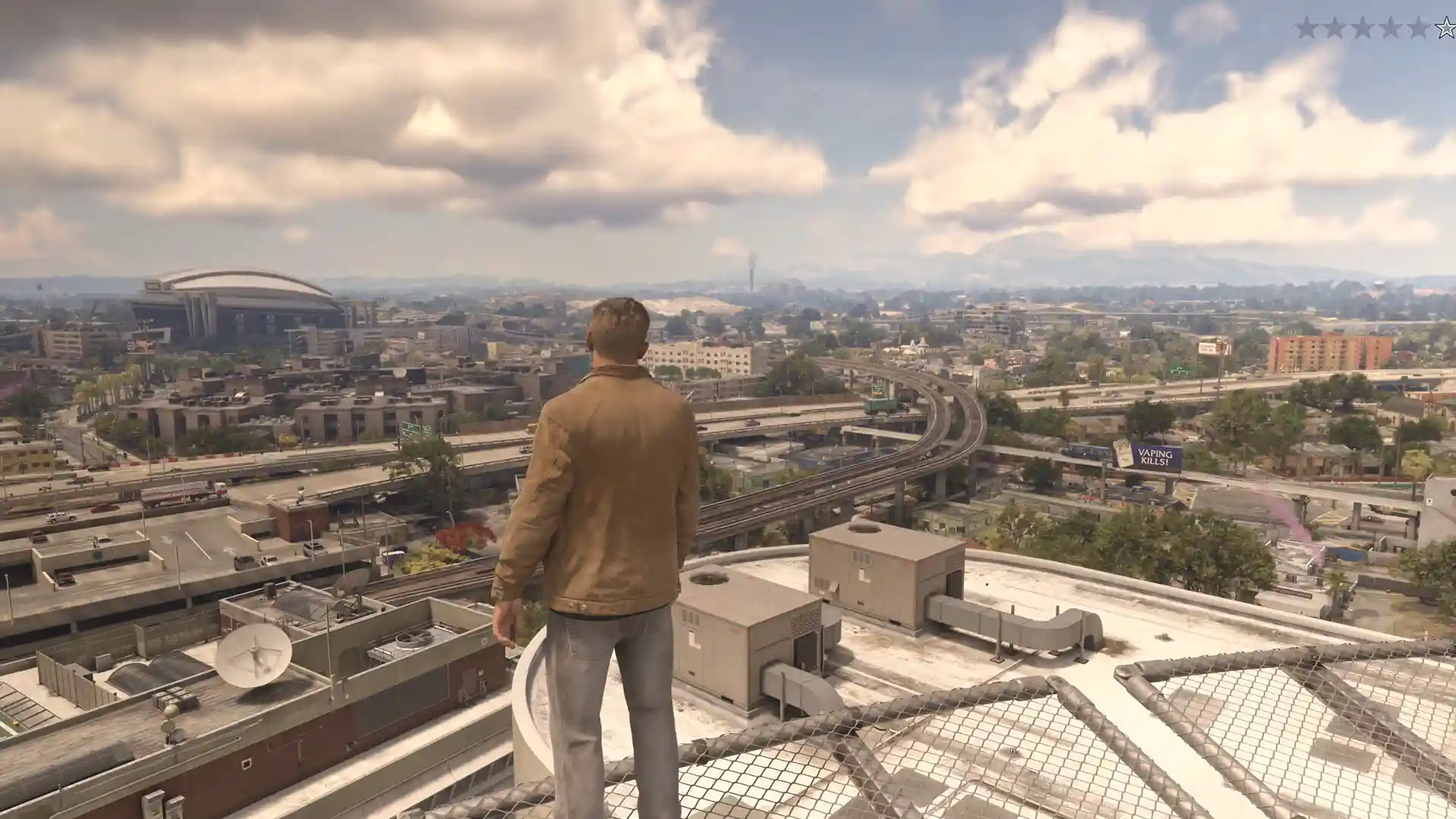


The GTA 6 grey screen issue can leave you stuck on the loading screen or make Vice City look almost colorless during gameplay.
Rockstar’s November 23 update fixed several crashes, but there’s no official fix for the grey screen yet. If you have difficulty at startup on PS5, I recommend reconnecting your controller before anything else. Xbox users have a few other options, while those with washed-out graphics should check their display settings.
Jump to
How to fix the GTA 6 grey screen on PS5
GTA 6 may freeze on a blank grey screen right after the initial splash screen. This problem has also occurred after the November 23 update. Press X several times while you’re on the grey screen. If the game doesn’t respond, try the following workaround:
- Press the PS button on your DualSense controller.
- Open Accessories and turn off your controller.
- Wait for the controller disconnection notification.
- Connect your DualSense to the PS5 via a USB cable.
- Turn the controller back on and press X several times.
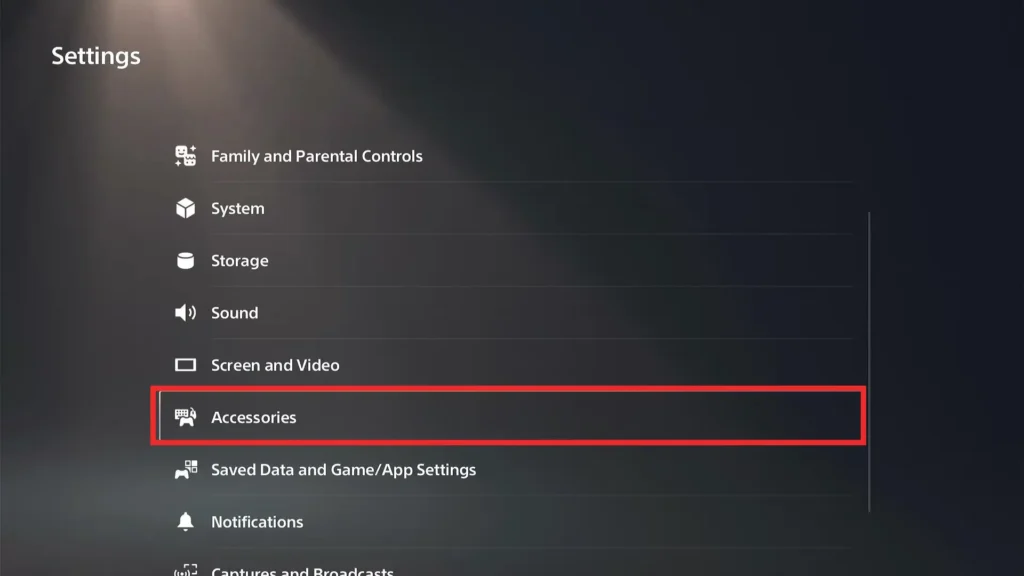
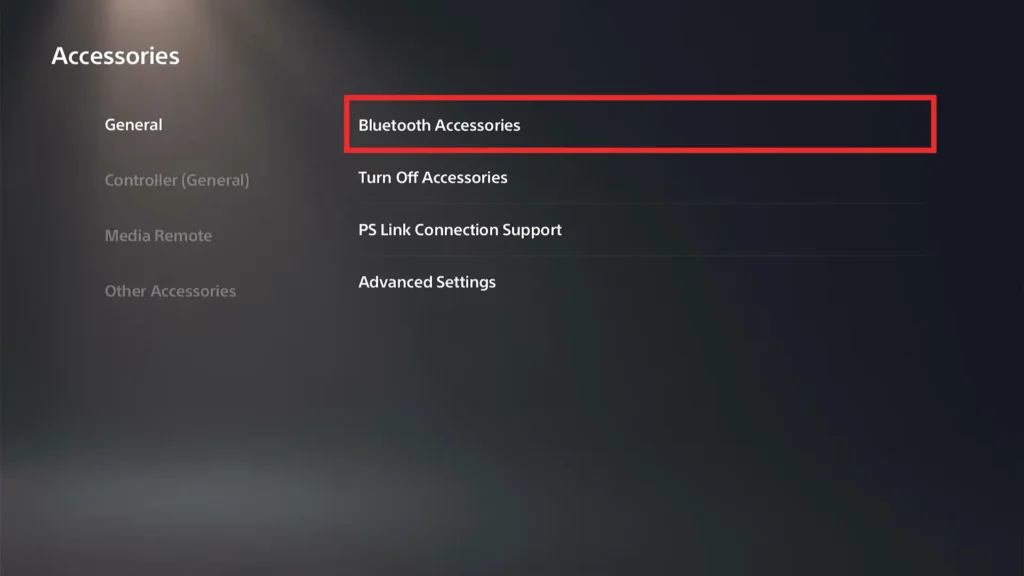
This workaround has helped several PS5 users, including me, get past the grey screen, though it doesn’t work for everyone.
If you still have the problem, go to Settings > Accessories > Controller (General) > Communication Method and select Use USB Cable. Make sure your cable supports data transfer.
If the colors look normal but objects still appear out of focus, you might be dealing with a different graphics issue. Try our GTA 6 PS5 blurry fix before changing your HDR settings.
GTA 6 grey screen on Xbox Series X/S
The grey screen problem on Xbox dates back to launch day. The game can hang around account selection or during the initial loading screens.
On Series S, the screen can also turn grey and display static before the game crashes to the dashboard. I’d start with a full restart. Press the Xbox button, highlight GTA 6, press the Menu button, and select Quit. Don’t resume the game through Quick Resume.
If that doesn’t help, hold the power button on your console for at least 10 seconds until it shuts down. Turn it back on and launch GTA 6 again.
Another Method for Xbox Users (Not Tested By Me)
If the grey screen appears after you select your account, try another Xbox profile that has access to the game. You can also remove and re-add your original account through Settings > Account > Remove accounts. These are general Xbox troubleshooting methods, not proven solutions for the GTA 6 grey screen. I wouldn’t delete your save files or reinstall the entire game just yet.
Why does GTA 6 look grey and washed out?
If you can play GTA 6 but the colors look dull, open the pause menu and go to Settings > Display. Find High Contrast Shaders and turn it off if you don’t need the accessibility feature. This particularly needs checking if the colors return to normal when you open your in-game phone or activate Focus Mode.
If High Contrast Shaders is already off, the problem could be your HDR calibration.
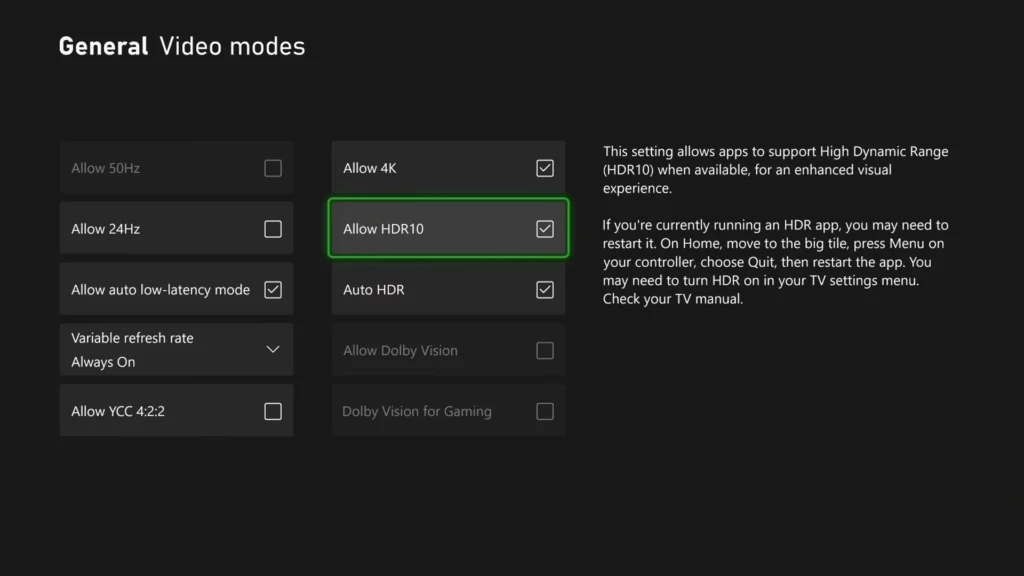
Dark corners around your screen are usually associated with the GTA 6 vignette effect, which can be adjusted separately from HDR.
Adjust your HDR settings
GTA 6 doesn’t appear to use the HDR calibration saved on your console. Its own calibration menu can also give a misleading impression of how bright the actual game will look. Go to Settings > Display > HDR Calibration. For TVs capable of at least 1,000 nits, HDTVTest’s Vincent Teoh recommends the following starting values:
| HDR Setting | PS5 Default | Suggested Value |
|---|---|---|
| Max Brightness | 600 | 2,000 |
| Black Levels | 50 | 20 |
| Paper White | 50 | 35 |
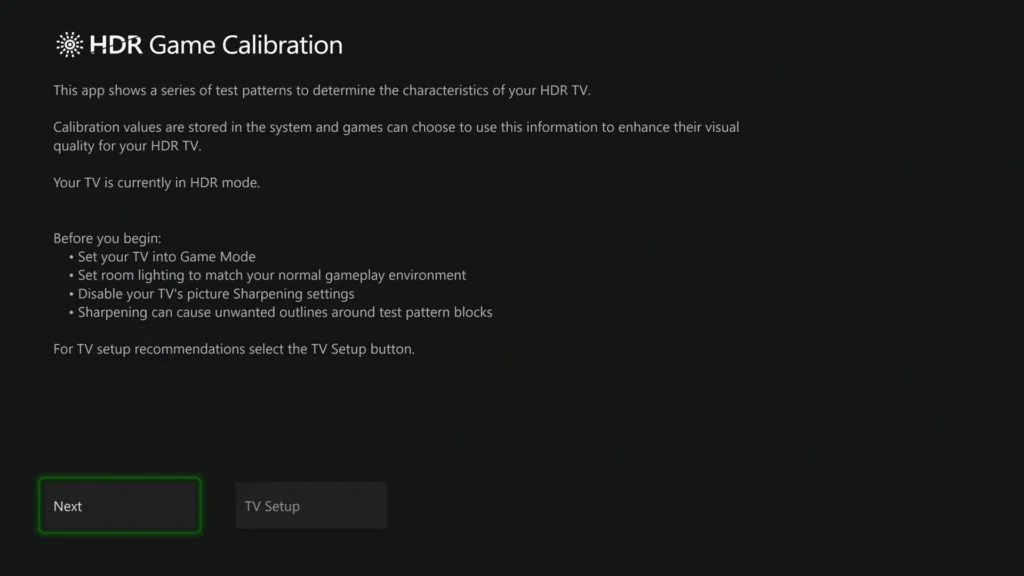
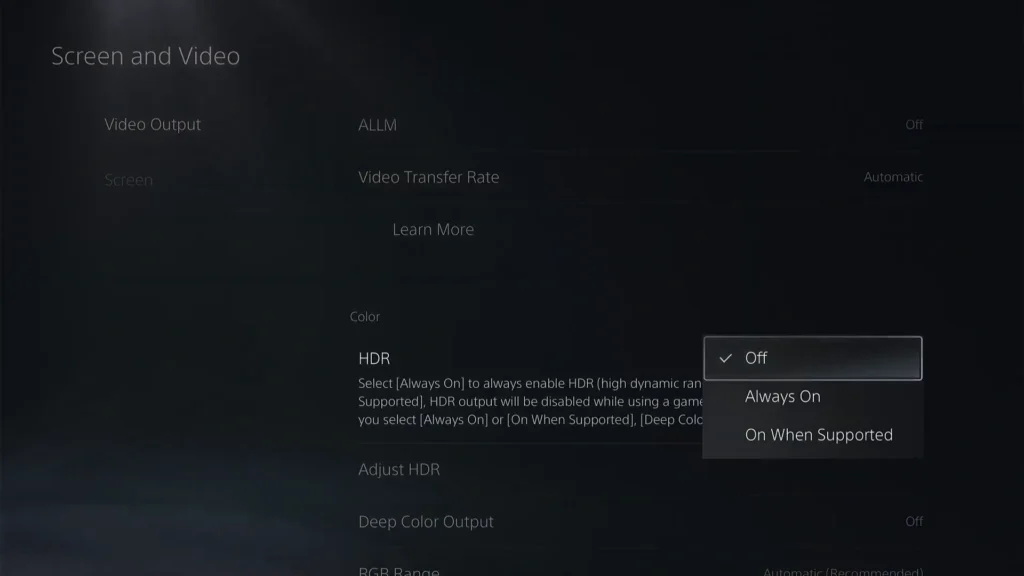
These values depend on your display. If your shadows still look grey, turn off the lights in your room and set Black Levels to 0. Hide the calibration UI, then gradually raise Black Levels until you can barely see the checkerboard pattern. Check your TV settings too. Enable Game Mode and HGiG if supported, and disable Dynamic Tone Mapping. You can also temporarily turn off HDR in GTA 6 to see whether the picture improves.
Has Rockstar fixed the GTA 6 grey screen?
The November 23 patch (01.002.002 on PS5 and 1.0.2.2 on Xbox) addressed several crashes, but the patch notes don’t mention grey screens or HDR calibration issues.
If you still can’t get past the loading screen after these workarounds, submit a support ticket to Rockstar with your console model and game version. Keep your save files intact.