

The Witcher 3 Remastered has a bunch of related audio problems. Players across all the platforms are reporting dialogue that becomes almost inaudible, muffled voices, music that overpowers conversations, combat sounds that nearly disappear and other mix issues.
Here’s a clear rundown of every probable issue and its solution. Find what you want on the table of contents below and use the solution.
Find & Fix:
Quick Fixes for Audio Issues
These are the fixes I’ll explain in more details if needed. To save your time, I provide them as a list here in case you find what you want as quickly as possible:
- Meditate (best-supported workaround across platforms).
- Restart the game if meditation doesn’t stick.
- On PC: disable Spatial Sound.
- Check surround and virtual surround settings.
- Confirm the correct in-game audio-output profile.
- Check that Voice Volume hasn’t reset to zero.
- Lower music and effects temporarily as a band-aid.
- On PC: update GPU drivers.
- Try the remaining PC-specific steps (sample rate, unused devices, Hands-Free Telephony, Game Bar, fullscreen to windowed and file verification).
Meditate to Fix Audio Problems
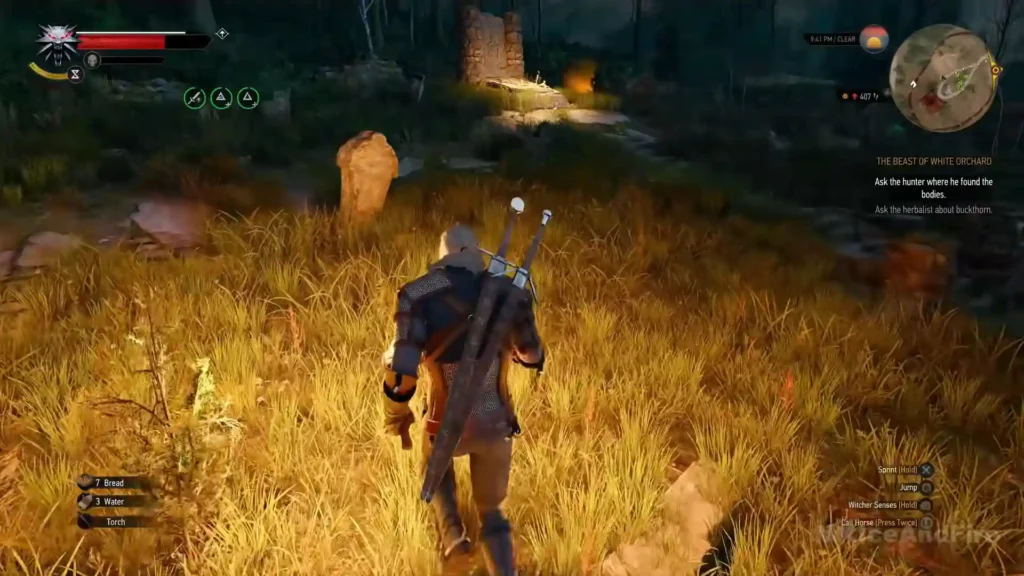
This is by far the most repeatedly confirmed fix. Meditate in-game. A lot of players (PS5, PS5 Pro, PC, even Linux/Bazzite) independently found that meditating restores the proper audio mix. Some specifically say meditate for one hour, others just say meditate for a bit.
It’s not permanent for everyone. The problem can come back after fast travel, so you may need to meditate again. A few people say it didn’t work at all for them. Still, it’s the first thing you should try.
How to do it? Open the menu screen, Meditation. Choose a duration and confirm.
Restart or Completely Relaunch the Game
Restarting the game is another common temporary fix. Restarting may bring dialogue back to normal. Closing the game (and sometimes rebooting the PC) may fix the problem too. Loading a new save after a restart also can be helpful.
Disable Spatial Sound on PC
This is one of the more specific PC fixes that has worked for muffled audio.
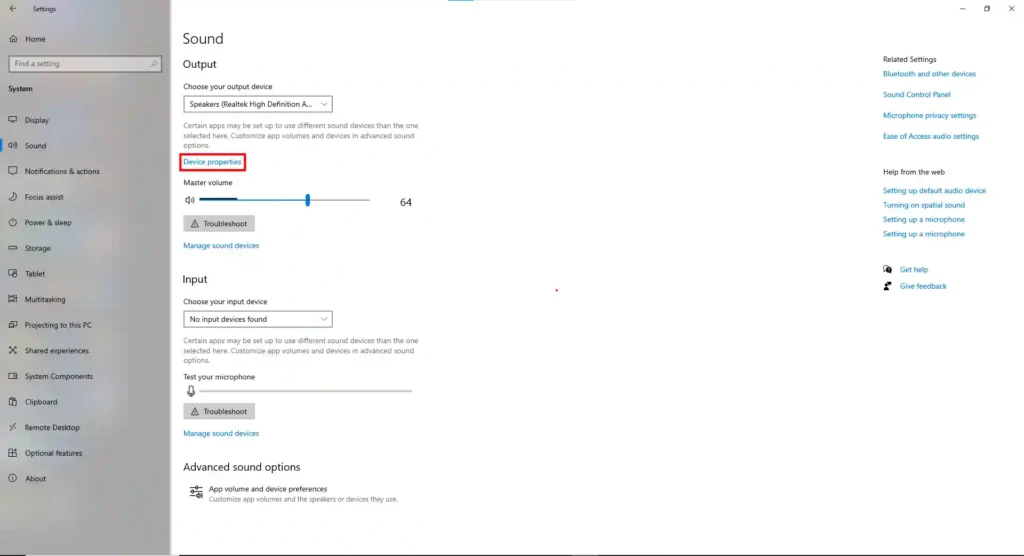
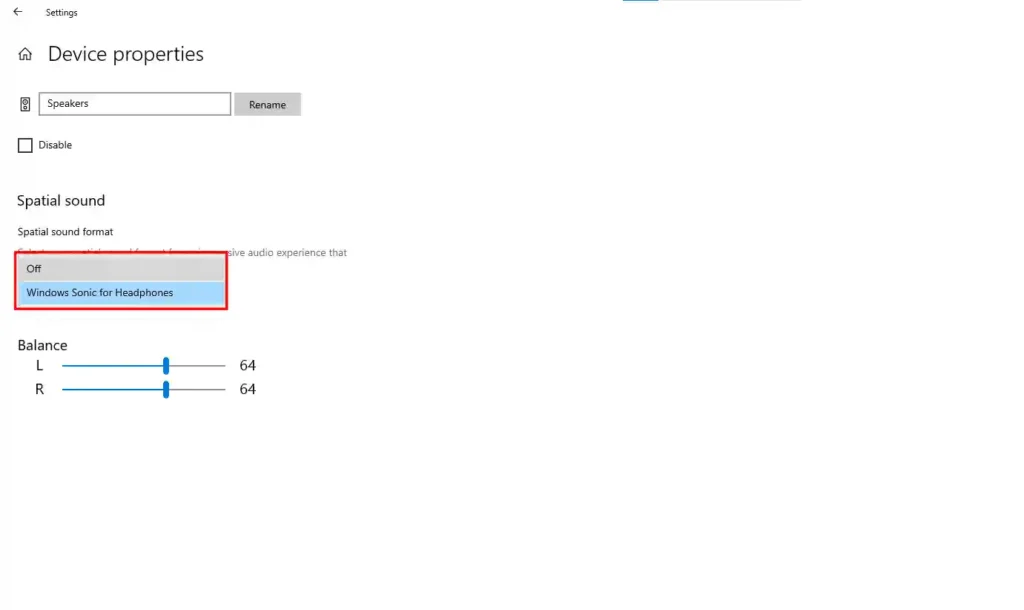
Go to Windows audio settings, select your output device, turn Spatial Sound off. After changing it, relaunch the game. If it still sounds off, also try disabling Windows Audio Enhancements on the same device.
Disable Virtual 5.1 & Check Surround Sound Settings
Surround and virtual surround setups keep coming up? Try turning off Virtual 5.1 Surround Sound in the console settings. Players on 5.1 and Atmos setups have described dialogue as extremely muffled or missing the center channel, with music way too loud from the rears.
Check the Game’s Selected Audio Output
Make sure the game is using the right output profile for your setup.
The game may pick an unexpected output itself. Correcting it (and lowering sound effects a bit) helps. Just verify the in-game audio output matches what you’re actually using.
Lower Music While Keeping Voices High
This is actually a workaround, not a real fix. My recommendation is something like this:
- Music around 20–25
- Effects around 60
- Master around 80
- Voice at maximum
Or just drop everything except dialogue to roughly 50%. Anyway, customization is on you.
Try Another Windows Sample Rate
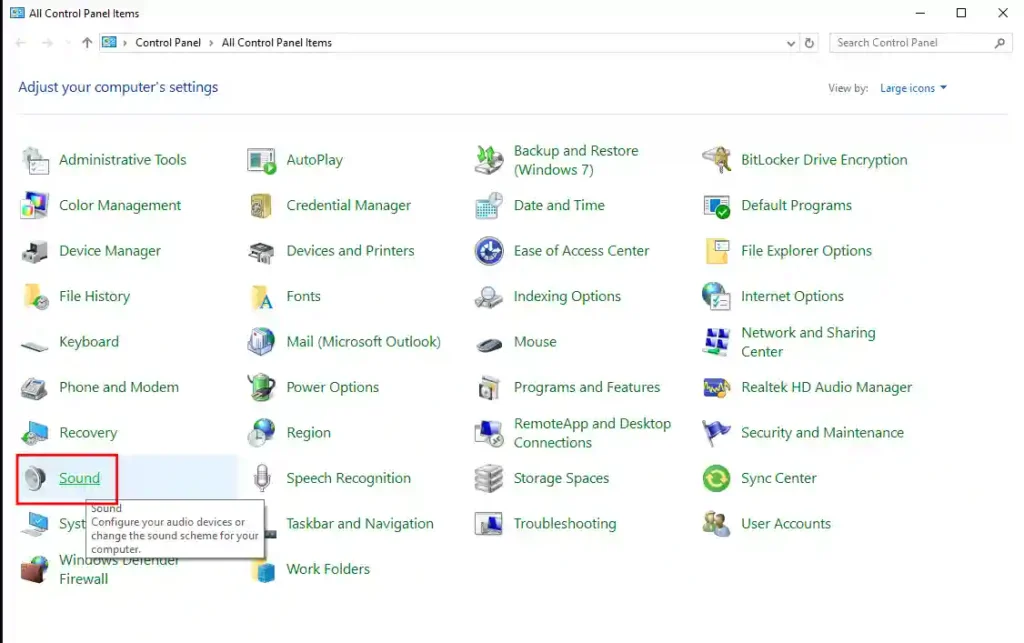
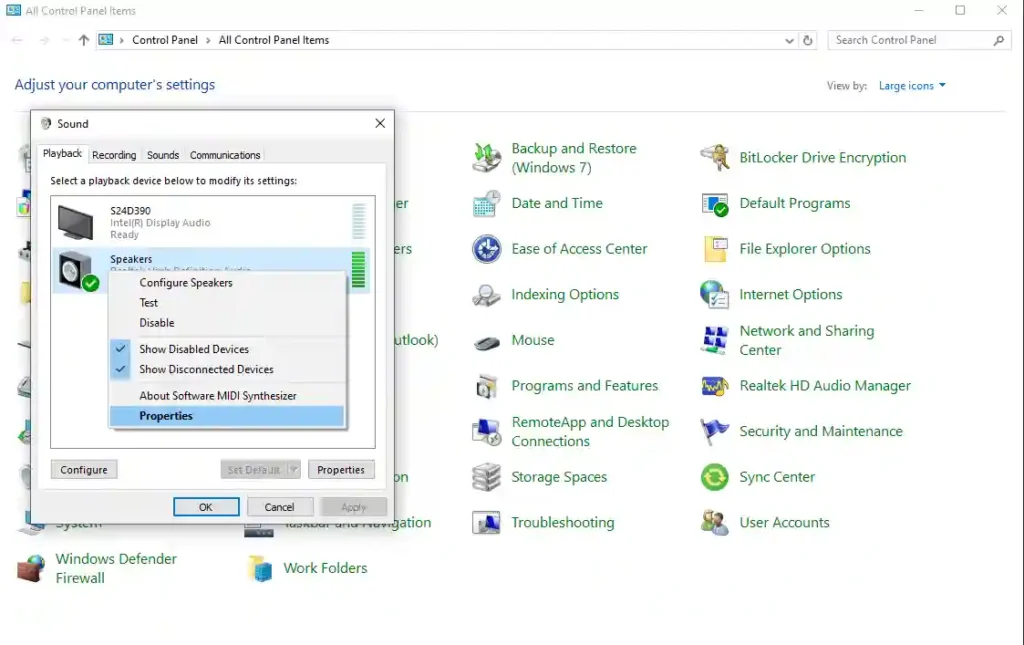
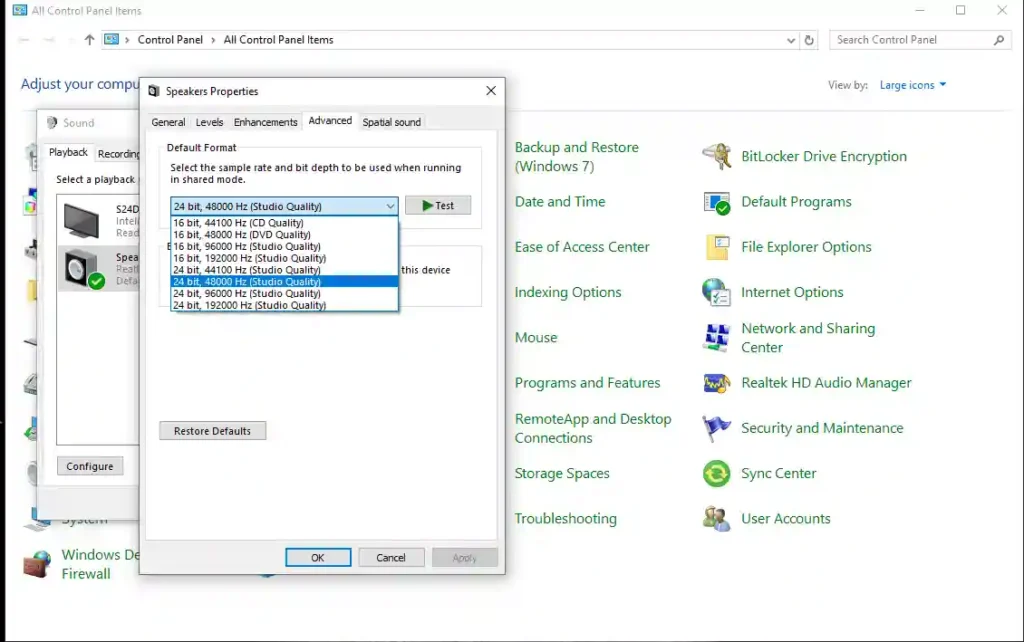
In Windows Control Panel follow this path: Hardware and Sound, Sound, your output device Properties, Advanced, test these one at a time (apply each, then relaunch the game):
- 24-bit 48,000 Hz
- 16-bit 48,000 Hz
- 24-bit 44,100 Hz
- 16-bit 44,100 Hz
This is a troubleshooting step rather than a widely confirmed fix. It may work anyway.
Disable Unused Audio Devices
In Windows Sound Control Panel, disable any virtual or unused playback devices so only your actual speakers or headset are active. Do the same in Device Manager under Sound, video and game controllers.
Disable Hands-Free Telephony
If you’re on Bluetooth or a similar device, open the device’s Properties then Services and uncheck Hands-Free Telephony, then relaunch the game. If it’s already off, try toggling it the other way as a test.
Check the Correct Windows Audio Device Through Game Bar
Press Windows + G, look at the currently selected speaker and microphone and make sure Windows or Game Bar is pointing at the devices you actually want to use.
Toggle Full-screenn and Windowed Mode
Switch the game’s Display Mode between Full-screen and Windowed and test the audio after each change.
Verify the Game Files
On Steam: right-click the game, go to Properties, Installed Files and Verify integrity of game files, then relaunch and test. This method has saved me many times.
The Witcher 3: Wild Hunt