

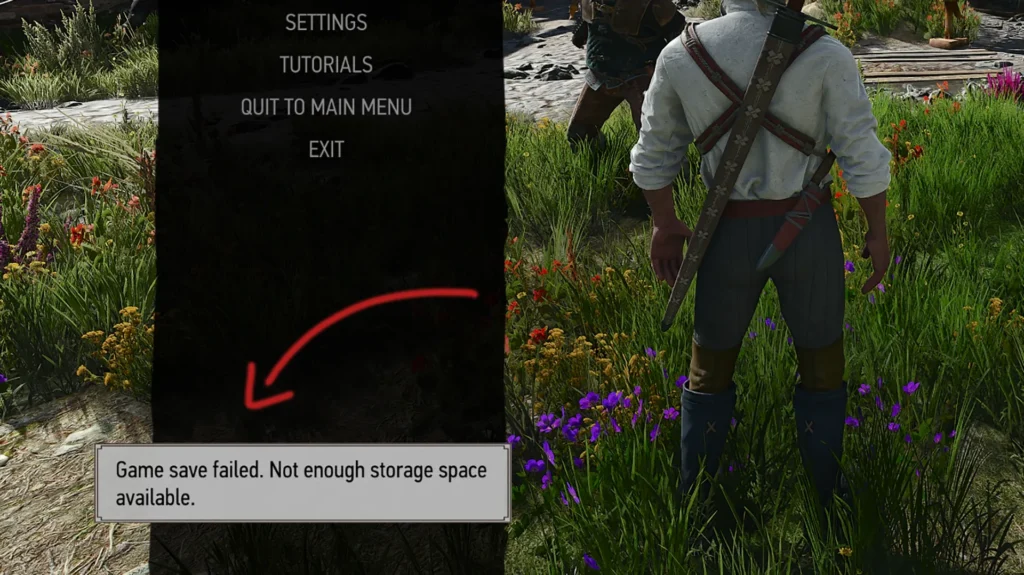
If, in The Witcher 3: Wild Hunt – Remastered, you encounter “Game save failed. Not enough storage space available.” every time you try to save your progress, or even lose graphics and gameplay settings after restarting the game, well, I have to break it to you: you aren’t alone.
CD Projekt Red released the Remastered version on September 29, 2026 and a lot of PC players, including me, are facing the same save problem. Let’s see what we can do about this.
Table of Contents
How to Fix “Game Save Failed: Not Enough Storage Space”
The problem appears to be related to the game being unable to properly write to the Windows Documents folder. Let’s see if we can somehow fix this problem in the meantime until CD Projekt Red releases their big bad hotfix, which I’m hoping is coming sooner rather than later.
Just keep in mind that these fixes might not work for everyone, but according to Steam discussions and Reddit, I’ve seen plenty of people get the problem fixed. Let’s begin.
Fix the Witcher 3 Remastered Documents and OneDrive Path
The most consistently reported fix that I’ve found is that you first have to check whether your Documents folder is being redirected through OneDrive. Take a look at this:
%USERPROFILE%\OneDrive\Documents
Change it to:
%USERPROFILE%\Documents
This has reportedly fixed saving and stopped graphics settings from resetting for some players. I have to reiterate: this might not work for everyone, but it’s still worth a try.
Before editing the Registry, there’s a safer option that might be worth trying. Microsoft lets you stop OneDrive from backing up Documents through OneDrive Settings > Sync and backup > Manage backup. Turn off Documents backup and choose Keep the files only on my PC.
Remove Accented or Non-Latin Characters from the Documents Path
UPDATE: One reader in the comments reported that a Polish Ł in the Windows profile path caused the issue even though the folder itself was writable. After changing to a path without the non-ASCII character, existing saves became accessible and saving started working again.
If the OneDrive method didn’t work out for you, it might be due to an accented character in the Windows username that causes the Documents path to fail with Remastered. The fix is pretty simple. If your path is as follows:
C:\Users\Renée\Documents
It could be changed or moved to a simpler path such as:
C:\Documents
The important part is removing accented or non-Latin characters from the Documents folder path. Needless to say, this is currently a community-confirmed workaround, not an official CD Projekt Red fix.
Allow Witcher 3 Through Controlled Folder Access
Another possible headache is Windows Security blocking witcher3.exe. The good news is it’s an easy fix.
Open Windows Security > Virus & threat protection > Protection History and check whether Witcher 3 has been blocked. Several players reported that allowing the game fixed saving.
If it’s there, just follow these steps:
Manage settings > Manage controlled folder access > Allow an app through Controlled folder access > Add an allowed app > Recently blocked apps.
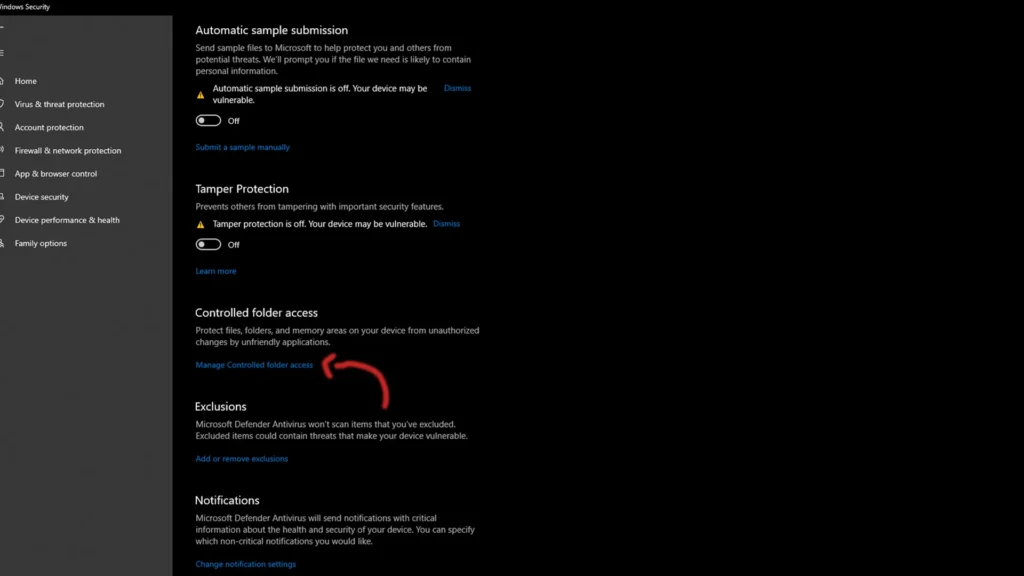
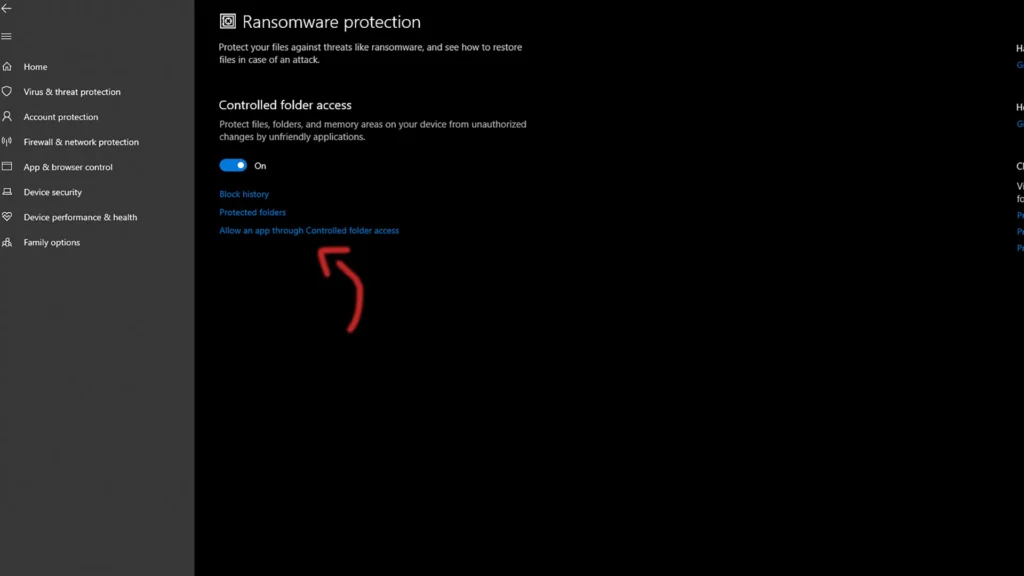
Select witcher3.exe. If it doesn’t appear there, choose Browse all apps and manually select witcher3.exe from your Witcher 3 installation folder. Then fully close and restart the game.
What If Witcher 3 Remastered Still Can’t Save?
For now, the best Witcher 3 Remastered save fixes are these three methods: check your Documents/OneDrive path, remove special characters from the folder path, and make sure witcher3.exe is allowed through Controlled Folder Access.
If combat also feels off after the Remastered update, I’ve also looked at the Dodge delay and unresponsive input problem.
These workarounds have helped some players, but none of them is guaranteed to fix the Game Save Failed issue for everyone. If you still can’t save after trying them, the problem may need an official fix from CD Projekt Red, so the next step is to wait for a patch or support update.
The Witcher 3: Wild Hunt


**Subject: The Witcher 3 Remastered 5.00 – Game Save Failed caused by non-ASCII Windows user path**
Hello,
I believe I have found a reproducible cause of the “Game save failed” problem in The Witcher 3: Wild Hunt Remastered (version 5.00) on PC/Steam.
My Windows user profile contains a Polish character (`Ł`) in the path:
`C:\Users\Łukasz\Documents\The Witcher 3\gamesaves`
The game could not create manual saves, quicksaves, or autosaves. I could manually copy files into the `gamesaves` folder using Windows Explorer, so the folder itself was writable.
I tried the usual troubleshooting steps, including:
* disabling Steam Cloud,
* checking Windows Defender / Controlled Folder Access,
* verifying the game files through Steam,
* allowing Steam to redownload a corrupted/missing file,
* recreating the `The Witcher 3` folder in Documents,
* testing with a clean configuration.
None of these fixed the problem.
After changing the Windows user/path so that the path no longer contains the non-ASCII character, my existing saves became accessible and the save problem changed/was resolved.
This strongly suggests that the Remastered 5.00 version may have a Unicode/non-ASCII path handling issue affecting game saves.
Please investigate this, especially for Windows installations where the user profile contains characters such as `Ł`, `ł`, `č`, `š`, etc.
I can provide save files, logs, screenshots, or other diagnostic information if needed.
Thank you.
Thanks for sharing. This is useful, since you tested the usual fixes first and you were still able to write files to the folder manually.
The non-ASCII character in the Windows user path does seem to line up with reports from other players, so I’ve included this as one of the possible workarounds in the guide. I’ll also update the article with your example because it may help players with characters like Ł in their Windows profile path.
Hopefully CD Projekt Red can confirm whether this is a path/Unicode issue and address it in a patch.