

If Palworld started stuttering after the 1.0 update, the most likely cause sits in one file: Engine.ini. By default, Palworld does not reserve enough VRAM for texture streaming, so the moment you move fast across the map, the engine dumps textures into system RAM and you feel it as a hard hitch. Fixing that streaming pool size clears up traversal stutter for most players in one pass.
Not every report matches that exact cause, though. Some players fixed it with a driver update, some with a simple FPS cap and a few had to dig into Windows settings before the game felt smooth again. Work through this guide in order.
What we cover:
Quick Fixes to Try First
Start here. These take under five minutes and clear the stutter for some players without touching Engine.ini at all.
- Verify the integrity of your game files through Steam. A corrupted file can cause stutter that looks like a hardware problem.
- Close the Epic Games Store and Windows Copilot before you launch. One player traced their stutter to these running in the background, even without Epic installed.
- Cap your max FPS instead of running uncapped. One player eliminated stutter at Ultra 4K DLSS Quality just by setting a 90 FPS limit. Uncapped frame rates can push your CPU into a bottleneck that shows up as stutter.
- Open Device Manager and disable “NVIDIA High Definition Audio” if you have an Nvidia card. It sounds unrelated to graphics, but a steam community thread traced random frame drops back to it conflicting with the game’s video output.
- If your save file is large, try spacing out your autosaves. This one comes from a single, secondhand report, so treat it as low priority.
Why Palworld Started Stuttering After 1.0
Palworld runs on Unreal Engine 5 and the update added more world detail without raising the default VRAM streaming pool to match. That mismatch is the root cause behind most traversal stutter. Players are also reporting stutter in a few specific spots that this one fix does not always clear up on its own.
| Where you feel it | What’s likely happening | Jump to |
|---|---|---|
| Moving fast across the map | Engine dumping textures to RAM, streaming pool too small | Engine.ini VRAM Fix |
| Near bases and settlements | Same cause, worse with more objects on screen | Engine.ini VRAM Fix |
| Loading into caves | Normal, brief load stutter | Trouble Spots |
| Combat, chests, inventory | Reported bug, cause unconfirmed | Trouble Spots |
| Aiming down sights while sprinting | GPU and CPU usage drop to 10 percent, reported bug | Trouble Spots |
Fix Traversal Stutter with an Engine.ini VRAM Tweak
This is the single most effective fix reported across our sources. It works by locking how much VRAM Palworld reserves for texture streaming, so the engine stops dumping data to system RAM mid-movement.
The Auto-Configurator Method (Fastest)
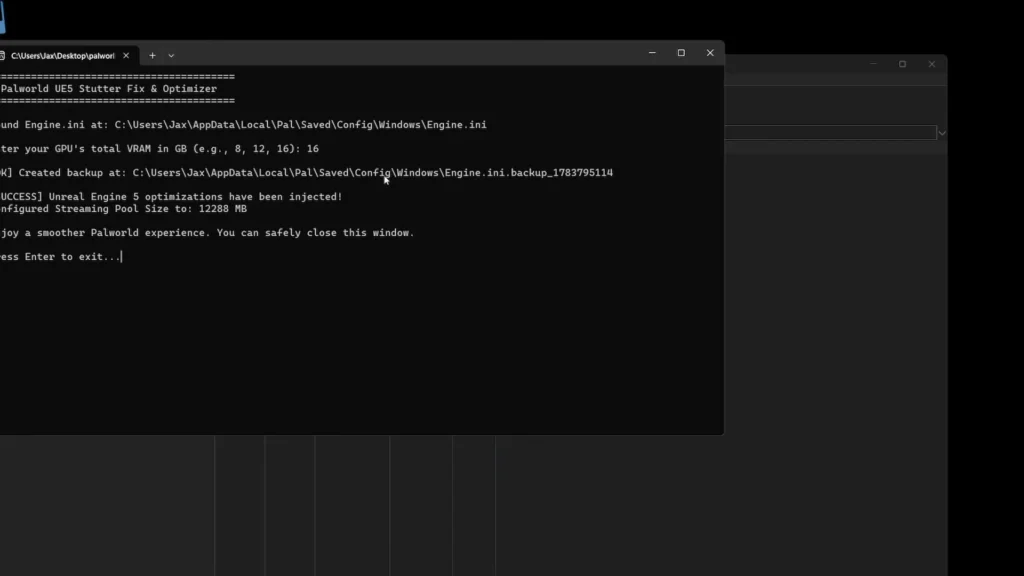
- Download the Auto-Configurator from the mod’s Files tab on Nexus Mods.
- Extract palworld_optimizer.exe to your desktop.
- Run the file. If Windows Defender flags it, that’s a known false positive. Nexus Mods security has already reviewed it.
- When prompted, type your GPU’s total VRAM (for example, 16 for a 16GB card) and press Enter.
- The tool backs up your existing Engine.ini automatically before making changes, so reverting later just means restoring that backup file.
The Manual Engine.ini Method
- Press Win + R, paste %LOCALAPPDATA%\Pal\Saved\Config\Windows, and press Enter.
- Open Engine.ini in Notepad.
- Scroll to the bottom and paste this block:
[/Script/Engine.RendererSettings]
r.Streaming.PoolSize=[YOUR VALUE]
r.Streaming.LimitPoolSizeToVRAM=1
r.bForceCPUAccessToGPUSkinWeights=True
r.GTSyncType=1
r.OneFrameThreadLag=1
r.ShadowQuality=3
r.Shadow.DistanceScale=1.0
r.ViewDistanceScale=1.5
r.TemporalAACurrentFrameWeight=0.2
r.TemporalAASamples=4
r.Tonemapper.Quality=1
r.SceneColorFringeQuality=0
r.DefaultFeature.MotionBlur=0
r.DepthOfFieldQuality=0- Replace r.Streaming.PoolSize with the number matching your VRAM:
| GPU VRAM | r.Streaming.PoolSize value |
|---|---|
| 6GB | 4608 |
| 8GB | 6144 |
| 10GB | 7680 |
| 12GB | 9216 |
| 16GB | 12288 |
| 20GB | 15360 |
| 24GB | 18432 |
- Save the file and launch the game.
One Reddit user reached a similar result with a different combination: r.Streaming.PoolSize=12288, r.Streaming.LimitPoolSizeToVRAM=1, r.Streaming.HLODStrategy=2, r.bForceCPUAccessToGPUSkinVerts=True, and r.GTSyncType=1, plus r.OneFrameThreadLag=1 and GSync set to application-controlled in Nvidia Control Panel with an unlimited in-game frame rate. That’s a separate tweak from the mod above, not the same file, so don’t mix the two. Pick one and test it on its own.
Other Community Stutter-Fix Mods Worth Trying
If the tweak above doesn’t fully solve it, two more Nexus Mods pages target the same problem. Hybred’s Stutter Fix drops in a preset Engine.ini and improves frametime consistency, with a tradeoff worth knowing: lower view distance in exchange for sharper textures up close. Xowny’s PW – Stuttering and Performance Fix aims to cut stutter without touching visual quality at all. Both are drop-in Engine.ini replacements, so back up your current file before testing either.
Best In-Game Graphics Settings for Palworld
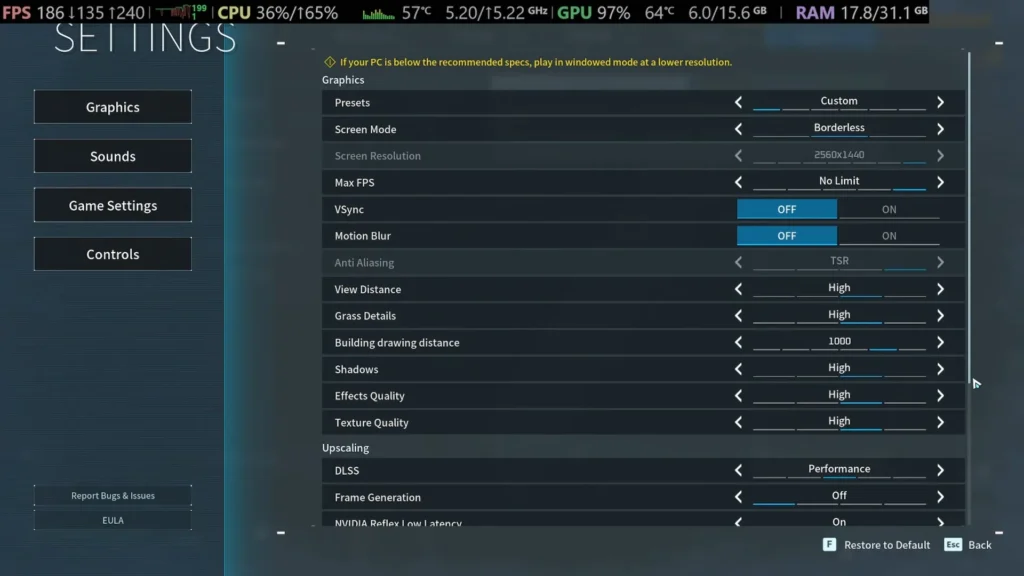
Once your Engine.ini is sorted, these settings squeeze out the rest of the stutter without hurting how the game looks.
| Setting | Recommended | Why |
|---|---|---|
| Screen Mode | Borderless (Windows 11) | No extra input lag versus fullscreen, and you can alt-tab freely |
| Motion Blur | Off | Adds nothing and costs frames for no reason |
| VSync | Off, unless you see tearing | Off means less input lag; only enable it if tearing bothers you |
| Max FPS | Cap it if you’re on a 60Hz monitor or an older PC, otherwise leave it uncapped | Capping protects hardware that’s prone to overheating chasing unneeded frames |
| View Distance, Building Draw Distance, Shadows, Effects | Medium | These four hit FPS the hardest and barely change how the game looks |
| Texture Quality | High | Barely affects frame rate on most GPUs |
The numbers back this up. One tester went from roughly 140 to 150 FPS on the Epic preset, jumped to about 197 FPS just from switching to High, and reached around 210 FPS after dropping View Distance, Building Draw Distance, Shadows and Effects to Medium while keeping textures on High.
On DirectX, older hardware, like a GTX 1660 or a 2000 series card on Windows 10, tends to run better on DirectX 11 with fewer features enabled. Newer hardware should default to DirectX 12, which is well optimized at this point. A steam community post named the “Direct12x” launch option specifically as a stutter cause at launch, which cuts against the general DX12 recommendation. If you’re unsure which applies to you, test both -dx11 and -dx12 through Steam’s launch options and keep whichever runs smoother on your rig.
DLSS, FSR, and Frame Generation Settings
Palworld natively ships with an older version of DLSS, somewhere around 2.0 or 3.0, which leaves performance on the table if you own newer hardware.
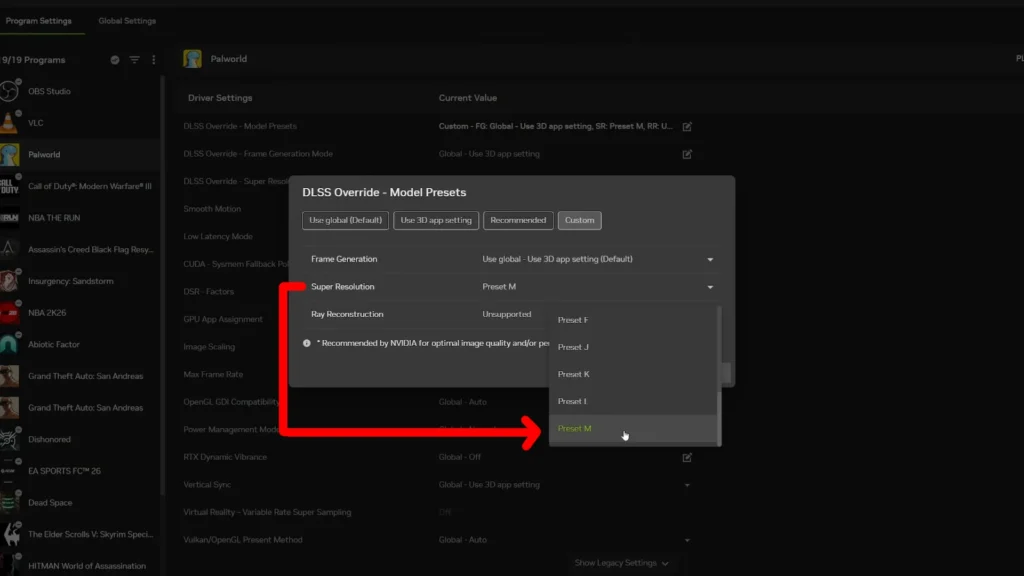
On an RTX 40 or 50 series card, force the newer DLSS 4.5 (Preset M) through the Nvidia App instead of the version built into the game:
- Open the Nvidia App and go to Graphics.
- Find Palworld in your list.
- Turn on DLSS Override.
- Under Super Resolution, scroll down and select Preset M.
- Apply the change. It takes effect in game right away.
On a 20 or 30 series card, skip the override and just balance Performance against Quality in the in-game DLSS menu.
If you’re on AMD, one reddit commenter recommends Optiscaler over the built-in TSR upscaler, citing roughly 30 extra frames and lower VRAM use. It defaults to FSR 2.0, though, so open the Optiscaler menu yourself and manually set both FSR4 and DLSS 3/4, or it won’t touch the newer versions at all.
Frame Generation is worth turning on if your base frame rate is already strong. One tester ran Frame Generation at 2x with a base frame rate near 99 FPS and reached about 230 FPS, with no noticeable jump in input lag, since the base rate was already high to begin with.
Windows and Driver-Level Fixes
If the game itself is tuned and you’re still stuttering, the problem may sit outside Palworld entirely.
- Update your GPU driver. Fresh Nvidia and AMD drivers often carry game-specific fixes.
- Set Palworld’s GPU preference to “High performance” in Windows Graphics Settings, under Add a desktop app.
- Turn on Hardware-Accelerated GPU Scheduling in Windows Display settings.
- Switch your Windows power plan to Ultimate Performance for a more aggressive profile during play.
- Turn off Enhanced Pointer Precision for steadier mouse response.
- In the Nvidia Control Panel, set Low Latency Mode and choose a performance-focused power management mode.
- Close background and startup apps you don’t need while gaming, and turn on Game Mode in Windows.
- Run Disk Cleanup and clear temporary files if your drive is cluttered.
- Turn off Sysmain if your whole system feels sluggish, not just Palworld.
- Make sure Windows itself is fully updated.
If the Stutter Still Won’t Go Away
A smaller group of players had to go further than settings and drivers. Work through these one at a time so you can actually tell what fixed it.
- Double check your PC meets Palworld’s system requirements on its Steam page.
- Allow the game through Windows Firewall, under Windows Security.
- Launch the game directly from its installation folder instead of a shortcut.
- Right-click the game, open Properties, then Compatibility, and run it as administrator.
- If that doesn’t help, try compatibility mode for Windows 8 or Windows 7 from the same tab.
- Disable fullscreen optimizations from that same Compatibility tab.
- In Steam, add -dx11 or -dx12 to the game’s launch options and test each one.
- Close third-party overlay apps like Nvidia ShadowPlay and MSI Afterburner. Then check the built-in overlays too, each with its own toggle:
- Steam: Settings > In-Game > Enable Steam Overlay
- GeForce Experience: gear icon > General > in-game overlay
- Discord: User Settings > Game Overlay
- Repair the Visual C++ Redistributable through its installer.
- Move the game’s installation to an SSD if it’s currently on a hard drive.
- Adjust virtual memory manually: Advanced System Settings, Performance Options, Advanced, Change, then set a custom size with 128 as the initial size and 24576 as the maximum.
- As a test, turn multiplayer off entirely from Palpagos Island, Change World Settings, to see if the stutter is tied to networking at all.
- If nothing else works, uninstall and reinstall Palworld as a last resort.
Trouble Spots (Bases – Caves – Combat)
There are a few extra reports worth knowing, even if they’re minor. Settlements and bases stutter more than the open world, even after the Engine.ini fix. Structure count feeds into that. If you are thinking about vertical farming to tidy up a crowded base, our plantation stacking guide covers which method leaves a permanent object under every plot and which one leaves nothing behind. Cave loads cause a brief, expected frame dip that clears in a few seconds. Combat can trigger it too: opening chests, killing an NPC, using certain abilities and opening your inventory have all been reported. Aiming down sights while sprinting can drop GPU and CPU usage to around 10 percent, with no fix yet. Avoid doing both at once if you hit it. Some AMD 9070 and 9070 XT owners report worse stutter than Nvidia users on similar hardware, though it’s not confirmed as AMD-only.
This guide is built from real player reports from Steam Community and Reddit threads, several Nexus Mods pages, and hands-on video walkthroughs testing these fixes directly. There’s no official Pocketpair patch note covering this yet, so treat everything above as community-tested rather than developer-confirmed and expect this list to change as new patches land.






Have you ever thought about including a little bit more than just your articles?
I mean, what you say is valuable and everything.
But imagine if you added some great graphics or videos to give
your posts more, “pop”! Your content is excellent but with pics
and video clips, this website could undeniably be one of the most beneficial in its niche.
Amazing blog!
Thanks a lot for the kind words and the great suggestion!
We’re definitely planning to add more visuals to the guides soon. Appreciate the support!