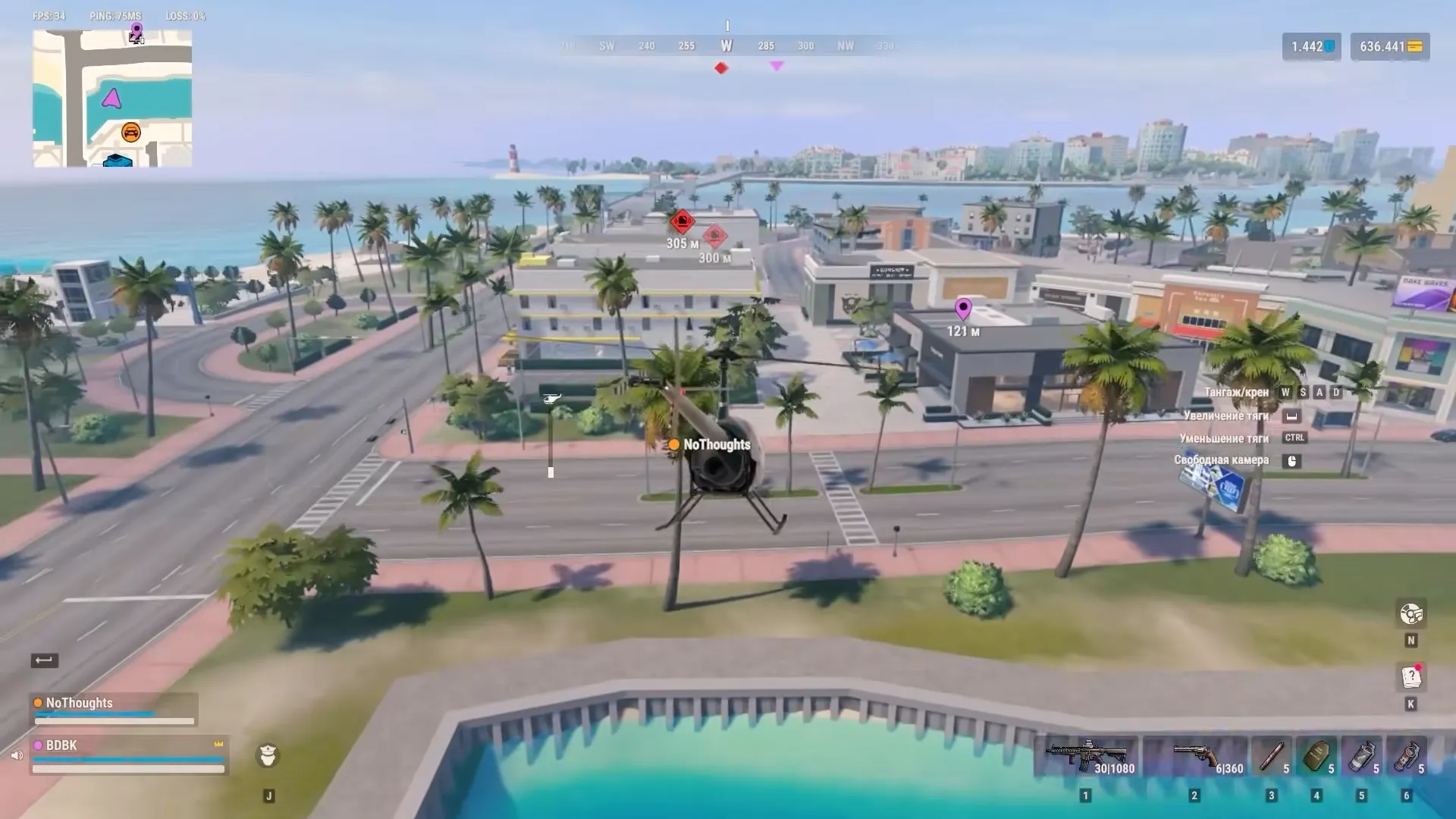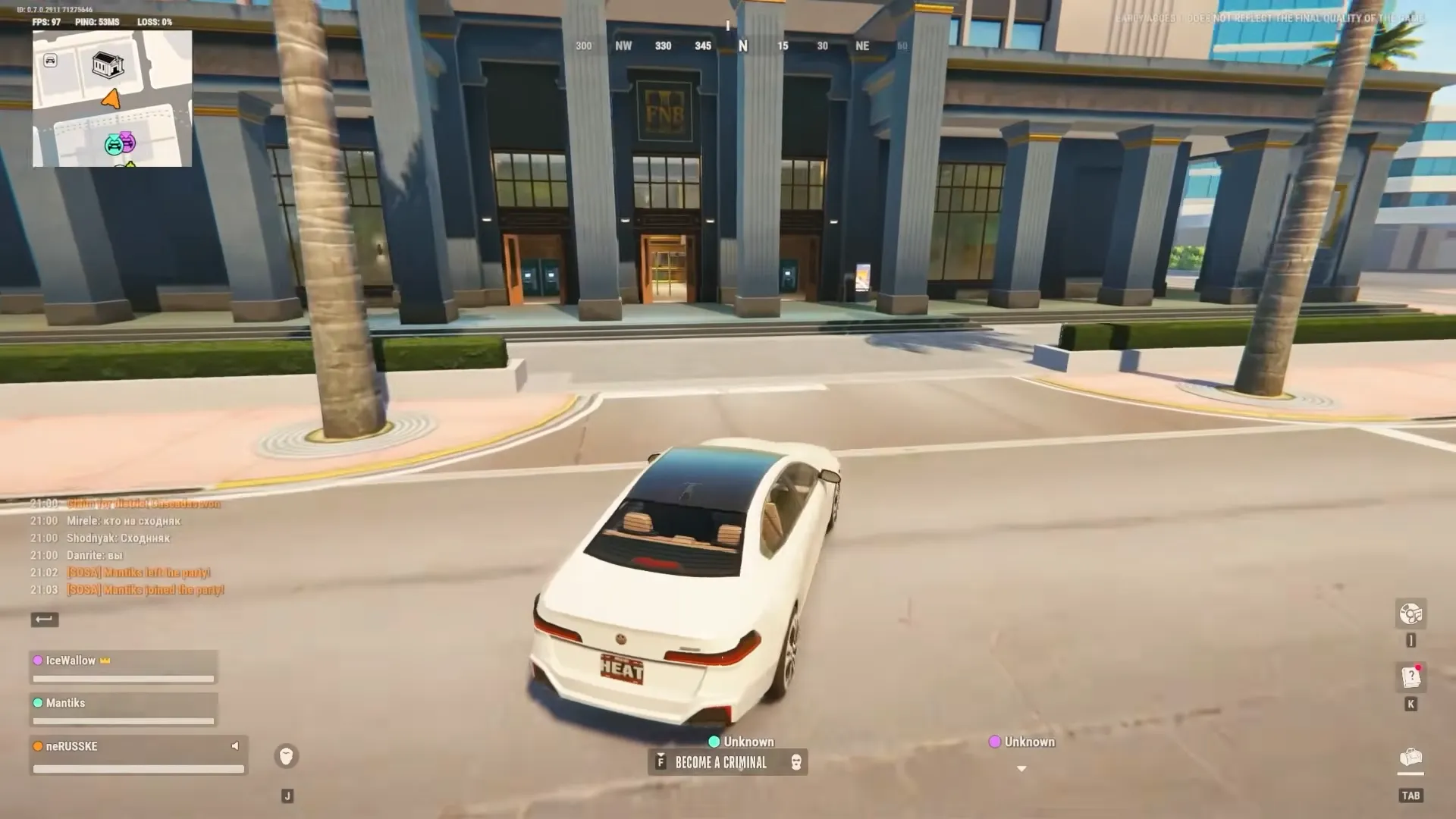


ROB RUN voice chat is built into the game, so you don’t need Discord to talk to the people around you. When it breaks, though, it’s not always your mic. Since the November 17 patch, some characters can’t talk in the Prison or at Lenny’s Motel at all. Below I cover setup first, then what to do when your voice just won’t come through.
How to Use Voice Chat in ROB RUN
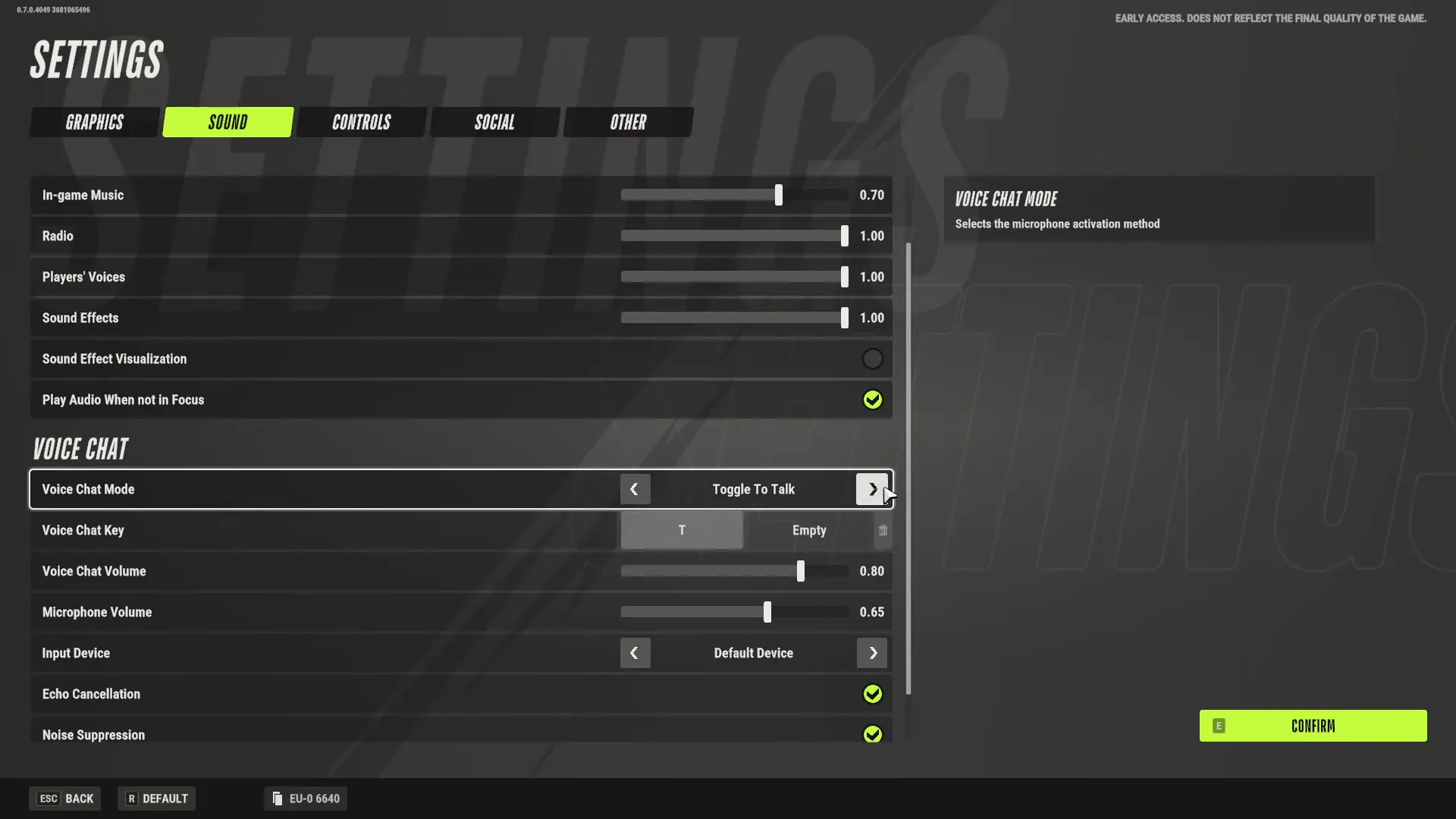
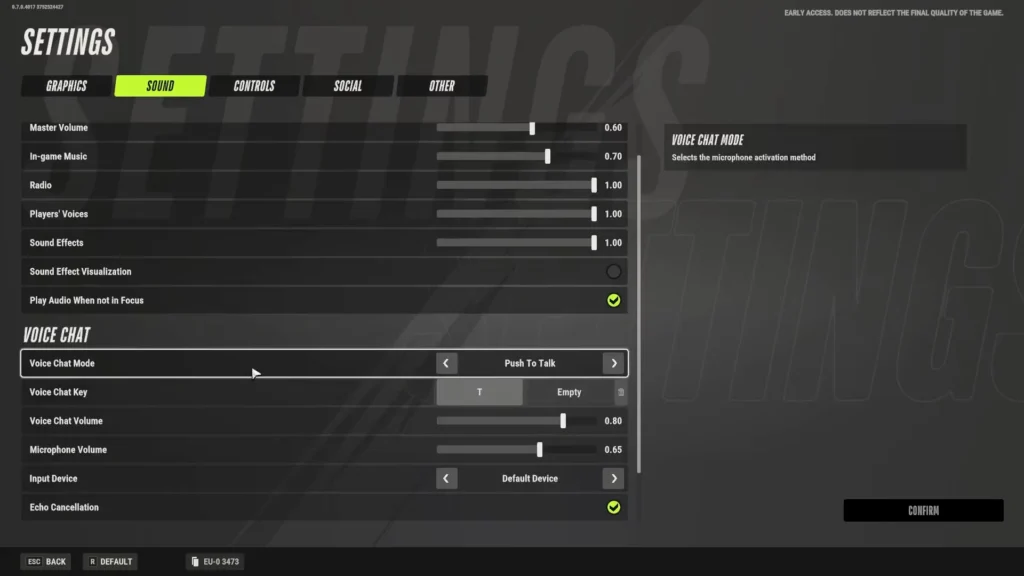
Open Settings → Sound → Voice Chat. First, pick the mic you actually use under Input Device. Then choose how your mic turns on. With Push To Talk, you hold the Voice Chat Key while you speak. With Always On, the game sends your voice without you pressing anything. Click Confirm after you change something, or the change will be discarded.
The voice key is T by default. Still, check the Voice Chat Key row before you blame your mic, because it might have been changed. The other way to access the binding is Esc → Settings → Controls → Key Bindings, so look there if you can’t find it.
Keep in mind that Always On only changes how your mic turns on. It doesn’t change who hears you.
Why Can’t You Talk at Lenny’s Motel or in Prison?
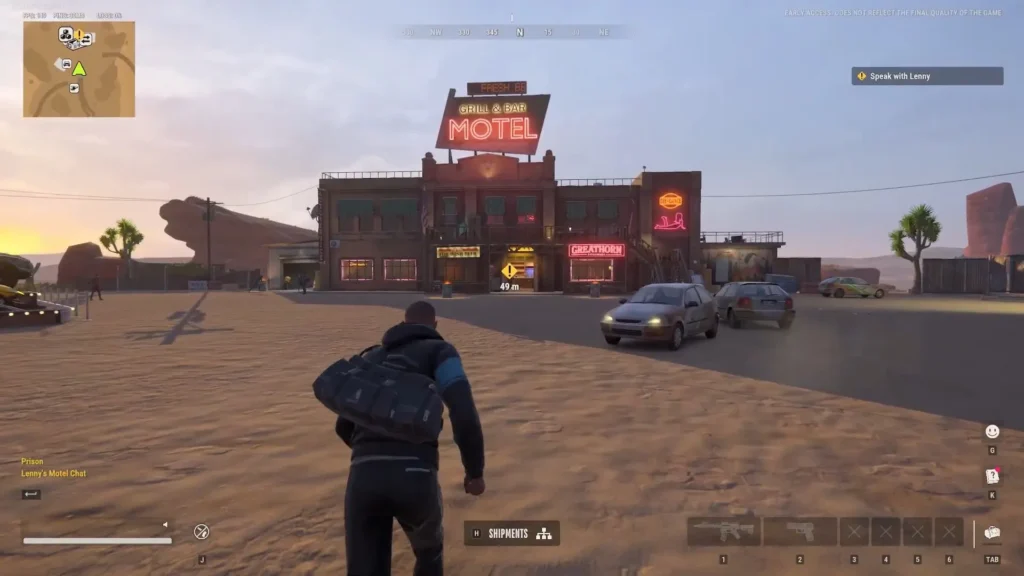
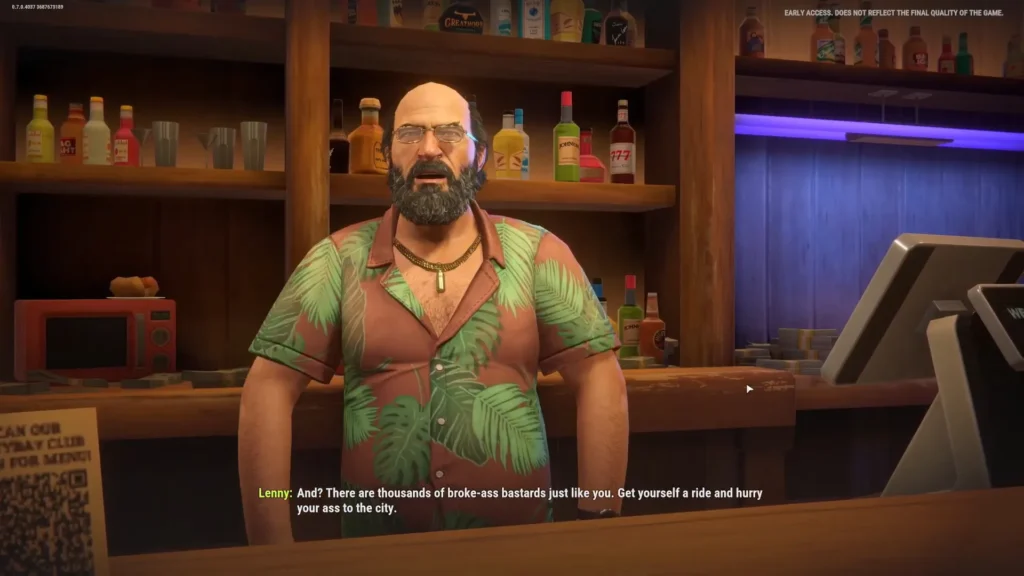
If you cannot talk in Lenny’s Motel or in Prison, it isn’t a bug so don’t worry. The November 17 patch blocked voice chat in the Prison and at Lenny’s Motel for characters who don’t own a land plot or haven’t built up any Jail Time yet.
The quick test is to walk outside with the same settings and try again. If people can hear you out there but not inside, your PC is fine and it’s your character that’s locked. Having either of them unlocks the voice chat in Lenny’s Motel and Prison.
Players weren’t happy about this change, by the way, many of them said it made it harder to join in at those spots. Also, voice chat was already breaking for people on November 10 and 11, a week before this rule existed. So if your voice is dead everywhere, the restriction isn’t your problem. Keep reading.
How to Fix ROB RUN Voice Chat Not Working
Find your symptom first, so you don’t spend an hour fiddling with mic settings that were never the problem.
| What’s happening | Where to go |
| You hear others, but nobody hears you | You Can Hear Others, but They Cannot Hear You |
| Voice icon keeps spinning, no sound either way | The Voice Icon Keeps Loading |
| You can’t hear anyone, but the icon looks normal | Check Voice Chat Volume and Output Device in the Voice Chat settings |
| It only fails at Lenny’s Motel or in Prison | The restriction section above |
| Nothing above helped | Restart through Steam, then check your connection |
You Can Hear Others, but They Cannot Hear You
This is one of the most common complaints on Steam. Several players could hear everyone around them while nobody heard them back.
Start in the game. Make sure Input Device is set to your real mic and not your webcam or a headset you unplugged, and that Microphone Volume isn’t turned all the way down.
Then check that Windows can hear you. Go to Settings → System → Sound → Input, pick your mic, and click Start test. If nothing registers while you talk, the problem is your mic or Windows, not ROB RUN.
Next, go to Settings → Privacy & security → Microphone and turn on Microphone access, Let apps access your microphone, and Let desktop apps access your microphone. ROB RUN is a desktop app, so don’t worry if it doesn’t show up by name in the list. The desktop apps toggle is the one that counts.
If the Windows test works, the permissions are on, and the game has the right mic selected, your mic is fine. Move on to the restart and connection steps below.
The Voice Icon Keeps Loading
This is a different problem. A bunch of players on Steam reported a little circle spinning next to the speaker icon forever. While it spins, you can’t hear anyone and nobody hears you.
What this means for you is that changing your mic settings won’t help here. One player said it started working after they turned off their startup apps, restarted, opened Steam and ROB RUN first, and only launched Discord afterward. Another player tried the same thing and it didn’t work. It’s worth one try, but don’t count on it. Go to the restart and connection steps below instead.
Restart Through Steam and Verify the Game Files
Kefir’s own fix list says to restart the game, launch it through Steam, and verify your files. Here’s the order I’d do it in:
- Close ROB RUN completely.
- In your Steam Library, right-click ROB RUN and choose Properties.
- Go to Installed Files and click Verify integrity of game files.
- When it’s done, launch the game from your Steam Library, not a desktop shortcut.
Check Your Connection and Interfering Software
Kefir also says to make sure your internet is stable, turn off third-party software that might mess with your connection, and add ROB RUN to your antivirus and firewall exception lists. Just add the exception for the game. You don’t need to turn your antivirus off.
Can Nearby Players Hear Your Voice Chat?
Yes, assume they can. ROB RUN uses proximity chat. A Reddit player called it one of the game’s main draws, and a Steam player asked for a police radio because criminals standing nearby can overhear the cops.
Nobody has confirmed how far your voice carries, whether walls block it, or whether party chat is private. So if you’re planning a robbery with Always On, everyone nearby might hear the whole plan.
What to Do if ROB RUN Voice Chat Still Does Not Work
If nothing worked, contact Kefir through the ROB RUN Help Center. It lists the game’s support channel and official communities. Your report will get fixed faster if you include:
- Whether you can hear other players.
- Whether the voice icon is stuck on the loading circle.
- Where it happens (everywhere, or only at Lenny’s Motel or in Prison).
- Whether the Windows mic test picks up your voice.
- Any exact error text, plus everything you’ve already tried.