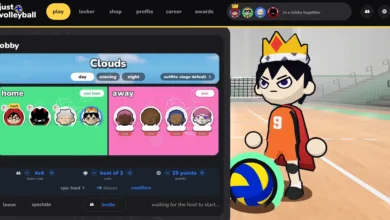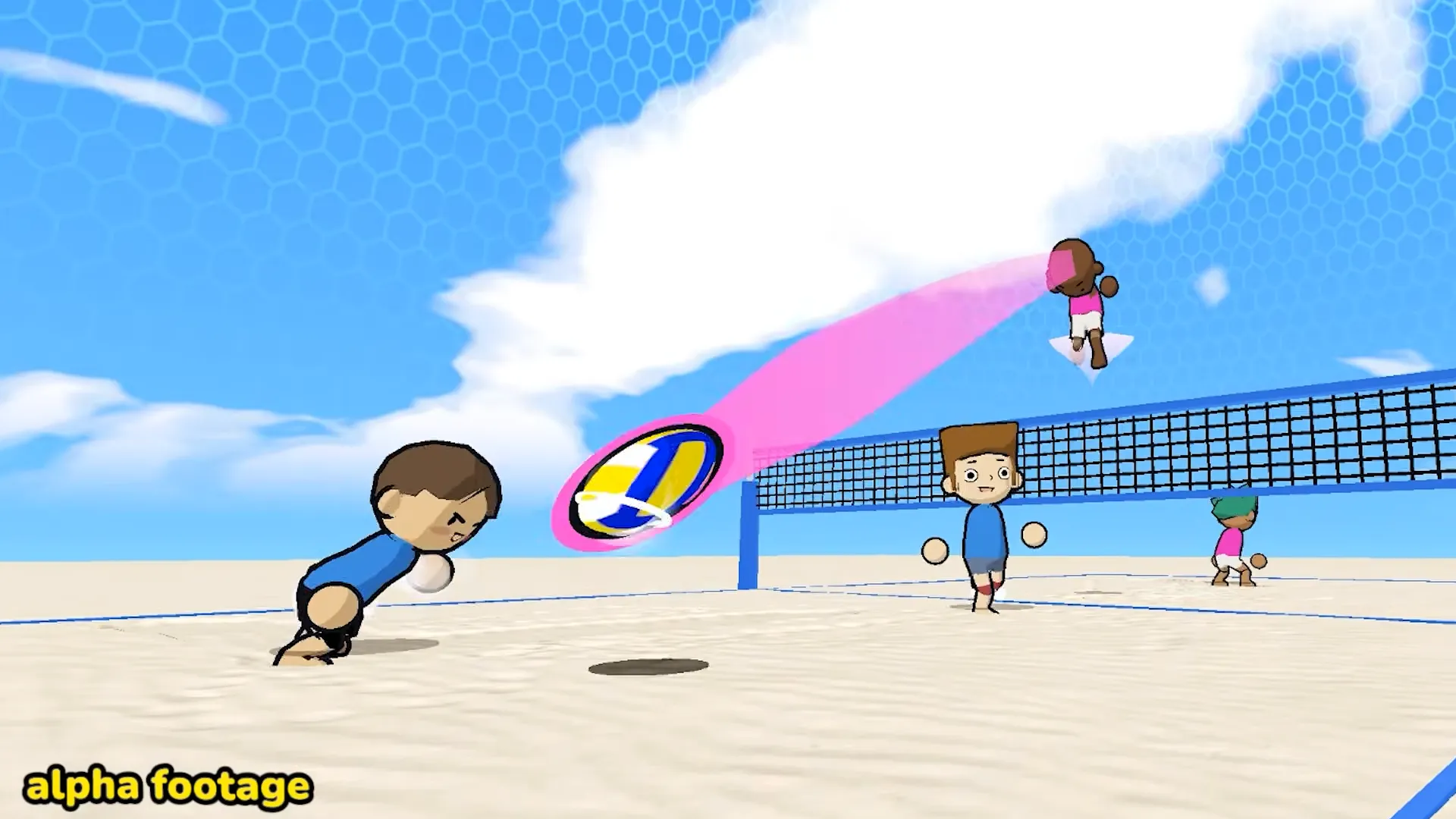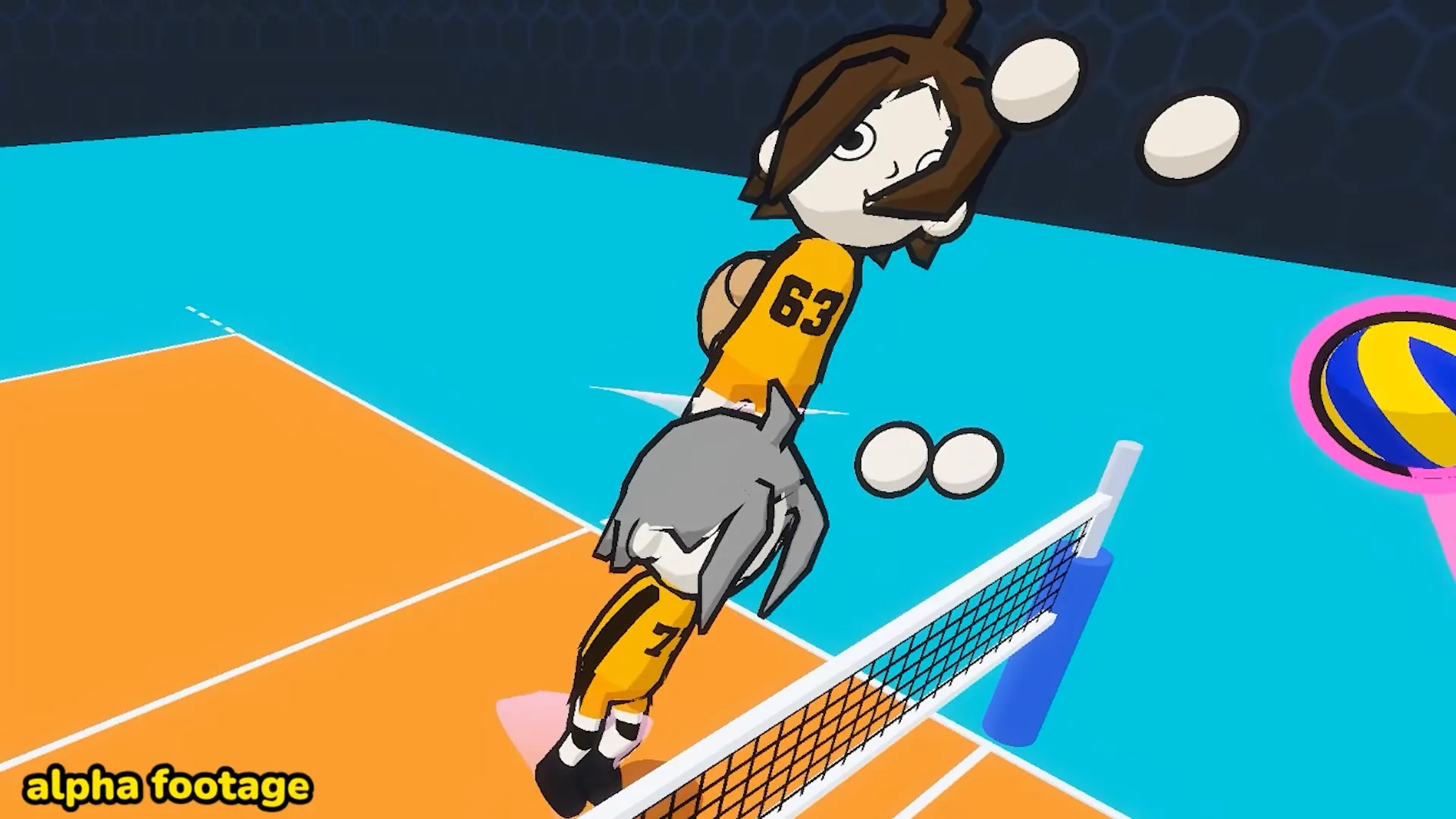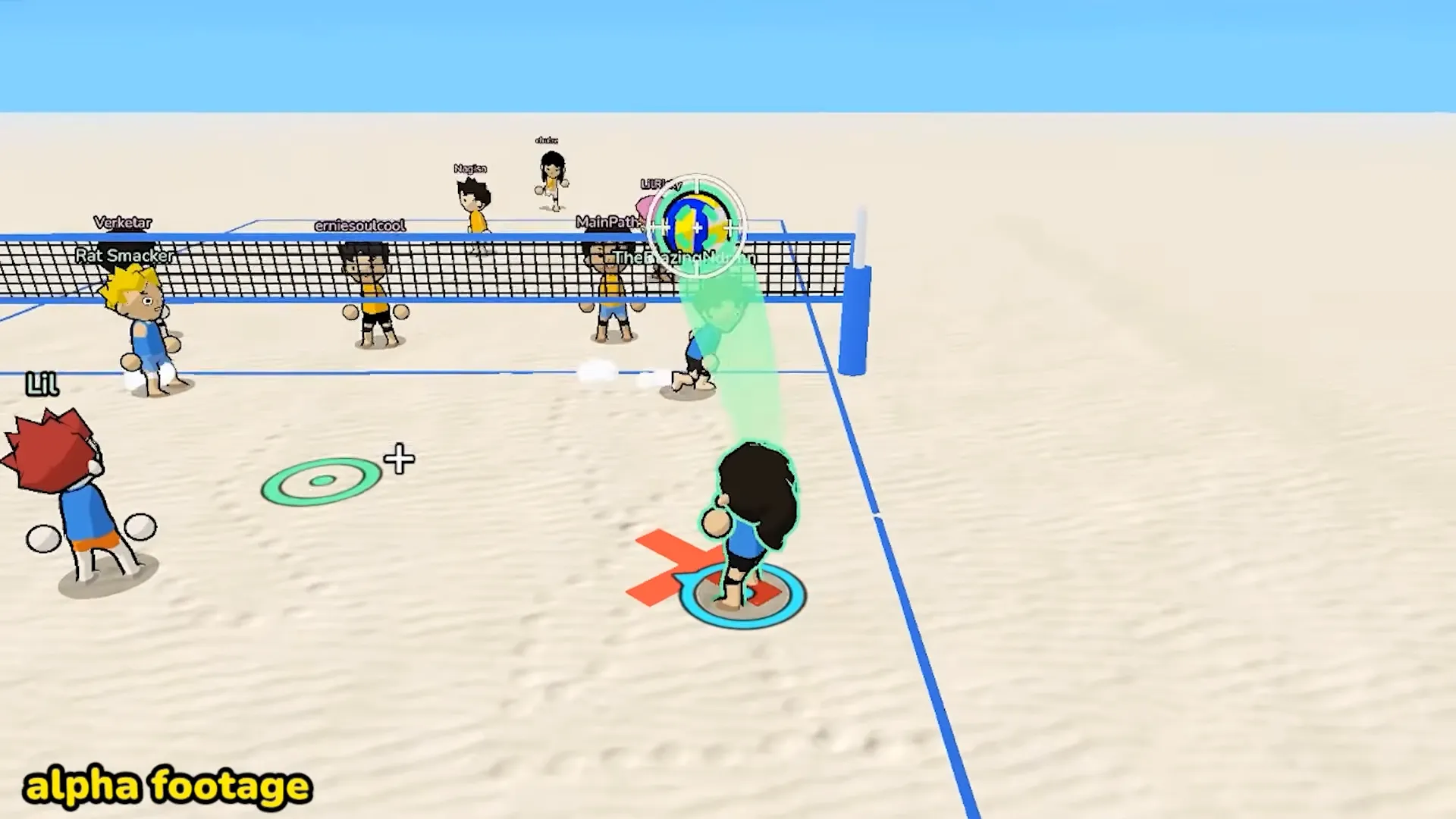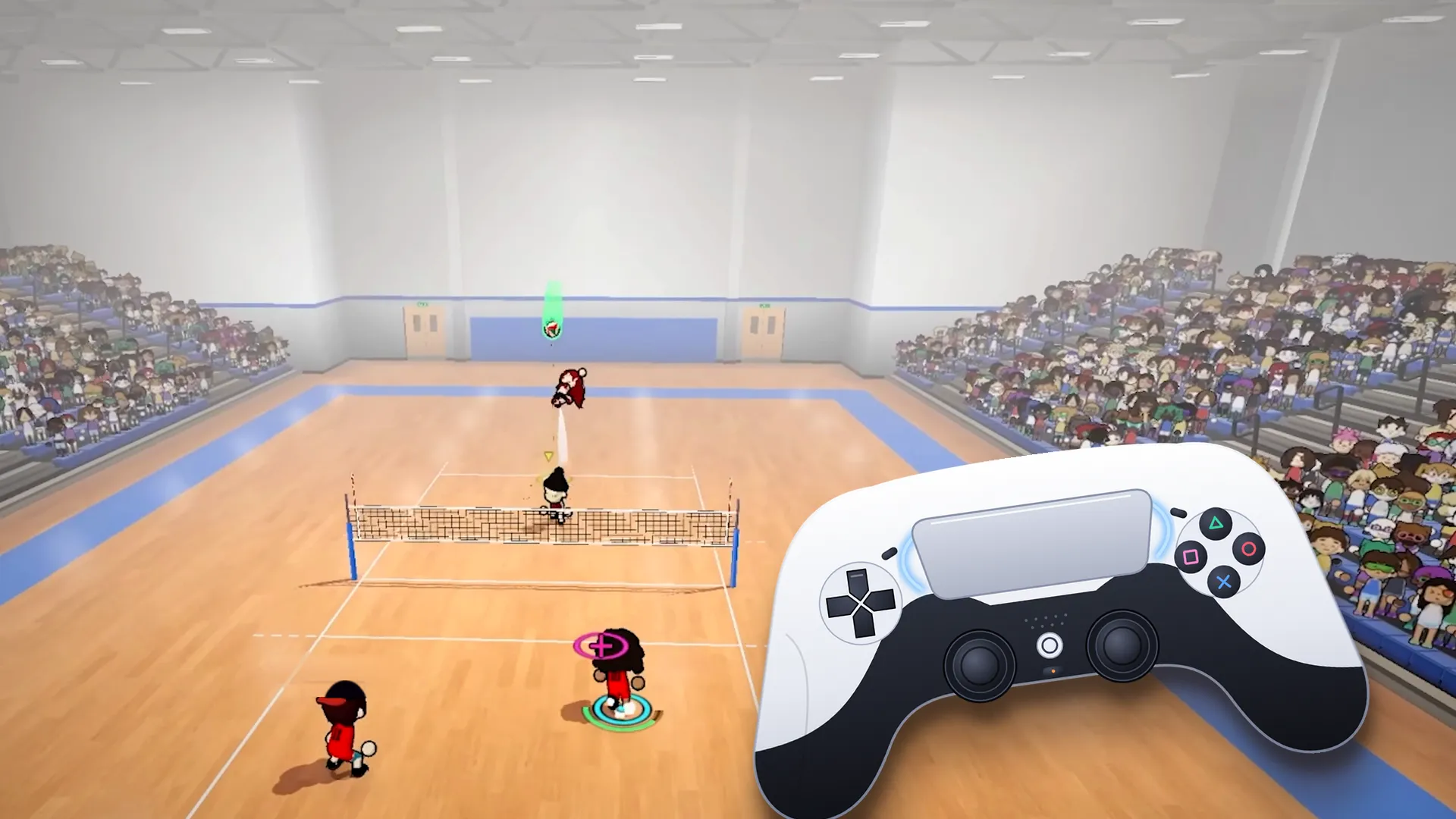


Yes, you can play Just Volleyball with a controller on PC. It broke on launch day. The controller fixes update restored it on November 16. If it is not working, restart Steam. Once your pad responds, the left stick moves your player and the right stick aims, and the first change worth making is moving Set to RB / R1.
In This Article:
Does Just Volleyball Have Controller Support?
Just Volleyball controller support is listed on Steam as Partial Controller Support, with Steam Input support on top. Xbox and PlayStation controllers both work, and some players use a Steam Controller with custom layouts.
“Partial” is the key word. It doesn’t promise that every controller or setup works the same way.
The launch-day problem is fixed. temkosoft had disabled some features to pass Steam review and forgot to turn them back on until the Controller fixes update. If you’re new to the game, start with our How to Play Just Volleyball guide.
Just Volleyball Controller Layout for Xbox and PlayStation
These are the documented default buttons for Xbox and PlayStation.
| Action | Xbox | PlayStation |
|---|---|---|
| Move | Left stick | Left stick |
| Aim | Right stick | Right stick |
| Jump | A | Cross |
| Hit / Receive / Spike | RT | R2 |
| Set | X | Square |
| Dive / Block | B | Circle |
| Serve | Y | Triangle |
| Strafe | LT | L2 |
| Sprint | LB | L1 |
| Aim Assist / Recenter | RB | R1 |
| Camera | R3 | R3 |
| Zoom | L3 | L3 |
| Scoreboard | View | Share |
This layout comes from the pre-launch control list and player reports. The game had updates since launch, so check Controller Config before you remap anything.
Just Volleyball Controller Not Working? Try This
- Update Just Volleyball to the latest version on Steam.
- Close Steam completely, including the icon in your system tray, then open it again.
- Open Controller Config in the game and check that your controller responds.
- Test Jump, Hit / Receive, Set and Dive / Block in a local match before you go online.
Best Controller Settings for Just Volleyball
Keep Your Right Thumb on the Aim Stick
The right stick does all your aiming. Each time your thumb moves to A, B, X or Y, you lose aim for that moment. This hurts most when you hold a button to charge a set or a jump, because you often want to adjust your aim while it charges.
The fix is to put your most-used actions on the bumpers and triggers.
A Controller Remap That Works
Players who stayed on controller made similar changes:
- Set > RB / R1. This is the most common tip. It swaps Set with Aim Assist / Recenter, so you can set without lifting your thumb off the right stick.
- Jump > a trigger or bumper. One Steam Controller player uses LT for Jump. Another moved Set, Jump, Spike and Strafe to the shoulders and triggers.
- Dive / Block > keep it on B or move it to L3. Dive aims itself, so a quick thumb move costs you less here.
- Stick sensitivity > higher. Players say the default is too slow for quick aim changes.
With all four main actions moved, your right thumb only leaves the stick when you dive.
L3 and R3 only handle the camera and zoom by default. If you rarely touch the camera, they make good spare buttons because you press them without lifting your thumbs.
Aim Assist and Camera Options
RB / R1 is Aim Assist / Recenter by default.
If right-stick aim feels hard, try the Aim Assist modes before you switch to a mouse.
Camera choice splits players. One controller player found right-stick aiming much easier in the first-person camera. Another plays first-person on controller because it’s more fun!
Advanced Sets and Serves on Controller
Advanced moves use the same buttons. How long you hold them and where you aim change the result.
| Move | Controller input (Xbox / PlayStation) |
|---|---|
| Charged set | Hold Set (X / Square). Aimed close to you, the set goes higher. Aimed far away, it goes faster and flatter. |
| Jump set | Hold Set, press Jump (A / Cross), then release Set in the air. |
| Setter dump | In the air, hold forward on the left stick and hold Set. The meter turns purple. |
| Super Power Serve | Wait for the toss to peak, then Sprint (LB / L1) and charge a Jump. Hold forward on the left stick and release Hit (RT / R2) near the top of your jump. |
| Curve serve | Hold left or right on the left stick when you hit in midair. |
| Float serve | Hold back on the left stick when you hit. |
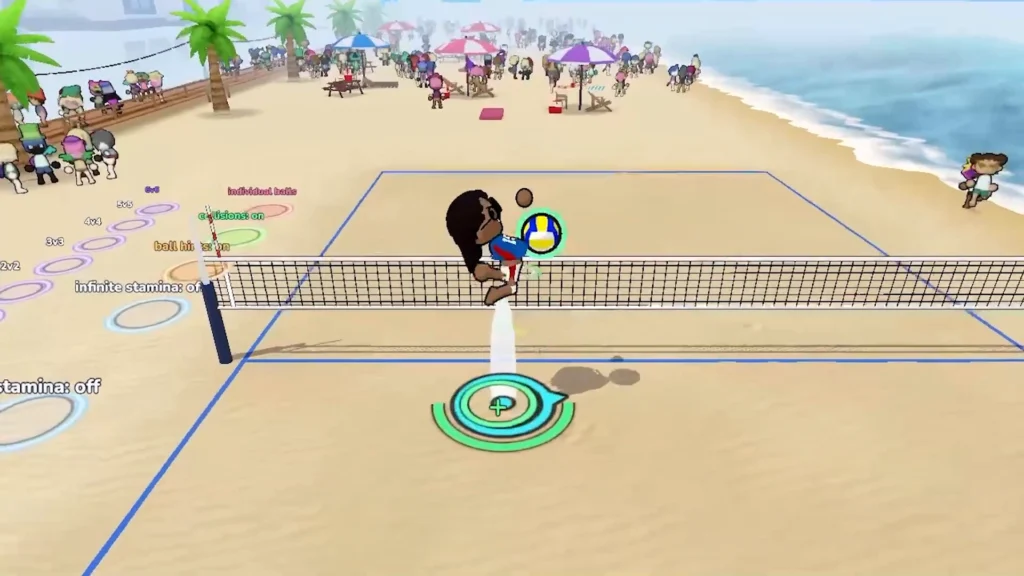
Some players call the Super Power Serve the nuke serve. It lands shorter than you’d expect, so aim deep or it can hit the net.
Should You Use a Controller or Mouse and Keyboard?
Mouse and keyboard is the better pick for fast, precise aim. Most players who tried both say they change their aim quicker with a mouse.
Stay on controller if it feels more natural to you. Put your main actions on the bumpers and triggers, and raise stick sensitivity.
How to Play Local Multiplayer With Two Controllers
Just Volleyball supports split screen, so two players can share one PC, even in online matches. Join the second controller as P2 first, or both controllers can end up moving the same menu cursor:
- Connect both controllers.
- Open Controller Config before you pick teams.
- Press the join button on the second controller to join as P2. On an Xbox controller, it’s A.
- Pick teams and start the match.
For more ways to team up, see our Just Volleyball team guide.
Steam Deck, Gyro and Touchpad Tips
Steam lists Just Volleyball’s Steam Deck compatibility as Unknown, and there are no Steam Deck play reports yet. One player says it runs well on an Ayn Odin 3 with SteamOS, but that’s a different handheld.
On Steam Deck or a Steam Controller, move your main actions from A, B, X and Y to the back buttons. The touchpad works as a joystick in this game by default.
Gyro aim needs work. It’s unreliable, and the game swaps to PC button icons when you use gyro as a mouse.
Just Volleyball Controller FAQ
Is there a Just Volleyball mobile version or controller APK?
Just Volleyball is a Windows PC game on Steam. No official mobile version has been announced.
Is Just Volleyball on PS5, Switch or Mac?
No official version has been announced. Steam lists Windows only, and temkosoft hasn’t answered player questions about Switch or Mac yet. You can still play on PC with a PlayStation controller.