

Planet Zoo 2 is the awaited new game from Frontier Developments, the sequel to Planet Zoo 1, that just came out on October 13th. While many players are happy with the release and enjoying the game, some are facing issues with the game getting stuck on the loading screen. Let’s go over a list of fixes for this problem, from official solutions to our team’s tips and tricks for fixing the game.
All the ways you can fix your problem:
Official Frontier Solutions
Let’s go over some officially covered solutions first.
Check System Requirements
Check the official game page on Steam and see if you match the base required PC stats. If not, you now know where the problem lies. Also keep in mind that the developers of the game have mentioned that Windows 10 is not supported by this game, and any problem that happens on this Windows version won’t be covered by customer support.
Verify Your Game Files
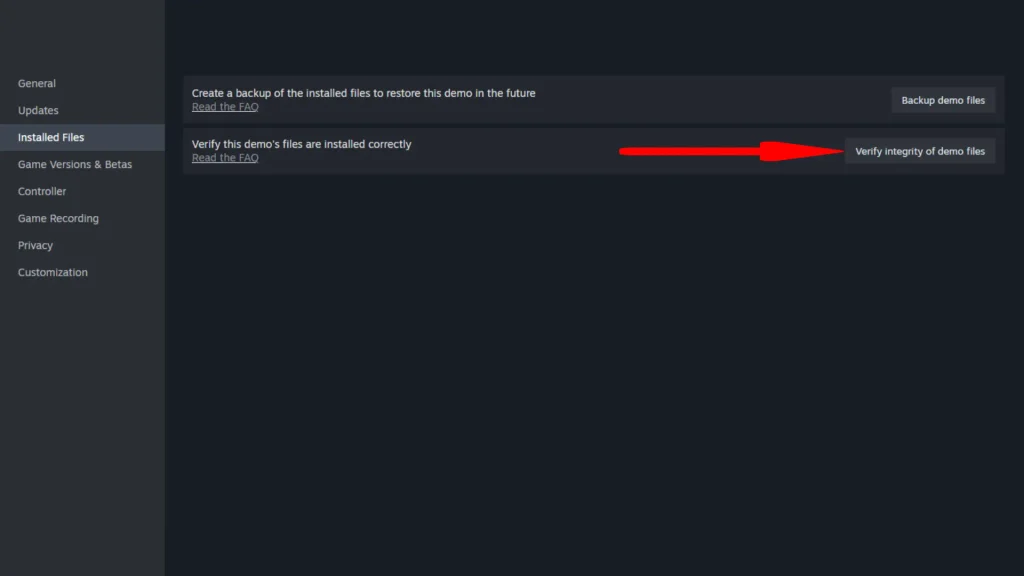
If you have Windows 11 and you meet the system requirements, go to your Steam library, find the game, and right-click on it; go to Properties. On the Installed Files page, click on Verify integrity of game files and see if your files are intact and complete. This is one of the official solutions offered by the developers.
Update Your Graphic Card Driver
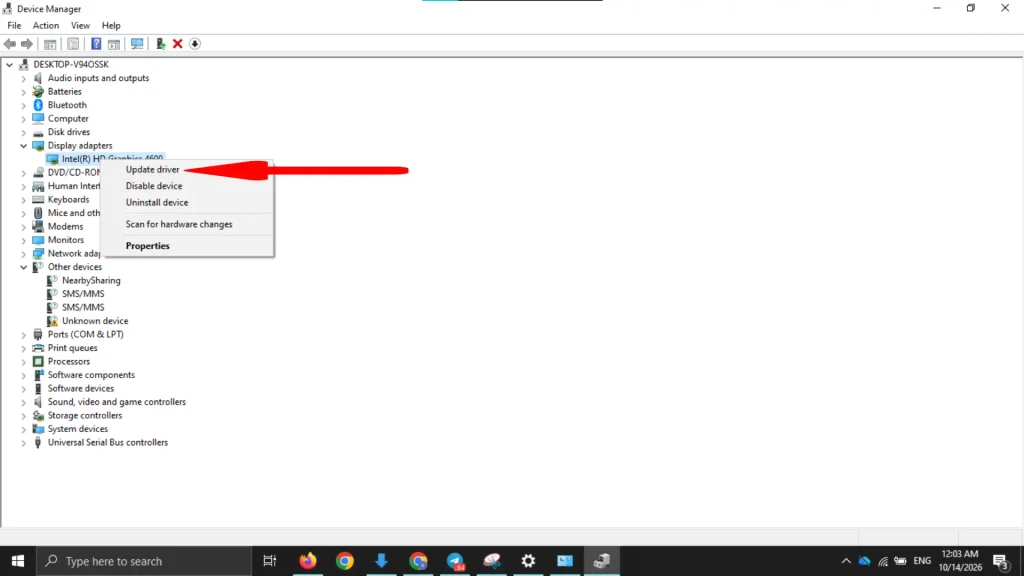
The issue might be a result of an outdated graphics card driver. You can go to Device Manager, find your graphics card, right-click on it, and select the “Update Driver” option. Another official solution offered by the devs.
If you want an easier way to update your drivers for AMD or NVIDIA, follow these steps:
NVIDIA Drivers
For NVIDIA drivers, it’s best to go to the NVIDIA app, which you can download from the NVIDIA website itself. The app will automatically recognize your driver and look for suitable updates for it.
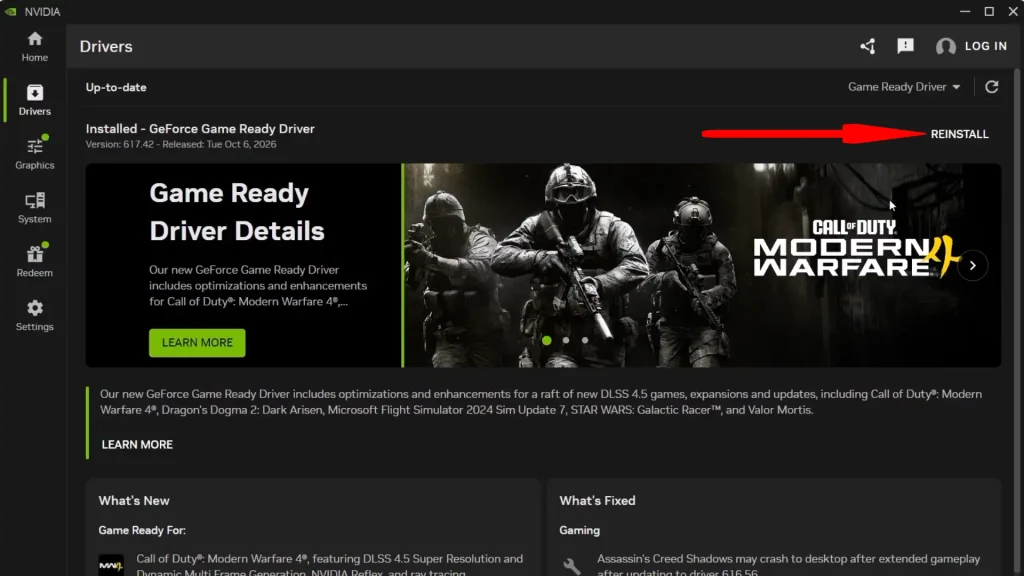
But for whatever reason you can’t access the app or face other problems regarding it, there’s also a manual search option on the website where you can enter your graphics card details and download the corresponding driver.
AMD Drivers
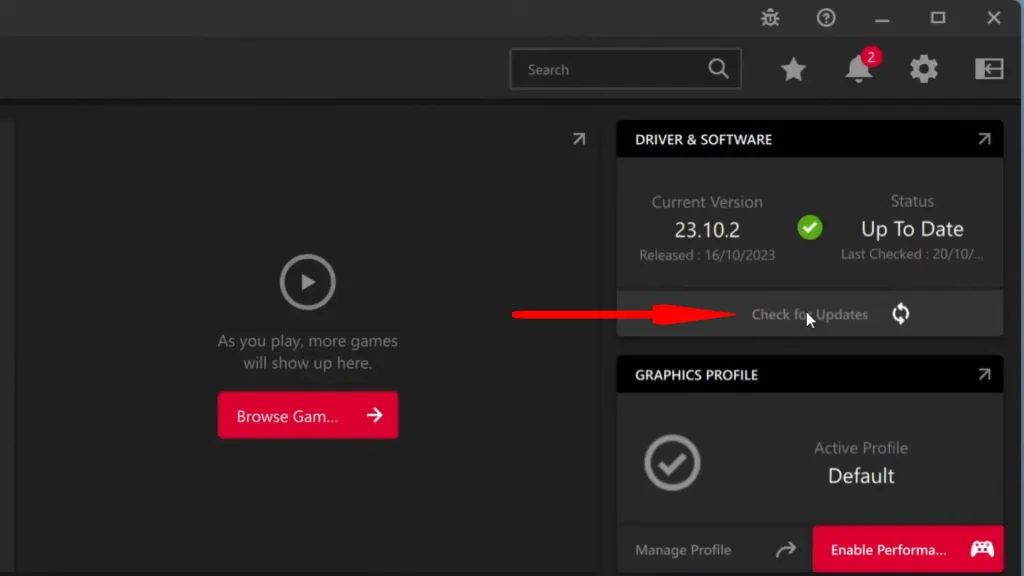
AMD also follows the same logic. Go to the website. Download the app; let the app do the update. If you can’t use the app, there’s a manual search option on the website.
Allow Planet Zoo 2 Controlled Folder Access
Another official solution is to go to your Antivirus, choose Virus & threat protection, and choose Controlled folder access. You should add the game’s folder as an exclusion and check whether the problem is fixed.
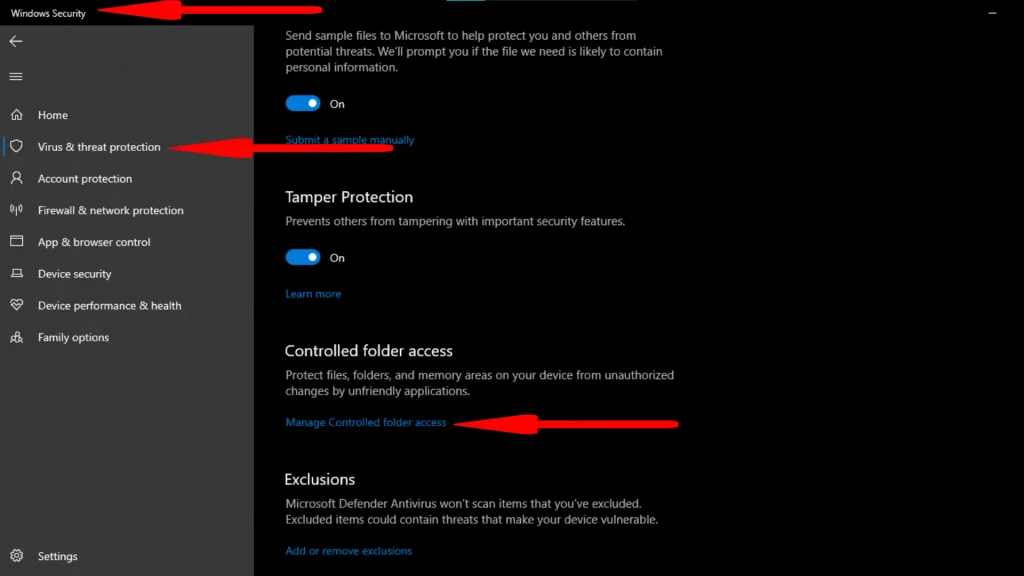
Frontier has also mentioned that sometimes antiviruses may falsely flag the game as dangerous, so you can also try to whitelist the game folder as a whole.
Change the GPU Preferences to High Performance
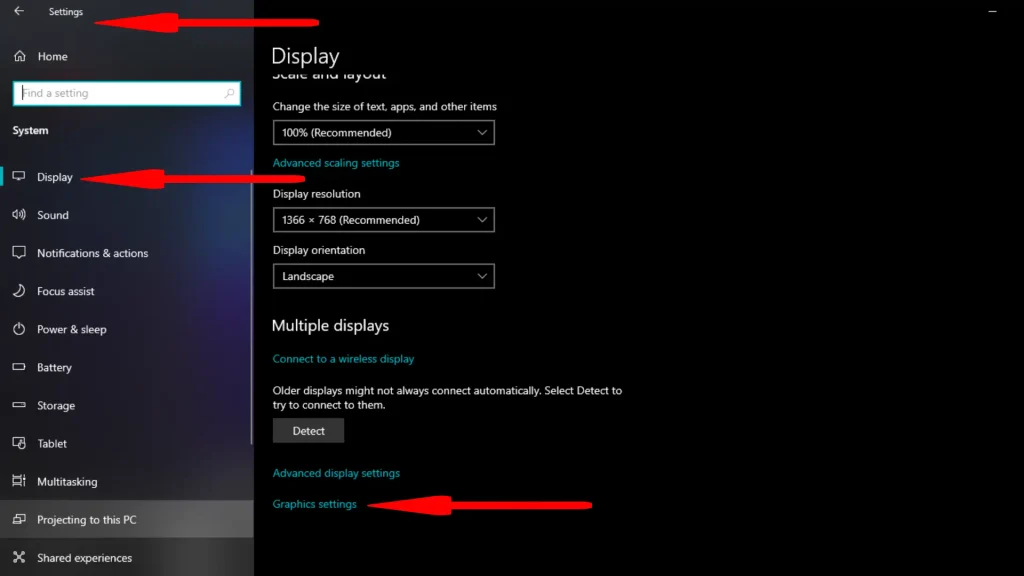
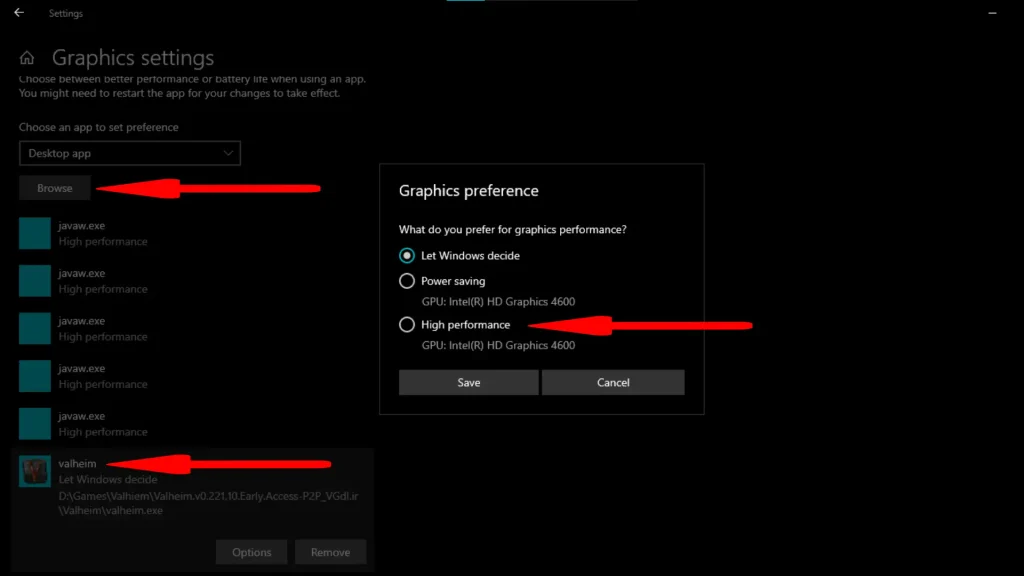
Go to Settings and choose Display. In Display, scroll down all the way to Graphics settings. Add the game there, select it, and change the setting from “Let Windows decide” to “High performance”.
Disable All Overlays
There can be multiple overlays that can interfere with the game loading, and disabling them could be helpful. The most common one is the Steam overlay, which you can turn off by going to Steam settings, the In-Game tab, and disabling the overlay option.
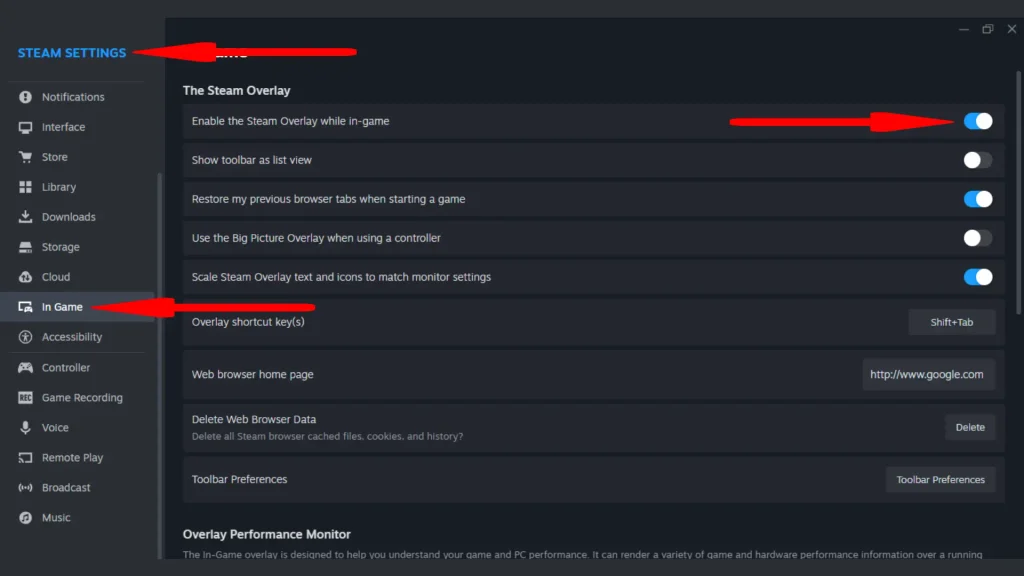
Make sure to turn off other overlays like Discord or NVIDIA or AMD overlays as well, and test to see if you can move past the issue.
Close Conflicting Apps
Official Frontier customer support has published a list of apps that can interfere with the game and make it crash or freeze. Make sure they are close before starting the game.
- NVIDIA GeForce Experience
- Open Broadcaster Software
- FRAPS
- Xsplit
- Xbox Game Bar
- Overwolf
- Discord
- Mumble
- MSI Afterburner
- Xbox Game DVR
- NVIDIA Shadowplay
Homebrew Solutions
Now, if the above solutions didn’t help you out, try our team’s tips and tricks to bypass this issue.
Disable Full Screen Optimization
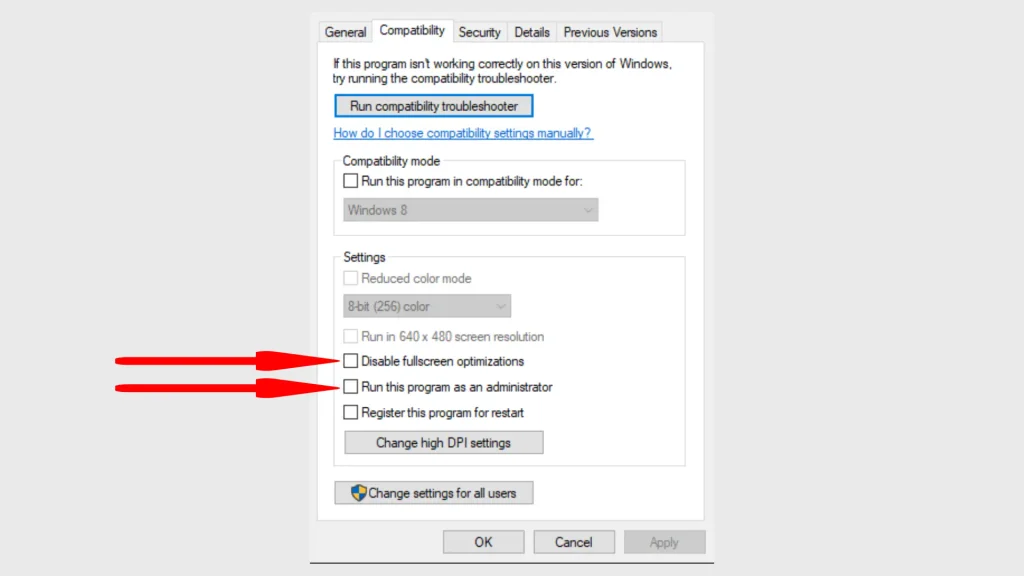
Go to the game files and select Properties, then click on the Compatibility tab. Make sure that “Disable full screen optimization” is enabled. Just to be sure, also activate “Run as administrator“.
Install DirectX and Microsoft Visual C++ Redistributable
These two apps are required for most games, but they may be corrupted or broken. Open their websites to download the related apps and either fix or reinstall them. For DirectX, go to this website; for Visual Studio, go to this one.
Check the Refresh Rate Of Your Displays
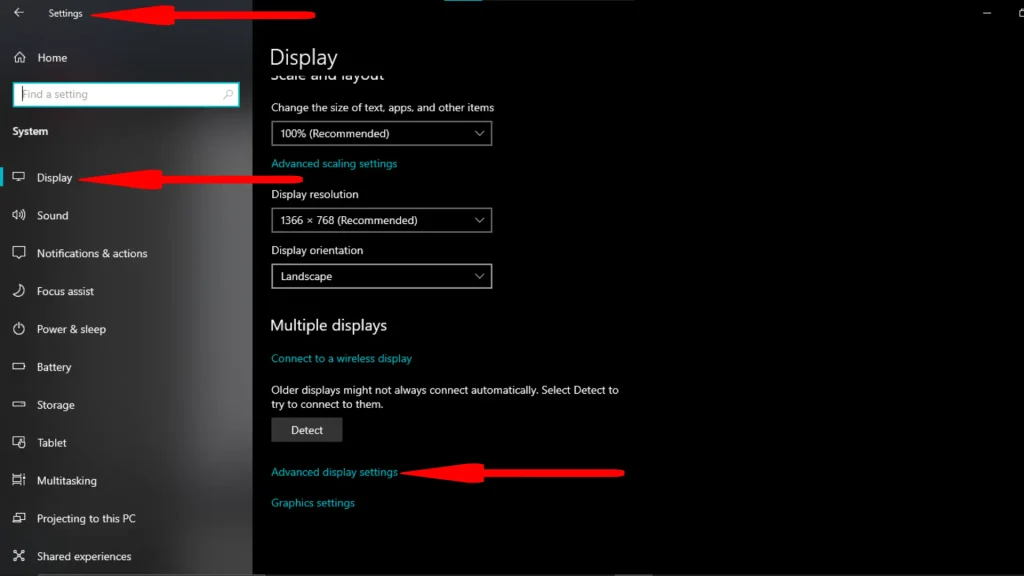
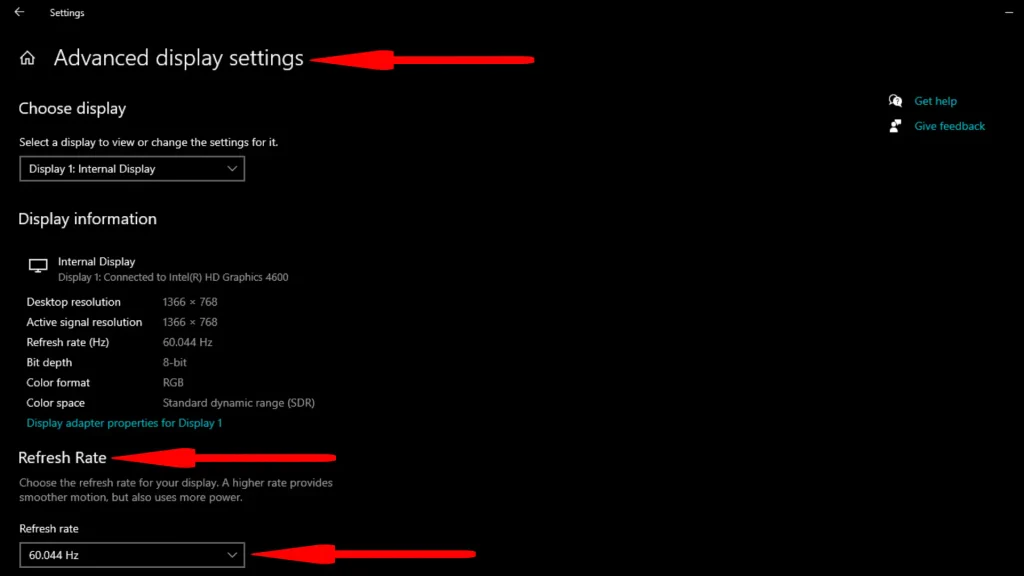
Having multiple screens or displays with high refresh rates can lead to engine instability. Make sure to limit your refresh rate to 120Hz or even 60Hz. If you have multiple monitors, disconnect them.
Delete DirectX Shader Cache
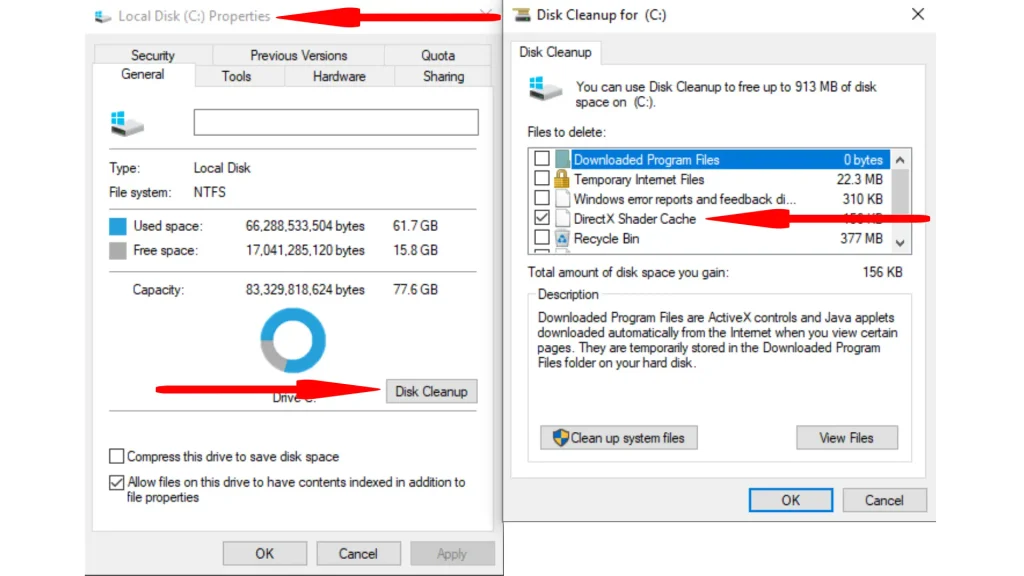
If you have DirectX already installed, delete the cache and test to see if you can move past the issue. Go to the drive on which Windows is installed (usually named C). Right-click and select Properties. On the Properties page, select Disk Cleanup, which opens a new window for you. In that window, remove the check from all other boxes and only check the DirectX shader cache box.
Other Possible Solutions
If none of the above worked, you can try some of the general solutions to see if the problem is fixed or not.
- Update windows.
- Delete and install the game again.
- Reduce the game’s graphics to low.
- Deleting saves (you have to start fresh from the beginning). If you do, back up the save folder first. Starting over in Career or Franchise also means working your way up the accreditation levels again
If NONE of the above solutions worked (I will pray for your soul), call or message Frontier customer support and ask them to help you out. Hopefully, you can jump into the game as soon as possible.
Planet Zoo 2