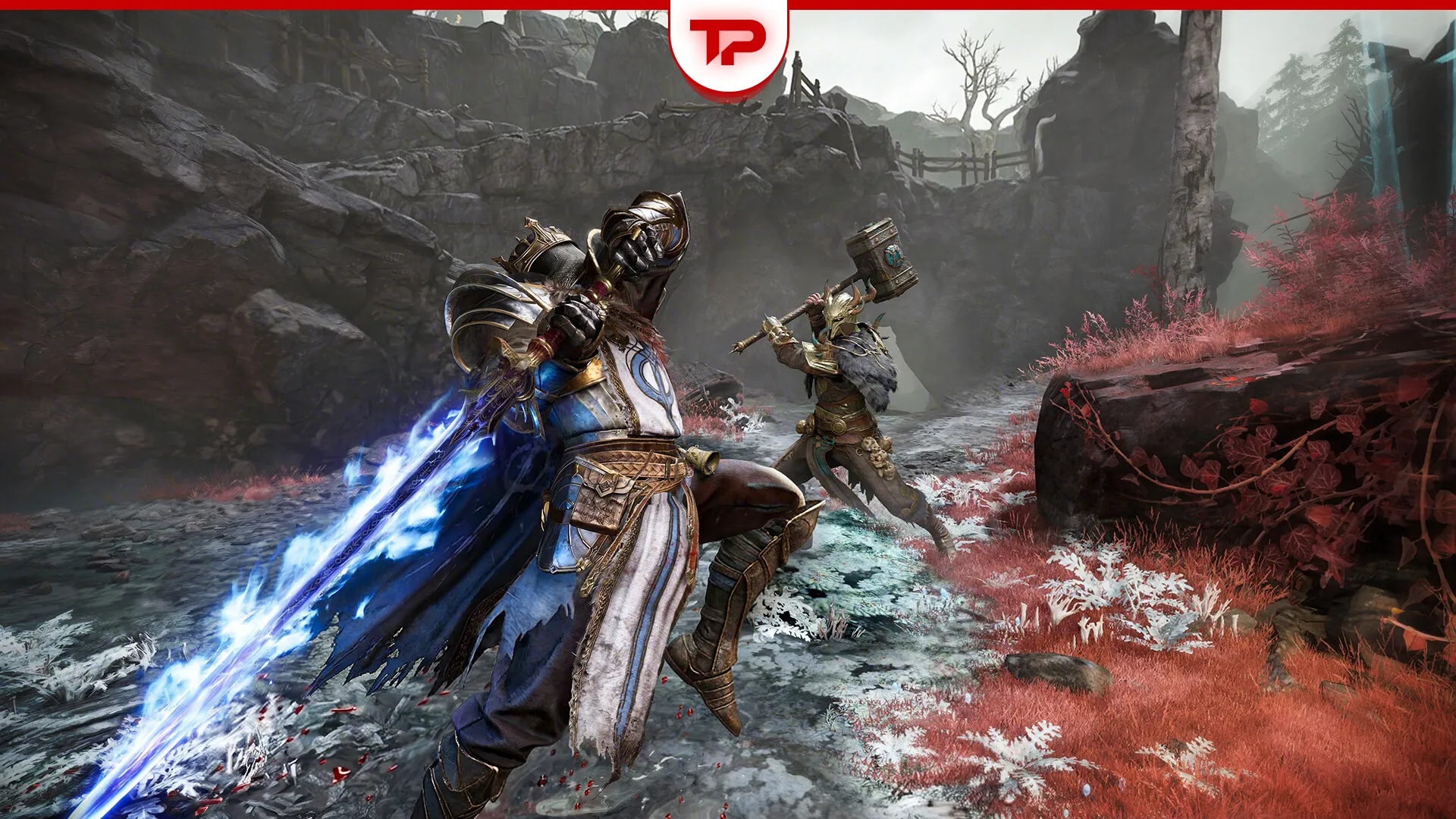


Since its July 29 launch, Mistfall Hunter Fatal Error has become the most reported PC issue. It can hit at three points: instantly on pressing Play, partway through the first loading screen or worst of all, mid-raid. Here’s how to fix it.
Quick Answer (Suggested by Bellring Games)
- Disable Mandatory ASLR (officially confirmed by Bellring Games, fixes it for most players)
- Disable NVIDIA Smooth Motion
- Disable Intel AI Boost
- Update the GPU driver
Table of Contents
How to Solve the Mistfall Hunter Fatal Error: A Tested Way
Among the many ways to solve the Mistfall Hunter Fatal Error, there are some methods that are useful. Test each one of them and leave a comment for me if they do not work. If none of these fix it and you are chasing loot with friends in the meantime, check out our Mistfall Hunter crossplay guide so you are not stuck playing solo while you troubleshoot!
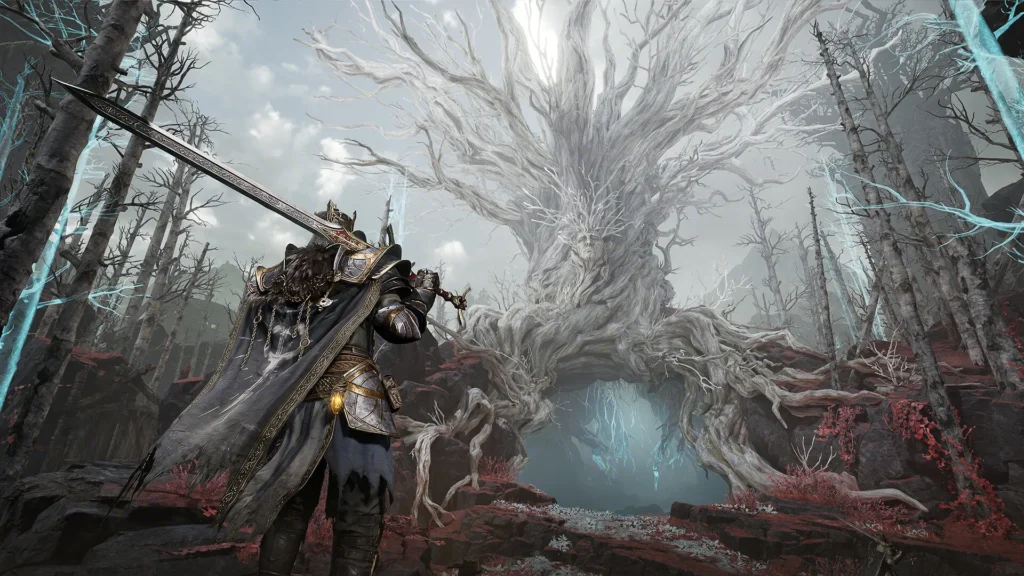
Fix 1: Disable Mandatory ASLR
Disable Intel AI Boost (NPU):
- Right-click Start and open Device Manager.
- Expand Neural processors (or System devices) and find Intel AI Boost.
- Right-click it and choose Disable device.
- Restart your PC, then launch the game and check.
Fix 2: Update your graphics driver
If your GPU driver hasn’t been touched in a year, that’s very likely your issue.
Go to the official website of your graphics card manufacturer and download the latest driver for your specific GPU (Nvidia / AMD). Install it, then restart your computer before you test the game again.
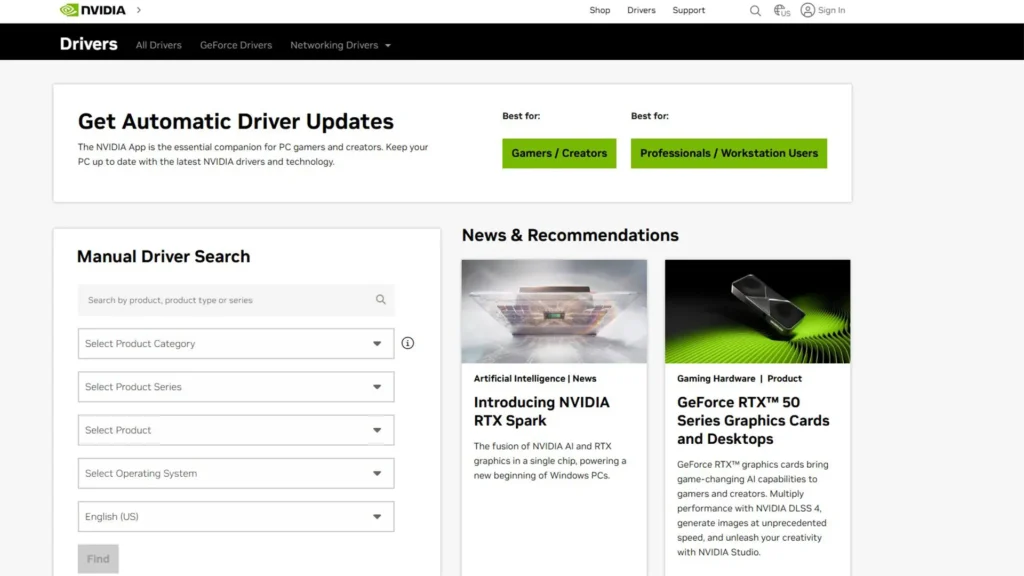
Get the driver from the manufacturer directly. Don’t rely on whatever version Windows decided to hand you months ago.
Fix 3: Disable NVIDIA Smooth Motion
If you’re on an NVIDIA GPU, Smooth Motion’s frame interpolation has been confirmed by the developer as a source of rendering-initialization conflicts alongside Intel AI Boost.
- Open the NVIDIA App or NVIDIA Control Panel.
- Go to Manage 3D settings (or locate the Smooth Motion toggle directly).
- Find Smooth Motion and set it to Off.
- Apply changes and restart your PC.
Fix 4: Disable Intel AI Boost
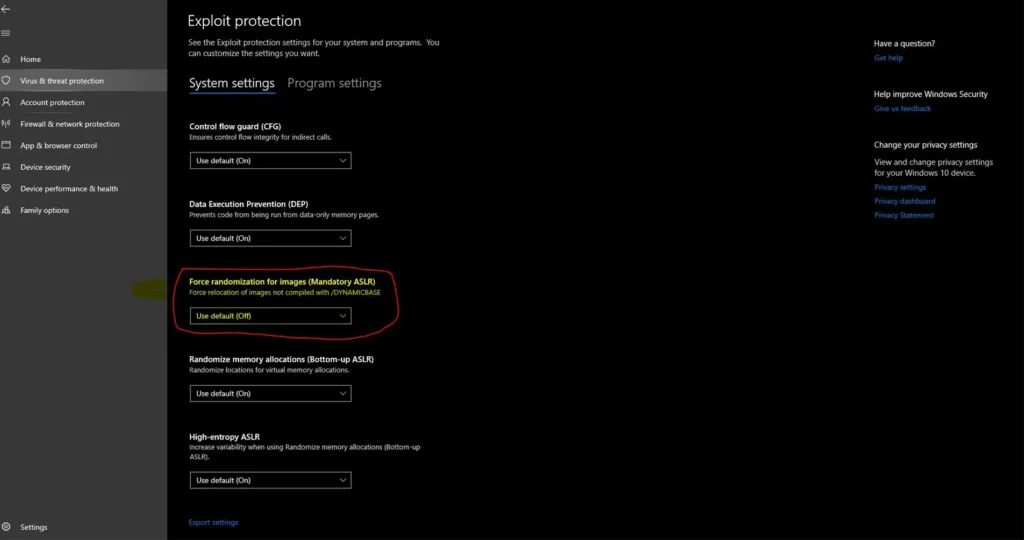
Turn off Mandatory ASLR:
- Open Windows Security from the Start menu.
- Click App & browser control.
- Scroll down and click Exploit protection settings.
- Under System settings, find Force randomization for images (Mandatory ASLR).
- Change it to Off by default.
- Click Apply and restart your PC.
- Launch Mistfall Hunter again through Steam.
Fix 5: Clear your GPU’s shader cache
If your crash log mentions shader compilation or if the game freezes specifically on the “Compiling Shaders” screen before dying, this is very likely your issue. A corrupted or incomplete shader cache forces Mistfall Hunter to fail mid-compile instead of finishing and launching normally.
For NVIDIA users:
- Open the NVIDIA Control Panel.
- Go to Manage 3D settings.
- Temporarily disable Shader Cache, apply the change and restart your PC.
- Launch Mistfall Hunter and let it rebuild the cache from scratch (the first launch will take longer than usual).
- Once confirmed stable, you can turn Shader Cache back on.
For AMD users:
- Open AMD Software: Adrenalin Edition.
- Go to Gaming > Graphics and clear the shader cache from there.
- Restart your PC before testing again.
Don’t skip the restart here. The cache won’t actually rebuild cleanly if Windows hasn’t fully reset the graphics driver state.
Fix 6: Force DirectX 11 with a launch option
If you’re still crashing after the fixes above, the problem may be specific to the DX12 shader pipeline. Forcing the game to run on DirectX 11 instead sidesteps that conflict entirely for a lot of affected setups.
- Open your Steam Library and right-click Mistfall Hunter.
- Select Properties.
- In the Launch Options box, type: -dx11
- Close the window and launch the game normally through Steam.
Fix 7: Verify integrity of game files
Rule out a bad or incomplete install. It’s the fastest fix and the most commonly skipped one. If verification finds and fixes files, that alone can resolve the Fatal Error without needing any of the steps below.
- Open your Steam Library and right-click Mistfall Hunter.
- Select Properties > Installed Files.
- Click Verify integrity of game files.
- Let Steam scan and re-download any corrupted or missing files, then launch the game again.
Fix 8: Run the game as administrator
Windows sometimes blocks permissions the game needs to run properly. When that happens the launch fails and you get the same fatal error message, even though nothing is actually broken on your system.
Right-click the game’s executable or its shortcut and choose “Run as administrator.” If the game launches cleanly, you’ve found your problem.
Now make it permanent so you’re not doing this every session. Open the properties, go to the compatibility tab and tick “Run this program as an administrator.” Done. The game will launch with elevated permissions from now on.
Fix 9: Reinstall Microsoft Visual C++ and DirectX
Games rely on runtime libraries that sit underneath them in Windows and if those files are missing or corrupted, the game can’t even get far enough to tell you what’s wrong. It just dies.
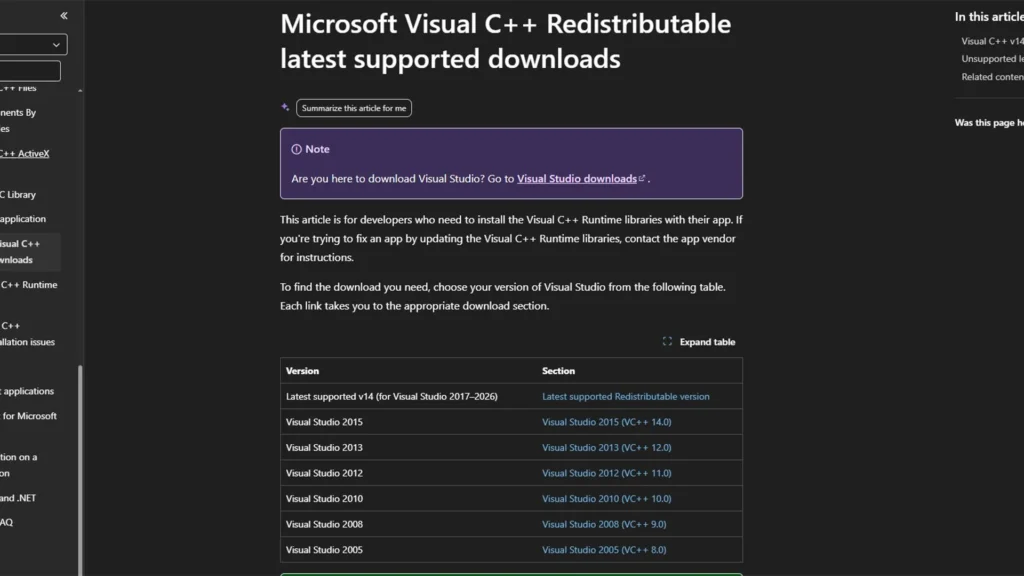
Install or repair the Microsoft Visual C++ redistributables.
The restart is not optional. Skipping it is the reason people reinstall these packages, see no change and assume the fix didn’t work.
Fix 10: Install Windows updates
An out-of-date Windows install causes more game crashes than most people expect. Updates carry stability improvements, security patches, and compatibility fixes that games written against newer system components need.
Open Settings, go to Windows Update, and click “Check for updates.” Install everything on offer. If there are optional driver updates listed, install those too, since people tend to ignore that section and it’s often where the useful stuff hides.
Restart your PC when the updates finish.
Fix 11: Close MSI Afterburner and RivaTuner Statistics Server Before Launching
Overlay and monitoring tools are the second most common cause of the crash. MSI Afterburner and RivaTuner Statistics Server (RTSS) hook into the game’s rendering process, which the anti-cheat reads as tampering and shuts the game down with a Fatal Error.
Fully exit both apps from the system tray since RTSS keeps running in the background. Confirm they’re gone in Task Manager, then start the game. If the crash stops, keep them closed during play or disable their in-game overlay entirely. The same applies to other overlay tools like Discord, GeForce Experience, and Razer Cortex.
Fix 12: Restart and test
Last step and it’s the one people skip because it feels like filler. It isn’t. Restart your PC so every change you’ve made actually takes effect, then relaunch Mistfall Hunter and see where you land.
Half-finished fixes are the usual reason this guide “doesn’t work” for someone. Our Mistfall Hunter skills breakdown is worth a look too, since some crash reports have coincided with certain skill combos.
Important Notice
There are a bunch of other ways for solving the Mistfall Hunter Fatal Error in different communities like Steam and Reddit. However, I did not test them and they may be ineffective or even harmful. Therefore, I did not include them in this article.