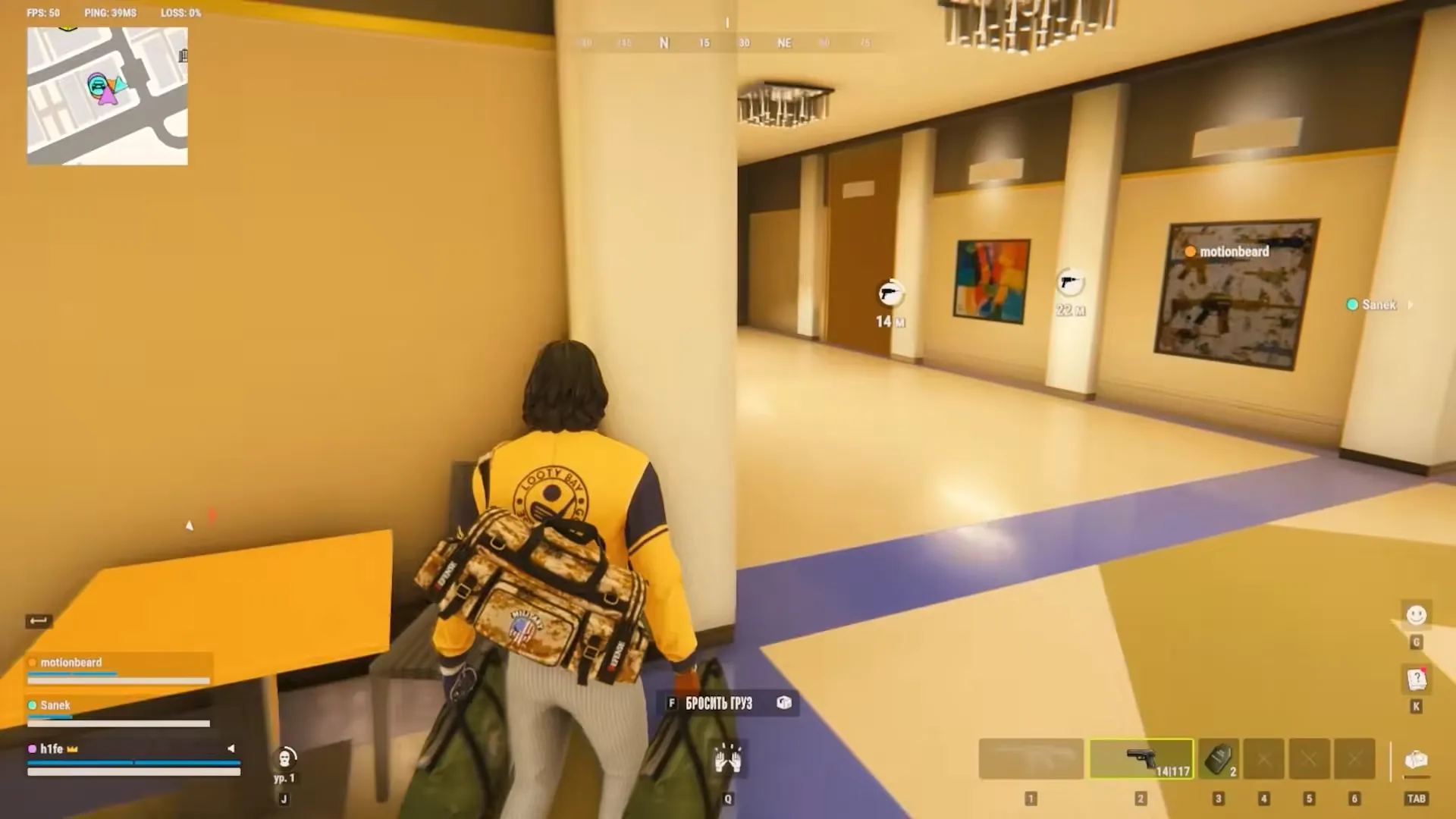


No, not officially. ROB RUN controller support isn’t listed on the Steam store page as of November 2026. The game is in Early Access on Windows, and Kefir hasn’t announced a controller update yet. You can still play with a controller. Use Steam Input to map your buttons and sticks to keyboard and mouse. It takes some setup, and aiming feels harder than on a mouse.
Jump to a Section:
Does ROB RUN Have Controller Support?
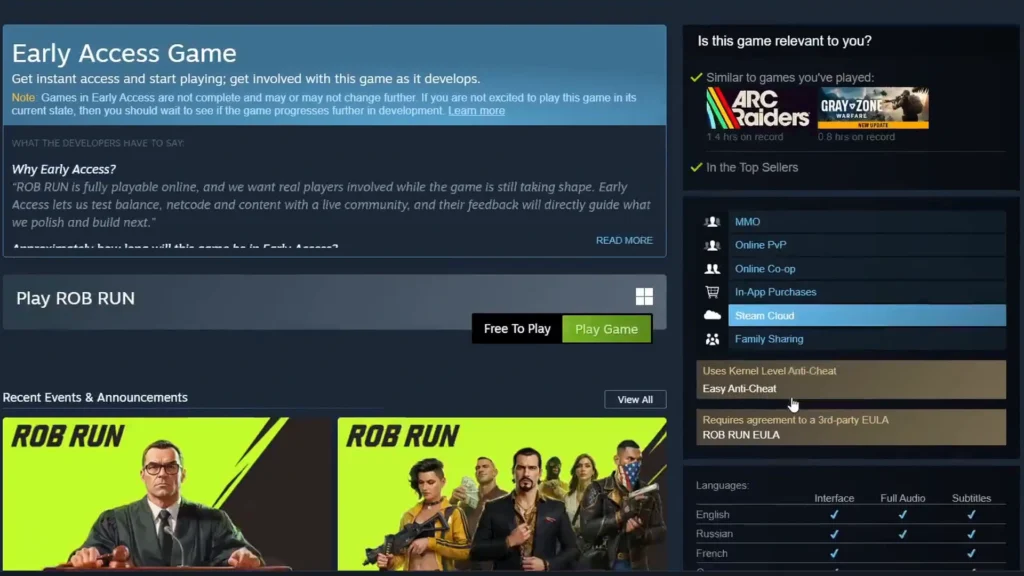
ROB RUN is built for keyboard and mouse. Its Steam page shows no full or partial controller support. Kefir’s Steam announcements since launch don’t mention controllers at all.
This is why a controller often does nothing when you plug it in and start the game. Steam can even show a “controller not supported” message.
The fix is Steam Input. It can turn any button or stick on your controller into a keyboard key or mouse movement. The game then reads your controller as a keyboard and mouse.
Early Access games change often. To check for an update, look at the features list on the ROB RUN Steam store page. If controller support is added, it will appear there.
How to Play ROB RUN With a Controller Using Steam Input
The whole setup happens inside Steam, and you don’t need extra software. Steam Input works with Xbox and PlayStation controllers, along with most generic gamepads.
Set Up Steam Input for ROB RUN
- Connect your controller to your PC.
- Open Steam > Settings > Controller. Turn on support for your type of controller, then close the settings.
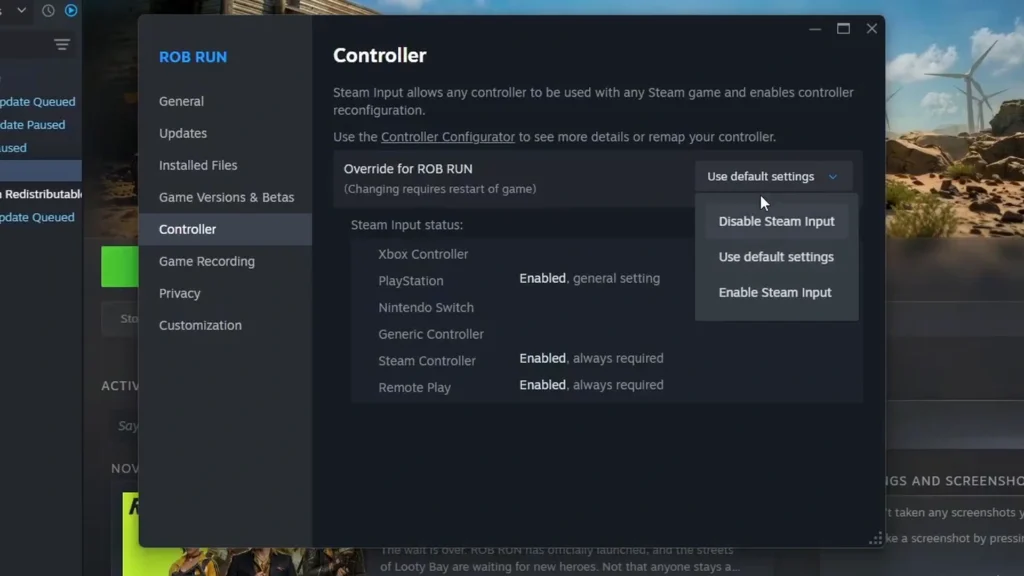
- Go to your Steam Library. Right-click ROB RUN and open Properties > Controller.
- Set the override to Enable Steam Input.
- Restart the game. The change doesn’t apply until you do.
- Open the ROB RUN page in your library and click the controller icon. If you don’t see the icon, Steam isn’t detecting your controller. Jump to the fixes section below.
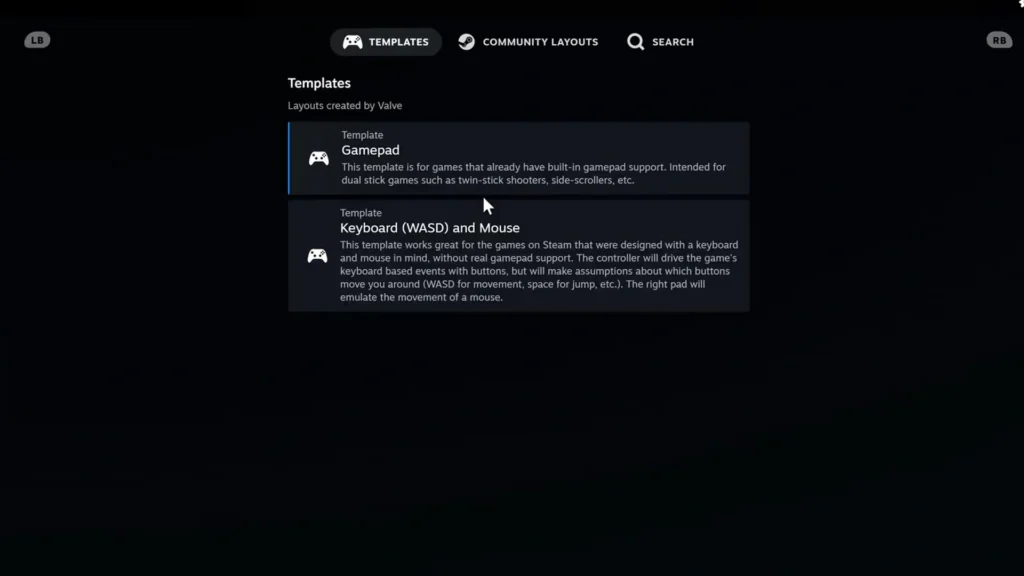
- Open Controller Layout and pick a keyboard and mouse template. You can also check Browse Community Layouts for a ready-made setup for your device.
- Edit the binds to match ROB RUN’s keys, then click Apply Layout. A layout that you only preview doesn’t stay active.
Pick a Keyboard and Mouse Template
ROB RUN doesn’t list controller support, so a normal gamepad template may do nothing in the game.
Use a keyboard and mouse template, not a standard gamepad one. Your sticks and buttons need to send keys and mouse movement, because that’s the input ROB RUN is built around.
A Simple Layout to Start With
This layout is a solid base, not an official default. Check your in-game keybinds first and change anything that doesn’t match.
| Controller input | Map it to | What it does |
|---|---|---|
| Left stick | Your movement keys | Move |
| Right stick | Mouse movement | Look and aim |
| A | Space | Jump |
| LB / RB | Mouse wheel | Switch weapons |
| D-pad | Extra keyboard keys | Other actions |
Bind fire, interact, inventory and map to the keys or mouse buttons the game uses for them.
A standard controller runs out of buttons fast. If your pad has extra back buttons, use them for actions you need in the middle of a fight. Keep the keyboard within reach for anything you didn’t map.
- Movement
- Looking and aiming
- Firing
- Interact
- Inventory and looting
- Weapon switch
- Map
- Driving
ROB RUN With Xbox and PlayStation Controllers
The Steam Input setup above is the same for both. Use the extra steps below only if Windows or Steam has trouble seeing your controller.
Xbox Controllers
Install the Xbox Accessories app from the Microsoft Store. Connect the controller with a USB cable, since the app needs a wired connection to update it. When the app detects your controller, open the three-dot menu and install any update it finds.
PlayStation Controllers
Download the PlayStation Accessories app from the official PlayStation website. Install it, connect your controller and run any update it offers. Then relaunch ROB RUN.
You can also set your pad as the preferred device in Windows. Search for Set up USB game controllers, click Advanced and pick DualSense Wireless Controller. Xbox users pick their Xbox controller here.
If the controller still has issues, DS4Windows is a free tool that fixes many PlayStation controller problems. Read the warning below before you use it.
ROB RUN uses Easy Anti-Cheat. It’s not confirmed whether third-party tools like DS4Windows, x360ce or reWASD are allowed. Use Steam Input first. Never turn off anti-cheat to get a controller working.
Best ROB RUN Controller Settings
No single sensitivity value works for every controller. The right stick is the main problem. It often feels far too fast once you map it to mouse movement. Lower its sensitivity in the Steam Input layout and raise it in small steps. Adjust the deadzones in the same menu until small stick movements feel accurate.
If you use reWASD, the mouse sensitivity is in Virtual Input Device Settings. Use the Stick Response curve in Advanced Stick Settings to make aiming smoother. Your physical mouse DPI has no effect on reWASD’s virtual mouse, so change the sensitivity inside reWASD instead.
What to Expect on a Controller in ROB RUN
A controller works in ROB RUN, but it’s a clear disadvantage in fights. Keyboard and mouse players aim faster and more accurately. Mapped controls can also feel slightly delayed. Expect to tune your sensitivity a lot and still lose many close fights.
Buttons are the other limit. ROB RUN has more actions than a normal controller has buttons. You’ll have to choose what to map and leave the rest on the keyboard.
For relaxed play or for players who can’t use a keyboard comfortably, it’s still a workable option.
ROB RUN Controller Not Working? Try These Fixes
Start with the controller icon on the ROB RUN library page. If it’s missing, Steam doesn’t see your controller. Work through this list:
- Unplug the controller and plug it back in. Try a different USB port, or pair it again if it’s wireless.
- Close Steam fully from Task Manager and open it again. If that doesn’t help, restart your PC.
- Open Device Manager, expand Human Interface Devices, right-click HID-compliant game controller and select Update driver. Choose Search automatically for drivers, then restart your PC.
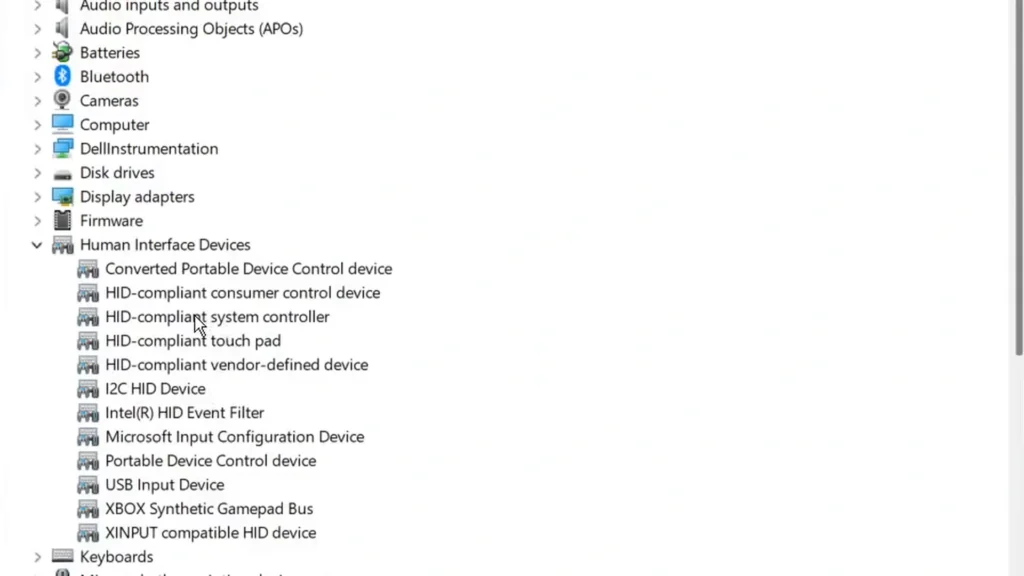
- Right-click the controller in Device Manager and select Disable device. Then right-click it again and select Enable device.
- Disable any duplicate HID-compliant game controllers so only one stays active.
- Unplug extra devices like wheels, pedals, arcade sticks, extra controllers and USB dongles.
- Uninstall virtual joystick apps such as vJoy.
- Open Steam Big Picture mode, go to Settings > Controller and turn on Generic Gamepad Configuration Support if you use a generic pad.
These fixes help Steam and Windows detect your controller. They don’t add native controller support to ROB RUN. You still need the keyboard and mouse layout from the setup section.
ROB RUN Controller Support FAQ
Do You Need Steam Big Picture Mode?
No. You can set up Steam Input from the normal Steam desktop app. Big Picture mode also works if you prefer it.
Will ROB RUN Get Official Controller Support?
Kefir hasn’t announced controller support or a release date for it. None of the developer’s Steam announcements so far mention it.
Does ROB RUN Have Aim Assist?
There’s no official word on aim assist. With Steam Input, your stick acts like a mouse, so you aim without any help.