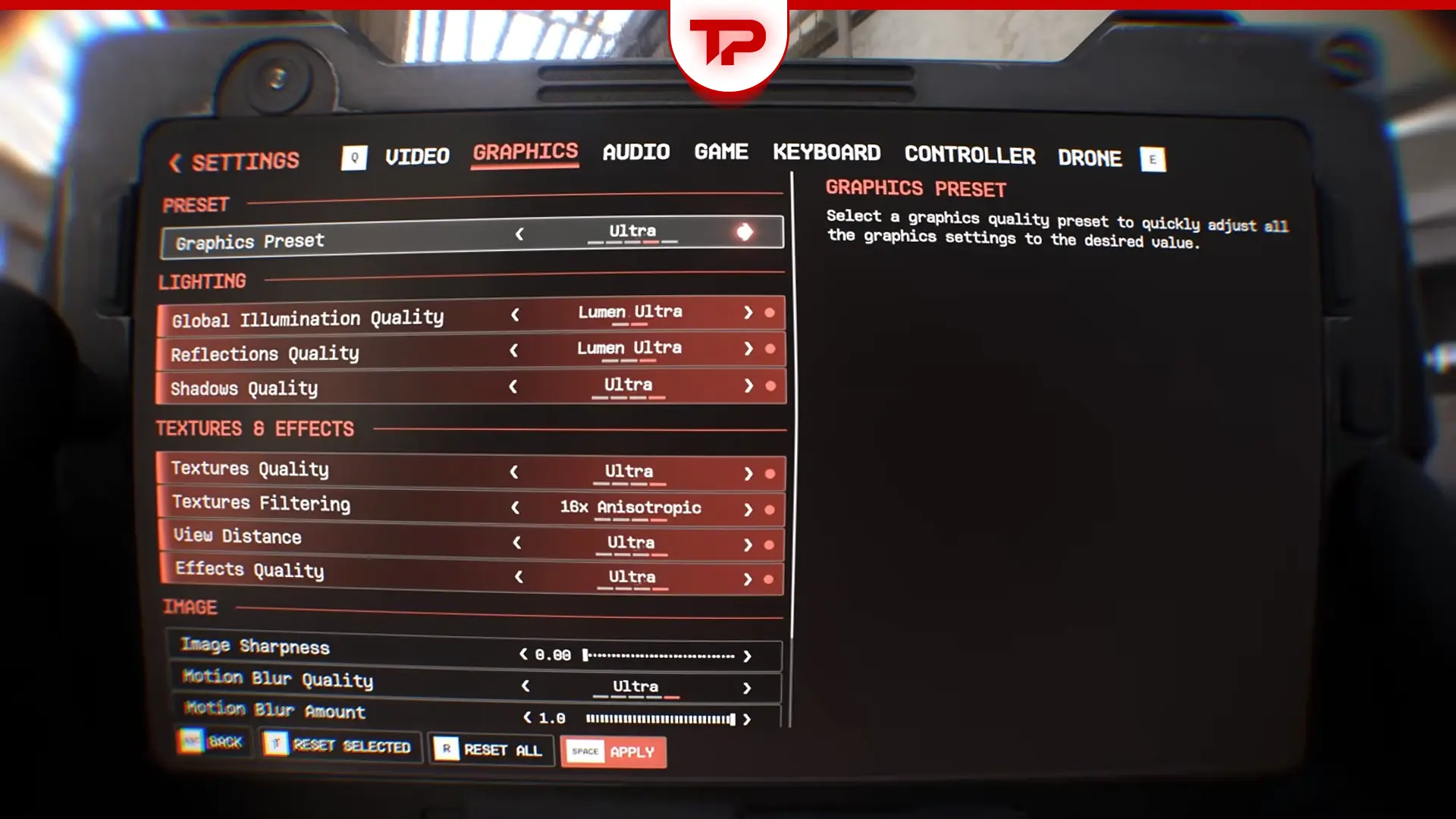


Bodycam best settings have changed since the v0.8 “Locked & Loaded” update. None of the old advice still applies. Some players are getting way better frames since the patch. Others have had their FPS cut in half on the exact same hardware.
Below is the full settings table and all the fixes that do more than any slider. Everything here is checked against Reissad’s patch notes through v0.8 #4. Where a claim comes from players and not the devs, I’ve said so.
What You’ll Read:
Bodycam Settings At A Glance
Full breakdown of each row is below. If you only change one thing, make it frame generation.
| Setting | Value |
|---|---|
| Graphics preset | High, then cut what’s listed below |
| Resolution | Native |
| Resolution scale | 100% |
| Upscaler | Quality (DLSS on NVIDIA, FSR on AMD, XeSS on Arc) |
| Frame generation | Off |
| Display mode | Fullscreen |
| V-Sync | Off |
| Frame cap | 3–5 FPS under your refresh rate |
| Motion blur | Off |
| Film grain | Off |
What Changed in the v0.8 Settings Menu
The whole audio and graphics menu got reworked in v0.8. Here’s everything new: DLSS 4.5, FSR 4 and XeSS 3 support, plus updated frame generation for both DLSS and FSR.
A DLSS Multi Frame Generation option showed up the next day in the first hotfix, along with an actual Film Grain slider (there wasn’t one before). That one’s NVIDIA-only, and realistically RTX 50-series. AMD and Arc players will look for it and not find it. You also get a gamma calibration setting now, reworked aim sensitivity, and hold/toggle options on several actions instead of just one fixed behavior.
None of this fixes performance by itself. It just means the tools you’re working with changed completely.
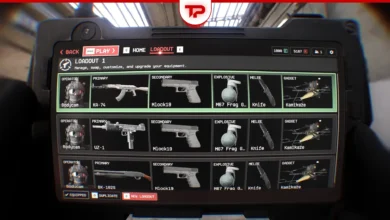
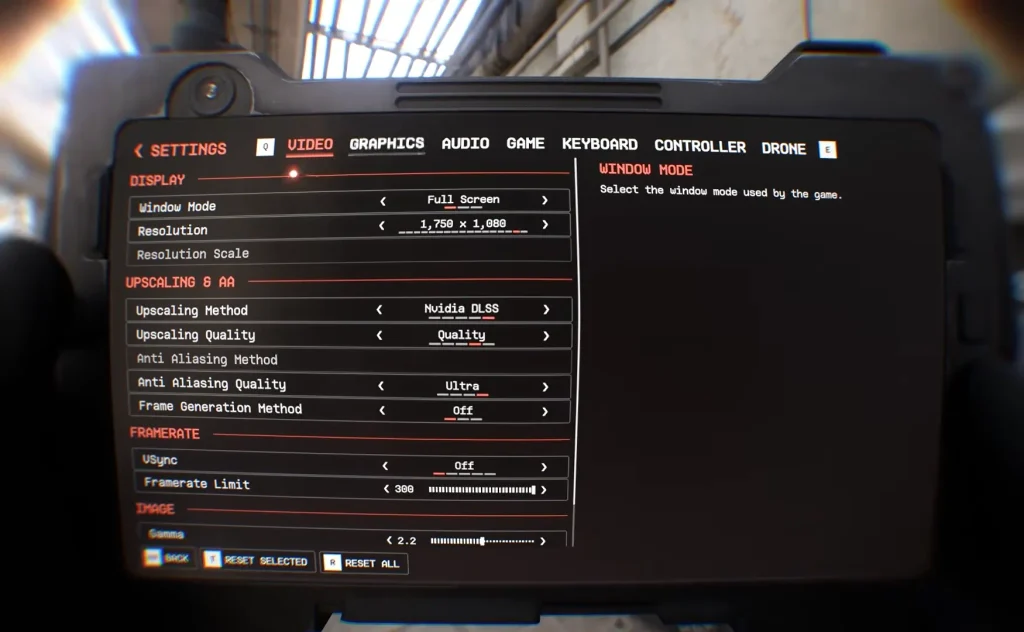
One thing worth saying before anything else: the main menu is gone. You’re in the Shooting Range HUB now, and every setting lives on the in-game tablet. If you’ve been away since before the patch, that’s where you’re going.
Best Graphics Settings for Bodycam
Four things matter here, in this order: the quality settings, your upscaler, frame generation, and the display options everyone gets wrong.
Quality Settings
Preset is a starting point, not an answer. Set it to High, then claw back frames from the settings that cost the most and show the least.
| Setting | Value | Why |
|---|---|---|
| Graphics preset | High | Baseline. Everything below overrides it. |
| Resolution scale | 100% | Drop this before you push the upscaler to Performance. |
| Global illumination (Lumen) | Medium | Most expensive setting in the game by a wide margin. |
| Reflections | Low | You have never once won a fight because of a reflection. |
| Shadows | Medium | Best frames-per-unit-of-image-lost in the whole menu. |
| Textures | High | This is VRAM, not GPU. If you have 8GB, it’s free. |
| View distance | High | Spotting range. Do not cut this one. |
| Effects | Medium | |
| Post processing | Low | |
| Foliage | Low | Matters on Trenches, barely anywhere else. |
Take the screenshot of your settings page before you start. Change one row, go back to the same spot on the same map, and compare. Changing five things at once tells you nothing.
Upscaling
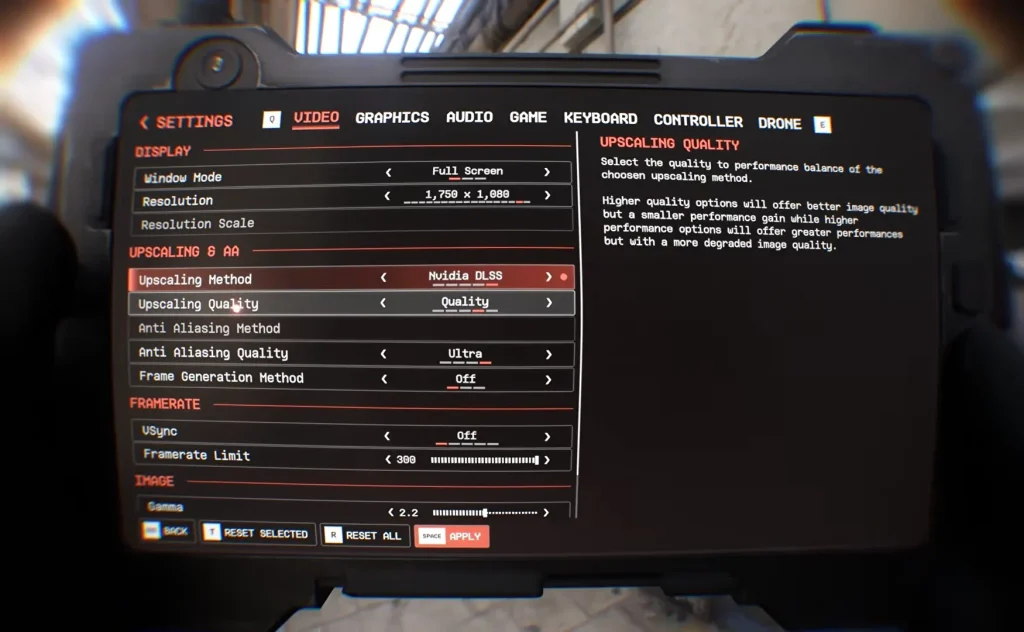
Pick based on your GPU, not your GPU’s marketing. NVIDIA gets DLSS 4.5, AMD gets FSR 4, and Intel Arc gets XeSS 3.
Start on Quality mode regardless of which one you use. A few players on RTX 50-series cards report that DLSS upscaling looks a little soft compared to FSR, though nobody’s run a controlled side-by-side yet. So treat that as a lead worth checking on your own setup rather than a settled fact.
Where to start by card:
- RTX 4070 / RX 7800 XT and up: Native or DLSS/FSR Quality. You’re not GPU-limited; don’t act like you are.
- RTX 3060 / RX 6600 XT (Steam’s recommended spec): Quality upscaling, preset High with the cuts above.
- RTX 2070 / RX 5700 (the minimum spec): Balanced upscaling, preset Medium, resolution scale 90%. You’re going to be making trades.
If you’re not GPU-limited, native resolution with no upscaler still looks the cleanest. Upscaling exists to buy FPS, not to improve the image.
OptiScaler
OptiScaler is a third-party layer that lets you swap one upscaler’s output for another. FSR frames through a DLSS hook, that sort of thing. Some players use it on cards that don’t get the vendor option they want.
Two things to be clear about. It’s not official, and v0.8 added native FSR 4 and XeSS 3, which removes most of the reason people reached for it in the first place. Bodycam’s anti-cheat integration is also still in progress, and third-party injectors are exactly the category that tends to break when it lands. Try native first.
Frame Generation
Frame generation makes the FPS counter jump, but the boost is interpolation, not free performance. The game renders your input at the underlying rate, then fills in extra frames to reach the number on screen. Reissad’s own troubleshooting post says FSR Frame Generation can add a lot of FPS, but it also increases input latency.
I saw a Reddit post that backs that up too; it showed 80 FPS jumping to 200 with multi-frame generation on. Most of what’s on screen there isn’t rendered. The base rate, the one your aim actually runs at, didn’t move.
There’s also a hot debate right now: some players say DLSS frame generation does nothing on their card while FSR’s version works fine; others report the opposite. No official fix yet. But in a one-shot-kill shooter, I’d rather have real 90 FPS than fake 180.
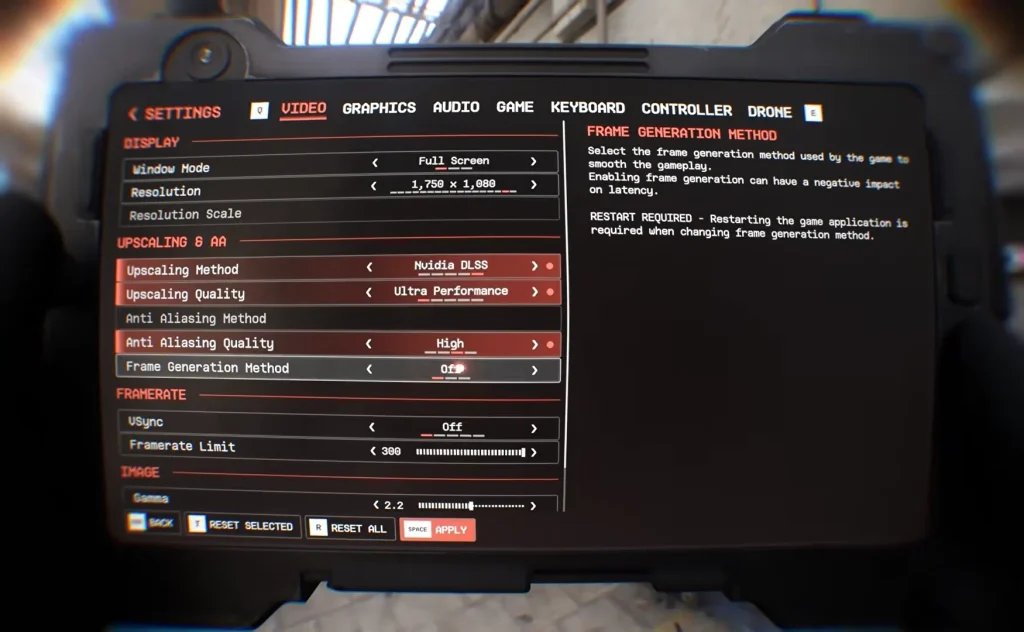
Note: If frame generation is greyed out or doing nothing: check you’re not forcing DX11 in your launch options, update your GPU driver, and make sure you’re on the matching vendor’s option. DLSS Frame Generation won’t light up on an AMD card. Past that, there’s no official fix yet.
Display, V-Sync, Motion Blur, and Grain
Here are the recommended settings you need:
| Setting | Value |
|---|---|
| Display mode | Fullscreen |
| Resolution | Native |
| V-Sync | Off |
| Frame cap | A few FPS below your refresh rate |
| Gamma | Calibrate until the test image is barely visible |
| Resolution scale | 100% |
| Motion blur | Off |
| Film grain | Off |
| Frame generation | Off |
Motion blur is the one people argue about. No benchmark settles whether it costs real frames. What it definitely costs is clarity when someone’s crossing a doorway. Turn it off.
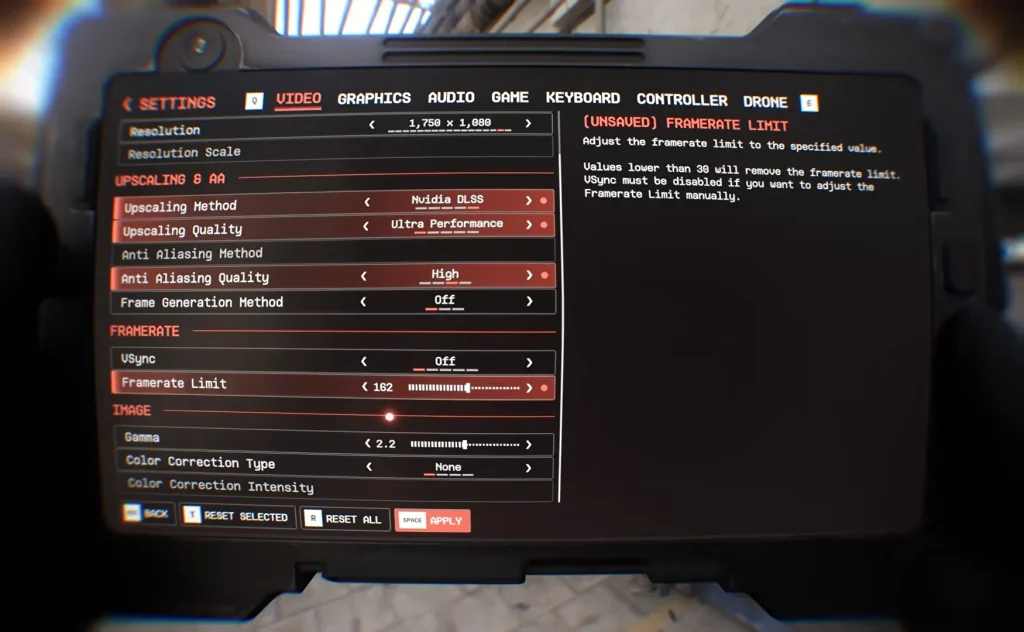
Film Grain finally got its own slider in the first hotfix. Drop it low or off if you want a cleaner picture; there’s no evidence it costs meaningful FPS either way.
Bodycam Launch Options
Right-click Bodycam in your Steam library → Properties → General → Launch Options.
| Option | What it does | Use it? |
|---|---|---|
-dx11 | Forces DirectX 11 | Only if v0.8’s renderer is hurting you. Kills DLSS, FSR frame gen and Lumen. |
-USEALLAVAILABLECORES | Unlocks CPU thread usage | Harmless. Occasionally helps on older CPUs. |
-high | Raises process priority | Marginal. Try it last. |
Warning: None of these are officially recommended by Reissad. They’re community options, and on a game this heavily patched, they can stop working without warning.
How to Fix Low FPS and Stuttering
Bodycam’s official troubleshooting page still gets it right on most of this. Try these first before touching your graphics settings:
- Disable overlays. Disable overlays. NVIDIA’s especially, then Discord and Steam. This is the single most reported easy win in the community threads, and it costs you nothing to test. Turn off GeForce Experience/Discord overlays before anything else.
- Launch options. Read the warning first. Adding -dx11 (right-click Bodycam in Steam → Properties → Launch Options) has been a community fix since 2024 and still helps some older cards. But DX11 will disable DLSS, FSR frame generation, and Lumen. If you’re using any of the new v0.8 upscalers, don’t touch this. It’s a fallback for people the new pipeline is hurting, not a general FPS tip.
- Clean-install your GPU driver with DDU (Display Driver Uninstaller) in Safe Mode, then grab the latest driver from AMD or NVIDIA directly.
- Right-click Bodycam.exe, Properties, Compatibility, disable fullscreen optimizations.
If FPS degrades after a couple of matches, update first because v0.8 #4 shipped a memory fix on inventory handling that targets this. If it’s still happening on the current build, restarting is the only thing that reliably clears it.
Best Audio Settings
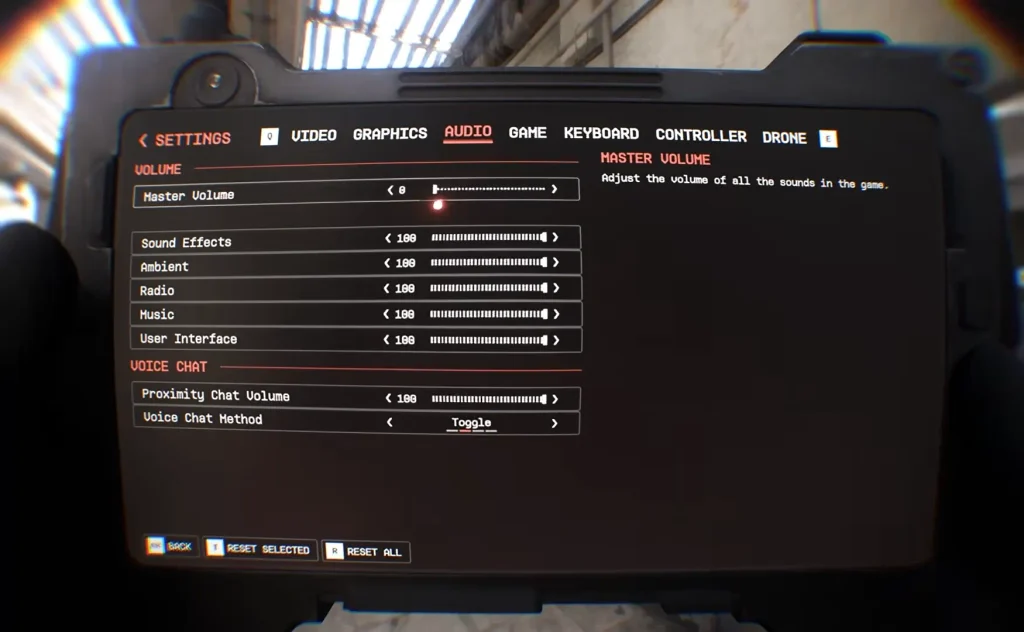
The audio rebuild in v0.8 is doing a lot of work for you. None of that has a slider. What does have a slider is the mix, and the defaults are close but not right.
| Slider | Value |
|---|---|
| Master | 100 |
| Effects / gunfire | 60–70 |
| UI | Keep audible |
| Music | Taste. It doesn’t mask footsteps. |
Headphones, stereo, no virtual surround. Bodycam’s mix is tuned for a plain stereo image, and spatialisers smear it.
Here’s the thing: v0.8 #2 moved Hardpoint capture cues back onto the UI audio slider. The same patch boosted the win, loss, and contest feedback. So if you drag UI down to kill menu noise, you lose objective callouts with it. Leave it audible if you queue Hardpoint. If you turn that slider down to quiet menu sounds, you’ll miss objective callouts too. So keep it audible if you’re playing Hardpoint.
VOIP got rebuilt and now uses your system’s default microphone, with an individual mute button added in the first hotfix if someone’s too loud.
Now that you have the best Bodycam settings, make sure to get the best gun in Bodycam, and you’ll be all set.
FAQ
Does Frame Generation actually help FPS in Bodycam?
It raises the number, not real performance. Frames get interpolated, not rendered, so input response barely changes. Some GPUs also report DLSS or FSR generation just not working post-patch.
Why does Bodycam run worse since the v0.8 update?
Results are split. Some players lost 30–50% FPS on the same hardware; others gained frames. Reissad says v0.8 improved performance overall. The fans don’t fully agree.
Which upscaler should I use?
DLSS 4.5 on NVIDIA, FSR 4 on AMD, XeSS 3 on Intel Arc. Start on Quality mode and adjust from there.