

If you bought or considering buying Bandai’s ACE COMBAT 8: Wings of Theve, you most likely need to know if the game supports flight sticks. The answer is yes, but there’s a very limited selection. However if you are looking for a workaround, you’re in luck. There are several methods I tried that worked for me. If they don’t resolve your issue, please leave a comment below and I’ll see if I can help you out.
Since my old HOTAS wasn’t working and I didn’t have enough budget to purchase a new one, I looked around and found the easiest workaround: using Steam Input to make your flight stick behave like an Xbox controller. If for some reason, that doesn’t work, there are some other setups you can try as well, though they are more complicated. If push comes to shove, you’re going to need tools such as vJoy, Joystick Gremlin, and x360ce.
Skip to…
Does ACE COMBAT 8 Support HOTAS on PC?
I am afraid to tell you that ACE COMBAT 8 HOTAS support for PC isn’t as flexible as many of us flight-shooter players wanted. There are only 2 officially-licensed HOTAS/flight sticks designed and available for AC8: 1. Thrustmaster T.Flight HOTAS NEO ACE COMBAT 8 Edition and 2. HORI ACE COMBAT 8: WINGS OF THEVE Flight Stick
This is very disappointing for me since AC7 had a much broader list of officially supported flight sticks. At launch, AC7’s PC support for HOTAS was initially limited to: T.Flight HOTAS 4, T.Flight HOTAS One, HORI HOTAS Flight Stick PS4, and HORI HOTAS Flight Stick Xbox One. However, Bandai thankfully later (May 2019) added the T.16000M and HOTAS Warthog families. I hope they do the same for AC8 as well.
Players have reported facing two kinds of issues with their HOTAS:
- HOTAS not detected, or not controlling the aircraft correctly/completely
- HOTAS works, but controls can’t be configured
If the game is not simply simply ignoring your HOTAS, but also crashes via error 01 for example, don’t assume the flight stick is the cause.
Which HOTAS Work With ACE COMBAT 8?
There isn’t an official list of working HOTAS, so the one you see before you is compiled by yours truly based off my own experience with my HOTAS (Thrustmaster T.16000M FCS) and the reports received from other players.
| HOTAS | Status |
|---|---|
| Thrustmaster T.16000M FCS HOTAS | Worked for me and reported to work for others too |
| Thrustmaster T.Flight HOTAS One | Reported working |
| Logitech G X56 | Reported working out of the box |
| VKB Gladiator + STECS | Reported not working without a workaround |
| Thrustmaster T.Flight HOTAS X | Reported working |
| WinCtrl Ursa Combat (+ MOZA pedals) | Works with a workaround (vJoy) |
| Virpil hardware | Mixed reports; some setups require remapping |
| HORI ACE COMBAT 8 Flight Stick | Designed/licensed for ACE COMBAT 8 |
| Thrustmaster T.Flight HOTAS NEO | Designed/licensed for ACE COMBAT 8 |
Sometimes Windows detects your HOTAS but ACE COMBAT 8 doesn’t use it correctly. This is what happened to me. Some mechanics in the game weren’t mapped to anything. I tried the Steam Input method and it worked wonders for me, but in case it doesn’t fix your issue, there are more complicated tools to try. I’ll go into detail further down.
How to Use an Unsupported HOTAS With Steam Input
So what Steam Input does is basically it translates physical controller inputs into virtual gamepad, keyboard, or mouse inputs. Instead of asking ACE COMBAT 8 to understand your particular flight stick directly, Steam Input handles the physical device and sends the game inputs it expects.
How to Enable Steam Input for ACE COMBAT 8 HOTAS
- Connect your HOTAS to your PC
- Open Steam
- Go to your Library
- Right-click ACE COMBAT 8: WINGS OF THEVE
- Open Properties
- Go to the Controller section
- Enable the Steam Input option for the game
- Open the game’s controller layout/configuration screen and set it to be like an Xbox controller
Don’t worry if your Steam uses labels that are a bit different since the exact wording of Steam’s menus can differ between versions. The important part is to map your HOTAS controls to the game’s expected controller inputs. For example, you can use the main stick for the virtual Xbox left stick, then assign the throttle and buttons to the corresponding triggers and controller buttons.
This is what my layout looked like:
Pitch: Left Stick Y
Roll: Left Stick X
Camera: Right Stick X/Y
Throttle Forward: Right Trigger
Throttle Reverse: Left Trigger
Yaw left/right: LB / RB
Main Weapon: A
Secondary Weapon: B
Weapon Selection: X/Y
As you know, this isn’t an official ACE COMBAT 8 HOTAS layout. I came up with it myself, so it’s a useful starting point for making an unsupported HOTAS behave like an Xbox controller. I suggest you change the bindings to suit your own setup.
Definitely test your controls before starting a mission. Don’t assume that every button has mapped correctly just because the aircraft responds to the stick. I received a report that a player’s HOTAS does in fact control the aircraft, but that he had to figure out which physical buttons correspond to the Xbox controller buttons shown by the game. It was a bit tedious at first, but well worth it.
What If Steam Input Doesn’t Detect My HOTAS?
I saw multiple posts complaining that their more high-end HOTAS setups don’t really work well with Steam Input. This is because Steam Input can’t combine all of the physical devices into one controller in the way you want. If you have a simple HOTAS consisting of one joystick and one throttle, Steam Input probably already worked for you, but if you have multiple devices like a joystick, a separate throttle, and rudder pedals, then you need to combine them. This is where a virtual joystick setup may work better.
Advanced Method: vJoy & Joystick Gremlin
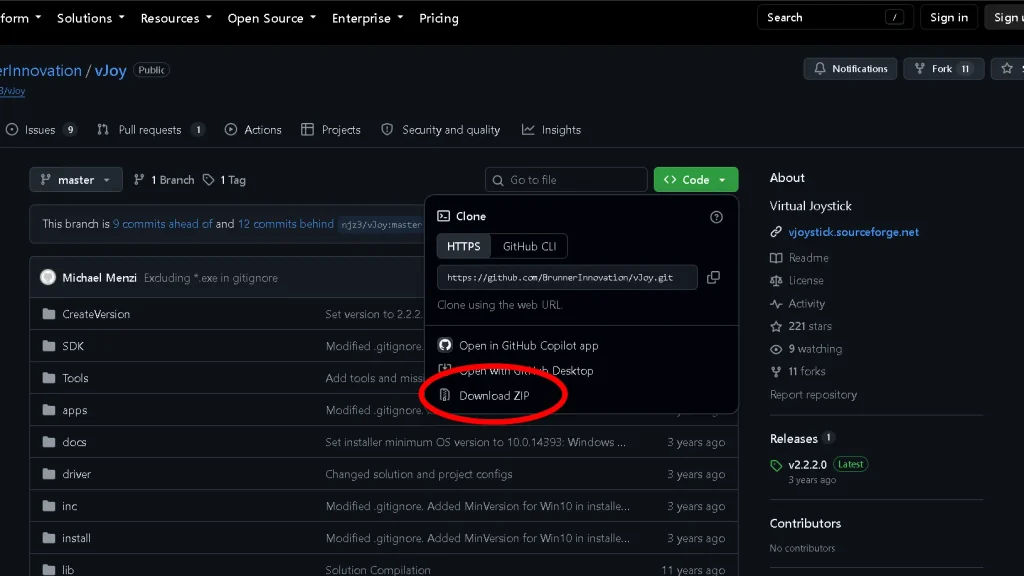
Besides Steam Input, another good method I know of is creating a vJoy and use Joystick Gremlin to combine or remap your physical devices. In Joystick Gremlin, you select your HOTAS, throttle, and pedals, then assign their axes and buttons to the corresponding axes and buttons on the virtual vJoy controller. From there, you open Steam Input and follow the process I explained above, but this time it’s the virtual controller you created that you connect to Steam Input. Then run the game and check the results.
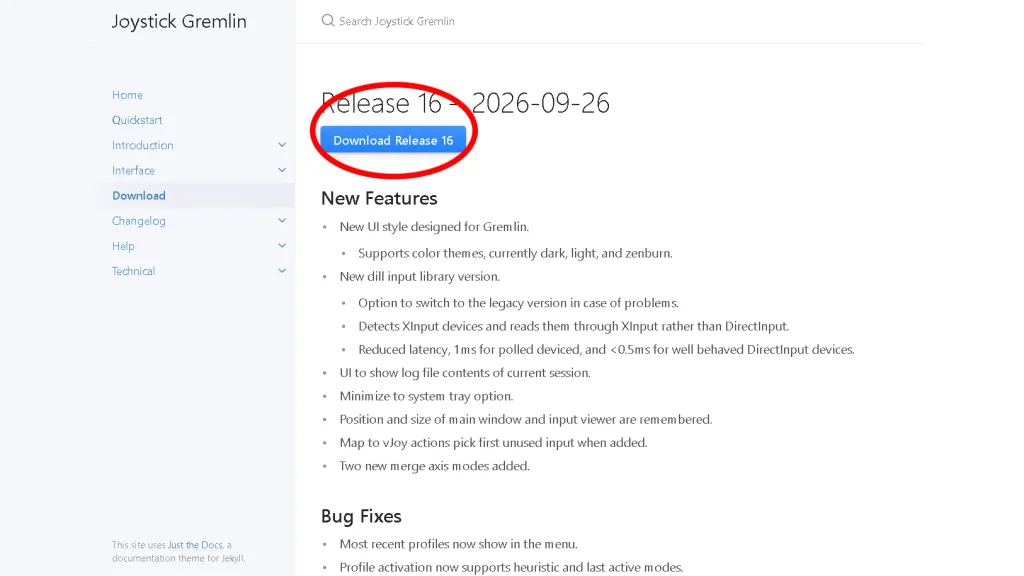
Joystick Gremlin gives you much more control over individual axes and buttons than Steam Input alone.
Advanced Method: Use x360ce
Another option I discovered is x360ce. Some ACE COMBAT 8 players have reported successfully using x360ce with unsupported VKB and Virpil hardware. However, this method isn’t guaranteed to work for every setup. Sadly, many ACE COMBAT 8 players reported that x360ce didn’t solve their particular problem. I recommend you give it a try anyway:
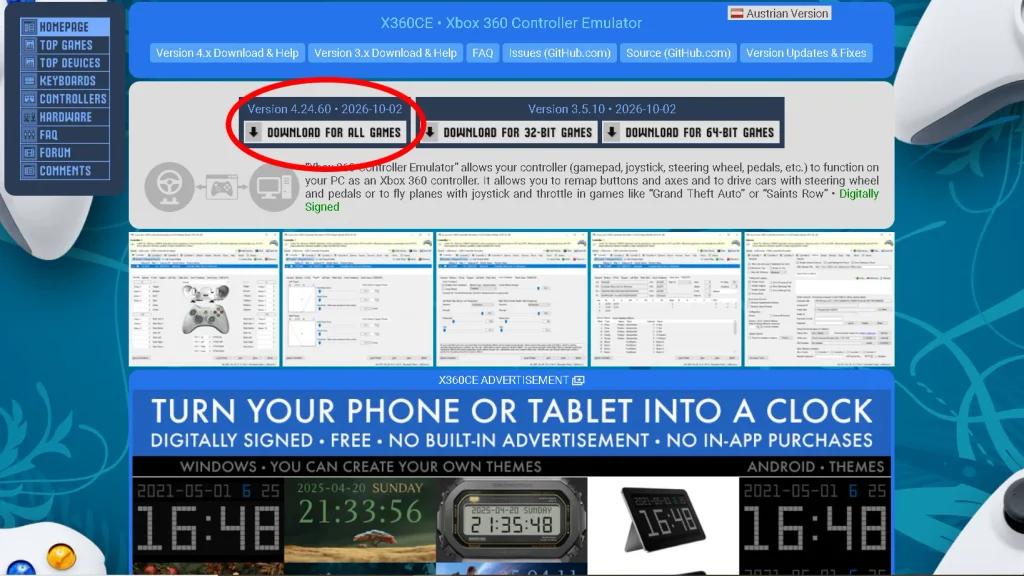
—Download the current version of x360ce, install and open it.
—Connect your HOTAS.
—Add the physical DirectInput device.
—Select the controller you want to use.
—Map the HOTAS axes and buttons to an Xbox controller.
—Save the configuration.
—Start ACE COMBAT 8.
In case x360ce asks you to install the virtual gamepad driver, use the driver’s installation option provided by the current application rather than downloading an old driver package.
How to Fix Common ACE COMBAT 8 HOTAS Problems
HOTAS Is Not Detected
First, check whether Windows detects the device. Press Windows + R, enter joy.cpl and press Enter. Now your controller should appear in the list.
My HOTAS Works, But the Buttons Don’t Match
This is one of the major problems reported by HOTAS users. ACE COMBAT 8 may recognize your flight controls while presenting your buttons as Xbox-style inputs.
For example, your physical trigger might function as the game’s A button rather than appearing as a custom “fire guns” binding. In that situation, use Steam Input to assign what each physical button should send.
My Stick Moves the Camera Too
If moving the stick also moves the camera, you may have conflicting axis assignments. Check your Steam Input configuration and make sure the stick axes aren’t simultaneously assigned to both aircraft movement and camera movement. If you’re using a virtual-controller setup, check the mapping in your remapping software as well
My Throttle Isn’t Working Correctly
Throttle behavior can vary depending on the hardware.
If the throttle is reversed, adjust the axis direction in your remapping software. If the throttle is too sensitive or has an unusual center point, you may also need to adjust the axis curve or deadzone. This is one area where Joystick Gremlin can be useful because it provides more control over axis behavior.
My Controls Are Too Sensitive
Some HOTAS users have reported that the aircraft responds too aggressively to stick movement and that ACE COMBAT 8 doesn’t provide the same sensitivity configuration they expected from ACE COMBAT 7.
If your device works but the aircraft feels too sensitive, I strongly recommend you use a remapping software to adjust the axis response. Joystick Gremlin can be particularly useful here because it allows you to modify axis behavior before the input reaches the game.
I Have Duplicate Inputs
If you’re using a virtual controller, ACE COMBAT 8 may potentially see both the physical device and the virtual device.
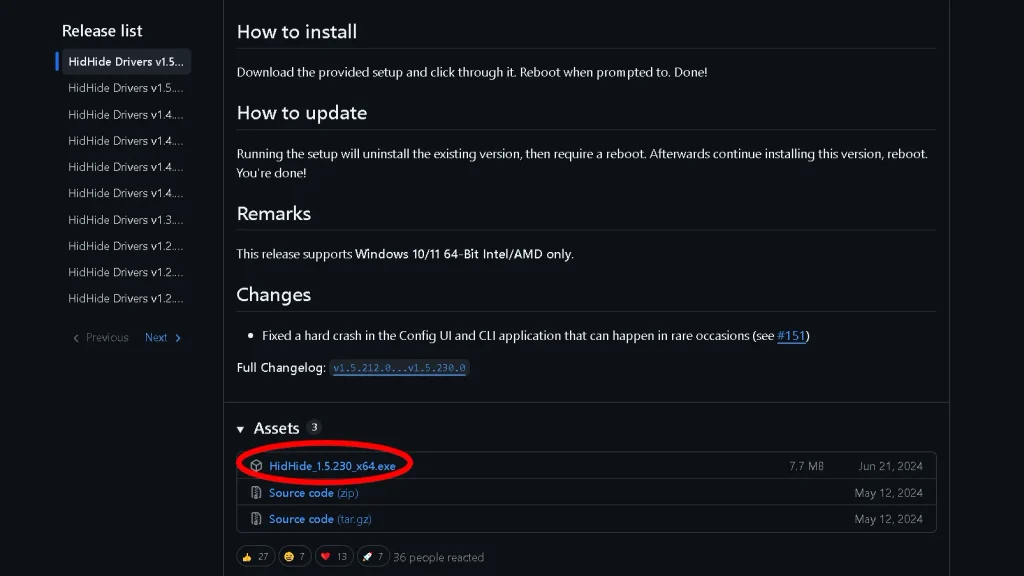
Software such as HidHide can be used to hide the physical controller from games while allowing the virtual controller to remain visible.
Can You Remap HOTAS Controls in ACE COMBAT 8?
Not in the same way that we saw in ACE COMBAT 7. Project Aces has acknowledged that some configuration options available for certain devices in ACE COMBAT 7 aren’t currently available (for some reason!) in ACE COMBAT 8.
Until the game’s native support is expanded, Steam Input and external remapping software are your only salvation.
Will ACE COMBAT 8 Get Better HOTAS Support?
Project Aces has said that it is reviewing the flight-stick situation and working on improvements. The developer team specifically said that it wants to bring the flight-stick experience closer to what was available in ACE COMBAT 7. So far, a specific release date hasn’t been announced for these improvements. I personally hope, that at the very least, they do what they did for AC7, provide support for a wider range of HOTAS devices.