

Ace Combat 8 crashing is the one thing standing between you and the skies right now. Ace Combat 8 Error 01 may show up any minute. Bandai Namco is still investigating, and as of October 3, 2026, there is no confirmed fix. Yeah, it’s annoying. But a few steps do help certain PCs. Start with the official checks below, then try the community workarounds. And for the sake of your PC, don’t download any random “Error 01 fix” .exe, please.
What You’ll Read:
What Is Ace Combat 8 Error 01
Error 01 is the “UE Live game has crashed and will close” window. It’s a symptom, not a diagnosis. Neither Bandai Namco nor Project Aces has explained what it means or what causes it.
Players see it at startup during shader compilation, in the opening cutscene, on mission loading screens, and mid-flight. It hits NVIDIA, AMD, and Intel systems, and Windows 11 users get it too. So you can’t blame one brand or one OS.
The game runs on Unreal Engine 5, but that doesn’t make the engine the culprit. Same error, different triggers. That’s why one player’s fix does nothing for the next. So It’s best to try every fix below.
Check the System Requirements First
It’s a hard pill to swallow, but your system just might not be strong enough. Before anything else, check your specs against the table below:
| Minimum | Recommended | |
|---|---|---|
| OS | Windows 11 (64-bit) | Windows 11 (64-bit) |
| CPU | Core i7-10700K or Ryzen 5 3600X | Core i7-12700K or Ryzen 5 5600X |
| GPU | RTX 2060 6 GB or RX 6600 XT 8 GB | RTX 3070 8 GB or RX 6800 16 GB |
| RAM | 16 GB | 32 GB |
| Storage | 150 GB SSD | 150 GB SSD |
| Target | 1080p upscaled, 30 FPS, Low | 1080p upscaled, 60 FPS, Medium |
The SSD requirement matters more than it sounds. One Steam player sat on a black screen for about ten minutes with the game on an HDD. After moving it to an NVMe SSD, it ran normally.
Note: The game also needs DirectX 12 with Shader Model 6.6+ and a GPU with hardware ray tracing. Windows 10 and older GTX cards are unsupported, even if some people get them running.
Official Fixes From Bandai Namco
Bandai Namco shared three checks while it investigates. None is guaranteed, but all of them are free to try.
Use the Driver the Game Recommends
The game tells you at launch which graphics driver version it wants. If you’re on a different one, switch to it. Bandai says this may help in some setups, not all of them.
Keep 16 GB Free on Your SSD
Keep at least 16 GB free on the SSD where the game is installed. It takes ten seconds to check.
Turn On Virtual Memory
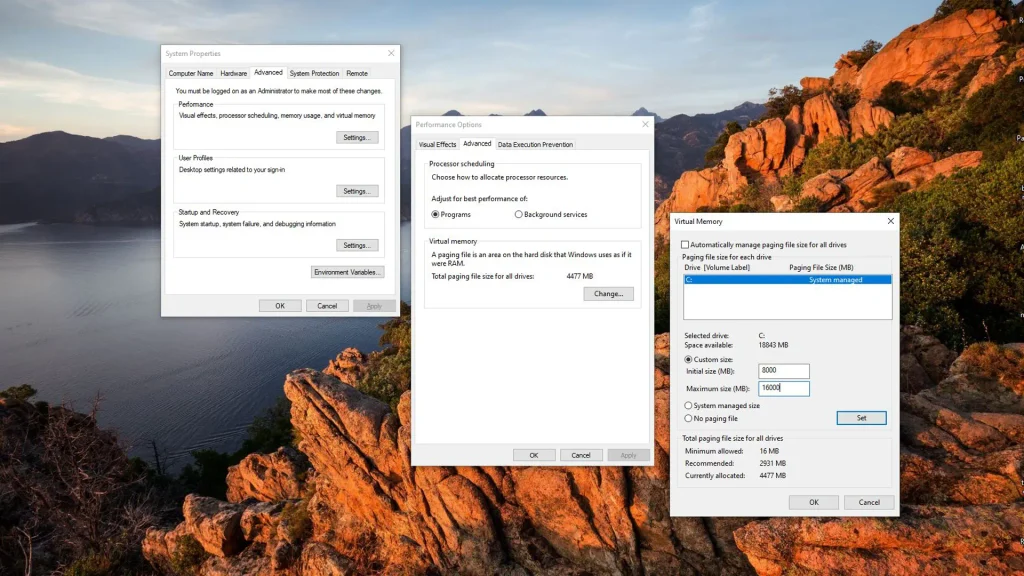
Windows virtual memory has to be enabled. Open Advanced system settings, then go to Performance Settings > Advanced > Virtual memory > Change. Tick “Automatically manage paging file size for all drives” and restart.
One Steam player found their page file had shrunk to about 4 GB, and restoring it stopped the crashes. Others use a custom 32,768 MB initial and 49,152 MB maximum. That’s a community experiment, not an official number, and a 64 GB RAM player still crashed with a big page file. Try system managed first.
Community Fixes That Worked for Some Players
None of these are official, and each one has a player who still crashed afterward.
Disable Async Compute
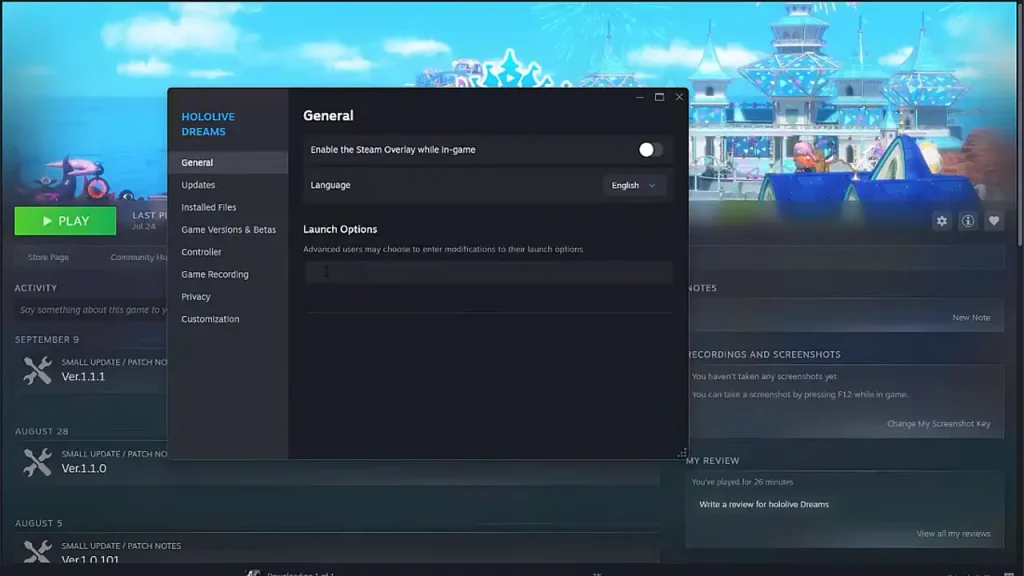
Right-click the game in Steam, open Properties, and paste this into Launch Options:
-DisableAsyncCompute -dpcvars="r.D3D12.AllowAsyncCompute=0"
One RTX 50-series player went almost 10 hours without a crash. Others still crashed on loading screens.
Skip the Opening Cutscene or Try Fullscreen
Skipping the first cinematic got some players past the opening crash point. Fullscreen helped one player, but another who was already in Fullscreen kept crashing.
Cap Your FPS at 60
An RTX 5080 player stopped cutscene crashes at 60 FPS, and uncapping brought them back in Mission 2. Others still crash with the cap on.
Switch TSR to DLSS
Some NVIDIA players got past cutscene crashes after swapping TSR for DLSS. It’s a small sample, but it costs nothing to try.
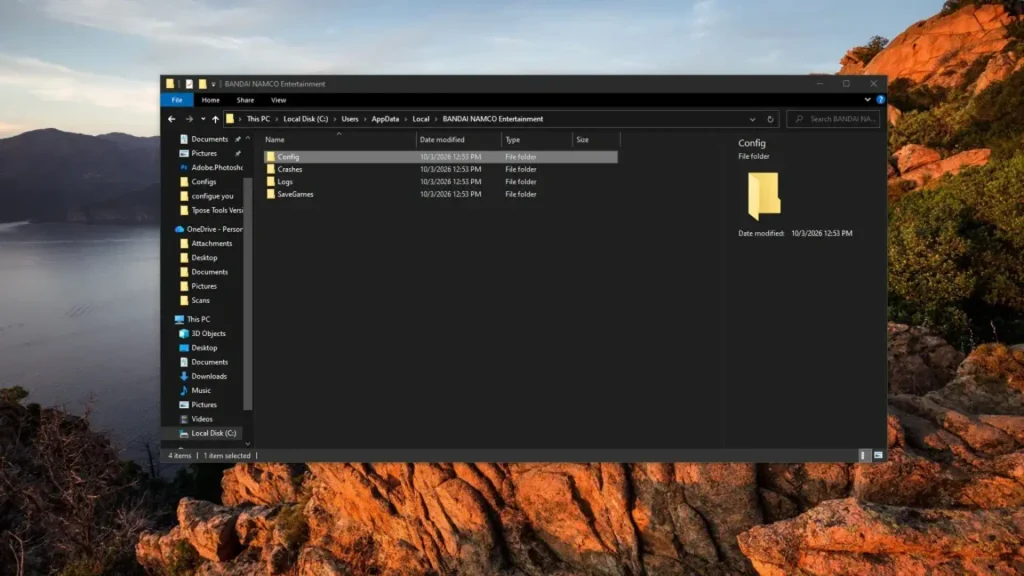
Delete GameUserSettings.ini
One player finally reached the title screen after deleting this file. Back it up first, since your settings reset:
C:\Users\YOURNAME\AppData\Local\BANDAI NAMCO Entertainment\ACE COMBAT 8\Saved\Config\Windows
GPU-Specific Crashes
Different graphics drivers bring different problems with them. Find yours and see what can be fixed:
NVIDIA
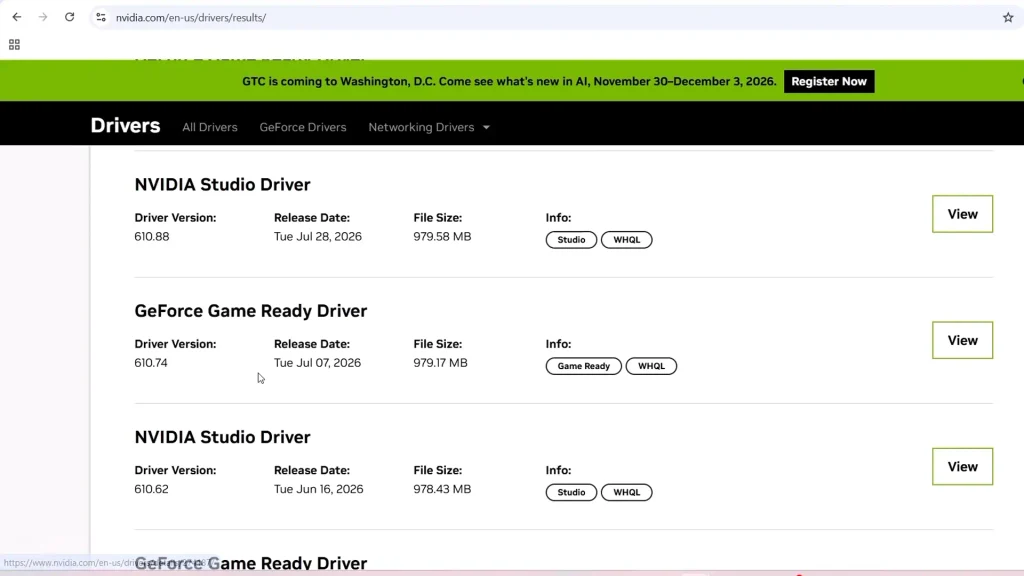
Rolling back to driver 610.74 is a last resort, since Bandai still wants you on the game’s recommended driver. An RTX 5070 Ti player crashed within 20 minutes of updating, then got much more stable after the rollback. Another player says it only bought them long sessions before the next crash, and someone else runs 617.14 with zero crashes. Clean out your current driver with DDU first.
Intel Arc B580
Intel has escalated B580 crashes, which often freeze the whole PC when you fire a missile in Mission 1. Intel wants you to test driver 32.0.101.9034, but it’s no cure. Players still crash from missile explosions on it. Reports from other Arc cards exist, but Intel hasn’t confirmed them.
AMD Radeon
An RX 9070 XT player downgraded to the game’s recommended 26.3.1 and kept crashing. Going back to 26.8.1 and raising virtual memory to 32,800 MB finally worked. Some players say 26.9.2 runs better, but that’s word of mouth.
Fixes to Skip
Don’t download any “Error 01 fix patch” .exe. A Steam player warned about one circulating from an unknown GitHub account, and no official source endorses it. Nobody has verified what it does, so treat it as a security risk.
Several YouTube videos tell you to delete the Easy Anti-Cheat folder and let Steam verify it back. Nothing shows EAC causes Error 01, and an RTX 5080 player who tried it still crashed. The same videos can’t agree on launch options either. One says DX12, others say -dx11, and a player who forced DX11 kept crashing. One video even calls the game “Assault Horizon,” so I wouldn’t trust that script.
Lowering your graphics isn’t a reliable fix either. Players still crash on Low and at reduced resolution.
How to Report Your Crash to Bandai Namco
If nothing above works, report it. The ACE COMBAT team is collecting crash details in the official PC Crash Report thread on the game’s Steam hub, and it says detailed reports help them reproduce the problem. Include:
- Your GPU, CPU, RAM, and other specs
- Your Windows version and system software version
- The exact error message or code
- The steps that trigger the crash
- Any other apps running while you play
Add your driver version and the mission or cutscene where it crashed. A post that just says “it crashes” gives the devs nothing to work with.
I hope that your Ace Combat 8 Crashing is fixed by now. If you found a different fix that I forgot to mention, let me know in the comments below.