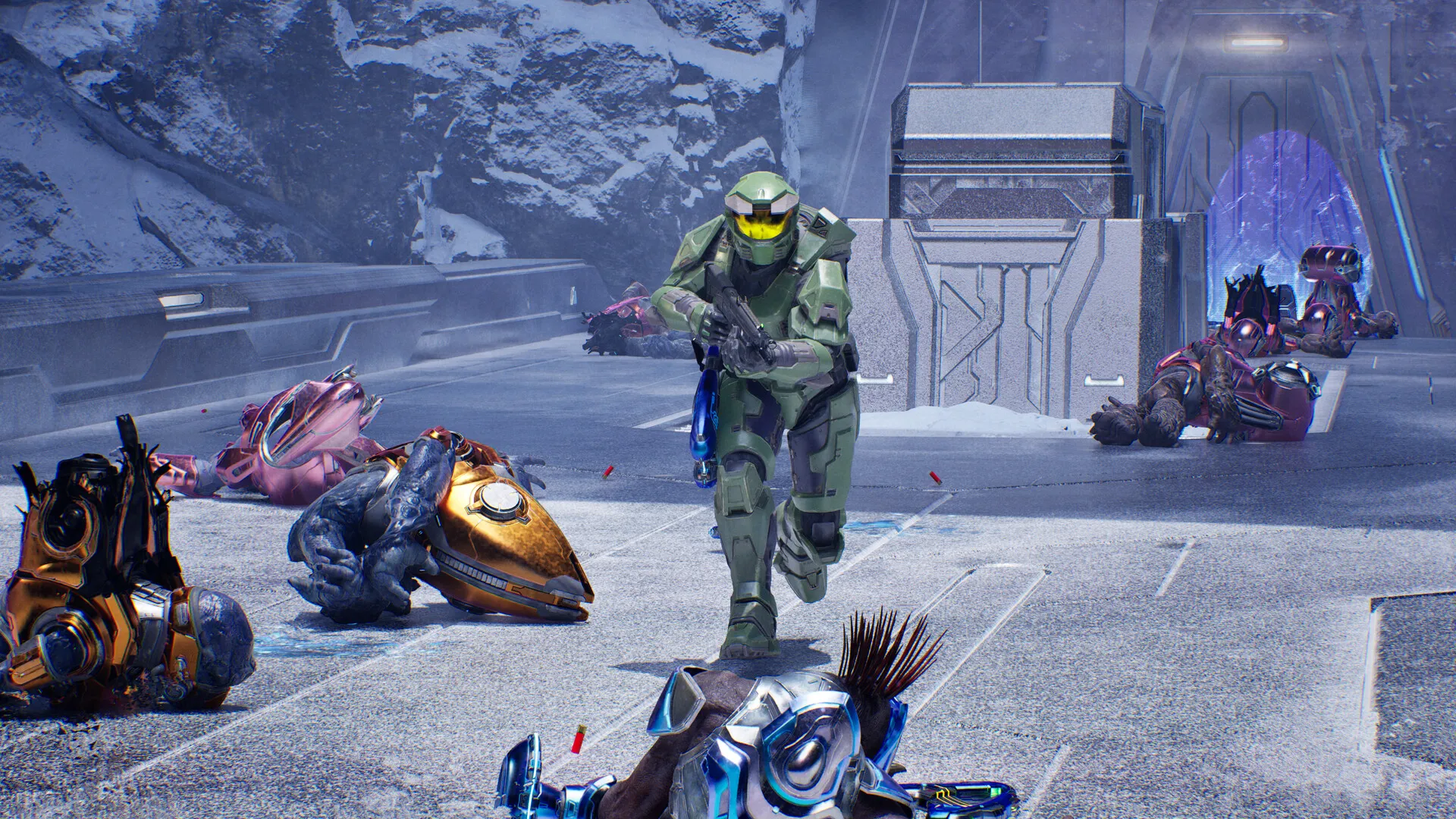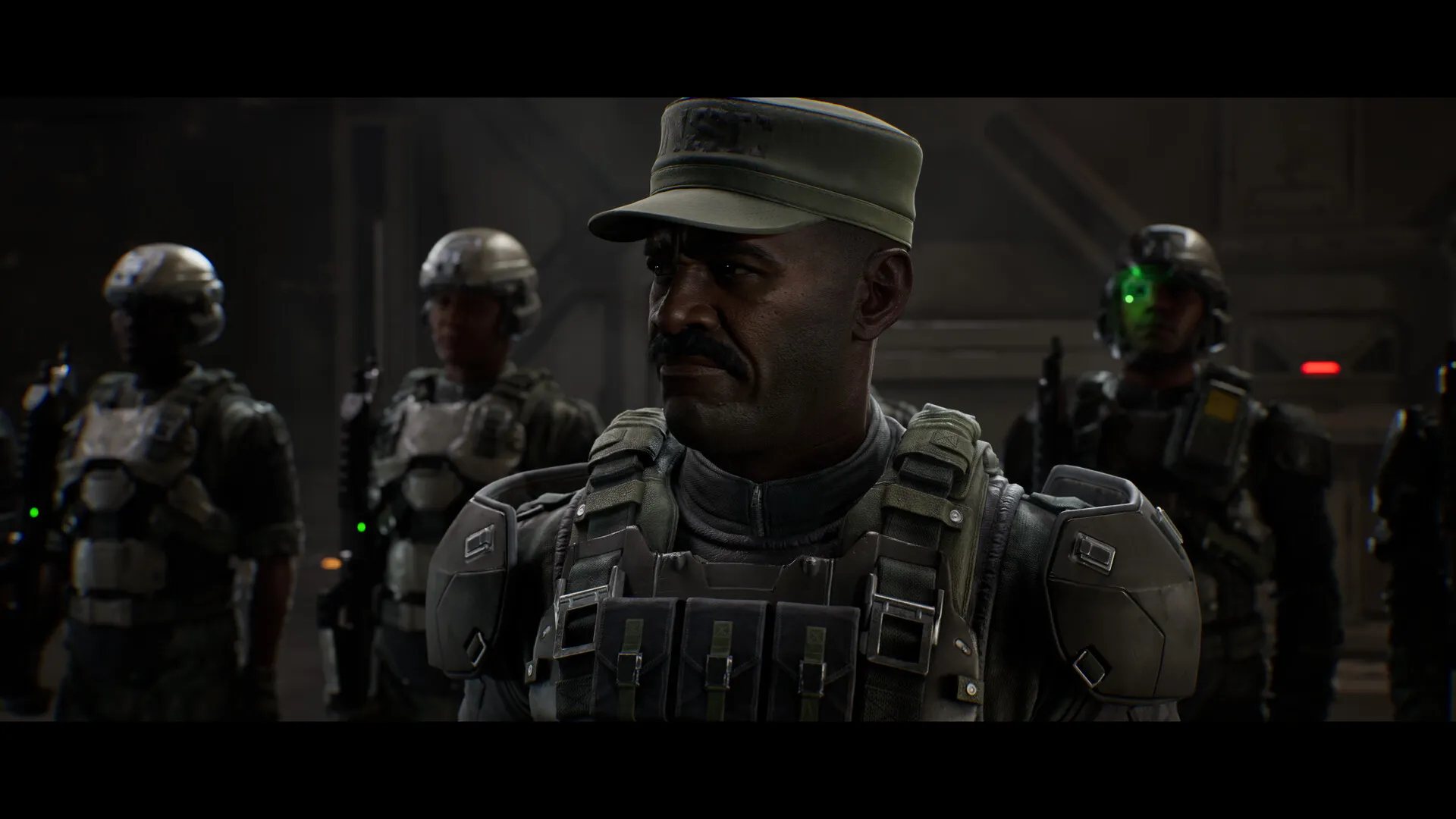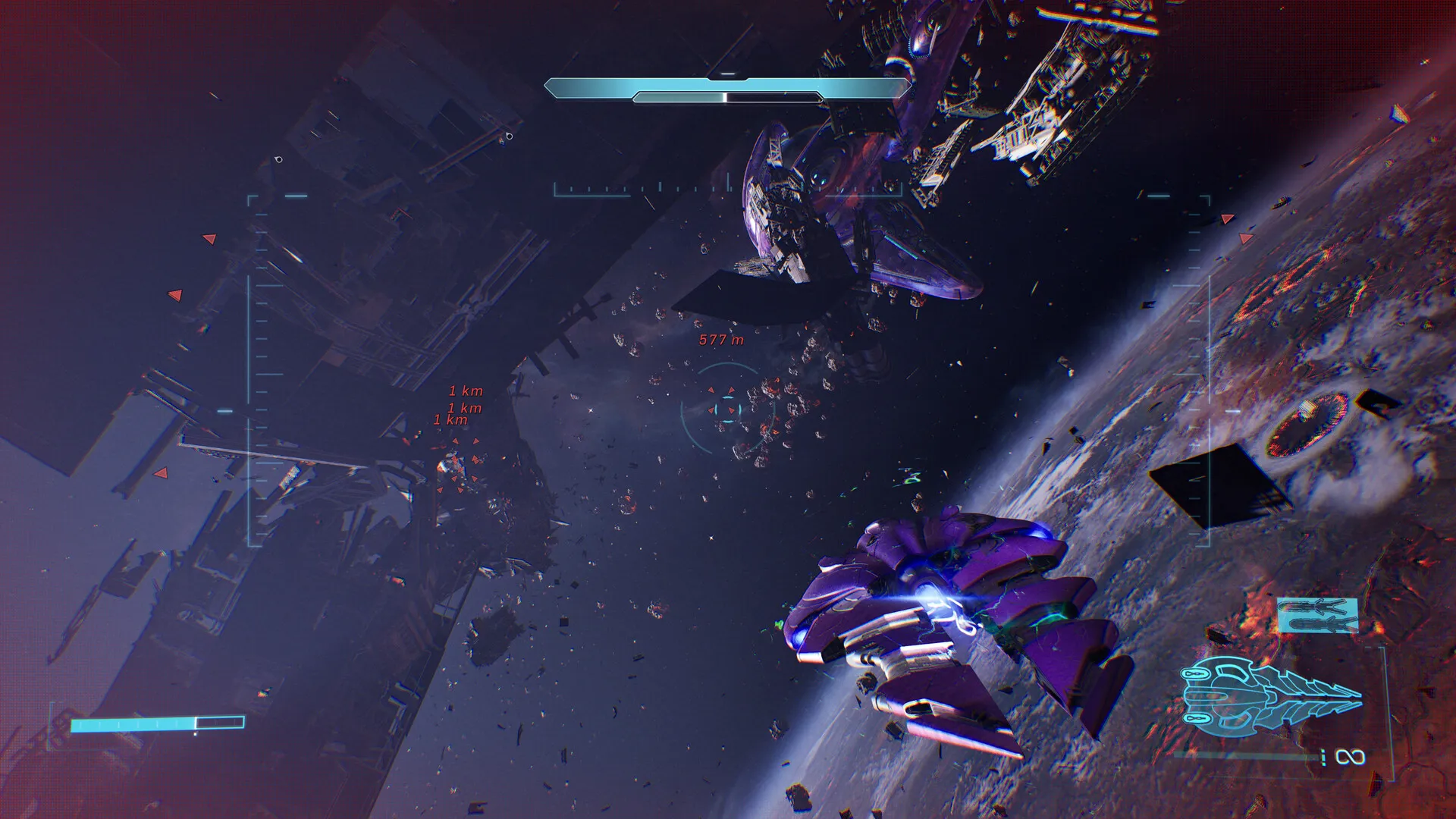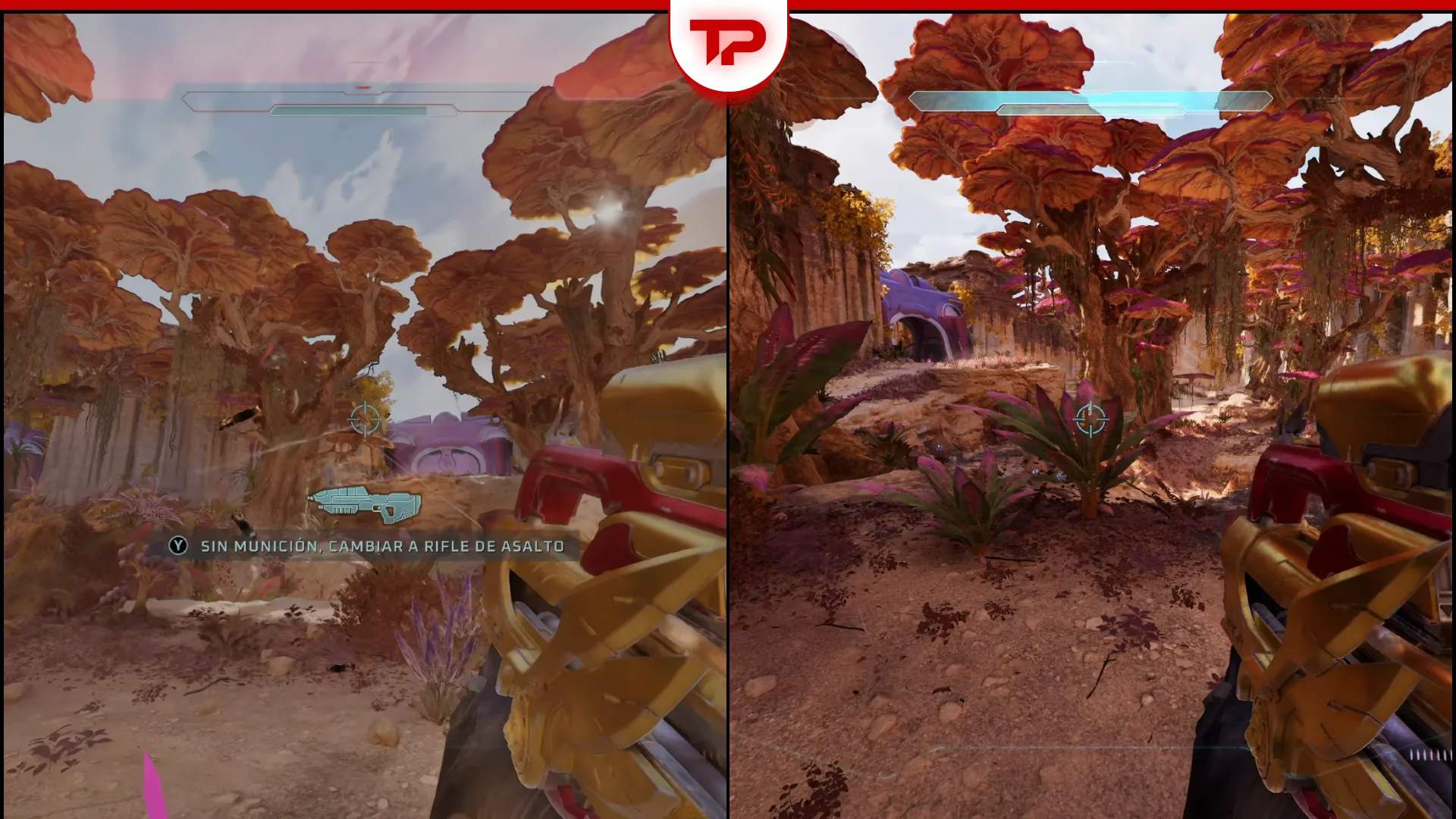


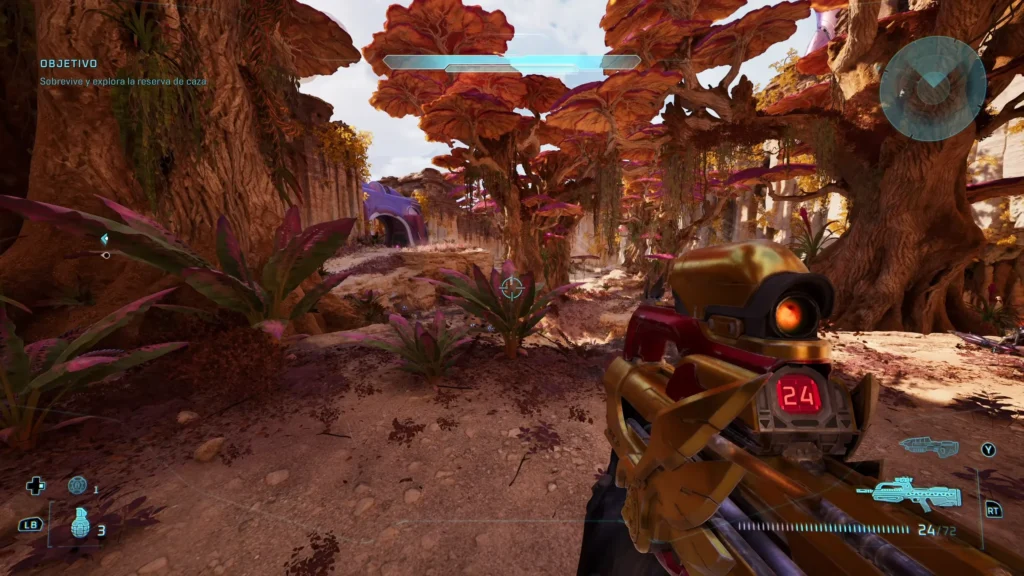
If you’re like me, then you know that in Halo: Campaign Evolved, there’s no in-game option to turn film grain and chromatic aberration off, sadly. Chances are, you find the heavy film grain softens the image and reduces clarity. If we consider chromatic aberration, which we should, it’s like a double kill. That’s because it’s like a cherry on top and adds another extra layer of blurriness to an otherwise beautiful game.
So here’s how a simple local configuration change, that the community has come up with, removes both effects on PC and produces a cleaner picture. Let’s get to it.
Table of Contents
How to Remove Film Grain in Halo Campaign Evolved
To remove film grain and chromatic aberration in Halo: Campaign Evolved, right off the bat, press the Windows key and R to open the Run dialog. Type the following and press Enter.
%localappdata%\Meteorite\Saved\Config\Windows
Steam users require the Windows folder. If you’ve installed it through the Xbox app or Game Pass, open the WinGDK folder instead:
%localappdata%\Meteorite\Saved\Config\WinGDK
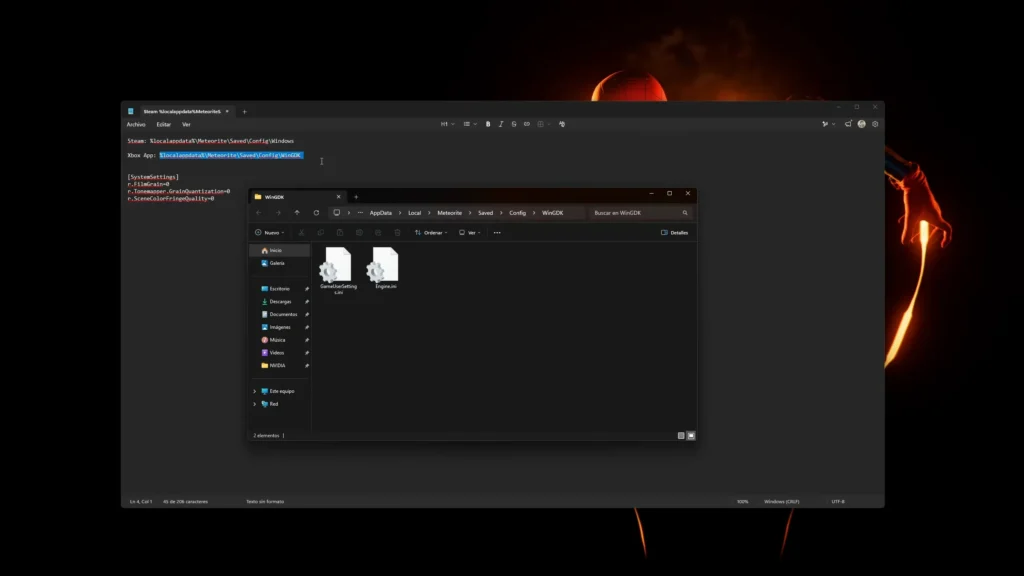
If Engine.ini doesn’t exist, create a new text document and rename it exactly Engine.ini. Confirm the extension is .ini and not .txt. You’re going to see a gear icon when it’s done correctly. If you can’t change the file format, enable the option to show file name extensions in File Explorer.
Open the file with Notepad. Copy and paste the following in there.
[SystemSettings]r.FilmGrain=0
r.Tonemapper.GrainQuantization=0
r.SceneColorFringeQuality=0
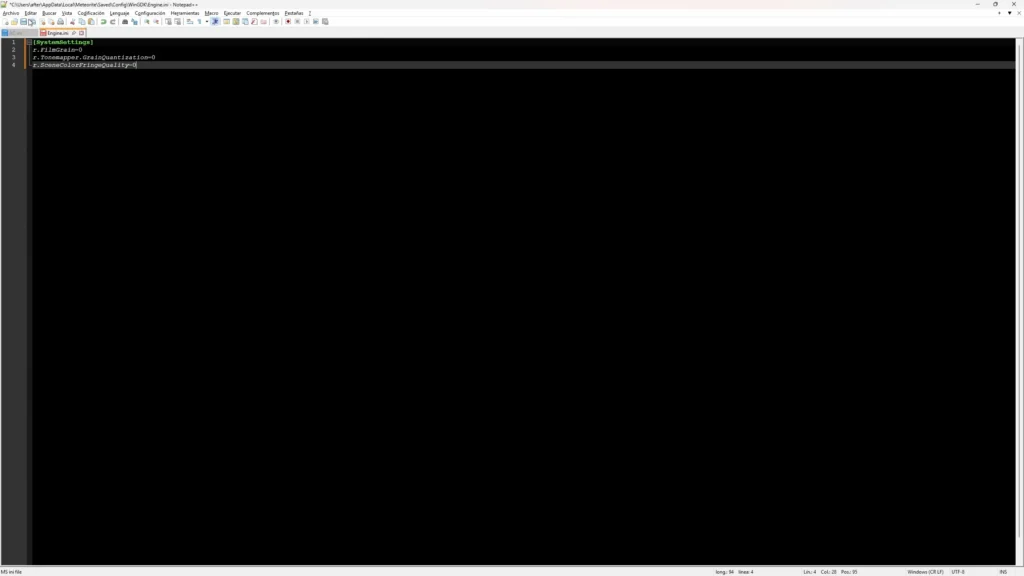
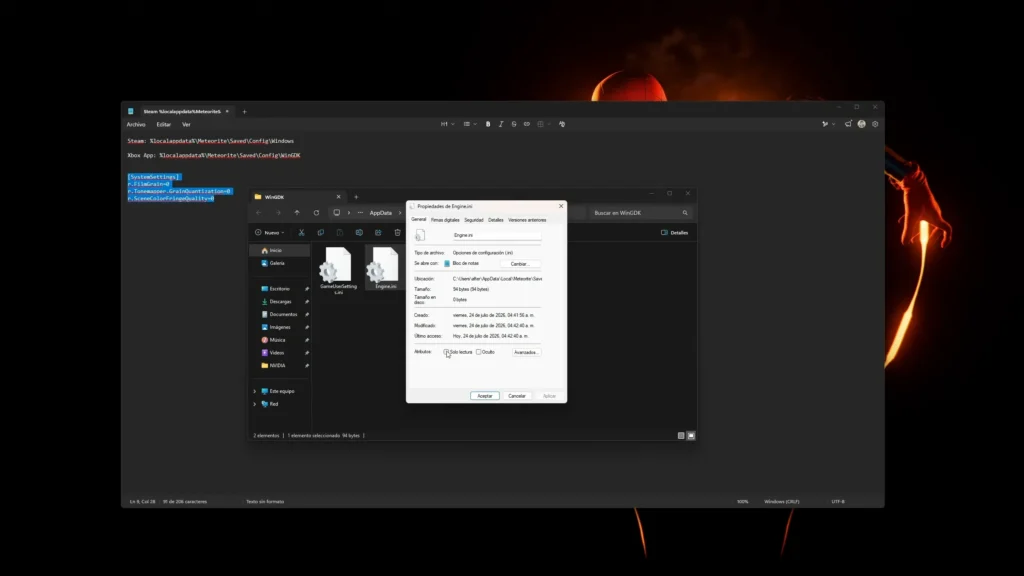
Just make certain no space appears before the opening bracket. Save the file. Now, what you have to do is right-click Engine.ini and choose Properties to check the Read-only box. Apply the change. This prevents the game from overwriting or deleting the file when it launches.
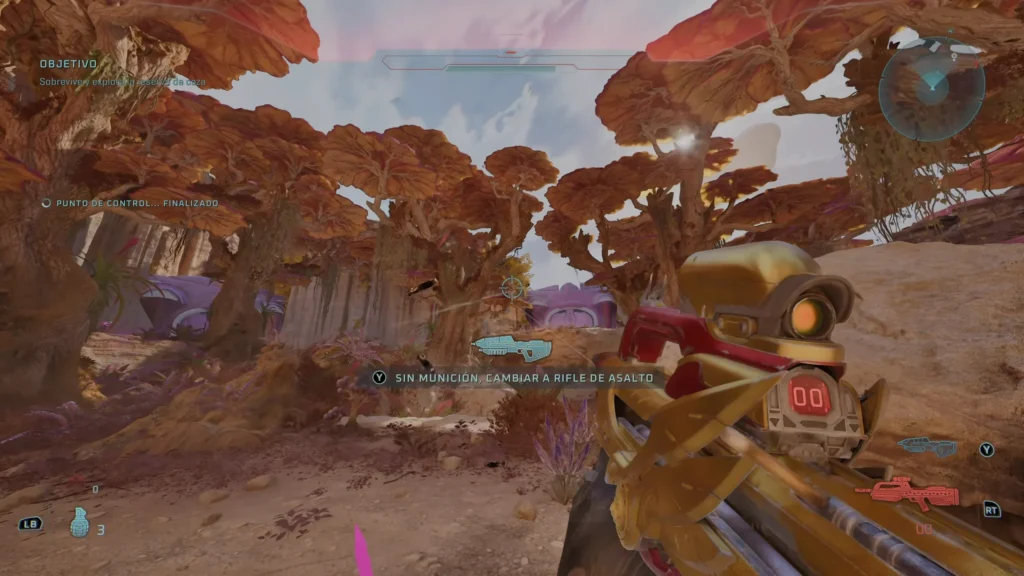
Okay, time to start the game. The film grain and chromatic aberration should now be disabled. If not, make sure to pair it with native upscaling or TSR rather than DLSS.
Alternative Method: Turn Off Film Grain via Steam Launch Options
Here’s another option (found it on Reddit) if the Engine.ini method doesn’t take effect. Open the game properties in Steam and add this to the launch options:
-ExecCmds=”r.FilmGrain 0; r.Tonemapper.GrainQuantization 0; r.SceneColorFringeQuality 0; r.Tonemapper.Quality 0; r.Lumen.ScreenProbeGather.Temporal.MaxFramesAccumulated 12; r.Lumen.DiffuseIndirect.Temporal.MaxFramesAccumulated 12″
I’ve been checking Steam and Reddit threads and a lot of players report a noticeably sharper image free of any unwanted grain and color fringing. However, that doesn’t mean everyone’s going to get the same result. If you’ve tried all the above and nothing still works, I’d wait for the official patch, in which I’m sure the fine folks at Halo Studios will hopefully add this option soon.

Halo: Campaign Evolved