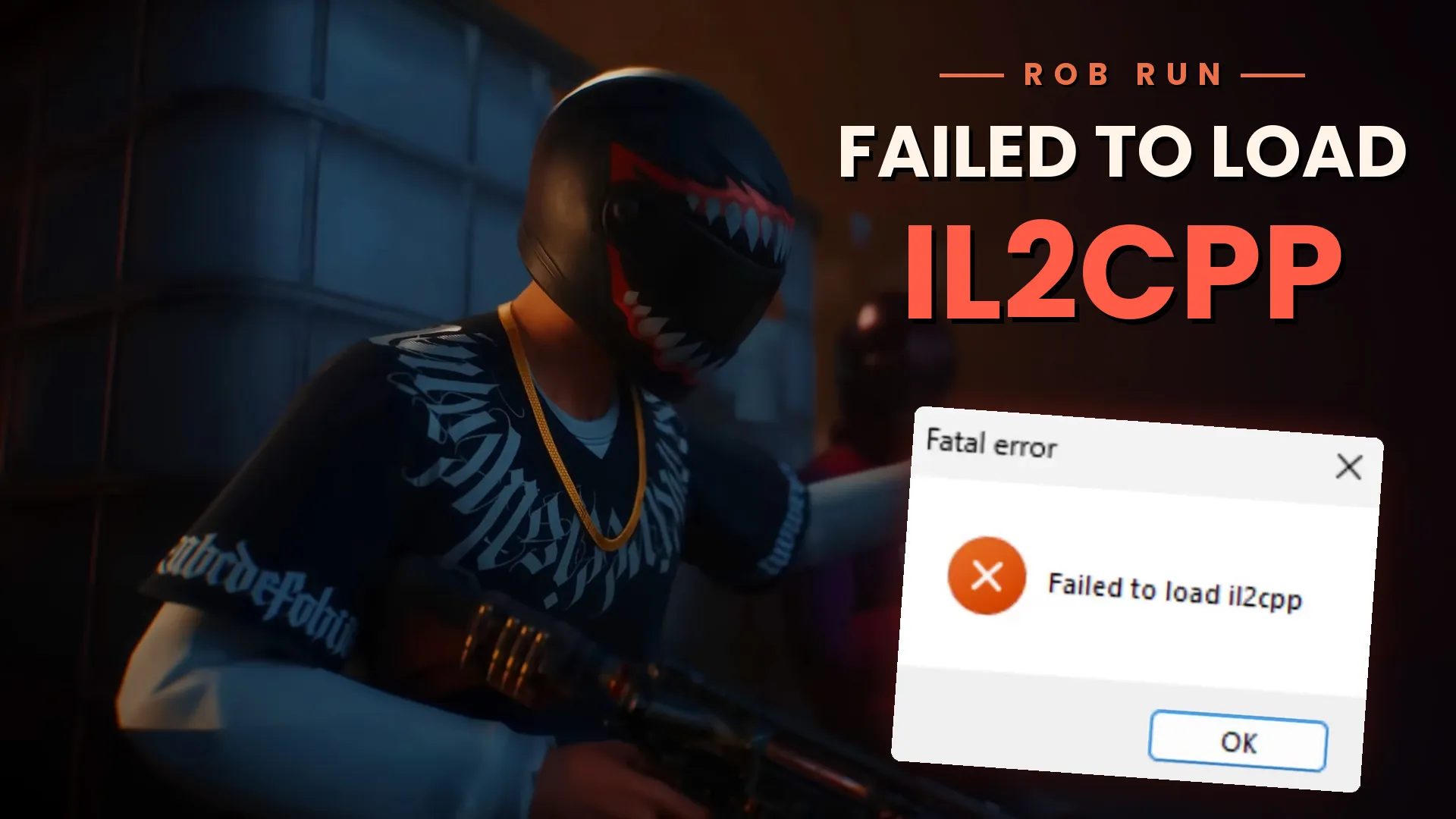


The Fatal error: Failed to load il2cpp message in ROB RUN can appear when the game can’t load a core file, such as GameAssembly.dll. Start with Verify integrity of game files in Steam. If the error stays, check Event Viewer to see whether Windows blocked a game file. Change Smart App Control only as a last step.
What You Will Read:
How to Fix ROB RUN Failed to Load IL2CPP
The steps below go from the safest fix to the riskiest. Work through them in order.
1. Verify ROB RUN Game Files on Steam
Damaged or missing files can stop the game from loading. Steam can replace them for you.
- Close ROB RUN and Steam completely, then open Steam again.
- If Steam shows an update for ROB RUN, install it first.
- Right-click ROB RUN in your library and select Properties.
- Go to Installed Files and click Verify integrity of game files.
- Wait for the scan to finish, then launch the game.
Steam only downloads the files that are broken or missing, so this is much faster than a reinstall. At least one ROB RUN player fixed the error this way, and ROB RUN’s official help page also lists it for launch problems.
2. Update Windows
Install the latest Windows updates, restart your PC, and launch ROB RUN again.
3. Check Event Viewer for Blocked Files
Windows logs an event when it stops a file from loading. This step shows whether that happened to ROB RUN.
- Open Event Viewer.
- Go to Applications and Services Logs → Microsoft → Windows → CodeIntegrity → Operational.
- Open the latest Event ID 3077 entry.
- Check the file name and path in the description. Look for GameAssembly.dll in the ROB RUN folder, with a time that matches your failed launch.
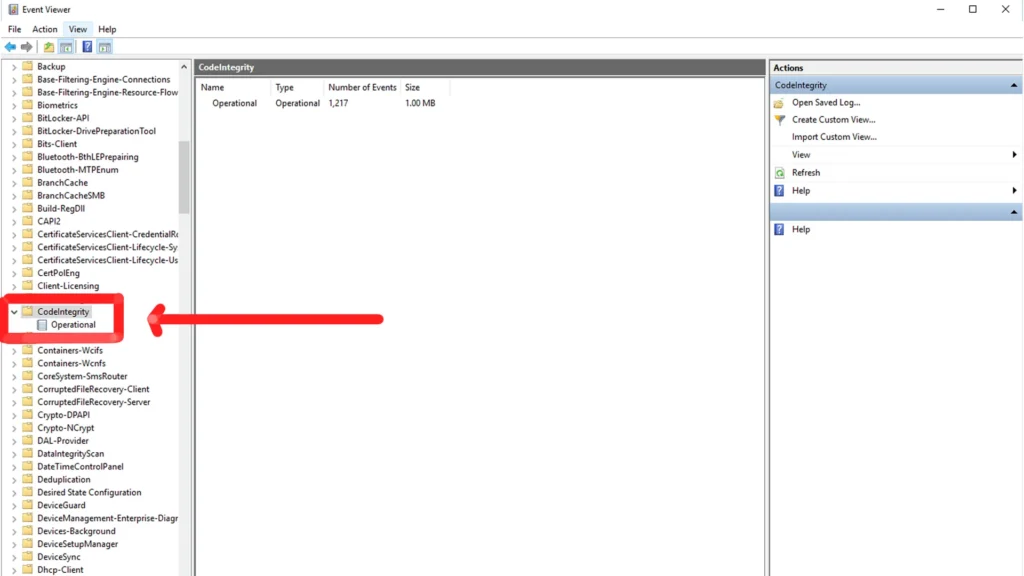
Event ID 3077 means Windows blocked a file because it didn’t pass an enforced code integrity policy. It doesn’t automatically mean ROB RUN or Smart App Control caused the problem. If the blocked file is GameAssembly.dll in the ROB RUN folder, go to Step 8. If you find no such entry, continue with Step 4.
4. Check Antivirus and Windows Security
Your antivirus may have blocked or quarantined a ROB RUN file. Open Windows Security, go to Virus & threat protection, and click Protection history. If you see a ROB RUN file there, run Verify integrity of game files again so Steam restores a clean copy. Restore the file yourself only if you are sure it belongs to the game. If you use another antivirus, check its quarantine list too.
If the same file keeps getting blocked, you can add the ROB RUN folder to the exclusions list.
An exclusion tells Windows Security to stop scanning that folder, which can leave your PC open to threats. Add one only if you are sure the blocked file came from Steam.
- In Windows Security, go to Virus & threat protection and click Manage settings.
- Scroll down to Exclusions and click Add or remove exclusions.
- Click Add an exclusion and choose Folder.
- Select the ROB RUN folder. The Browse button under Installed Files in Steam opens it.
5. Remove Mods and Overlays
If you use mods, mod loaders, DLL injectors, or overlay software, disable them and launch the game. An older library can stop working after a game update and cause this error. If the error stays, close any other programs you don’t need and run Verify integrity of game files again so Steam restores the original files.
6. Reinstall Visual C++ Redistributable
The error can come from missing runtime files. Install the latest Microsoft Visual C++ v14 Redistributable (x64) from Microsoft’s download page, then restart your PC and launch ROB RUN.
7. Reinstall ROB RUN
Do this only after the steps above. The Steam file check is much faster and often solves the problem without a new download.
Uninstall ROB RUN in Steam, then install it again. A fresh install doesn’t always prevent the error. If Step 3 showed GameAssembly.dll blocked, go to Step 8.
If you delete leftover folders by hand, first check that they don’t hold files you want to keep.
8. Check Smart App Control (Last Resort)
Smart App Control blocks apps that Windows doesn’t trust. If it blocks GameAssembly.dll, ROB RUN can’t start. Use this step last, or right away if Step 3 showed GameAssembly.dll blocked in the ROB RUN folder.
- Open the Start menu and search for Windows Security.
- Select App & browser control, then Smart App Control settings. If you don’t see it, skip this step.
- If it is already Off, skip this step. It isn’t blocking the game.
- Otherwise, set it to Off.
- Restart your PC and launch ROB RUN.
If you turn Smart App Control off, Windows protection drops for every app. It has no option to allow a single app, so it is all or nothing. Recent Windows updates let you turn it back on. On older builds, you may need to reset or reinstall Windows, so read Microsoft’s Smart App Control FAQ for your version first. If you turn it back on, the error can return until ROB RUN gets an update.
What Causes the Failed to Load IL2CPP Error in ROB RUN?
The error can appear when ROB RUN can’t load GameAssembly.dll. These are the usual causes:
- Damaged or missing game files
- Runtime files that are missing, such as Visual C++
- Mods, overlays, or other third-party software
- Smart App Control or antivirus blocking the file
If ROB RUN launches but gets stuck on compiling shaders, read ROB RUN Stuck on Compiling Shaders.