

StarClan might guide your story, but it won’t save your progress!
If you want to know how to save in Warrior Cats: Clans of the Forest, there are two ways:
- Exit through the main menu to save the game
- Fast travel between outposts
Warrior Cats: Clans of the Forest does not make its saving system particularly obvious. Here is everything you should know to save your progress without leaving everything to chance.
Jump to
How to Save in Warrior Cats: Clans of the Forest
The most reliable way to save progress in Warrior Cats: Clans of the Forest is to exit the game through the main menu. I tested this method myself, and it does not require you to finish the quest first.
Here is how to do it:
- Open the Pause Menu
- Head to the General Tab
- Select Main Menu
- Choose Exit to Main Menu
- Next time, pick Continue from the main menu
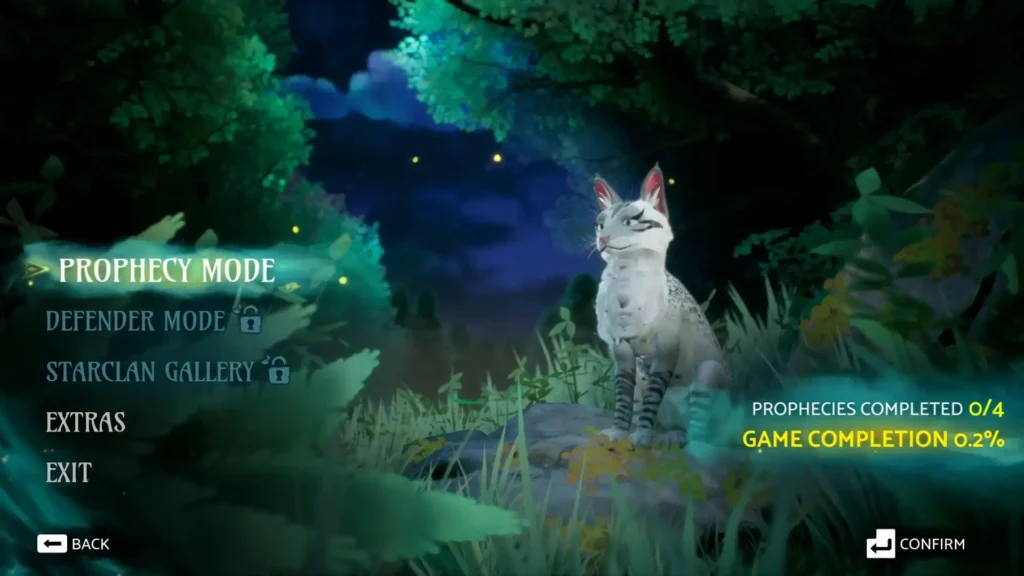
By this method, your progress will be saved and you should not be worried. When you are ready to return, just select Continue from the main menu. On PC, the P key opens the pause menu. If you’re using a controller, press Down on the D-pad to open the menu.
Personally, I’d use this method whenever I’m finished playing, especially after completing an important quest. It’s a much safer bet than closing the game and hoping everything was saved.
One detail worth knowing is that your cat might reappear at an outpost rather than the exact spot where you stopped playing. That doesn’t necessarily mean you’ve lost progress.
Warrior Cats: Clans of the Forest How to Save By Outposts
If you are not in the mood to return to the main menu every time, there is another way.
I try saving the game by traveling between unlocked outposts, and it worked. This is really useful when you are still exploring the Lake Territories and don’t want to interrupt your adventure.
How to Save with the Outpost Method
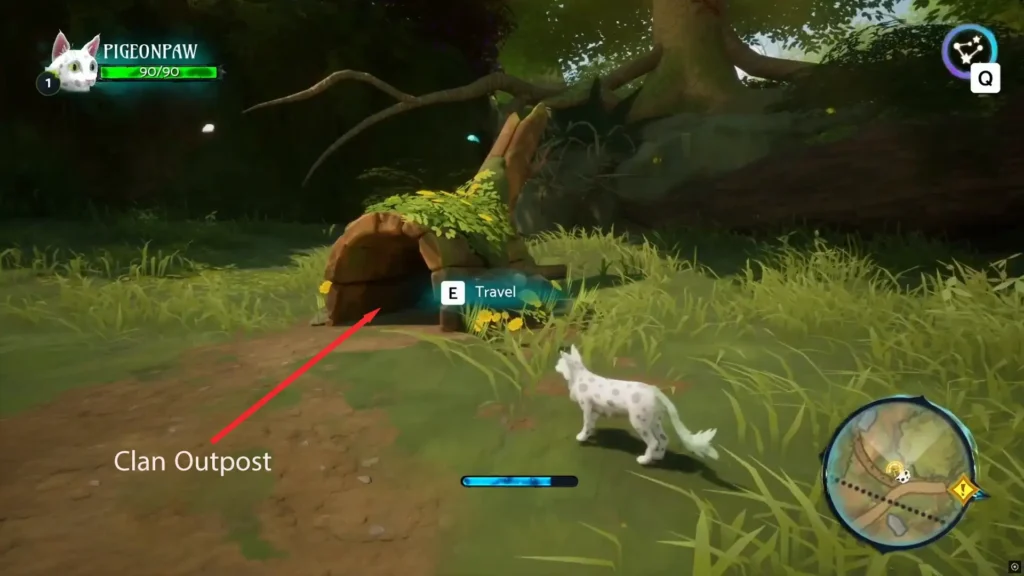
Outposts double as fast-travel points, and fast travelling between two unlocked outposts appears to preserve your progress.
Head to an outpost and interact with its fast-travel point. Open the map and select another unlocked outpost. Travel there. You can return to your previous location if you want to continue exploring that area.
We couldn’t confirm that opening the map on its own triggers a save, so don’t rely on that. When you’re done for the day, use Exit to Main Menu instead.
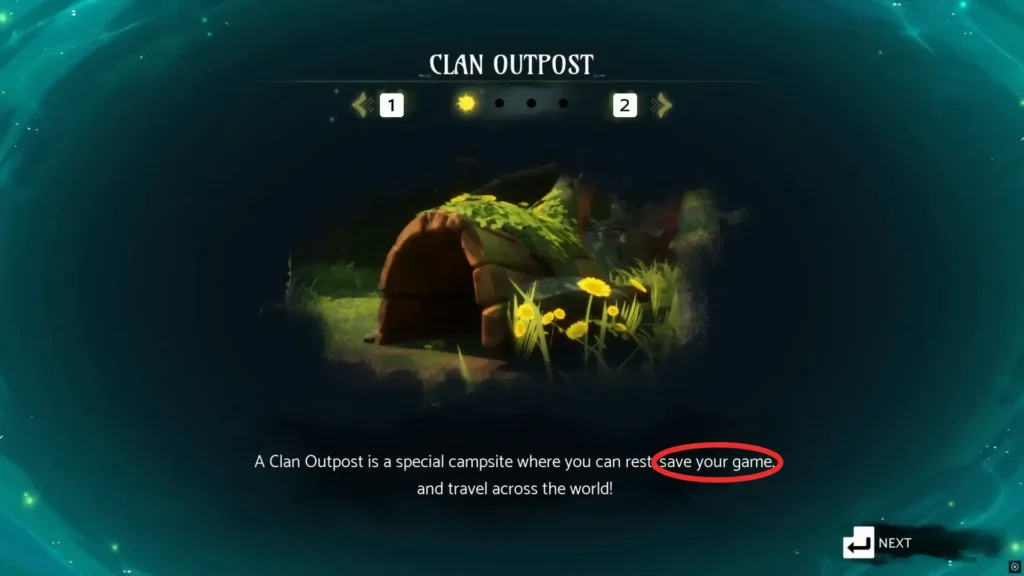
If you’re still finding your way around the territories, our Warrior Cats: Clans of the Forest walkthrough covers the exploration basics, including outposts.
Does Warrior Cats: Clans of the Forest Have Autosave?
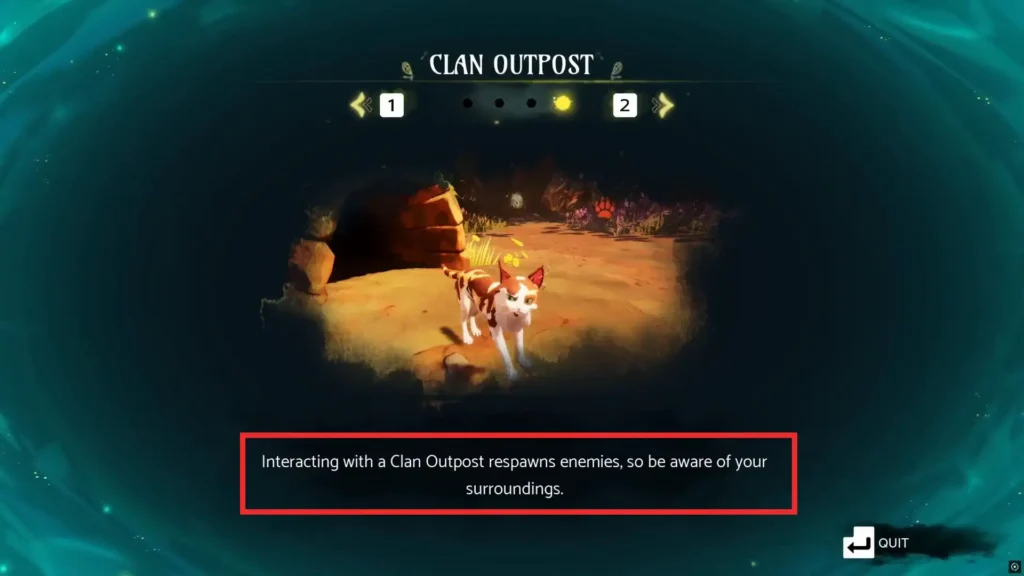
The game appears to have an autosave system linked to outposts, although the exact trigger isn’t completely clear. Fast traveling between unlocked outposts has been shown to preserve progress, but I couldn’t confirm whether simply opening the travel map is enough. To be safe, use the main-menu exit method when you’re finished playing.
Check that the Progress Is Saved
If you return to the game and find your cat standing at an outpost instead of where you left off, do not assume your save failed.
Check your recent quest progress or inventory to see that the changes you made before exiting are still there.
A different starting location is not necessarily a problem. Losing recently completed objectives or collected items would be a more meaningful sign that your progress was not preserved.
Location of Warrior Cats: Clans of the Forest Save Files
If you are playing through Steam, you can also find your local save files and back them up. The save file folder is as follows:
- %LOCALAPPDATA%\Wrc\Saved\SaveGames
To find it, copy the path into the Windows File Explorer address bar and press Enter. The game’s save files use the .sav extension. To back them up, close the game first, then copy the files to a separate folder.
Warrior Cats: Clans of the Forest also supports Steam Cloud, which can synchronize supported save data through your Steam account. However, I would not treat cloud syncing as a replacement for checking that the game has actually saved your progress.
Has the Latest Update Changed How Saving Works?
As of the time of writing this article (October 25, 2026), there has not been an officially documented update changing the saving system.
The latest developer announcement addresses mouse and keyboard controls, with improvements promised in an upcoming update. It does not announce any changes to saving or outpost checkpoints.
For now, exiting through the main menu remains the most dependable method. When you are hunting and exploring, fast traveling between unlocked outposts is a useful way to safeguard your progress without ending your session.

Warrior Cats: Clans of the Forest