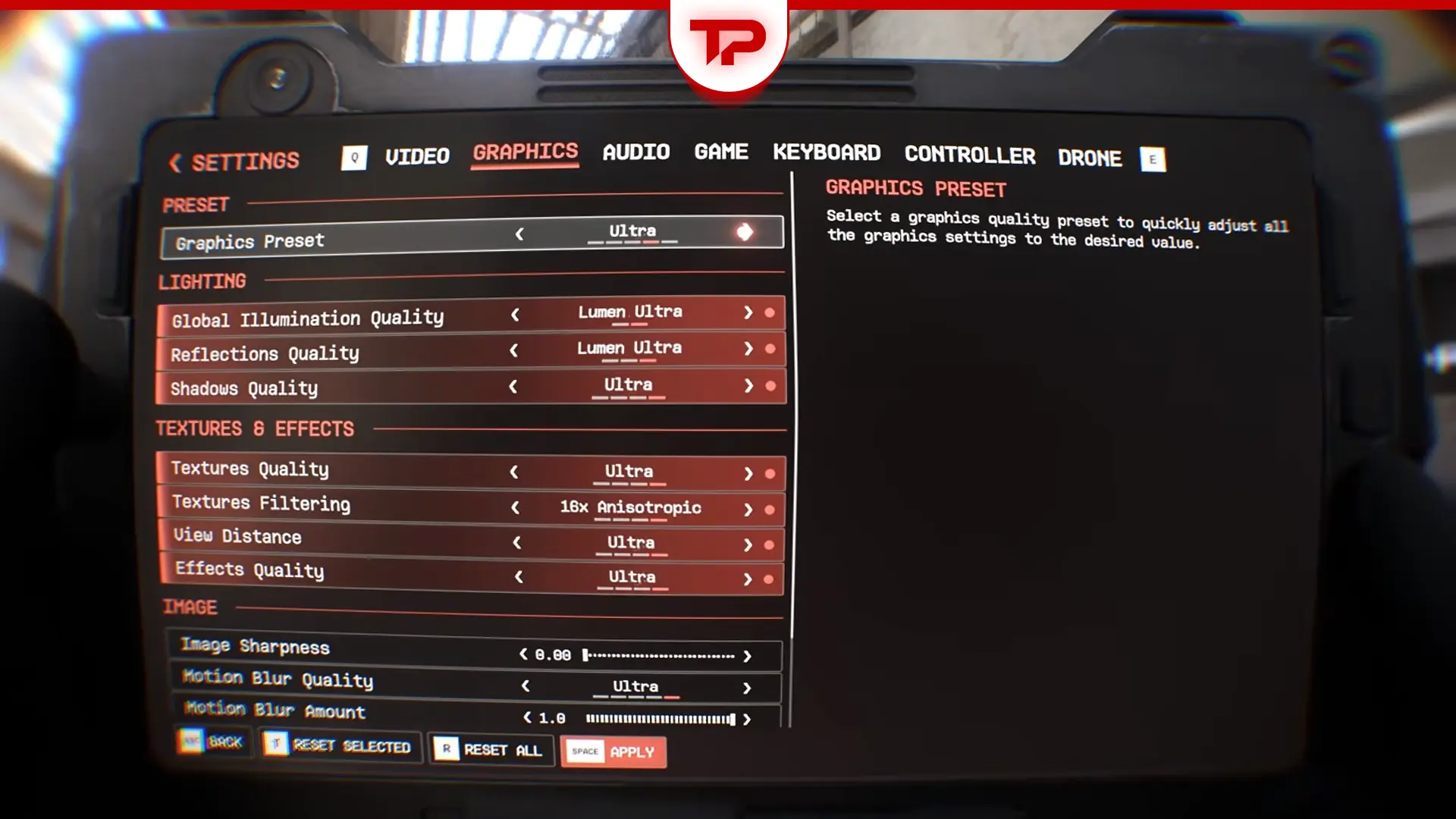


Bodycam best settings have changed since the v0.8 “Locked & Loaded” update. None of the old “best settings” advice still applies. Some players are getting way better frames since the patch. Others had their FPS get cut in half on the exact same hardware. I dug through the official patch notes, GPU vendor docs and dozens of player reports to sort out what actually works right now. So stick around until the end.
What You’ll Read:
What Changed in the v0.8 Settings Menu
The whole audio and graphics menu got reworked in v0.8. Here’s everything new: DLSS 4.5, FSR 4 and XeSS 3 support, plus updated frame generation for both DLSS and FSR.
A Multi Frame Generation option showed up two days later in the first hotfix, along with an actual Film Grain slider (there wasn’t one before). You also get a gamma calibration setting now, reworked aim sensitivity, and hold/toggle options on several actions instead of just one fixed behavior.
None of this fixes performance by itself. It just means the tools you’re working with changed completely.
Best Graphics Settings for Bodycam
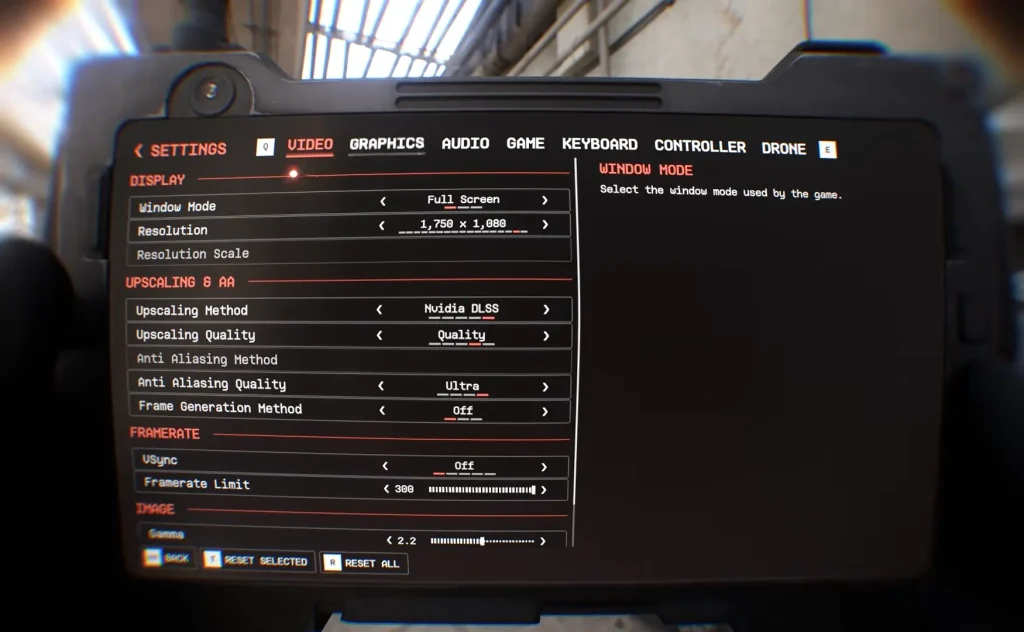
There are 3 areas that affect your graphics and performance when it comes to Bodycam. Let’s review each one.
Upscaling
Pick based on your GPU, not your GPU’s marketing. NVIDIA gets DLSS 4.5, AMD gets FSR 4, and Intel Arc gets XeSS 3. All three are officially confirmed additions in v0.8 (before this patch, Bodycam only supported FSR).
Start on Quality mode regardless of which one you use. A few players on RTX 50-series cards report that DLSS upscaling looks a little soft compared to FSR, though nobody’s run a controlled side-by-side yet. So treat that as a lead worth checking on your own setup rather than a settled fact.
If you’re not GPU-limited, native resolution with no upscaler still looks the cleanest. Upscaling exists to buy FPS, not to improve the image.
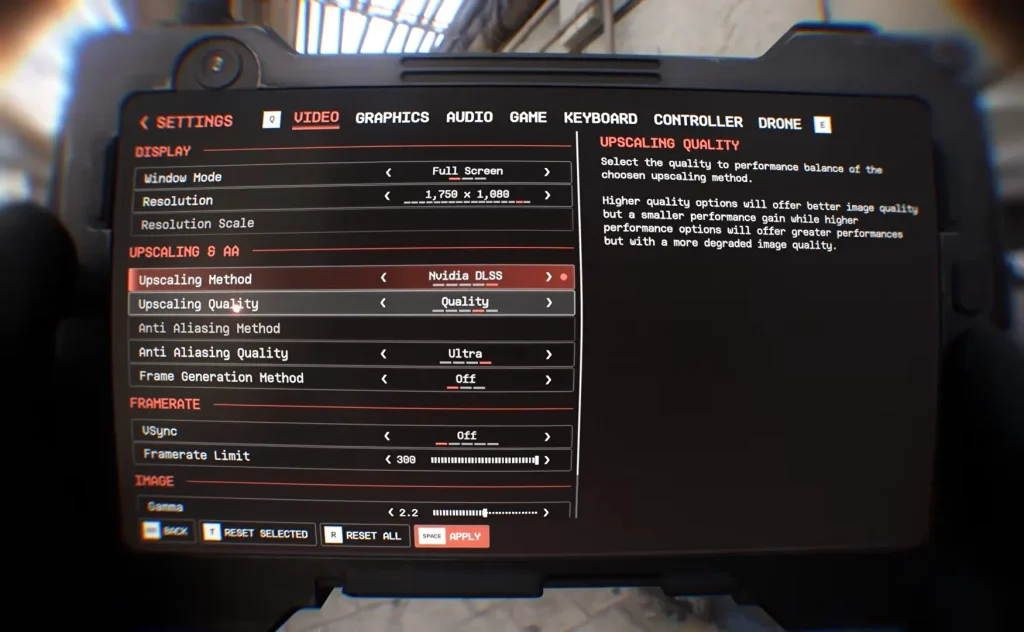
Frame Generation
Frame generation makes the FPS counter jump, but the boost is interpolation, not free performance. The game renders your input at the underlying rate, then fills in extra frames to reach the number on screen. Reissad’s own troubleshooting post says FSR Frame Generation can add a lot of FPS, but it also increases input latency.
I saw a Reddit post that backs that up too; it showed an 80 FPS jump to 200 FPS with a 3x multiplier, meaning roughly two-thirds of those frames are generated, not rendered. Actual response time barely moved.
There’s also a hot debate right now: some players say DLSS frame generation does nothing on their card while FSR’s version works fine; others report the opposite. No official fix yet. But in a one-shot-kill shooter, I’d rather have real 90 FPS than fake 180.
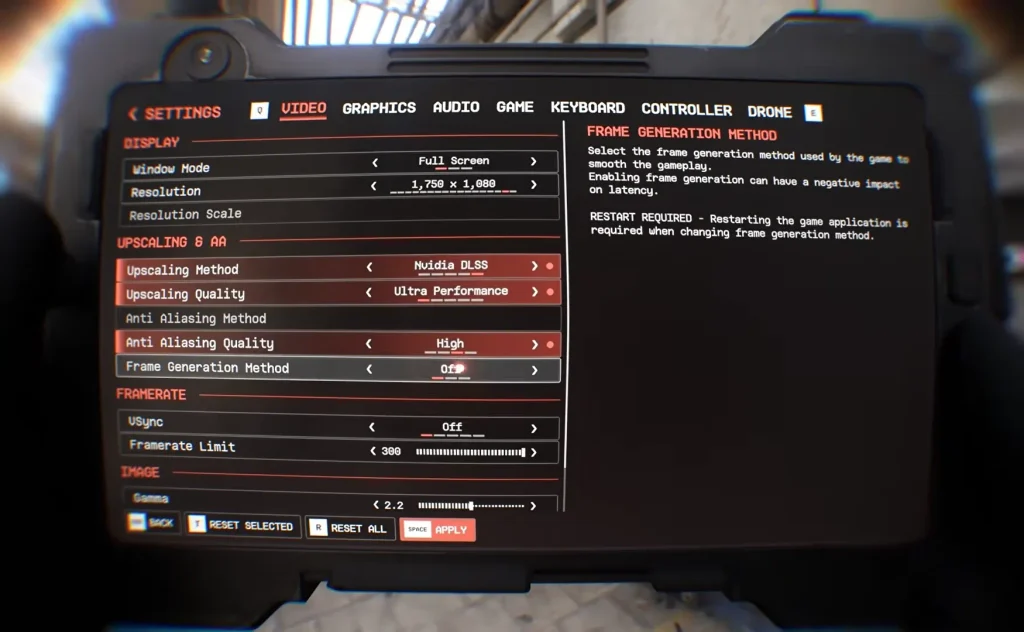
Display, V-Sync, Motion Blur, and Grain
Here are the recommended settings you need:
| Setting | Value |
|---|---|
| Display mode | Fullscreen |
| Resolution | Native |
| V-Sync | Off |
| Frame cap | A few FPS below your refresh rate |
| Gamma | 2.2 |
Motion blur is a bit more tricky. Nearly every source, official and community, says to turn it off for a clearer image in gunfights. No benchmark settles this either way, so it comes down to whether you value the visual or the clarity. But I’d turn it off honestly.
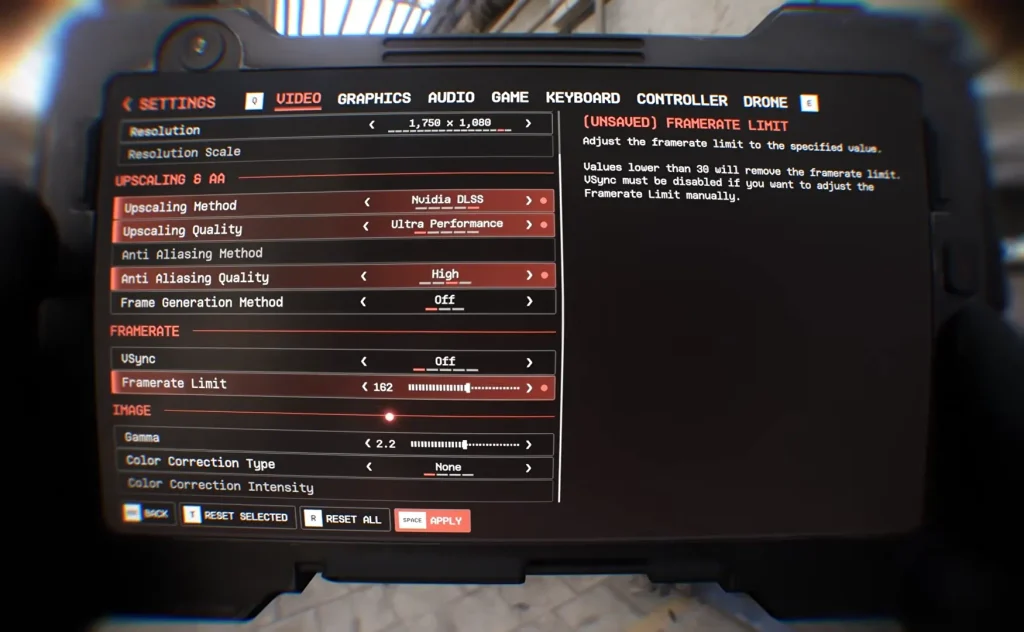
Film Grain finally got its own slider in the first hotfix. Drop it low or off if you want a cleaner picture; there’s no evidence it costs meaningful FPS either way.
How to Fix Low FPS and Stuttering
Bodycam’s official troubleshooting page still gets it right on most of this. Try these first before touching your graphics settings:
- Disable overlays. Reissad’s own team says disabling overlays, especially NVIDIA’s, has gotten players 20–25 FPS back. Turn off GeForce Experience/Discord overlays before anything else.
- Add -dx11 to your Steam launch options. Right-click Bodycam in your library, Properties> Launch Options, and type -dx11. Multiple players across two years back this up, and Reissad recommends it too. One catch: nobody’s confirmed whether this still works with the new DLSS/FSR/XeSS support, since those typically need DX12. Worth testing, but not guaranteed.
- Clean-install your GPU driver with DDU (Display Driver Uninstaller) in Safe Mode, then grab the latest driver from AMD or NVIDIA directly.
- Right-click Bodycam.exe, Properties, Compatibility, disable fullscreen optimizations.
If FPS drops specifically after a match or two, restarting the game is currently the only known fix.
Best Audio Settings
Bodycam runs on a proper sound propagation system now. That means reverb, shockwave travel through corridors, footstep and gunfire occlusion by distance, and better vertical audio so you can actually tell if someone’s a floor above or below you. None of that needs tuning; it’s baked into the engine changes.
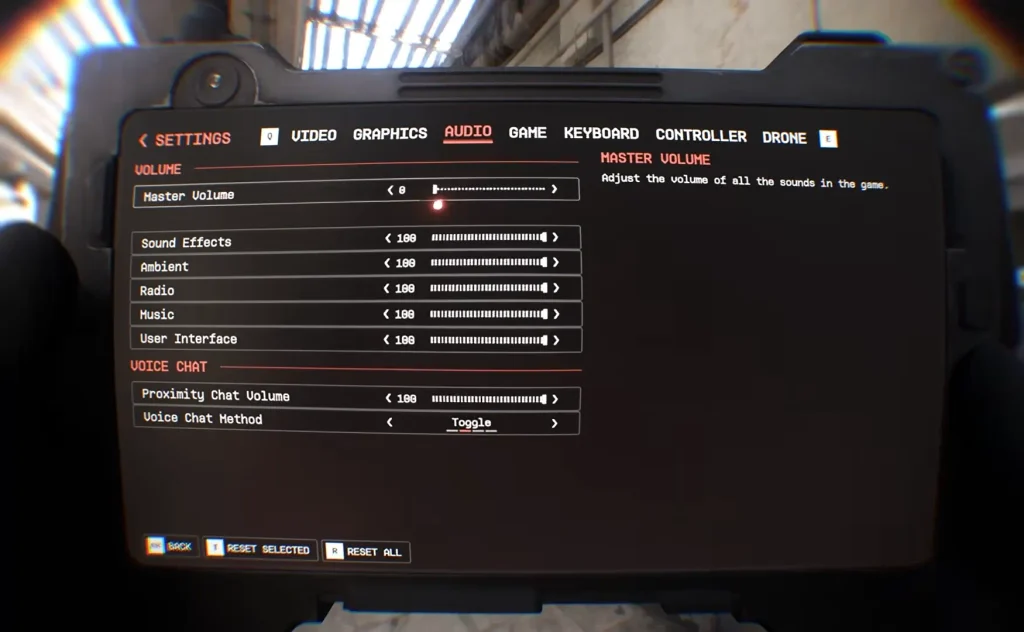
But here’s the thing: the UI volume slider also controls Hardpoint capture, win, and loss audio cues as of the second hotfix. If you turn that slider down to quiet menu sounds, you’ll miss objective callouts too. So keep it audible if you’re playing Hardpoint.
VOIP got rebuilt and now uses your system’s default microphone, with an individual mute button added in the first hotfix if someone’s too loud.
Now that you have the best Bodycam settings, make sure to get the best gun in Bodycam, and you’ll be all set.
FAQ
Does Frame Generation actually help FPS in Bodycam?
It raises the number, not real performance. Frames get interpolated, not rendered, so input response barely changes. Some GPUs also report DLSS or FSR generation just not working post-patch.
Why does Bodycam run worse since the v0.8 update?
Results are split. Some players lost 30–50% FPS on the same hardware; others gained frames. Reissad says v0.8 improved performance overall. The fans don’t fully agree.
Which upscaler should I use?
DLSS 4.5 on NVIDIA, FSR 4 on AMD, XeSS 3 on Intel Arc. Start on Quality mode and adjust from there.