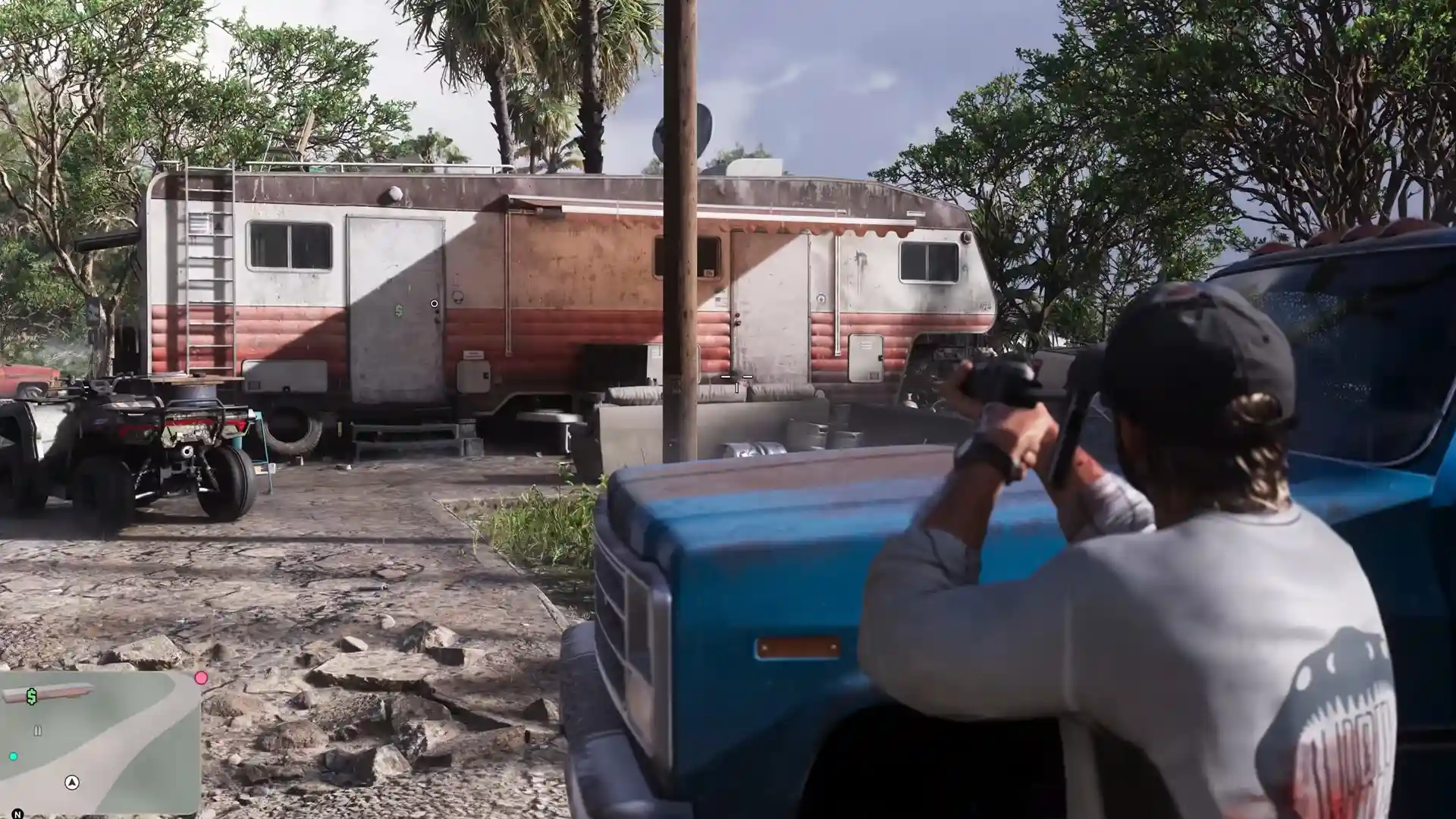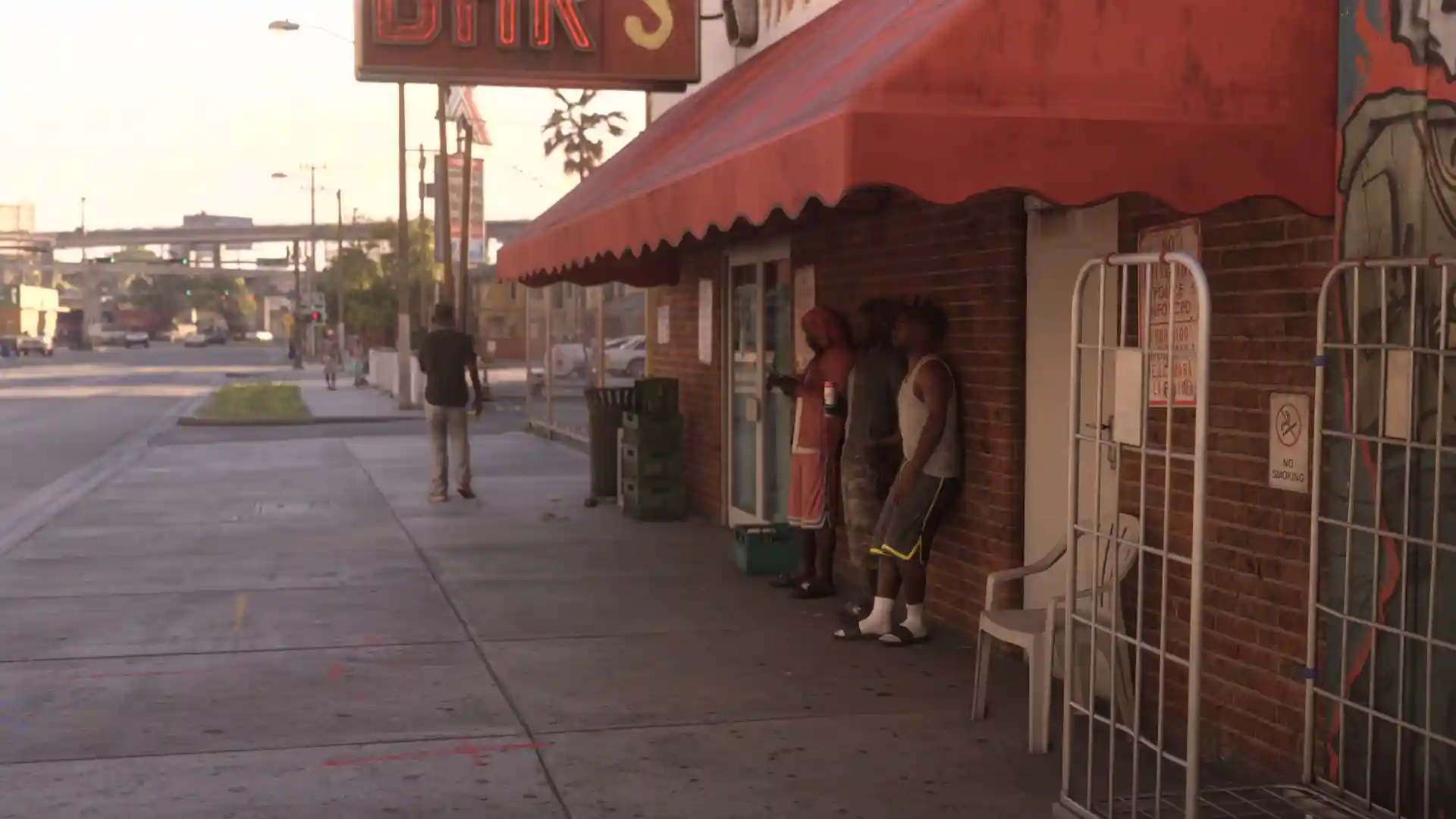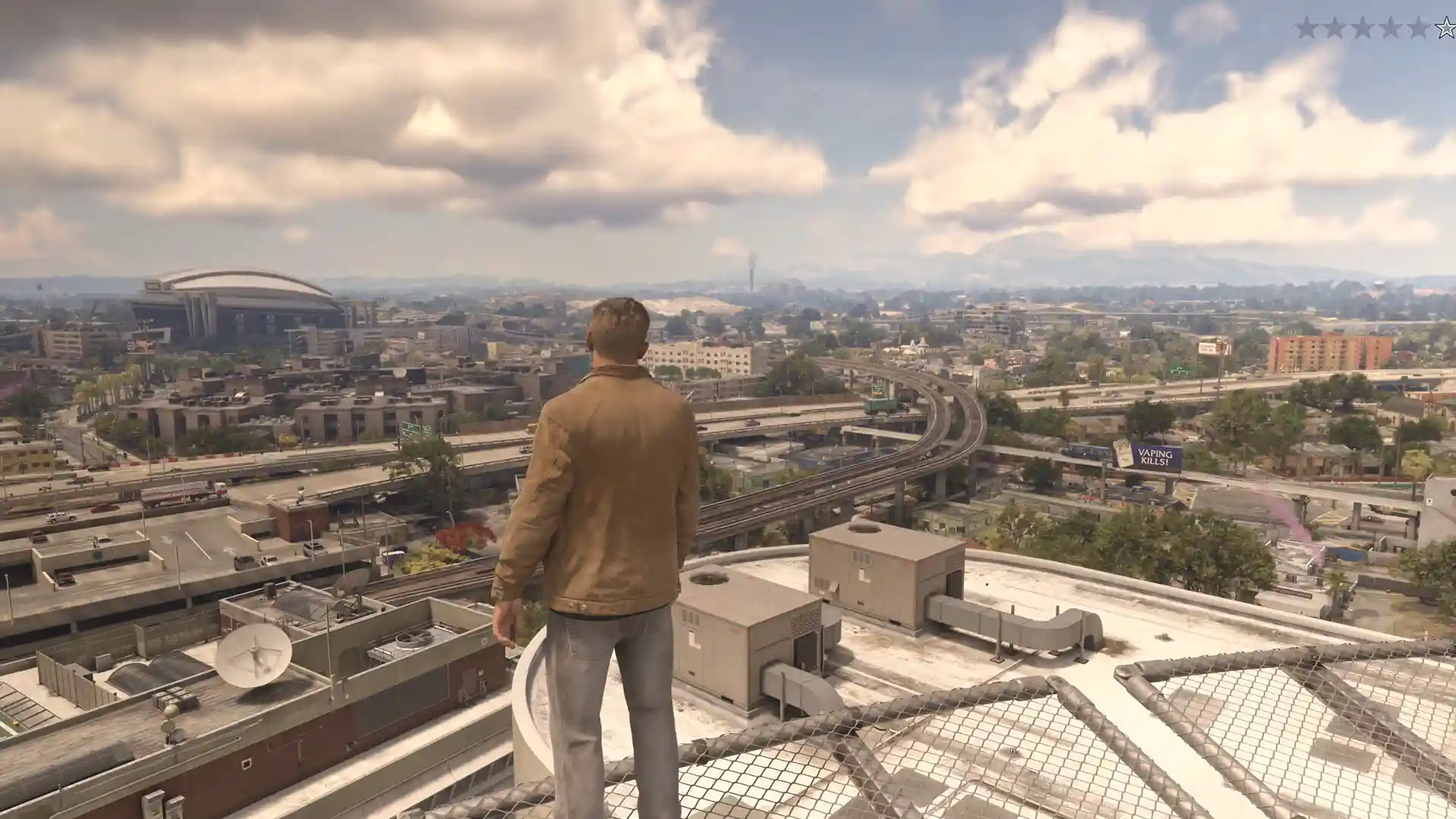


GTA 6 ghosting leaves faint trails behind characters or objects when you turn the camera, almost like Vice City forgot to erase the previous frame. There’s no verified universal fix on PS5 or Xbox Series X|S, but adjusting Motion Blur Strength may help reduce some of the blur.
One useful starting step would be choosing the lowest available Motion Blur Strength setting, then check a console recording on another screen. That should help you figure out whether the trails come from the game’s image processing or if your TV adds to the problem.
Table of Contents
How to Fix GTA 6 Ghosting on PS5 and Xbox
So far, there’s no setting that completely fixes GTA 6 ghosting, but a few adjustments are worth testing. Some trails may come from the game’s image processing, while your TV or monitor can introduce additional artifacts. Start with the in-game settings before touching your console’s video output.
Lower Motion Blur Strength in GTA 6
Open the pause menu and follow this path:
Settings → Display → Visual Effects → Motion Blur Strength
Lower Motion Blur Strength to the minimum available in your menu.
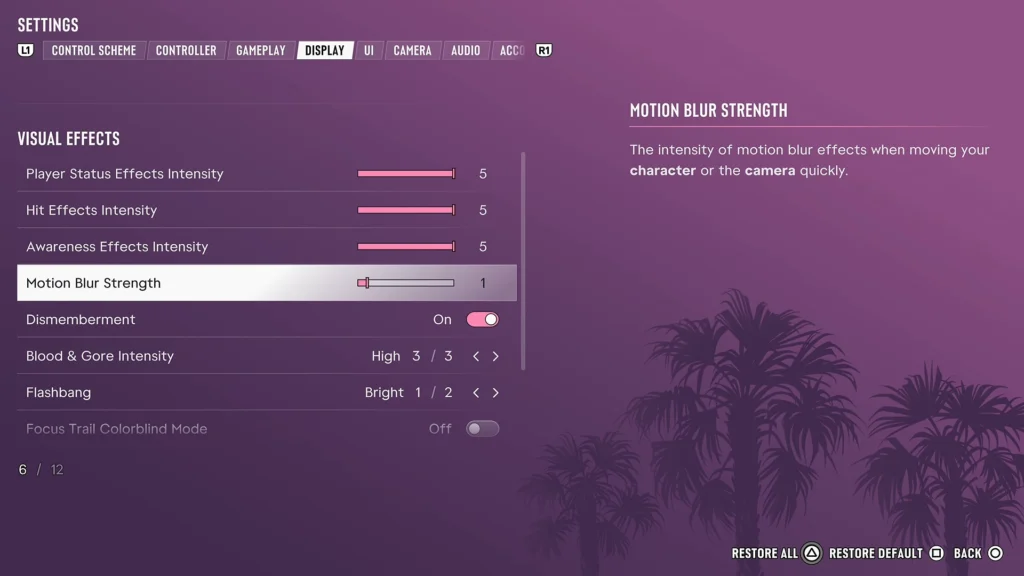
Head back into the game and repeat the camera movement that made the ghosting obvious. Try to use the same spot for both comparisons so it’s easier to tell whether anything changed.
If the picture becomes clearer but the double images remain, you’ve reduced some of the intentional blur without removing the entire problem. That’s because motion blur and temporal ghosting aren’t the same thing. The slider doesn’t necessarily remove trails introduced elsewhere in the game’s image processing.
Check Whether GTA 6 or Your TV Causes the Ghosting
Before you spend another hour adjusting display settings, record a short gameplay clip while the ghosting is visible.
On PS5, press the Create button and select Save Recent Gameplay. On Xbox Series X|S, use the console’s built-in capture feature to save a clip.
Watch the recording on another screen. A native console capture is more useful here than a phone video of your television.
If the trails appear in the recording, especially when you pause on an affected frame, your original display probably isn’t the only cause. The artifact may already be present in the captured image.
If the recording looks clean but your TV still shows trails, check your display’s motion settings next. Neither result proves the exact cause. Video compression can affect the captured image, so this is just a way to narrow down the problem instead of a definitive diagnosis.
Turn Off Your TV’s Motion Smoothing
Some TVs add extra frames to make movement look smoother. Unfortunately, that processing can introduce visual artifacts of its own.
On supported Sony TVs, the feature is called Motionflow. Try disabling it and compare the same scene in GTA 6.
Other televisions may use different names for similar features. If your TV offers a Game Mode, that’s worth comparing too.
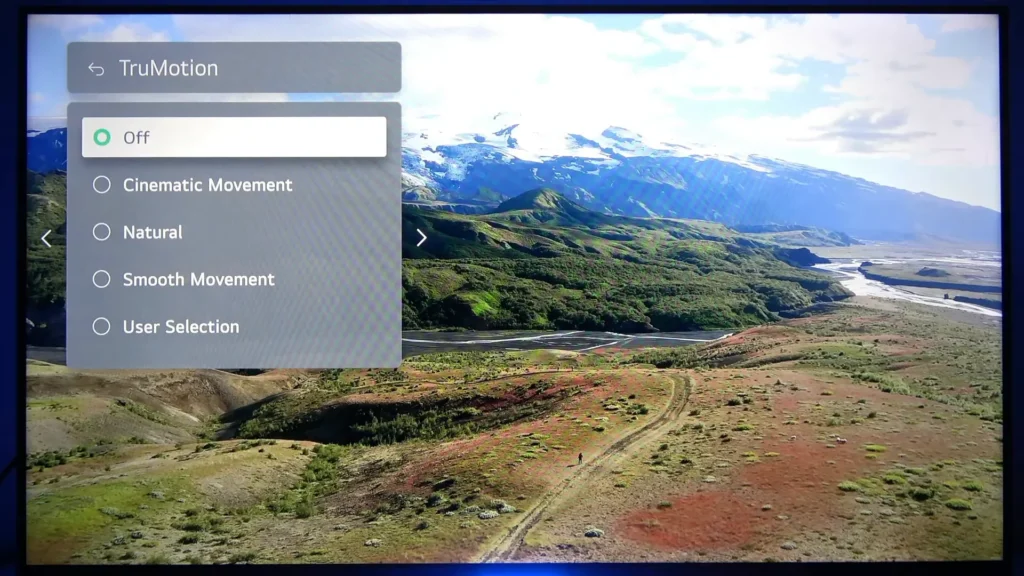
If the trails change after you adjust the TV’s motion processing, your display may be contributing to the effect.
Just remember that turning off motion smoothing won’t remove a ghost image that’s already part of the game’s output.
Adjust Your Monitor’s Response Time
If you’re using a gaming monitor, check its Response Time or Overdrive setting. The fastest mode isn’t always the cleanest. Excessive overdrive can introduce additional ghosting or visible halos around moving objects.
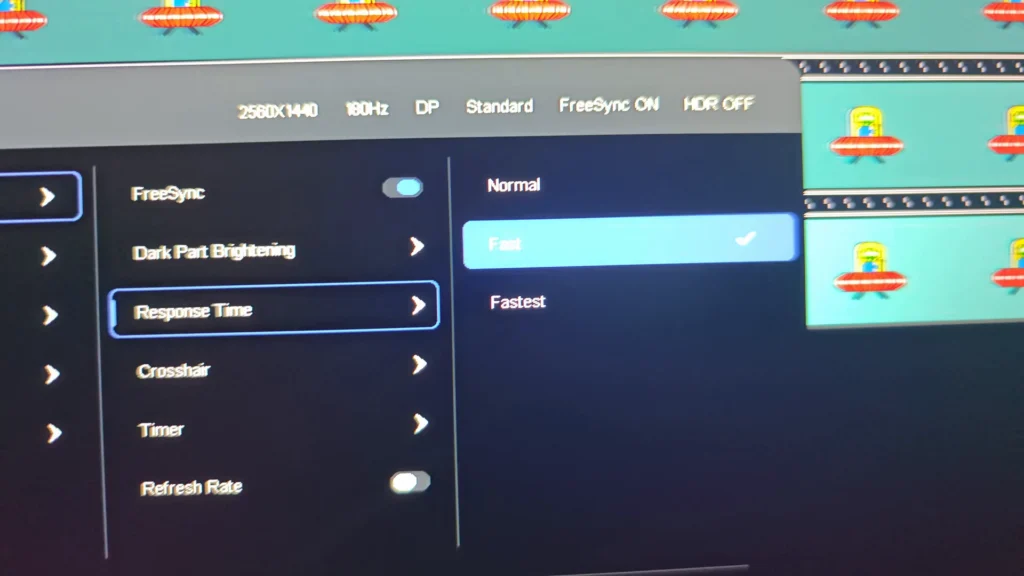
Try a less aggressive option and repeat the same camera movement. If the trails look cleaner, the monitor setting was contributing to the problem.
It’s not possible to prescribe a perfect response-time value for every monitor, so stick with the mode that gives you the cleanest picture.
Why Does GTA 6 Still Have Ghosting With Motion Blur Low?
Lowering Motion Blur Strength doesn’t disable GTA 6’s temporal image reconstruction. These are separate processes, which explains why faint afterimages might remain even after you reduce the game’s motion blur.
Temporal reconstruction uses information from previous frames to help build the current image. When older image details don’t match the new frame correctly, they may appear as faint trails behind moving objects.
GTA 6 uses different image reconstruction technologies depending on your console.
| Console | Image Reconstruction Technology |
|---|---|
| PS5 | Rockstar’s in-house TAA |
| Xbox Series X | Rockstar’s in-house TAA |
| Xbox Series S | AMD FSR Upscaling 4 |
| PS5 Pro | PSSR2 |
These techniques help produce the final image, but that doesn’t prove every ghosting artifact comes from the same process.
The frustrating part is that lowering motion blur may leave the remaining artifacts more noticeable. If the trails are still there, don’t assume you’ve missed another motion-blur option. Your display might add its own artifacts, while some trails may already exist in the game’s output.
Does Enhanced PSSR Fix GTA 6 Ghosting on PS5 Pro?
Disabling Enhanced PSSR isn’t a confirmed fix for GTA 6 ghosting on PS5 Pro. The console includes an image-quality option you can find here:
Settings → Screen and Video → Video Output → Enhance PSSR Image Quality
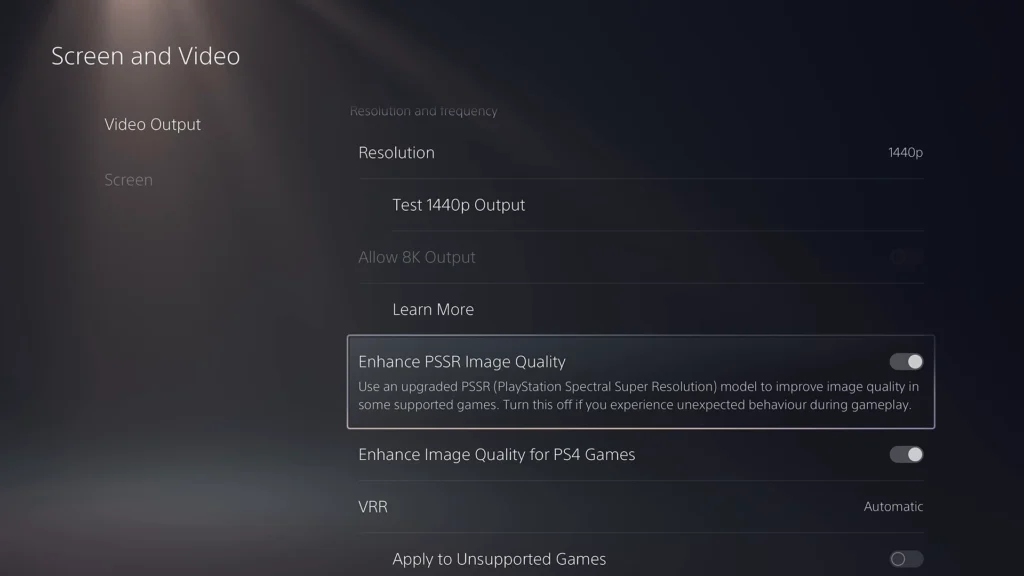
This feature is enabled by default from PS5 system software version 26.06-14.00.00.
The setting applies an enhanced PSSR model to compatible games that don’t already use it. GTA 6 uses PSSR2 on PS5 Pro, so changing this option may have no effect on the game’s image reconstruction.
If you want to compare the setting, use the same scene with the option enabled and disabled. Don’t change HDR or resolution at the same time.
If there’s no noticeable improvement, return to your previous setting. There’s no reason to sacrifice an image-quality feature without a clear benefit.
Does 120 Hz Fix GTA 6 Ghosting?
Switching your console to 120 Hz is again not a verified GTA 6 ghosting fix. GTA 6 targets 30 FPS on consoles. A 120 Hz output setting doesn’t suddenly turn the game into a 120 FPS experience.
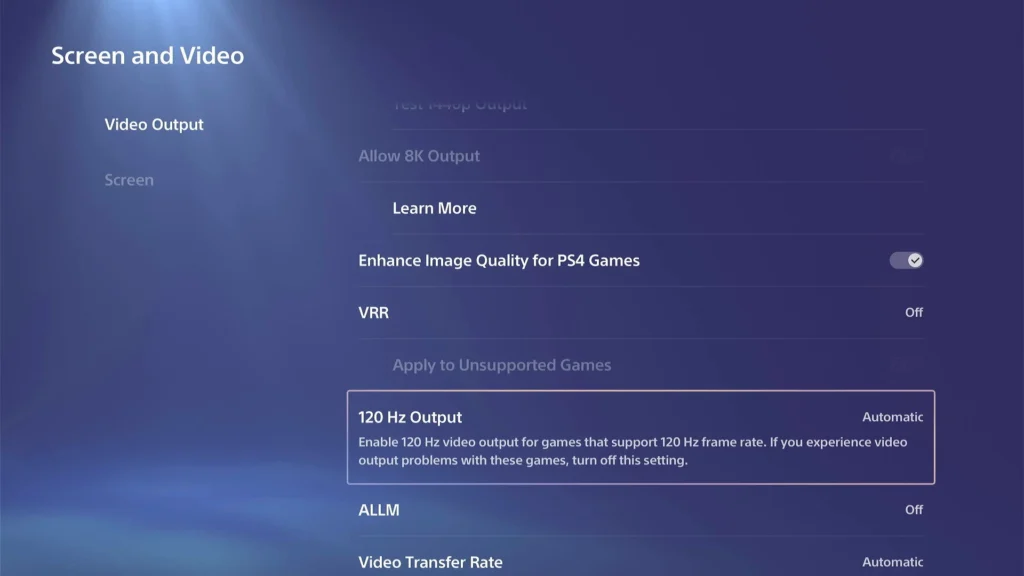
Your display’s refresh rate and the game’s rendered frame rate aren’t the same thing. A higher output refresh rate doesn’t guarantee that ghost trails will disappear.
I couldn’t find a universal fix that involves disabling VRR or forcing your console to output 1080p. I’d leave those settings alone unless you have a separate display issue that gives you a reason to test them.
Has Rockstar Fixed GTA 6 Ghosting?
As of November 21, 2026, there’s no verified official fix specifically for GTA 6 ghosting. The available settings may reduce some visual artifacts, but none has been established as a permanent solution for every console.
If the trails remain after the checks above, keep a short console capture that clearly shows the problem. You can submit it through Rockstar Support. Include your console model and game version. Describe where the ghosting appears and whether it remains with Motion Blur Strength at its lowest available value.
Until there’s a confirmed fix, the best option you have is to identify which part of the blur you can actually reduce. No point making your TV look worse just to chase a ghost that might already be in the game.