

The fastest GTA 6 PS5 blurry fix is to set Motion Blur Strength to 0 and switch to Camera 3. Then fully close and restart the game. That clears most of the blur on both PS5 and PS5 Pro.
If distant objects still look fuzzy, change your PS5 resolution to 1080p, set it back to Automatic and restart the console. Some softness on the base PS5 can’t be fixed with settings, because the game renders at around 1440p and upscales to 4K.
Jump to a Section:
Quick GTA 6 PS5 Blurry Fix by Symptom
Blur in GTA 6 isn’t one problem. Find what you see in the table below, then go to the matching fix.
| What you see | Cause | Fix |
|---|---|---|
| The screen smears when you run, drive or turn the camera | Motion blur | Set Motion Blur Strength to 0 |
| Signs, cars and buildings near you look soft on foot, worse at night | Depth of Field | Switch to Camera 3 |
| Wavy heat haze past about 20 meters, often after an HDR change | Bug | Fully restart GTA 6 |
| Fuzz in the distance that a game restart doesn’t remove | Console video output | Reset PS5 resolution and restart |
| Everything looks soft, including menus | Output signal or TV processing | Check Video Output and TV settings |
| Fine detail is soft even when you stand still | Base PS5 rendering | Can only be reduced, not removed |
Turn Motion Blur Strength Down to 0
Motion blur is the first thing to change. It smears the whole screen when you move, and at 30 FPS the effect is strong.
- Pause the game and open Settings.
- Go to the Display tab.
- Find Motion Blur Strength.
- Move the slider all the way left to 0.
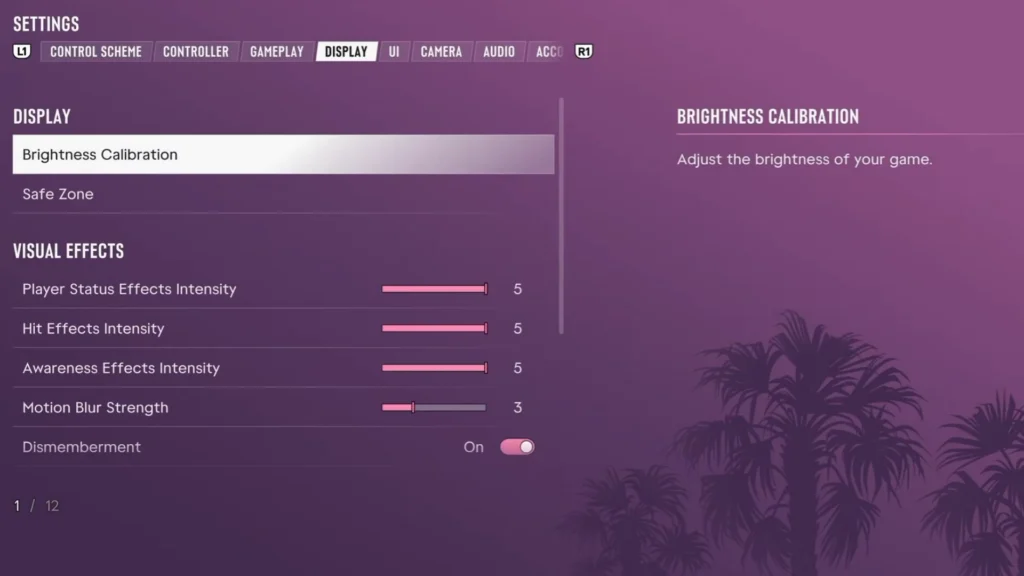
If the picture still looks smeared after the change, fully close GTA 6 and launch it again. The old blur can stay until the next start.
At 0, camera pans can look a bit jerky because the game runs at 30 FPS. If that bothers you, try 1 or 2. You keep most of the clarity and get smoother motion.
On an OLED TV, 30 FPS stutter is easier to see. Start at 0 and raise it only if turning the camera feels choppy. No single value is best for every screen.
Turn down camera shake and camera bob too if your Display menu has them. They don’t blur the image themselves. A steadier camera still makes the picture look cleaner.
Switch to Camera 3 to Reduce Depth of Field Blur
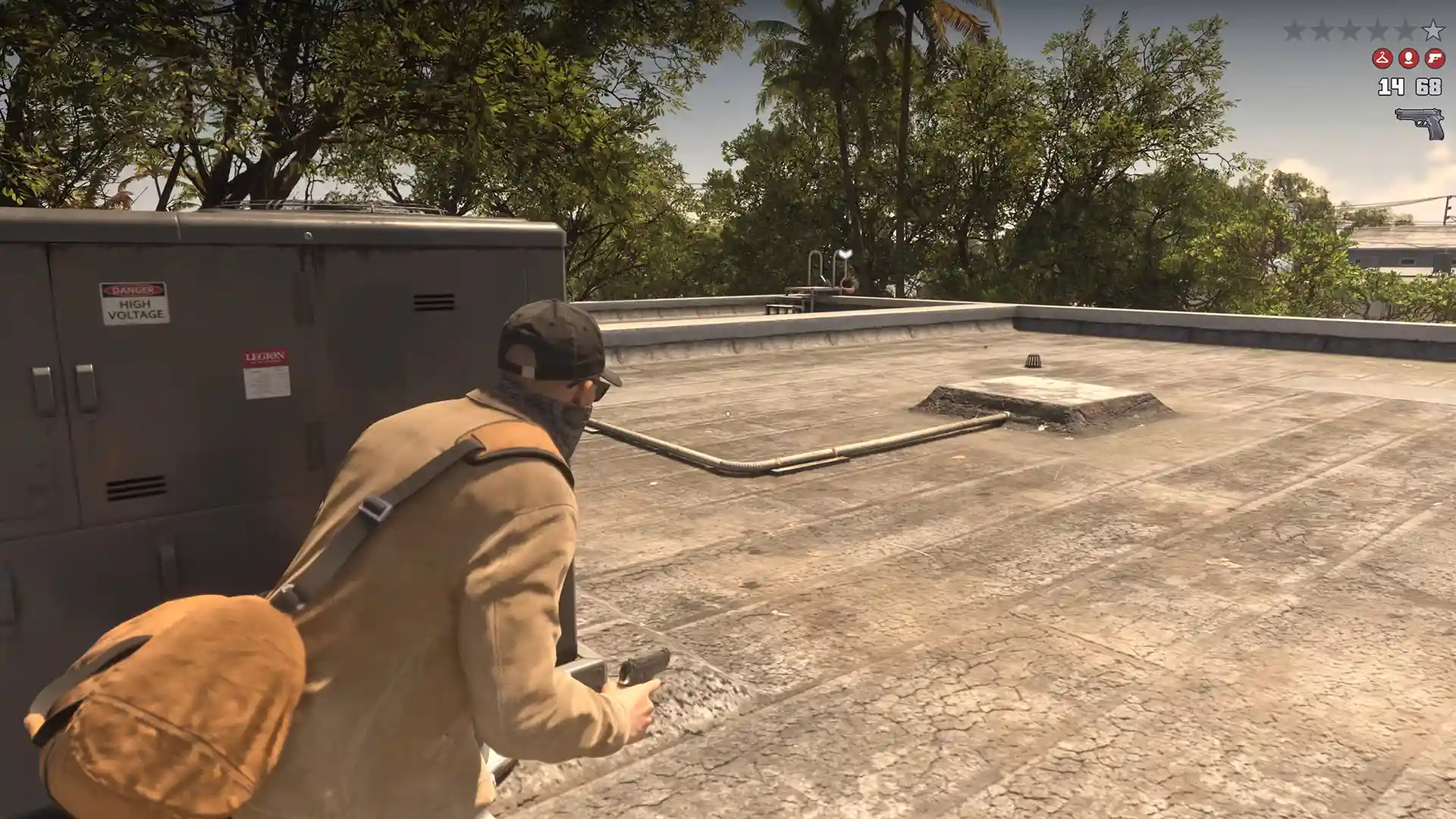
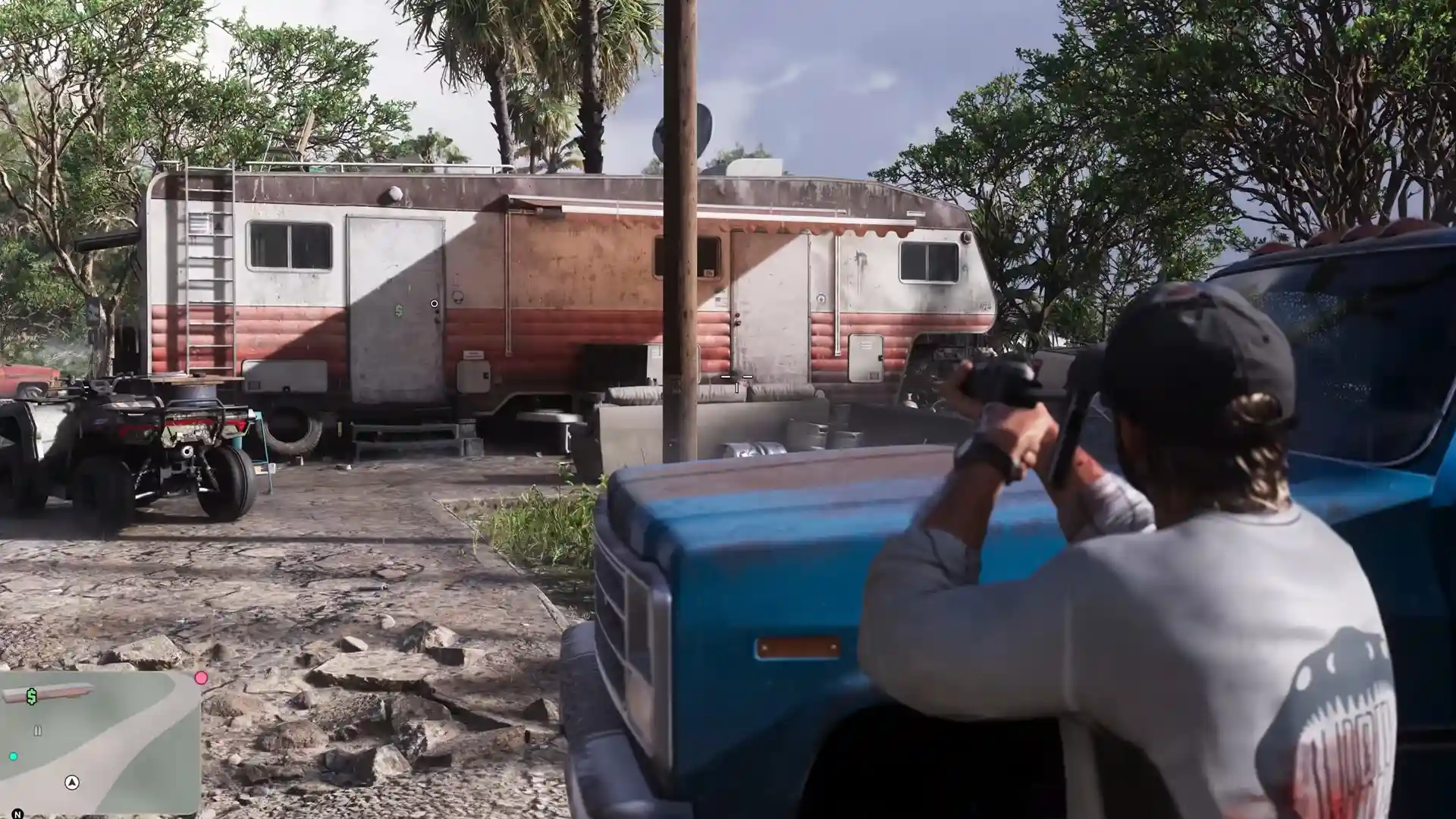
If things close to you look soft while you walk around, Depth of Field is the cause. GTA 6 applies a strong Depth of Field effect on the closer camera distances. A nearby house or your parked car can look out of focus in third person. The same objects are sharp in first person.
Camera 1, the closest view, has the strongest blur. Camera 3 has the least. Hold D-Pad down and press Square to change the camera distance until you reach Camera 3.
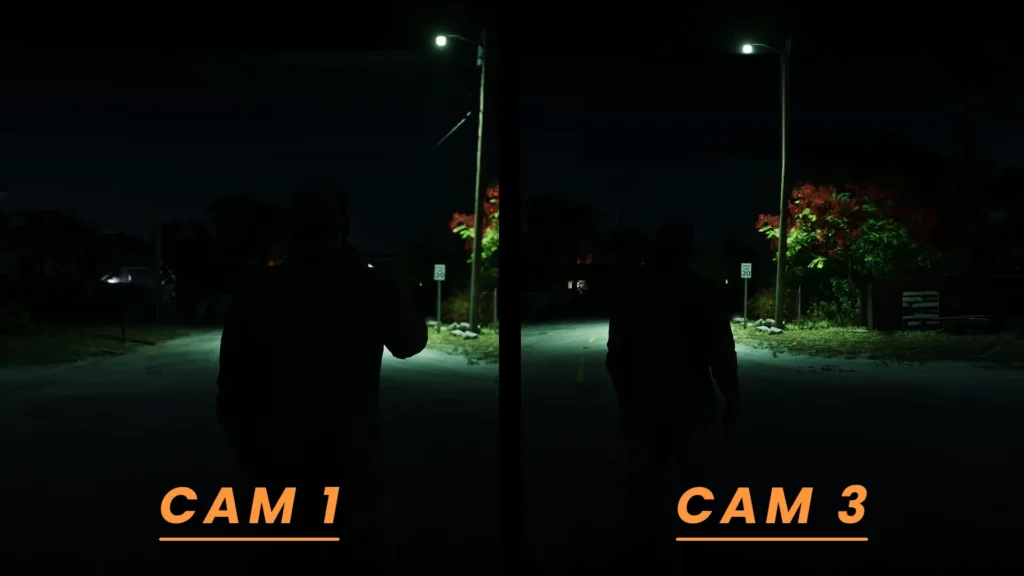
The difference is biggest at night, when Depth of Field gets heavier. During the day it’s much smaller. It also matters less in cars, since the game uses lighter Depth of Field while you drive. Camera 1 looks fine behind the wheel.
Camera 3 won’t sharpen things that are very far away. It fixes the blur at short and medium distance.
GTA 6 has no Depth of Field slider or toggle in its settings. Camera 3 is the only way to reduce it for now.
Restart GTA 6 to Clear the Heat Haze Bug
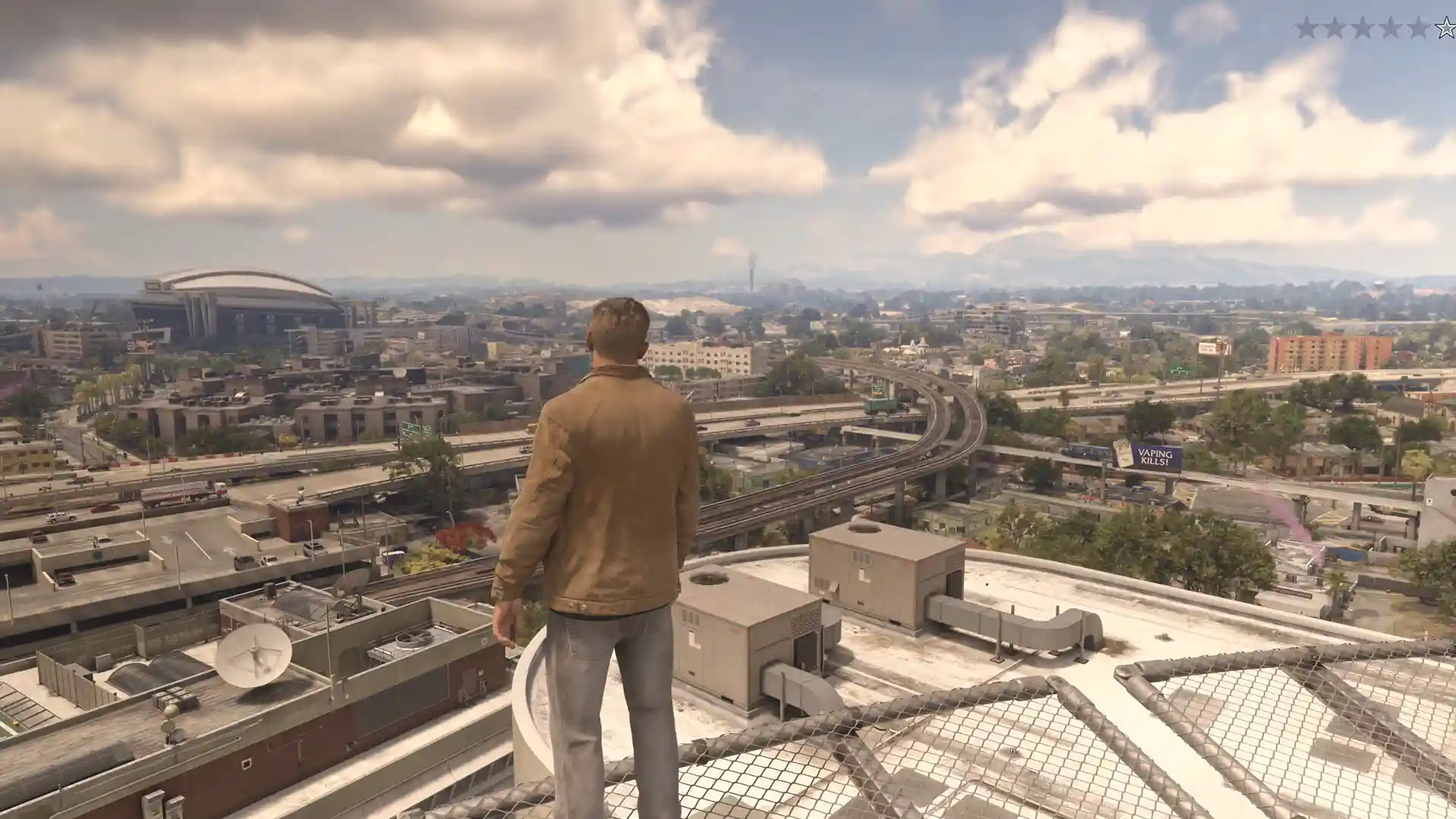
This one is a bug, not a setting. Everything past about 20 meters looks wavy and smeared, like heat haze over a hot road. Trees, road signs and the horizon shimmer even when you stand still. It appears in every type of weather and can make the open world look like a watercolor painting.
It often starts after you switch HDR on or off inside the game. It can also show up on screens without HDR.
The fix is simple. Close GTA 6 completely and start it again. If the haze is still there, restart the PS5 as well. After a clean restart, the bug usually stays gone.
Don’t switch HDR on or off while GTA 6 is running. If you do change it, restart the game right after.
Does Turning Off Enhance PSSR Image Quality Help?
Enhance PSSR Image Quality is a PS5 Pro system setting. It’s meant for older games that launched with the first version of PSSR. GTA 6 uses its own newer PSSR, so this toggle doesn’t change how the game renders.
When you change the setting, the game has to restart. That restart is what clears the haze in almost every case, so you don’t need to turn the toggle off. If several restarts don’t fix it on your PS5 Pro, turn the setting off, restart, then turn it back on. The base PS5 doesn’t have this option.
Reset Your PS5 Resolution and Restart the Console
If a game restart doesn’t remove the fuzz in the distance, reset the console’s video output. This fix works best on the base PS5, and you don’t need the game open.
- Go to Settings > Screen and Video > Video Output > Resolution.
- Set it to 1080p.
- Set it back to Automatic (or 2160p on a 4K TV).
- Restart the PS5.
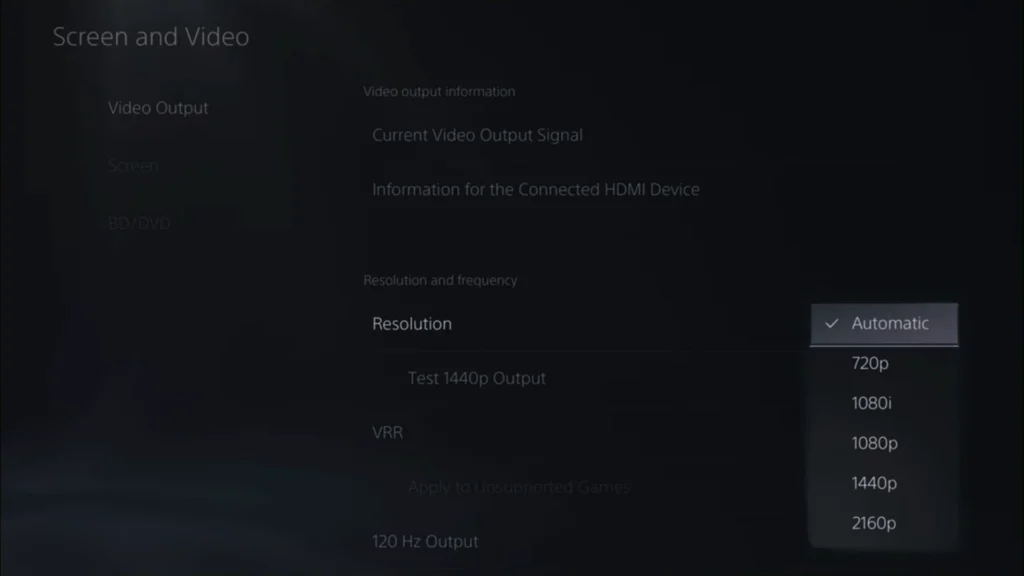
Launch GTA 6 and look at distant trees or signs. One reset is usually enough. On some consoles the blur comes back each time the game starts, so you may need to repeat it. If nothing changes at all, your blur comes from Depth of Field or the base PS5’s normal image.
Check Your PS5 Video Output and HDR Settings
When everything looks soft, including menus and other games, check the console’s output. Go to Settings > Screen and Video > Video Output and look at Current Video Output Signal. On a 4K TV it should show 2160p.
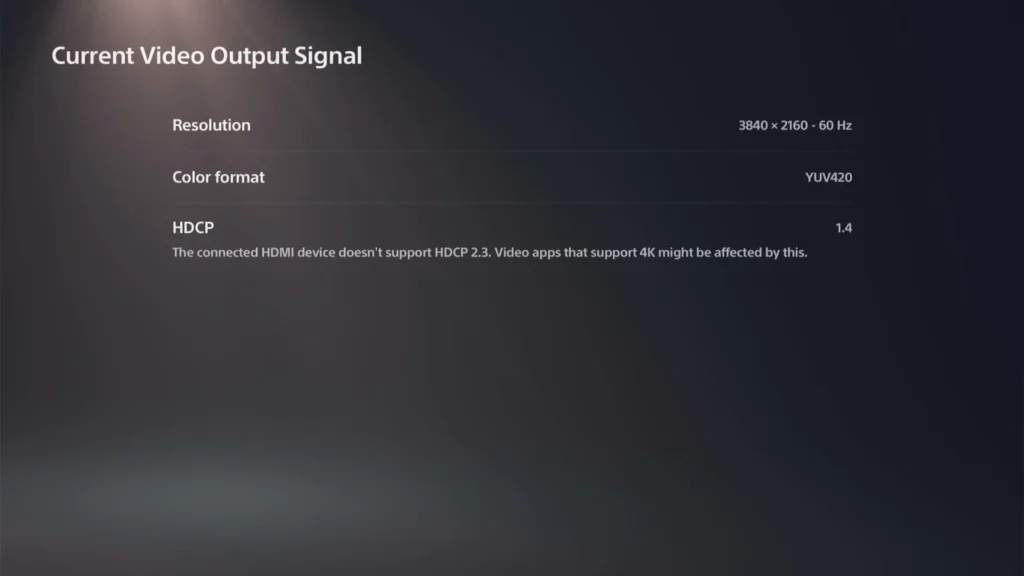
Keep Resolution on Automatic. If it doesn’t reach 2160p, make sure your TV supports 4K, then set 2160p by hand. A PS5 that sends 1080p to a 4K TV forces the TV to upscale the image a second time, and the picture gets softer. A correct 4K signal fixes that. It doesn’t raise the resolution the game renders at.
For HDR, set HDR to On When Supported in the same menu and run Adjust HDR. Then run HDR Calibration in the game under Settings > Display. Wrong HDR values crush detail in dark and bright areas, and the image looks muddy.
HDR changes brightness and contrast, not sharpness. On older or cheaper TVs, SDR often looks cleaner than HDR in GTA 6. Test both and keep the one that looks better on your screen.
TV Settings That Make GTA 6 Look Blurry
Your TV can add its own blur on top of the game. Check these settings on the HDMI input your PS5 uses:
- Game Mode: Turn it on. It switches off extra processing that softens the image, and it lowers input lag.
- Motion smoothing: Turn it off. Brands call it TruMotion, Motionflow or Auto Motion Plus. At 30 FPS it causes smearing and odd artifacts. Some people keep it on because 30 FPS feels smoother, but it adds input lag.
- Noise reduction: Turn off MPEG noise reduction and smooth gradation. They smear fine detail like grass and hair.
- Sharpness: Raise it in small steps. Too low looks soft, and too high adds bright halos around edges. A small bump helps a lot with the base PS5’s soft image.
- Picture size: Set it to Just Scan, Screen Fit or Fit to Screen so the TV doesn’t zoom the image.
- HDMI: Use the cable that came with your PS5 and turn on your TV’s enhanced HDMI mode for that port.
Change one setting at a time and compare the same spot in the game. That way you know which change helped.
Clear the PS5 Cache
Leave this for last. A cache clear can make the image sharper on some consoles, and it also helps with stutter.
- Turn off the PS5. Hold the power button until you hear a second beep to start Safe Mode.
- Connect the controller with a USB cable and press the PS button.
- Choose Clear Cache and Rebuild Database, then Clear System Software Cache.
- Restart the console.
Why GTA 6 Still Looks Soft on Base PS5 and PS5 Pro
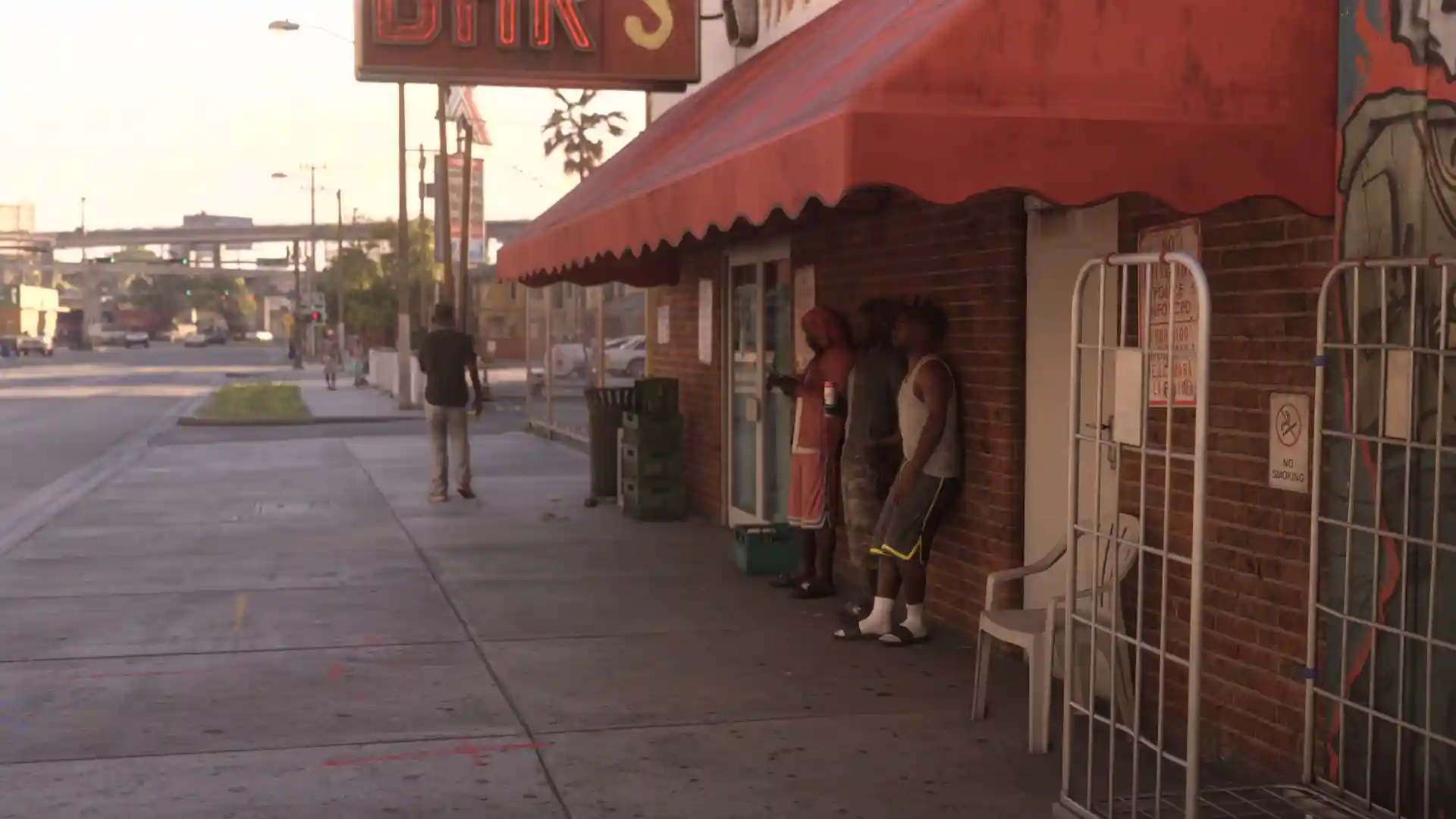
Some blur stays after every fix above, because it comes from how the game runs on console. The base PS5 renders GTA 6 at around 1440p and upscales it to 4K. Any upscale loses some fine detail.
The game also uses TAA (temporal anti-aliasing). TAA smooths jagged edges, but it softens the picture and leaves ghosting trails when you turn the camera. You can’t switch it off. Distant trees and power lines show it the most, especially while you move.
GTA 6 runs at 30 FPS on PS5, and there’s no performance mode or 60 FPS option. On the base PS5, the frame rate can dip below 30 in heavy action.
The PS5 Pro also renders at around 1440p, but it uses PSSR to rebuild the image. That makes it clearly sharper than the base PS5, and Digital Foundry’s side-by-side shots show the gap in fine detail like fabric and small objects. The Pro still has the same Depth of Field and the same 30 FPS cap. Camera 3 and a low Motion Blur Strength help there too.
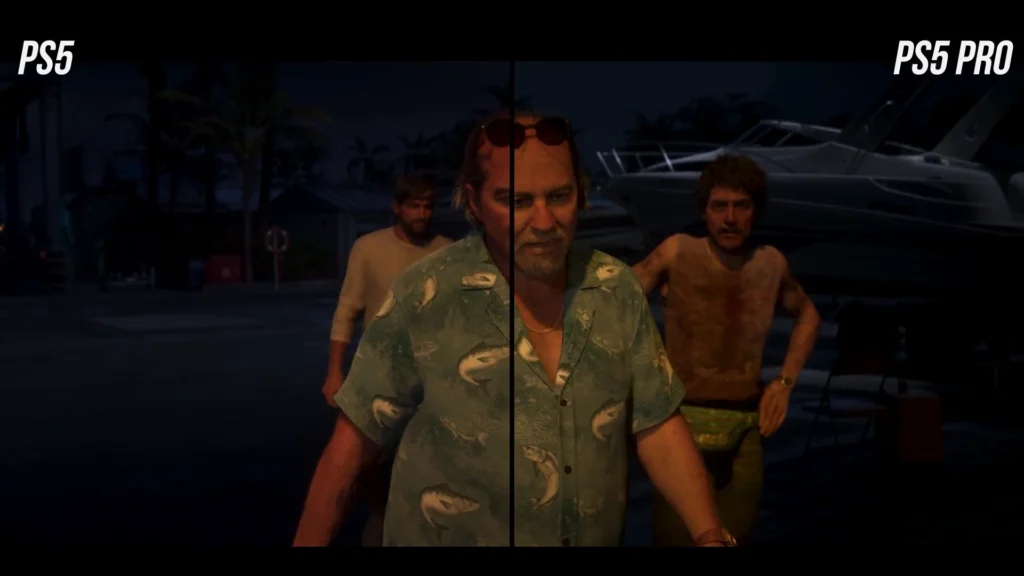
Rockstar hasn’t added a Depth of Field toggle or a sharper mode for the base PS5 yet.
If GTA 6 is the only game that looks soft and your PS5 outputs 2160p, your console isn’t broken. This is how the base PS5 version looks right now.