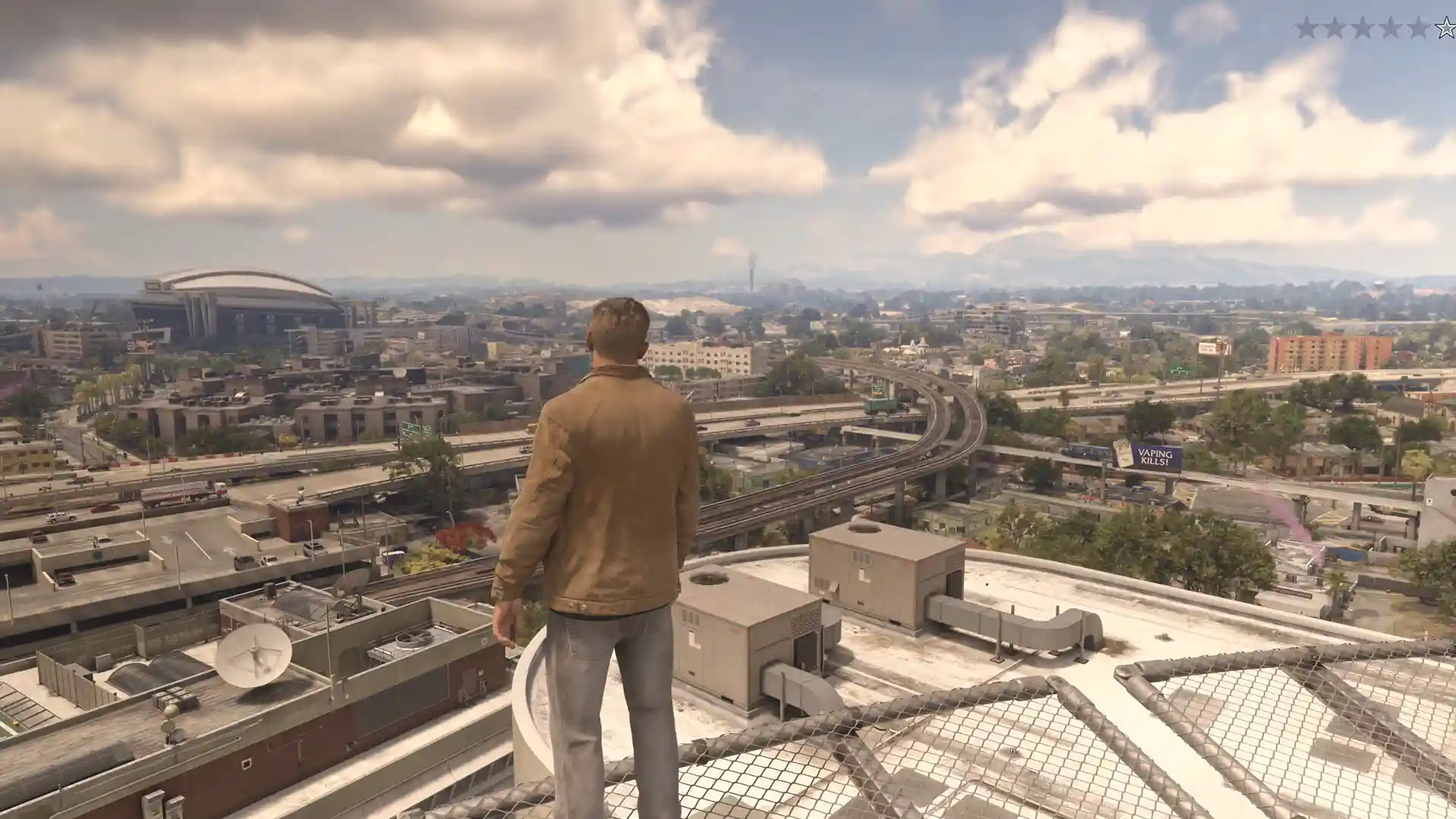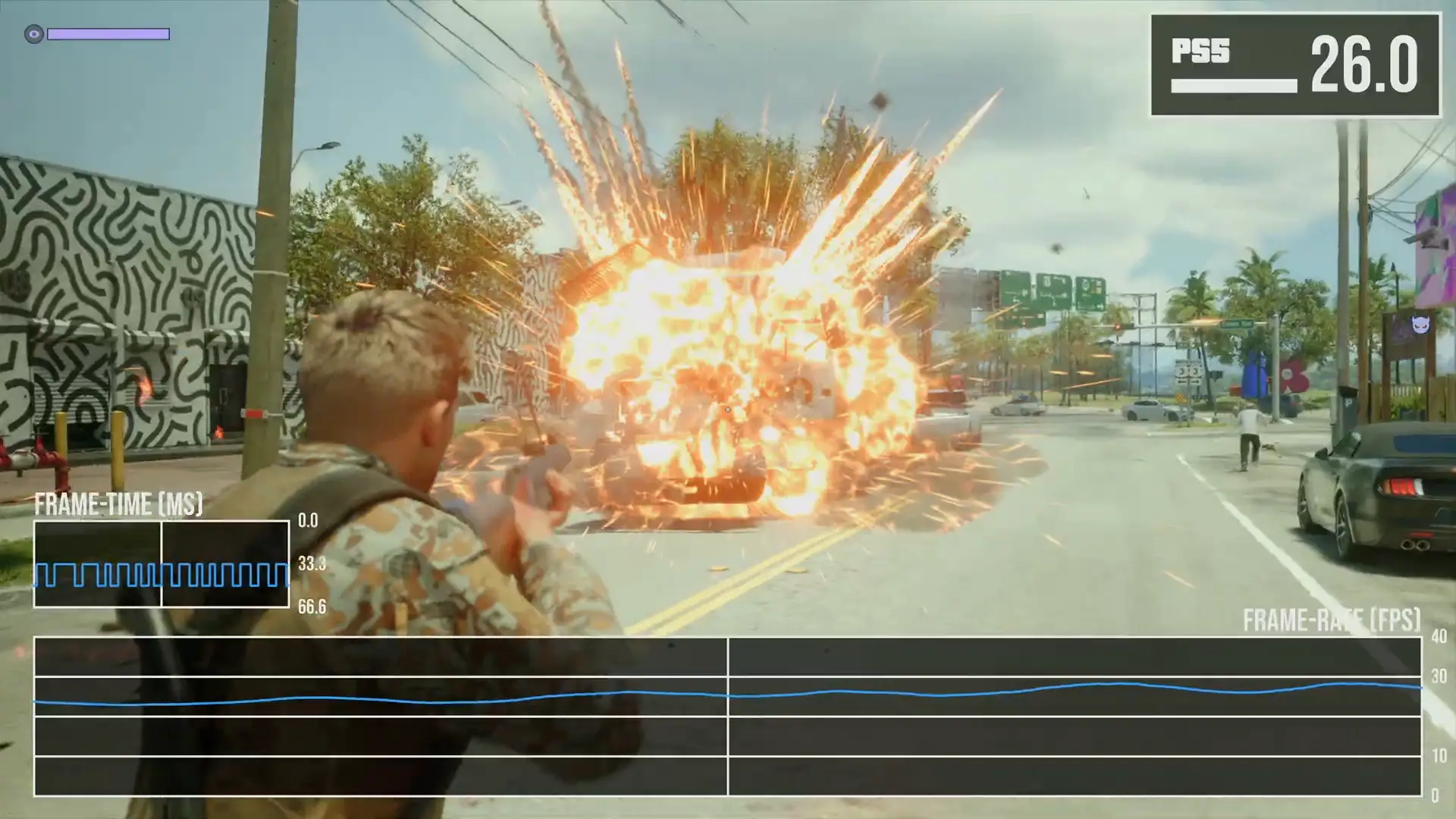


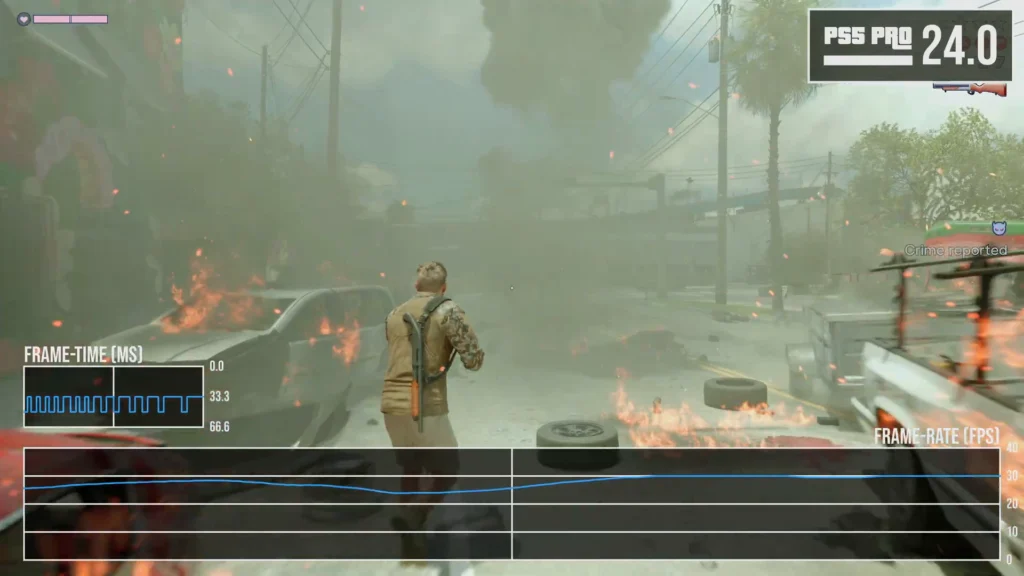
After GTA 6’s November 19 release, some players started suggesting that disabling HDCP and clearing the PS5 cache could reduce micro-stutters, especially on the base PS5. HDCP is not a graphics setting btw.
Also, if GTA 6 shows a black screen in OBS or Elgato capture software, disabling HDCP is a known fix for protected HDMI signals.
Here’s how to change the setting, test the performance claim and what to try if it doesn’t help.
What You’ll Read:
What Is HDCP on PS5, and Does It Affect GTA 6?
I explain it as simple as possible: HDCP (High-bandwidth Digital Content Protection) is a copy-protection system that stops unauthorized recording of protected video over HDMI.
The PS5 has it enabled by default. You don’t need it to play GTA 6, but Netflix, YouTube, Blu-ray playback and similar services do. And maybe that’s the problem.
Some players claimed that disabling HDCP reduces micro-stutters during driving and other heavy scenes. I tried it and yes, it really worked!
After disabling HDCP, apps like YouTube and Netflix won’t open. Turn it on whenever you needed these apps.
How to Turn Off HDCP on PS5 for GTA 6
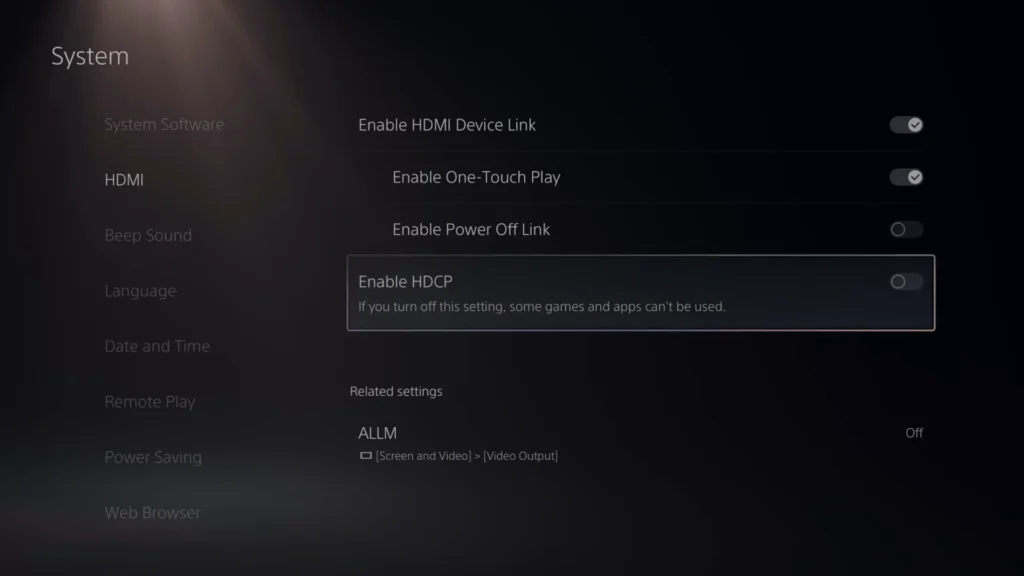
And here’s the way to turn it off:
- Close GTA 6 and return to the PS5 home screen.
- Open Settings (upper-right).
- Select System.
- Open HDMI.
- Set Enable HDCP to Off.
- Launch GTA 6 again.
Works on both standard PS5 and PS5 Pro.
To test properly, go back to a spot where you previously noticed stutter, run the same driving route or camera movements, then turn HDCP back on and repeat. If you don’t see a consistent difference, there’s little reason to leave it off for performance.
Does Disabling HDCP Fix GTA 6 Stutter and FPS Drops?
It worked for me. Smoother camera movement and better responsiveness was the result. But as I saw on the communities, some players see little change and certain stutters still appear in busy areas.
GTA 6 Still Stutters? Check These PS5 Settings
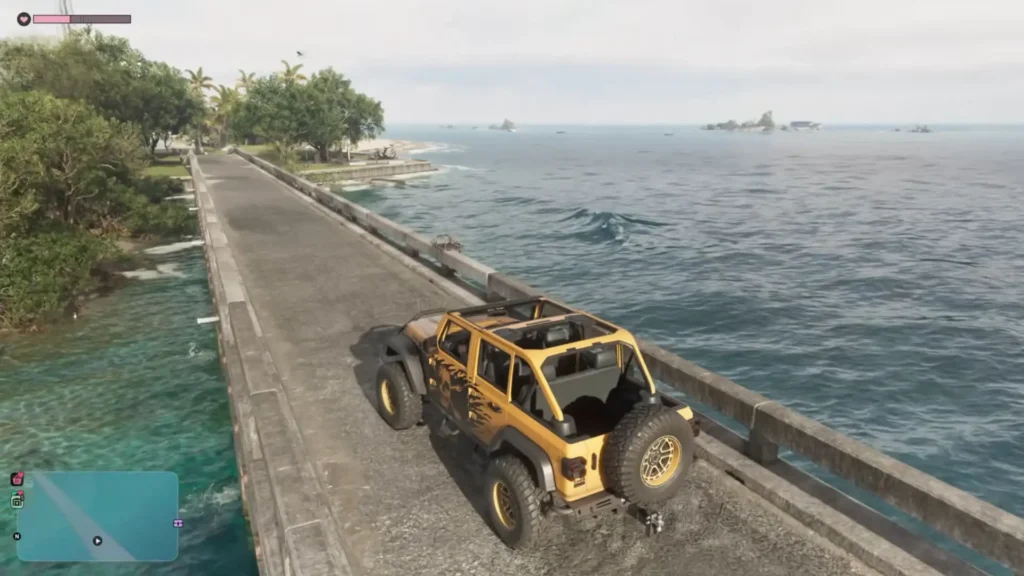
If turning HDCP off doesn’t help, the problem may be how your TV handles the game’s 30 FPS output.
Enable Game Mode or ALLM
Turn on your TV’s Game Mode to reduce post-processing lag. On the PS5 go to:
Settings → Screen and Video → Video Output → ALLM → Automatic
(if your display supports it). You can also enable Game Mode manually in the TV’s picture settings. This won’t raise the frame rate, but it can make driving and aiming feel more responsive.
Adjust Motion Blur
In GTA 6: Pause → Settings → Display → Visual Effects → Motion Blur Strength.
Lower it if movement looks overly smeared. Raise it if 30 FPS judder feels too harsh. OLED panels often make low-frame-rate judder more noticeable because of their fast response time. Motion blur changes how movement looks, it does not create extra frames.
If dark screen corners are bothering you too, that’s a separate issue. Our GTA 6 vignette guide explains how to reduce that effect.
Check Controller Deadzones and Sensitivity
What feels like input lag is sometimes just stick response. In Settings go to Controller, try lowering the right-stick deadzone a little so the camera reacts to smaller movements. Raise it again if the camera starts drifting. Adjust look sensitivity until it feels natural. These changes won’t fix real FPS drops, but they can improve the feel of aiming and driving.
VRR and Motion Smoothing
VRR can help on compatible displays, but its usefulness depends on the supported range and the game’s behavior. It is not a guaranteed fix for 30 FPS judder anyway. Motion-smoothing features (TruMotion, etc.) create extra frames and can introduce artifacts and extra lag. Game Mode is usually the better starting point for responsive controls.
How to Fix GTA 6 Black Screen in OBS or Elgato
HDCP has a much clearer role when the game is invisible in capture software.
If the PS5 looks fine on your TV but OBS or Elgato shows a black screen, HDCP is one of the first things to check. Elgato devices cannot record an HDCP-protected signal.
Typical setup:
- Connect the PS5 directly to your monitor and disable HDCP (Settings → System → HDMI).
- Connect the PS5 HDMI output to the capture card’s HDMI IN.
- Connect the capture card’s HDMI OUT to the monitor.
- Connect the capture card to the PC via the required USB connection.
- In OBS, add a Video Capture Device source and select the card.
If HDCP was the problem, the image should now appear.
What If HDCP Is Off but OBS Still Shows a Black Screen?
HDCP isn’t the only possible cause.
- Confirm HDMI cables are in the correct ports.
- Make sure the capture card is recognized by the PC and selected in OBS.
- Use a proper USB 3.0 (or faster) port and cable if required and avoid incompatible hubs.
- Try setting the PS5 output to 1080p and temporarily disable HDR/VRR if the card doesn’t support every combination.
If the TV shows the game normally but the capture preview stays black, focus on the capture-card connection before changing GTA 6 graphics settings.
Can You Record GTA 6 Without Disabling HDCP?
Yes. For simple clips, use the PS5’s built-in recording. Press the Create button on the DualSense and choose Save Recent Gameplay or Start New Recording. Manual recordings go up to one hour: recent gameplay can save from the previous 15 seconds up to one hour. No capture card or PC required.
HDCP mainly matters when you use external HDMI capture hardware with software like OBS.