

Honestly among all the Assassin’s Creeds, Black Flag has always been my favorite. I even finished the original version a few months ago. So, I couldn’t wait for this remake.
And now what? It’s been a buggy mess so far. Crashing to desktop, freezing, random stutters, DirectX errors, you name it.
I’m no dev, but after hours of testing (and reading tons of Reddit/YouTube comments), here are the fixes that actually helped me and many others. I’ll keep it straightforward and I hope you find the solution you need.
Note: This bug fixes guide is mostly for PC players.
Find Your Bug:
Quick & Easy Stuff First
Sometimes you don’t have to do complicated stuff to solve a problem. First do the following steps and if they don’t work, continue reading the text.
Full Restart
Close the game, Ubisoft Connect/Steam/Epic, everything related to the game. Then restart your entire PC. Don’t just alt+F4, a proper reboot fixes a surprising amount of launch crashes.
Verify Game Files
This works most of the time. Do this:
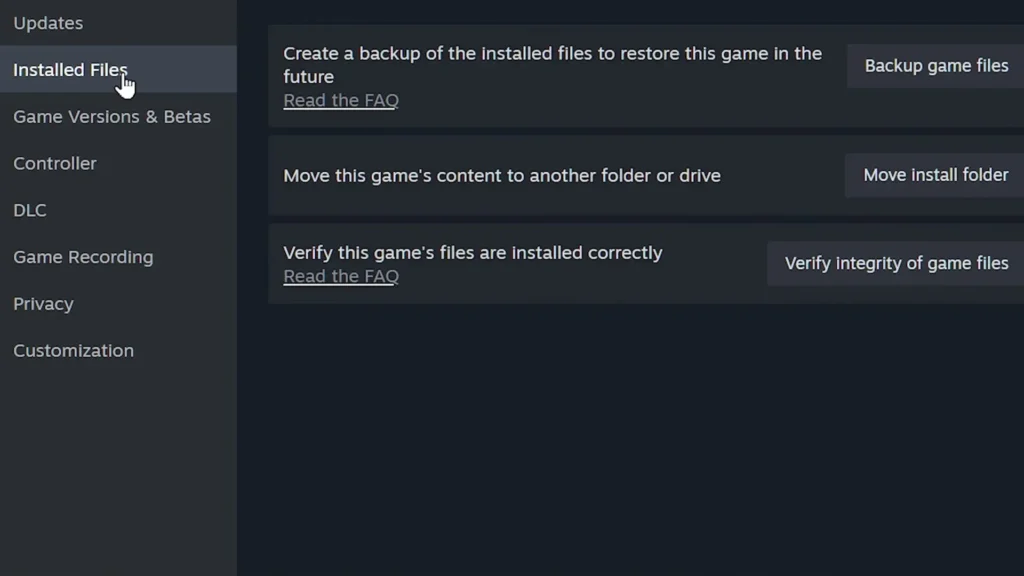
Steam: Right-click the game, Properties, Installed Files, Verify integrity.
Ubisoft Connect: Go to the game page, Options, Verify files.
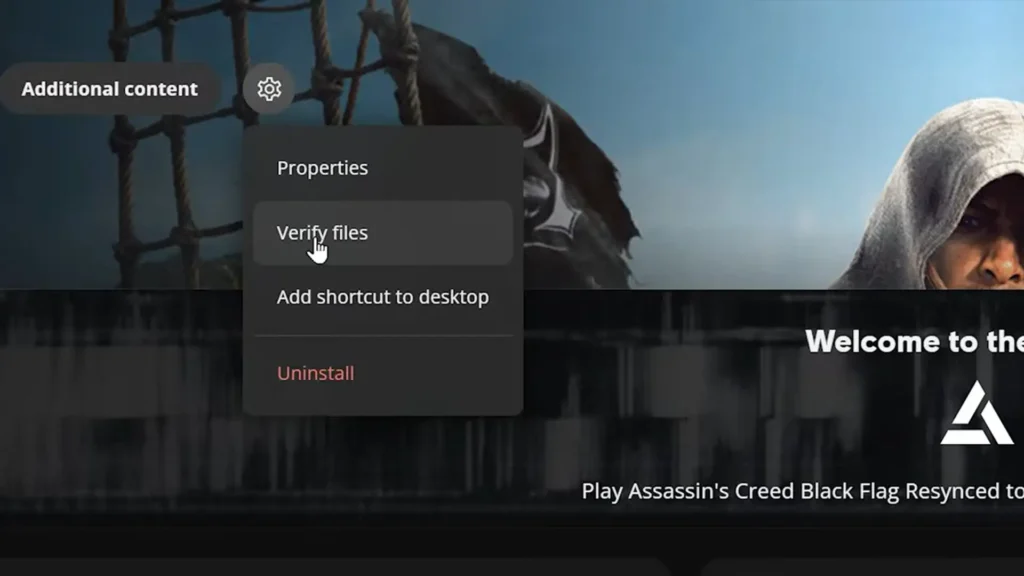
This catches corrupted downloads and often fixes instant crashes or black screens.
Disable overlays
Turn off Steam Overlay, Discord, Ubisoft Connect overlay, Xbox Game Bar and any others. These cause conflicts in this game. Keep MSI Afterburner if you want, but test without everything else first.
Graphics & Driver Fixes
If the bugs still remain, you should try more advanced solutions.
Upgrade GPU Drivers
Update to the latest NVIDIA Game Ready driver (610.74) if you haven’t. Sometimes the brand new one causes issues though. In that case try rolling back to the previous version (610.62).
Clear Shader Cache
Go to Windows Settings, System, Storage, Temporary files then Clear DirectX Shader Cache. Restart your PC after that. The game rebuilds shaders next launch and this fixes freezing issues in many cases.
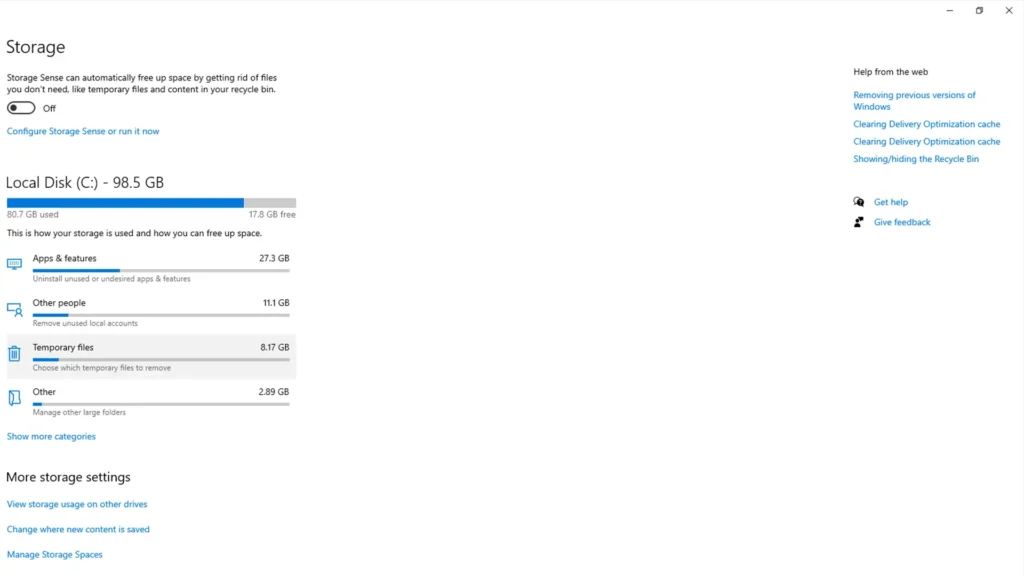
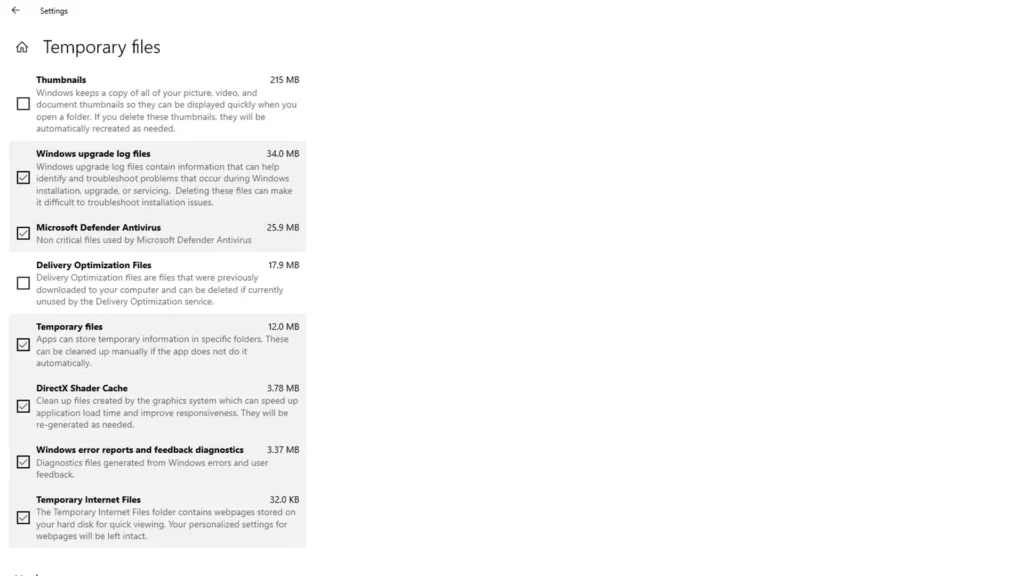
You’d better also clear the GPU-side shader cache. For this, follow these steps:
- open NVIDIA Control Panel;
- Manage 3D Settings;
- Program Settings;
- select the game;
- set “Shader Cache Size” to clear/rebuild it.
Doing both the Windows DirectX cache and this NVIDIA-specific cache together increase the probability to solve the freezing issue.
Turn off Frame Generation
If you’re using DLSS/FSR + Frame Gen + Ray Tracing, you should know that this combo might be unstable right now. Disable Frame Generation first (you can keep upscaling on) and test whether the problem solved. Many people stop getting random freezes this way.
Lower Ray Tracing
Ray tracing looks amazing but tanks stability on some cards (especially 40-series). Drop it from Enhanced to Standard, or turn it off completely until patches drop.
This isn’t just a community workaround. Ubisoft itself has acknowledged the issue and recommends sticking to standard graphics presets rather than forcing Ray Tracing or Terrain Quality to Ultra High for now.
Cap your FPS
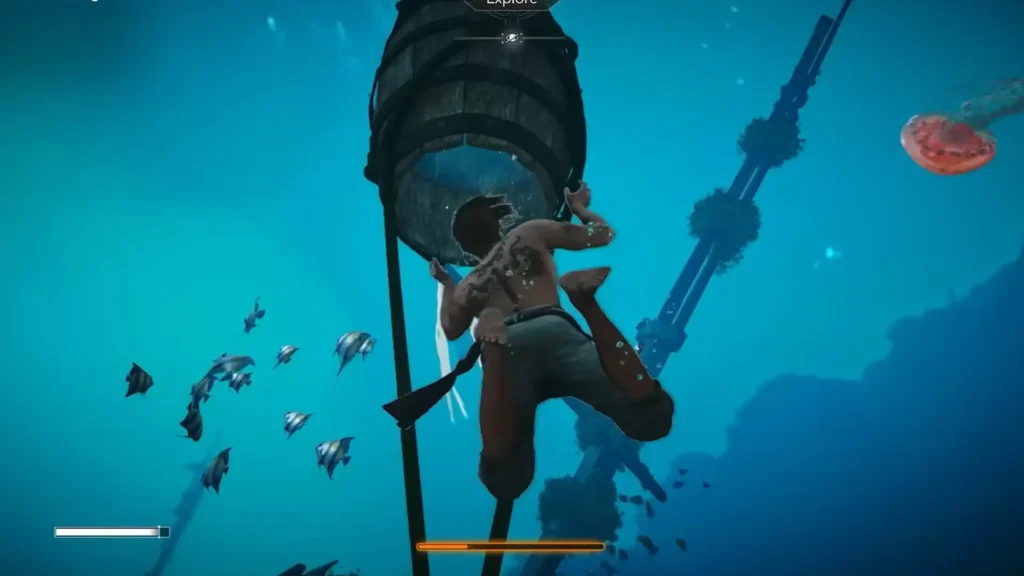
The game is not yet optimized, so even an advanced PC may see sudden FPS drops for no reason.
So use in-game settings, Nvidia Control Panel, or RTSS to cap at 60 FPS (or even 30 if needed). This can prevent crashes when the map or gameplay become heavy.
More Advanced Fixes
Still have problems? Don’t worry, I’m here to provide solutions I know:
Increase Virtual Memory (for DX12 error 0x887A0006)
The 0x887A0006 error is another common problem which you can solve with increasing Virtual Memory.
Go to “Advanced system settings”, Performance Settings, Advanced and then Virtual Memory.
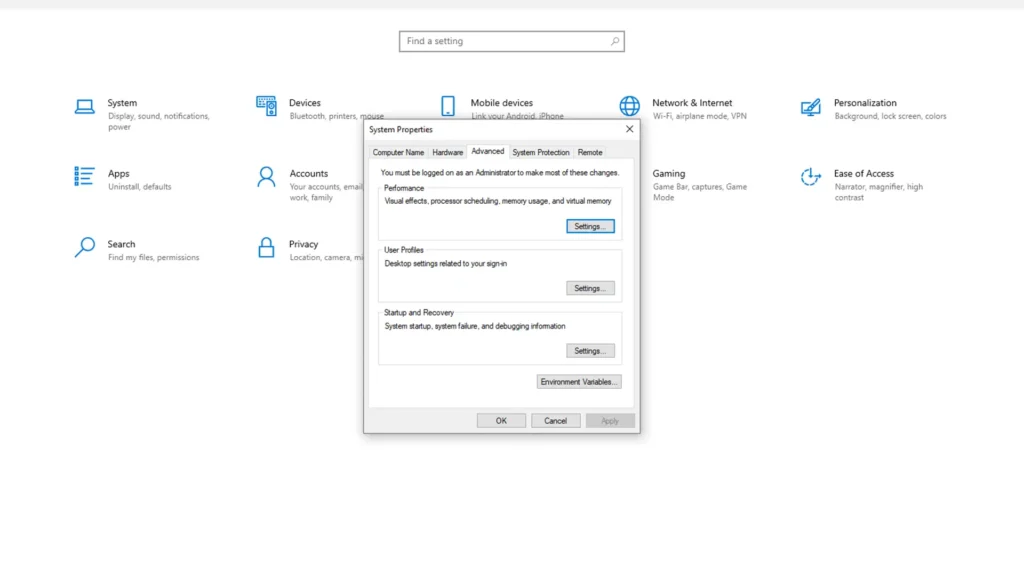
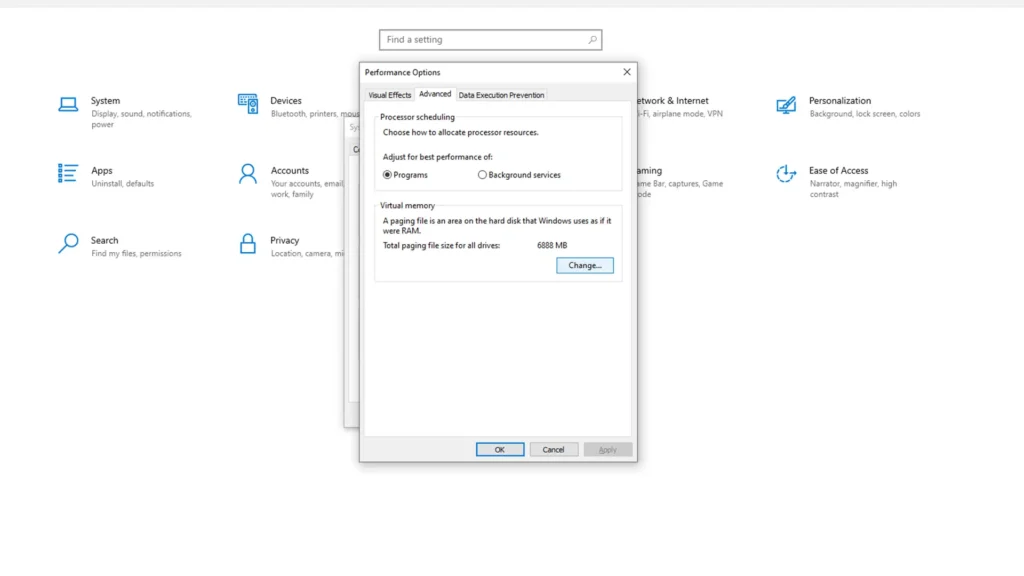
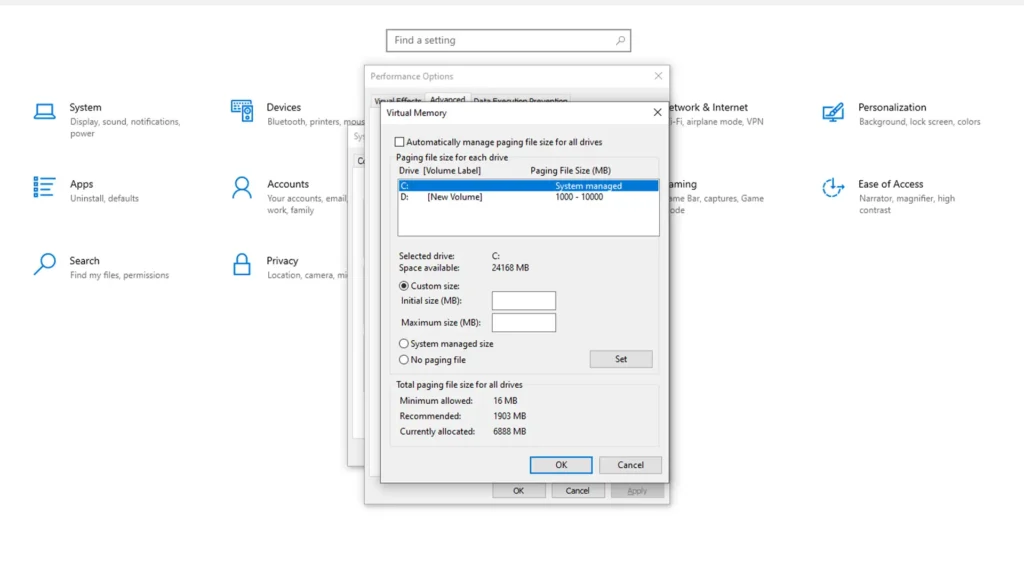
Set it to Custom and increase it as much as the system allows (above 50GB if possible). This fixed the nasty DirectX 12 crash for me. If this error still appears, open the game with Run as Administrator.
Launch Option
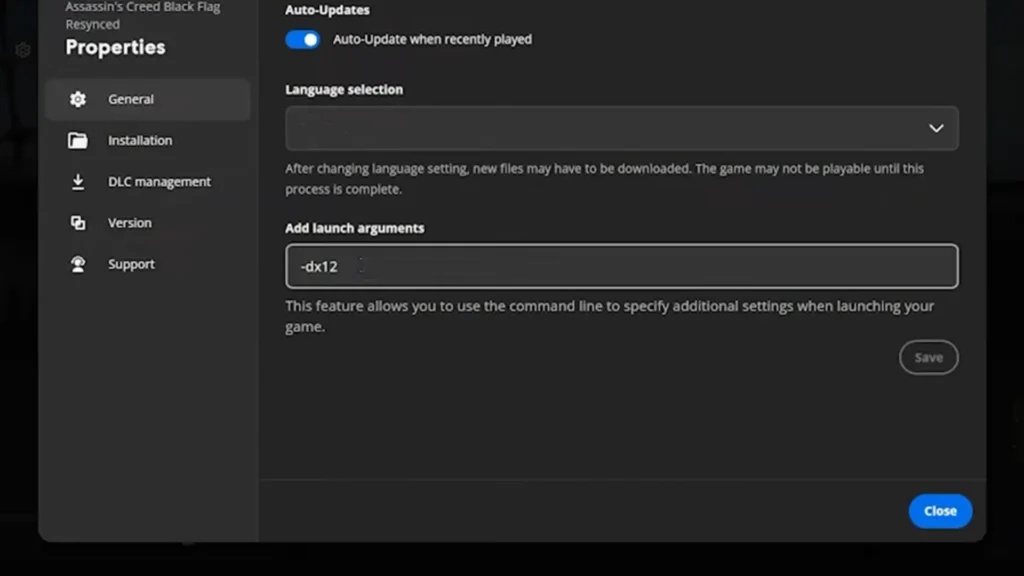
In Ubisoft Connect, add DX12 (or -DX12) as a launch argument. Some people need this to force DirectX 12 to work properly.
How to do this?
- Open Ubisoft Connect;
- Go to your Assassin’s Creed Black Flag Resynced game page;
- Click the three dots (options menu) or the gear icon next to the Play button;
- Select Game Properties (or Properties);
- Look for Command line arguments / Launch arguments / Add launch arguments;
- Type this in the box: DX12 (Some people use -DX12. Both are worth trying);
- Click Save or Apply;
- Launch the game normally.
Other Annoying Bugs
There are some other bugs in the game that I know many players encounter. Among them, the issues below are the most common:
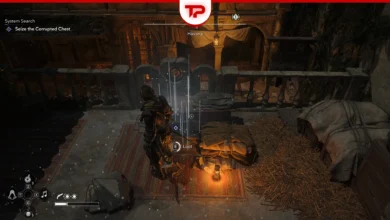
Map with Spyglass bug: Don’t open the map while using the spyglass because it may crash the game. Avoid using them together until Ubisoft patches it.
Templar Hunt Bug
I hate this one. If you leave a Templar Hunt side quest chain unfinished in a region and later trigger a main story mission in that region, the game may delete all progress made since (including exploration, upgrades, and unlocks) costing you hours and this is terrible.
Ubisoft has confirmed this bug and says a fix is coming, but no date has been given. Until then, always finish a Templar Hunt fully before moving on, or avoid starting them until the patch comes.
Some Final Tips
Make sure the game is on an SSD. This will help you have a smoother experience and fewer crashes.
Unfortunately, the bugs are a lot and I don’t know personally how to fix some of them yet. The game is new and anyway, some bugs can’t be fixed. We should wait for Devs to solve them. Although, Ubisoft is a little slow with patches, you probably know that.
If something, anything has been worked for you, please share it in the comment section. I’ll try to update and enhance this text with yours and my experience.
Important Note: Bug fix solutions for original Black Flag don’t work for this version. This one is developed on a different system.
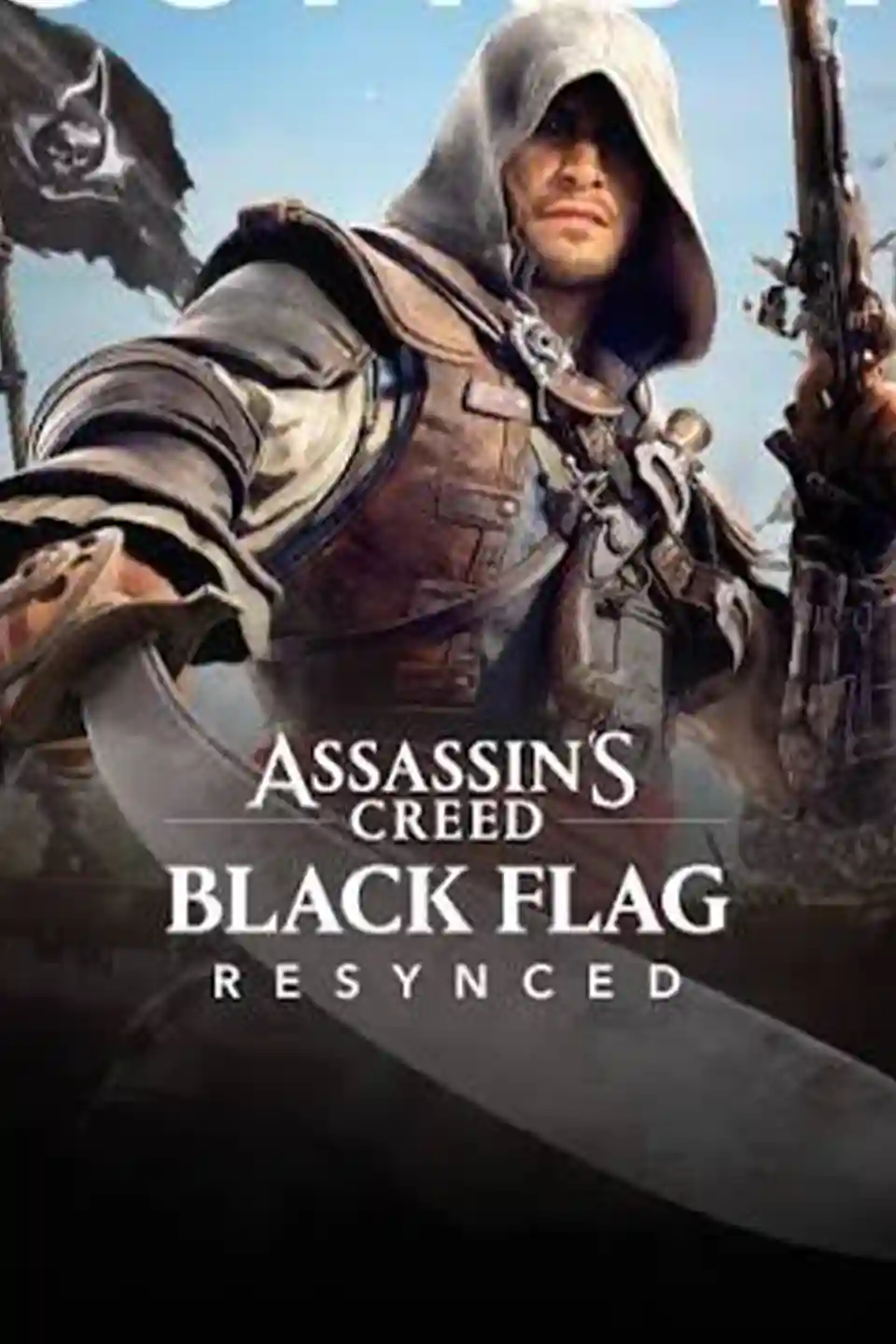
Assassin's Creed Black Flag Resynced