

The Path of Exile 2 (PoE 2) trade system completely overhauled the game’s economy. It lets players buy, sell and exchange inventory through an asynchronous in-game market.
In short, here is the trading system at a glance:
- Market: Access the 100% in-game market anytime via the main menu.
- Instant Price Check: Hover over any item and press Shift + Alt + Left-Click.
- To Sell: Place gear in the Merchant Tab and list your buyout price through Ange (Act 4).
- To Buy: Search the market, click Travel to Hideout and pay the Gold tax to claim the item automatically.
This PoE 2 trade guide walks you through everything you need to master the market.
What You Will Read:
How to Access the In-Game Market
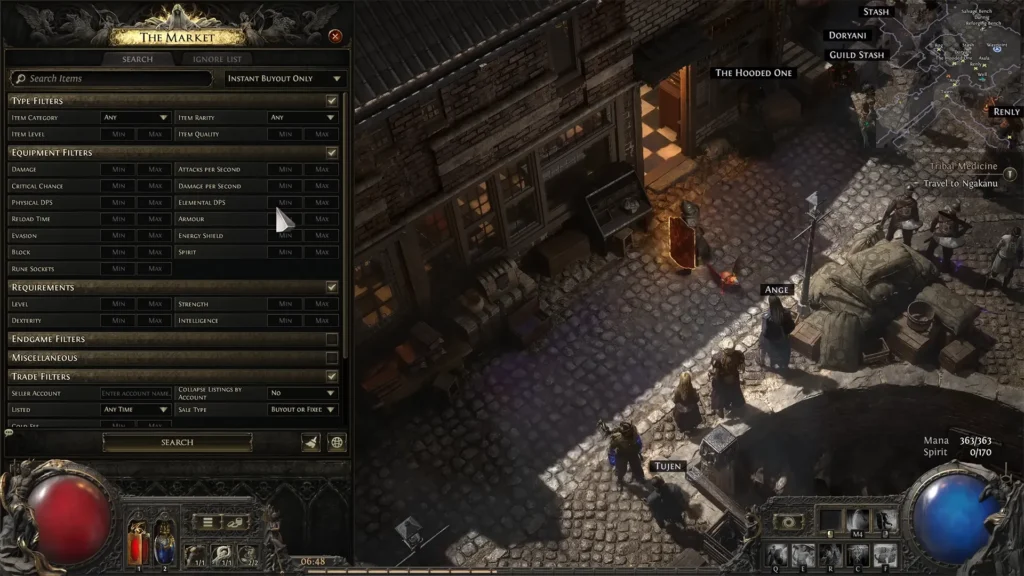
You can open the central trading interface at any time from your main user interface. Click the navigation menu (the three horizontal lines icon) and select the Market panel, or trigger it instantly using your designated default hotkey (mostly /).
PoE 2 trade: How to Sell Items on Market
Selling equipment to other adventurers is handled through the NPC Ange, whom you first encounter in your Act 4 hub town. Do not forget that you need a hideout.
Setting Up Your Merchant Tab
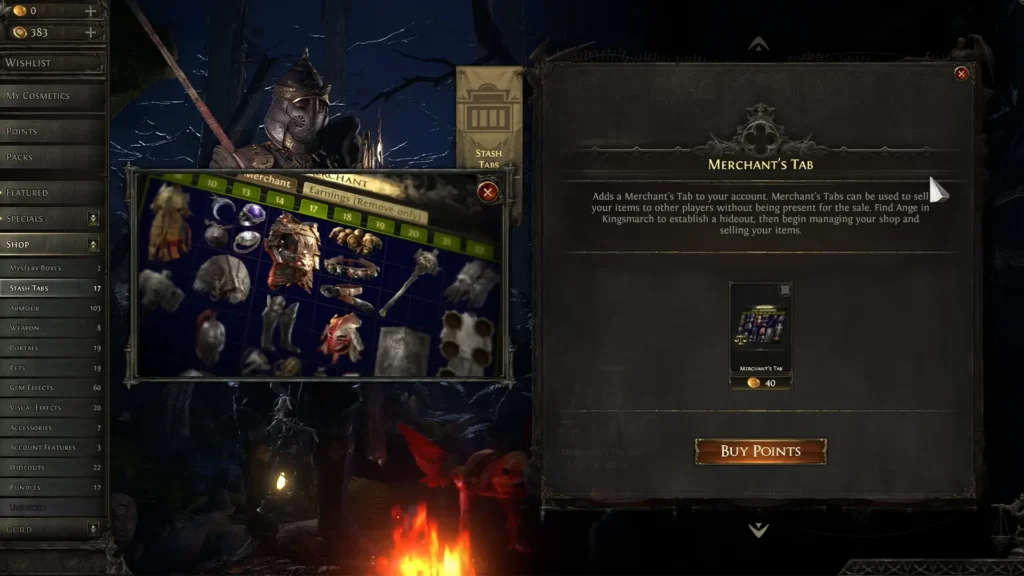
To list equipment on the public market, you must own at least one Merchant Tab. These specialized stash tabs can be acquired inexpensively from the in-game microtransaction shop, and players who purchased early access or supporter packs typically have enough existing points to unlock one immediately.
The Listing and Lock-In Mechanic
Speak to Ange in your hideout and open the Manage Shop interface. Then place the item you wish to sell inside your merchant stash tab.
Select your desired buyout currency (such as Exalted Orbs or Divine Orbs) and input your asking price. Double-check your chosen currency type before confirming so you do not accidentally list a valuable Divine Orb item for Exalted Orbs. Click List Item to publish the gear to the trade server.
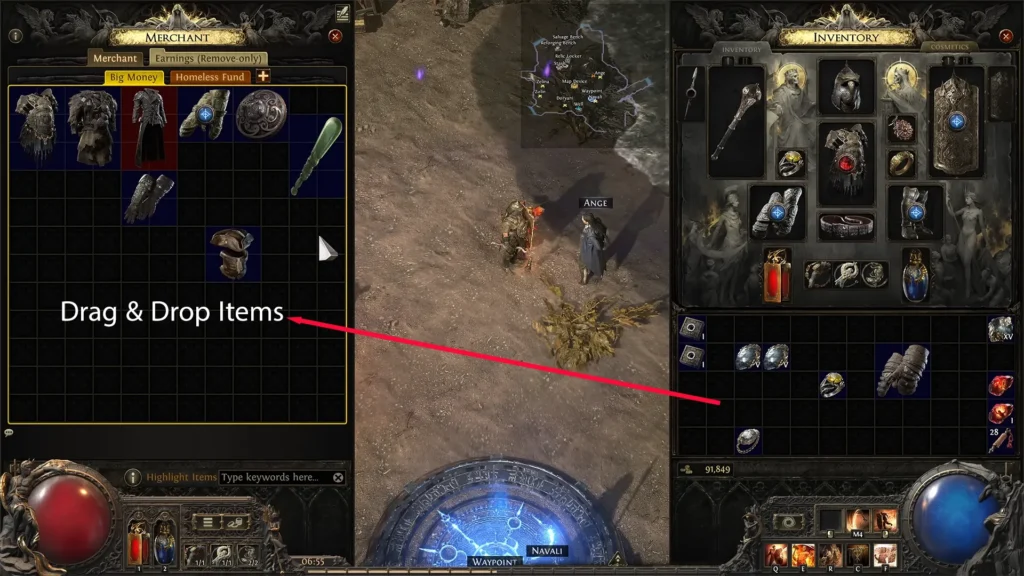
Within a few seconds of listing, an audio cue will play confirming that the item has temporarily locked in. During this mandatory security window, the item cannot be moved or modified. This safeguard prevents unscrupulous players from rapidly bait-and-switching prices to scam potential buyers.
Once the timer expires, you can right-click the listing to adjust its asking price or remove it entirely.
Withdrawing Your Earnings
You do not need to be online or present inside your hideout when a buyer purchases your item. Whenever a transaction successfully clears, a notification alert pops up in the bottom-right corner of your screen. Return to Ange, open her shop menu and navigate to the Earnings tab to collect your accumulated currency or review your detailed sales history.
How to Use the Currency Exchange
In addition to managing player shops, Ange operates the built-in Currency Exchange. This system allows you to instantly liquidate surplus crafting materials (such as Greater Jeweller’s Orbs) in exchange for foundational trading currencies like Chaos Orbs or Divine Orbs.
Select the currency you wish to offer alongside the exact currency you want to receive. Then, review the current live market ratios and execute the trade instantly.
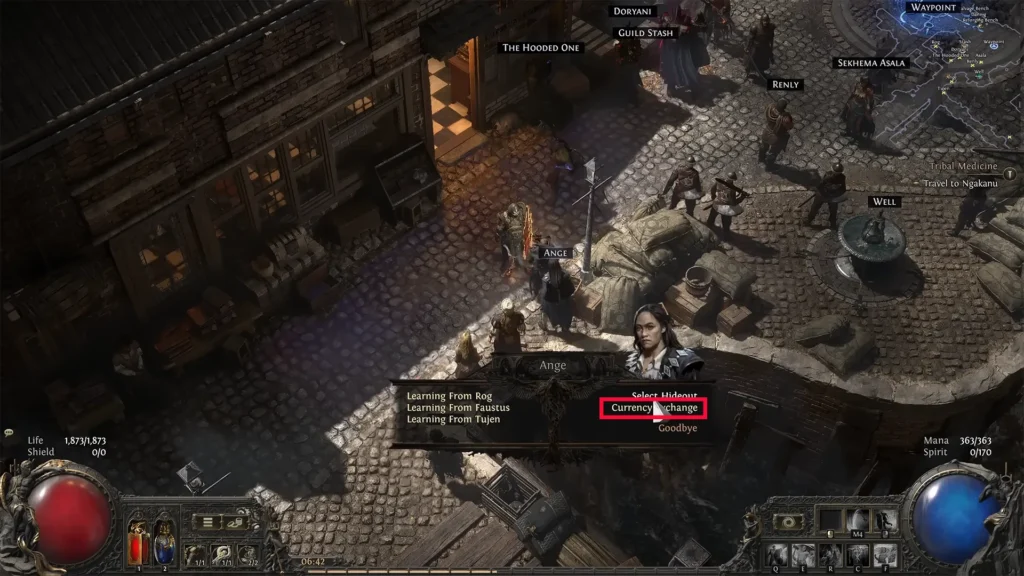
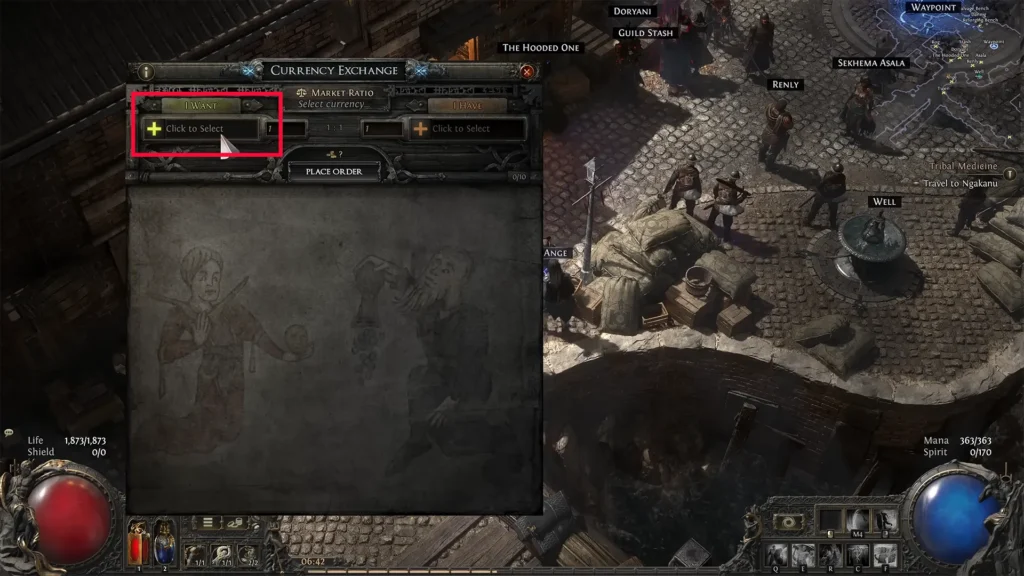
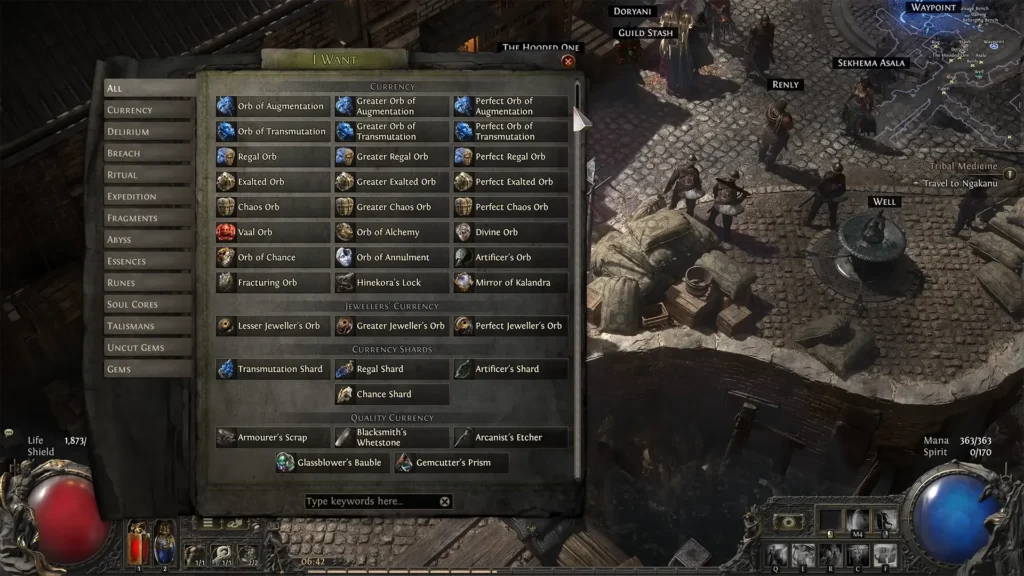
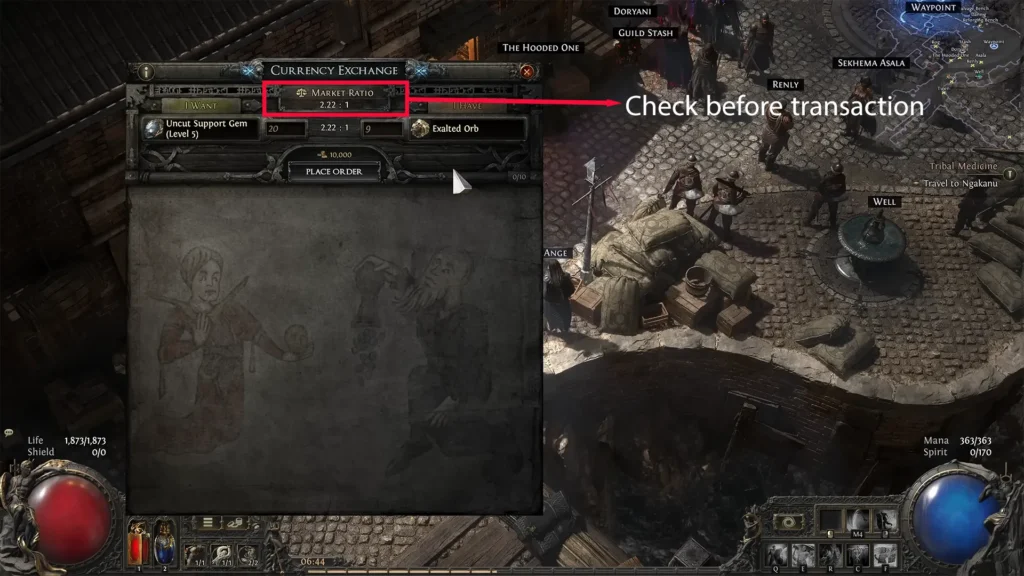
Note: Completing transactions on the Currency Exchange requires paying a small Gold fee to Ange.
How to Search and Buy Items with Merchant Tab
Acquiring upgrades follows a streamlined, asynchronous workflow designed to minimize trade friction.
- Set Target Filters: Open the Market panel, select your desired equipment slot (e.g., Helmet) and input your mandatory defensive or offensive baselines, such as minimum Energy Shield ratings.
- Travel to the Seller’s Hideout: Browse the matching listings and click Travel to Hideout on the item that fits your budget.
- Handle Listing Contention: If another player is actively visiting that hideout securing the same item, the system will temporarily block your travel attempt with a warning prompt. Wait a brief moment and run the search again to see if the item was purchased or released back to the market.
- Complete the Purchase: Upon arriving in the host’s hideout, their merchant shop window opens automatically with your target item clearly highlighted. Confirm the buyout price alongside the mandatory buyer’s Gold tax to transfer the equipment directly into your inventory.
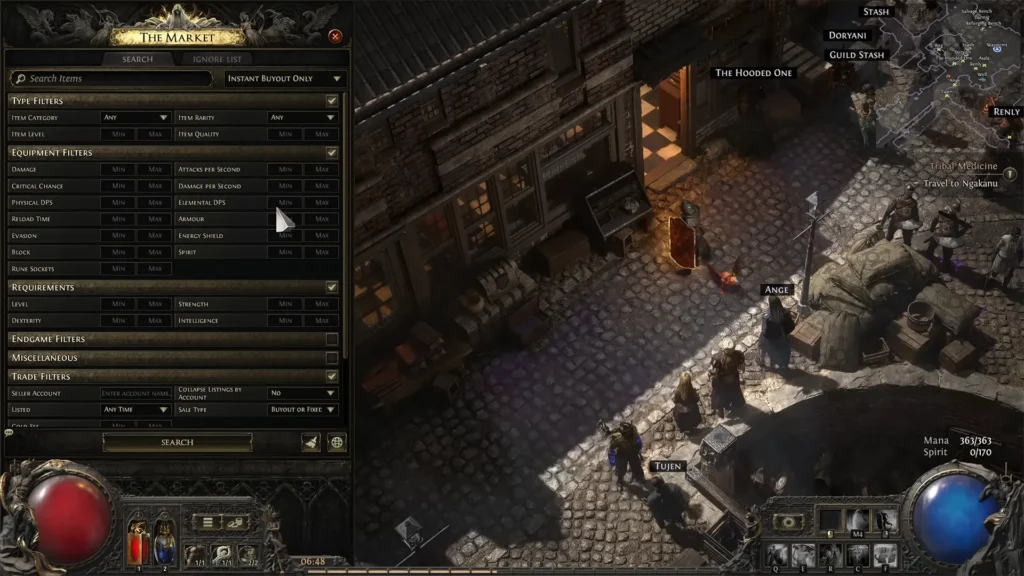
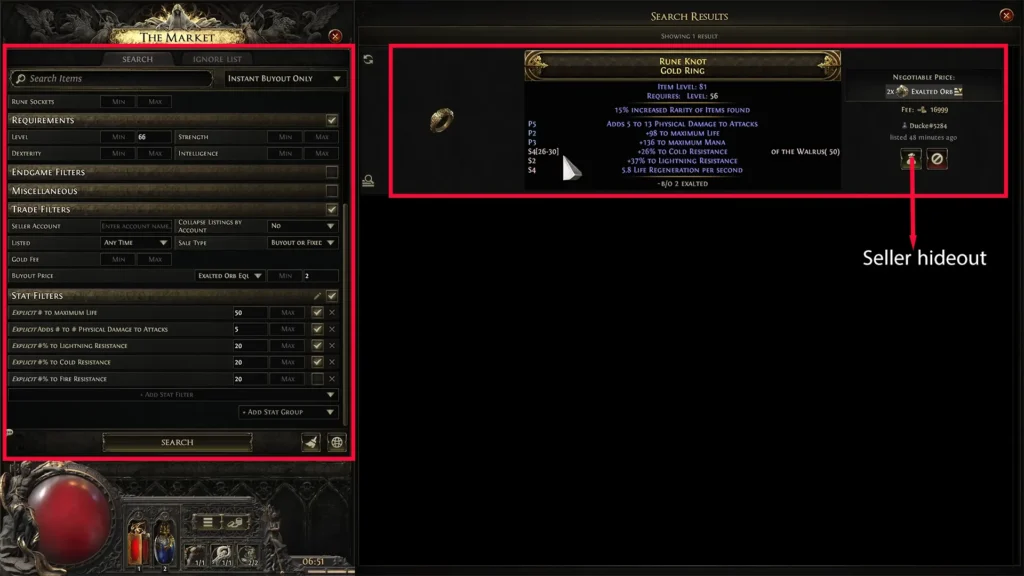
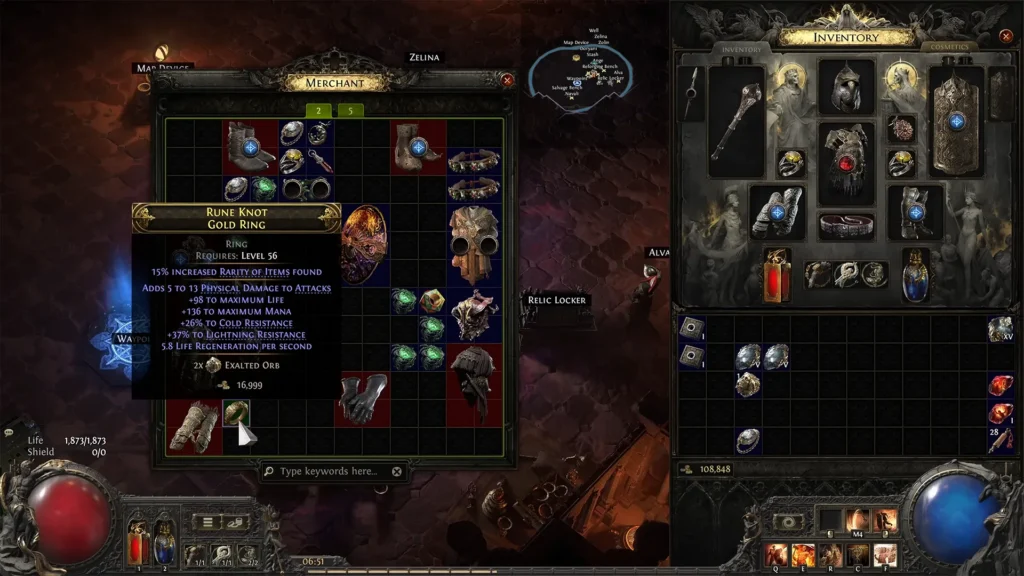
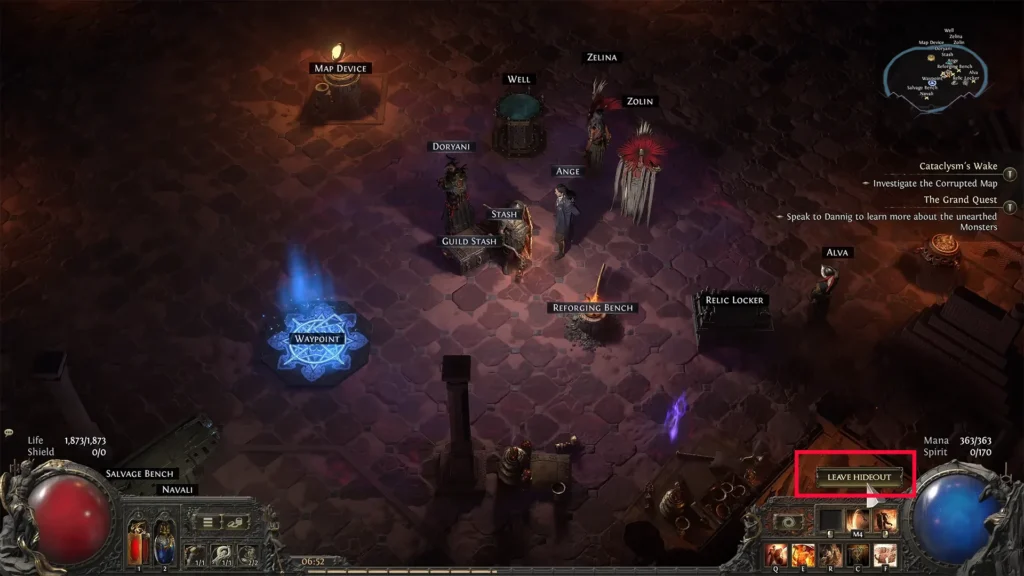
If you arrive at a seller’s hideout and realize you are short on the exact currency needed for the trade, you can conveniently access Ange’s Currency Exchange directly inside the host’s hideout to swap your funds on the spot.
How to Price Check Items Accurately
Before listing your loot for sale, you must determine its realistic fair market value. Because rare gear generates with vast modifier combinations and numerical ranges, searching for an exact duplicate of your item will almost always yield zero search results.
Use the Quick Price Check Hotkey
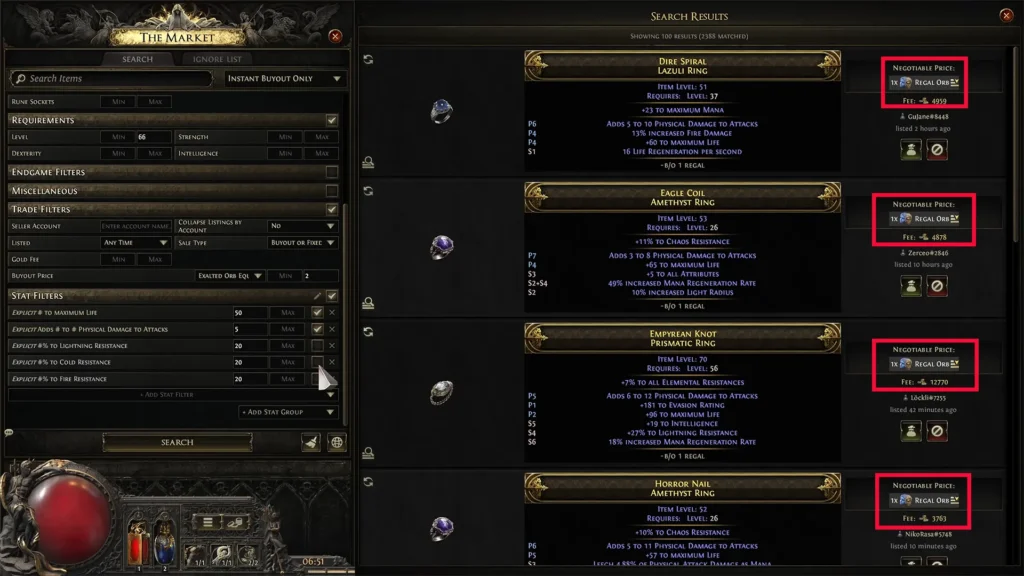
Hover your cursor over any item in your inventory while holding Shift + Alt, then Left-Click. This automatically opens the market panel and pastes the item’s specific baseline stats into the search filter window.
Refine Search Filters for Rare Gear
To find comparable listings on the market, you must manually trim down the auto-populated filters:
- Clear Exact Base Names: Unless your item’s value relies on a very specific high-tier base type, remove the specific item name from the search query.
- Broaden Stat Brackets: Adjust exact numerical values into realistic ranges (such as broadening an armor value of 165 to search within a 132–170 bracket). Therefore, you do not accidentally overshoot maximum possible roll thresholds.
- Disable Niche Affixes: Uncheck minor utility stats (such as passive flask charge generation or niche charm durations) to keep your search focused strictly on high-demand core modifiers like maximum life and elemental resistances.
Evaluate Physical and Leveling Weapons
Evaluating weapons requires a much narrower approach, as buyers (like me) prioritize raw offensive output over secondary utility modifiers. When evaluating a weapon:
- Strip away the specific base name, critical strike chances and attribute requirements.
- Leave only the weapon category and the overall DPS (Damage Per Second) metric active.
- Compare your weapon against the resulting DPS tier list to find a competitive asking price.
The Danger of Pricing Unique Items
Unique items require extreme caution during price evaluation. Uniques with highly volatile modifier brackets can wildly swing in value from a single Exalted Orb all the way to a Mirror of Kalandra depending on their roll quality.
Always manually input your exact explicit modifier numbers (including life rolls, individual elemental resistances and item rarity) to ensure you do not drastically underprice a top-tier roll.