

GTA 6 audio issues are causing choppy sound and sudden audio cutouts on PS5 and Xbox Series X|S, with headset audio being a common headache. Sometimes, the sound just falls apart a few minutes into a session. There’s no confirmed permanent fix yet, but a few console tweaks may help.
To fix GTA 6 audio issues, start by reconnecting your headset or controller. On PS5, try disabling 3D Audio for Headphones. On Xbox Series X|S, switch to Stereo uncompressed or disable Quick Resume. These workarounds aren’t guaranteed, but they’re worth trying before anything more drastic.
Table of Contents
How to Fix GTA 6 Audio Issues on PS5
If GTA 6 audio keeps cutting out or stuttering on your PS5, jump into the console’s sound settings. Turning off 3D Audio for Headphones has helped some PS5 users. While you’re in there, make sure the right output device is selected. Sometimes that may be enough to restore the sound.
Disable 3D Audio for Headphones
GTA 6 supports PS5’s Tempest 3D Audio, but switching to stereo is a useful test when headset audio sounds distorted.
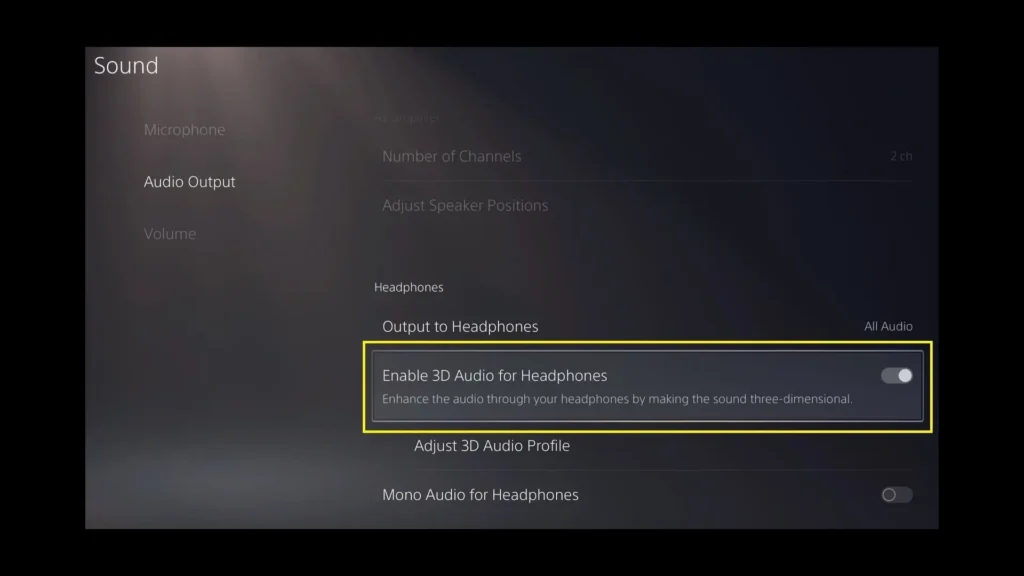
Open Settings > Sound > 3D Audio (Headphones) and turn off Enable 3D Audio for Headphones. Launch GTA 6 again and check whether the sound improves. You can restore the setting afterward if nothing changes.
Check PS5 Audio Output
Go to Settings > Sound > Audio Output and make sure the correct device is selected.
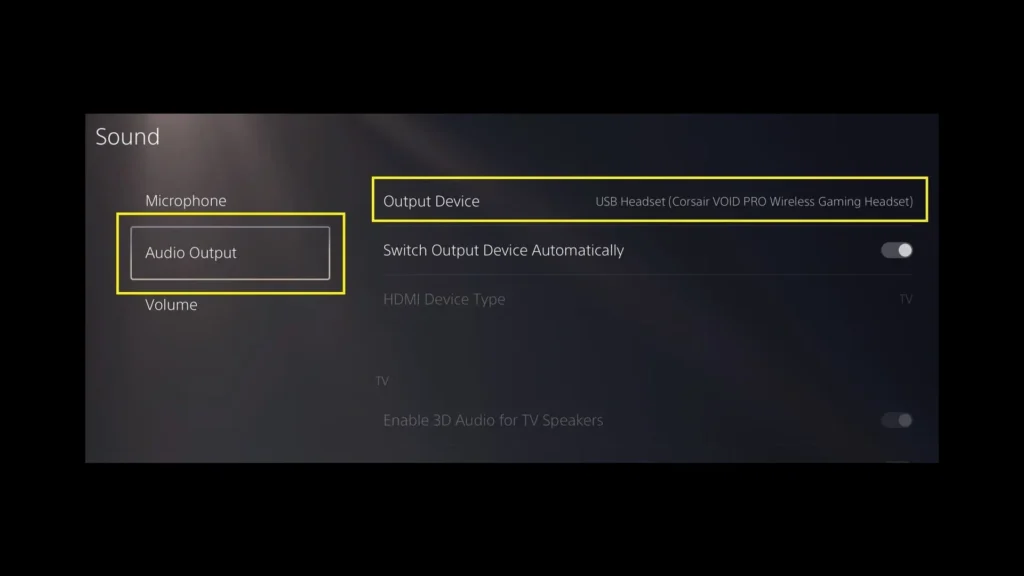
If you use a wireless PlayStation headset, reconnect it and check its USB adapter. Nearby wireless devices may interfere with the connection.
If the issue affects your headset plugged into your DualSense controller, check for controller software updates under Settings > Accessories > Controller (General).
How to Fix GTA 6 Audio Issues on Xbox Series X|S
A bunch of Xbox Series X and S players are getting crackling audio through their headsets, with the sound breaking up while they play. A couple of tweaks have helped some people: switching the Xbox audio format or reconnecting the controller connection. Nothing’s guaranteed, but they’re worth a shot before you go through the hassle of reinstalling GTA 6.
Switch to Stereo Uncompressed
Open your Xbox audio settings and change Headset audio to Stereo uncompressed.
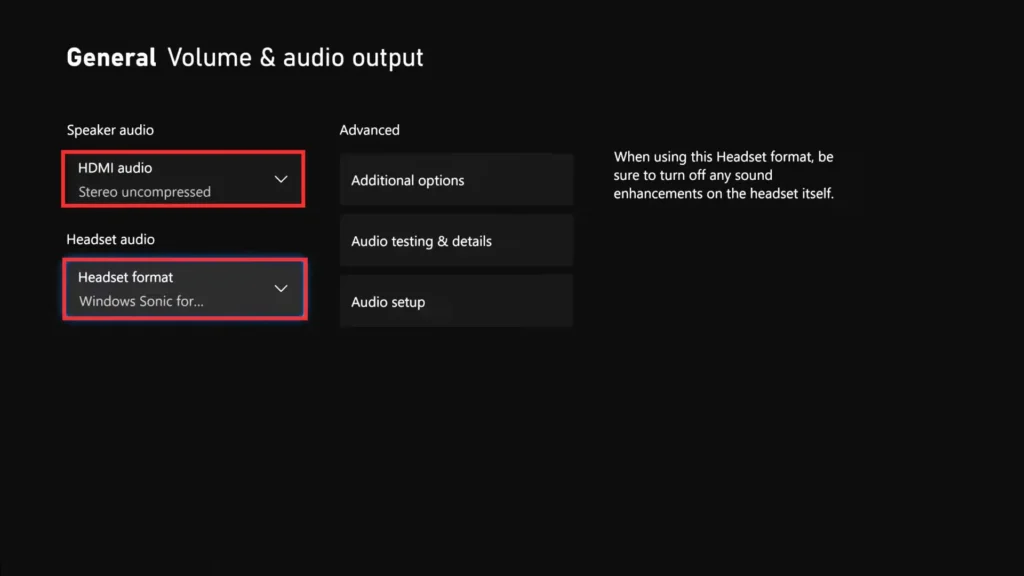
This has improved choppy GTA 6 sound for some Series S users, although others experienced no improvement. If your speakers are affected, test Stereo uncompressed for speaker output too.
Disable Quick Resume
Xbox supports disabling Quick Resume for individual games. To test it with GTA 6:
- Highlight GTA 6 and open Manage game and add-ons.
- Select Quick Resume settings.
- Disable Quick Resume, then fully quit and relaunch GTA 6.
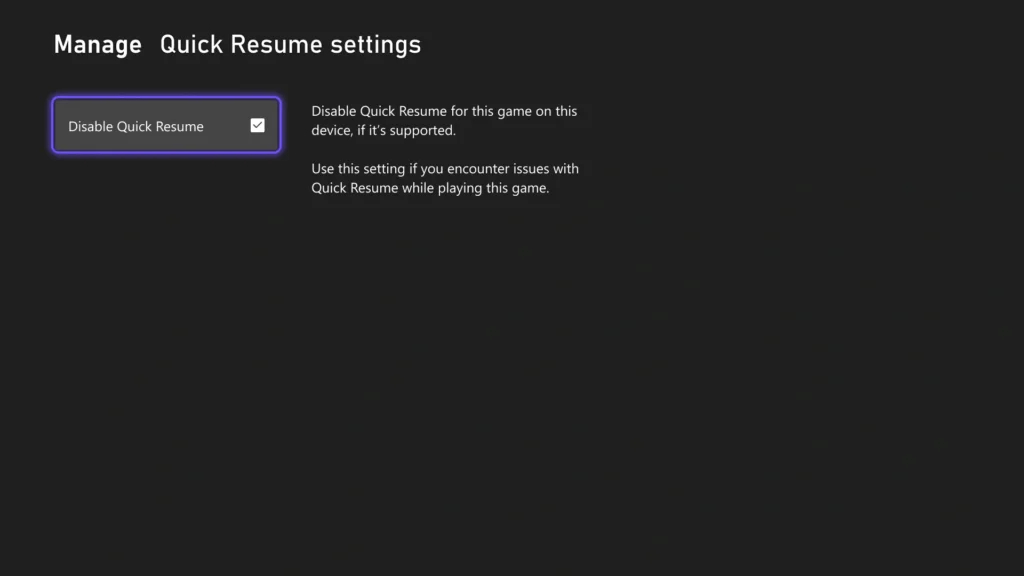
This helped in combination with Stereo uncompressed in one reported case.
Reconnect Your Controller
If headphones connected to your Xbox controller produce crackling sound, unplug and reconnect them. Restarting the controller has also temporarily cleared audio stuttering.
Another option is connecting your controller directly to the console using a USB-C cable. This eliminated distortion for one Series S user, though it hasn’t worked universally.
GTA 6 No Sound or Quiet Dialogue
If GTA 6 has no sound, open the game’s Pause Menu > Settings > Audio and review the Setup and Volume options.
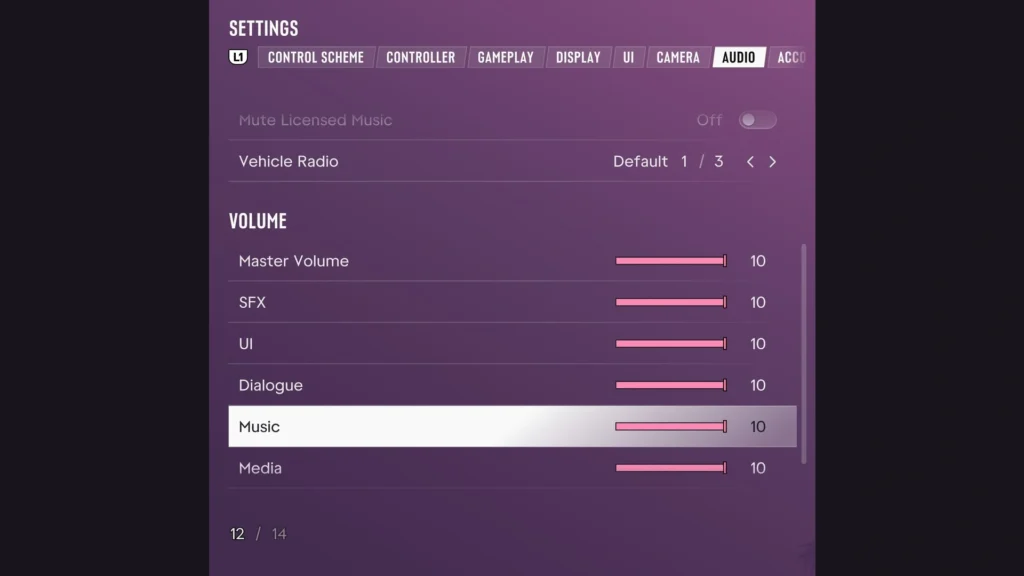
On PS5, check the selected output device and HDMI connection. For unusually quiet voices through headphones, try Settings > Sound > Volume > Audio Focus, then select Boost Voices. This adjusts dialogue clarity rather than fixing audio cutouts.
Is GTA 6 Audio Stuttering a Known Bug?
GTA 6 audio stuttering has been reported on Xbox Series X|S and PS5. Symptoms include headset crackling and brief sound interruptions. Some issues appear during busy gameplay, but there’s no confirmed explanation linking them to console performance.
Has Rockstar Fixed GTA VI Audio Issues?
As of November 19, 2026, Rockstar’s official support documentation doesn’t confirm a permanent fix for these audio problems.
Check for GTA 6 updates and keep your console software current. If the sound still breaks, contact Rockstar Support with your console model and audio setup. Include when the issue starts and which fixes you’ve tried.