The Distracting GTA 6 Vignette Effect: Here’s What Rockstar Actually Fixed (and How to Reduce It)

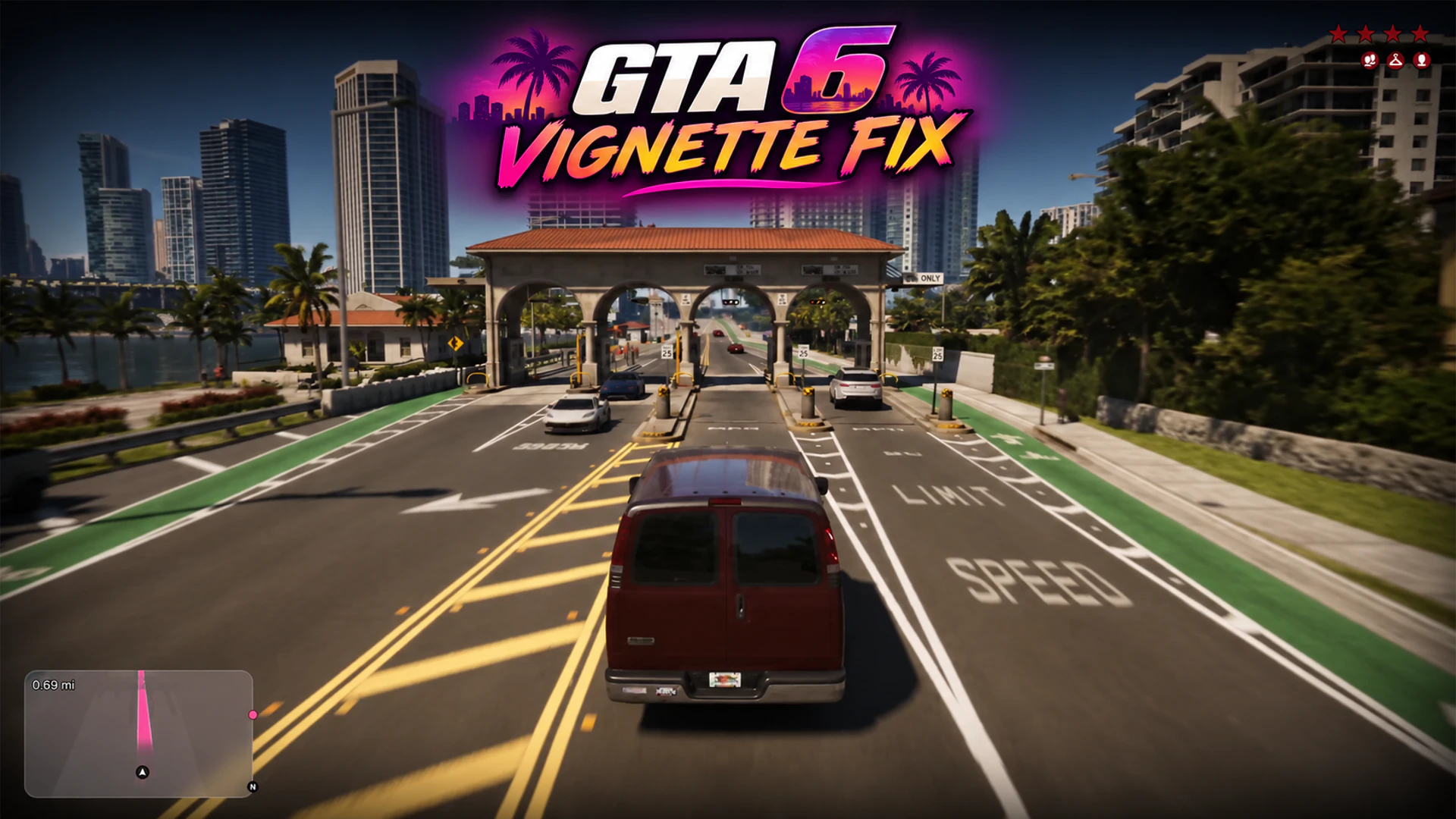


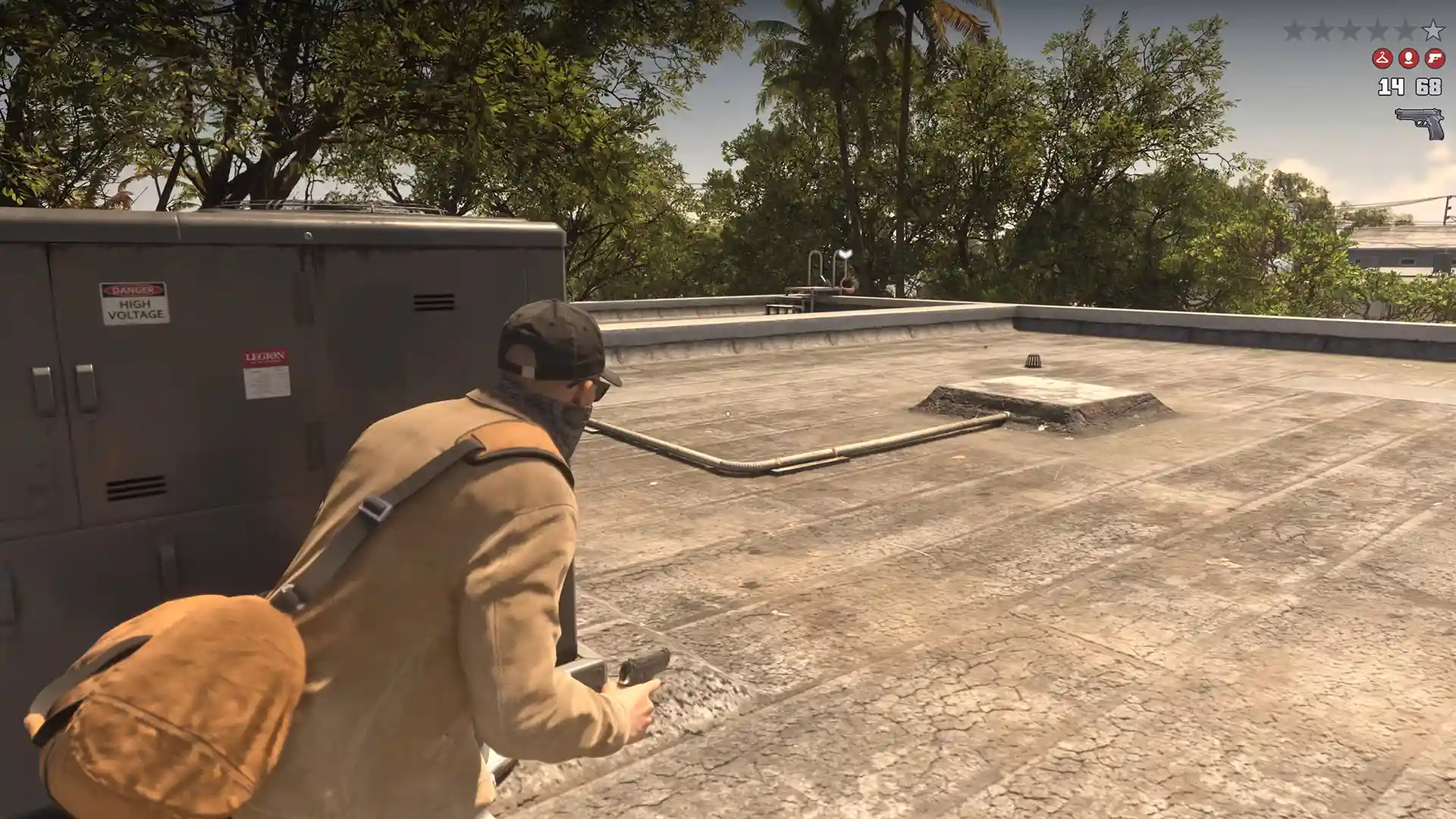
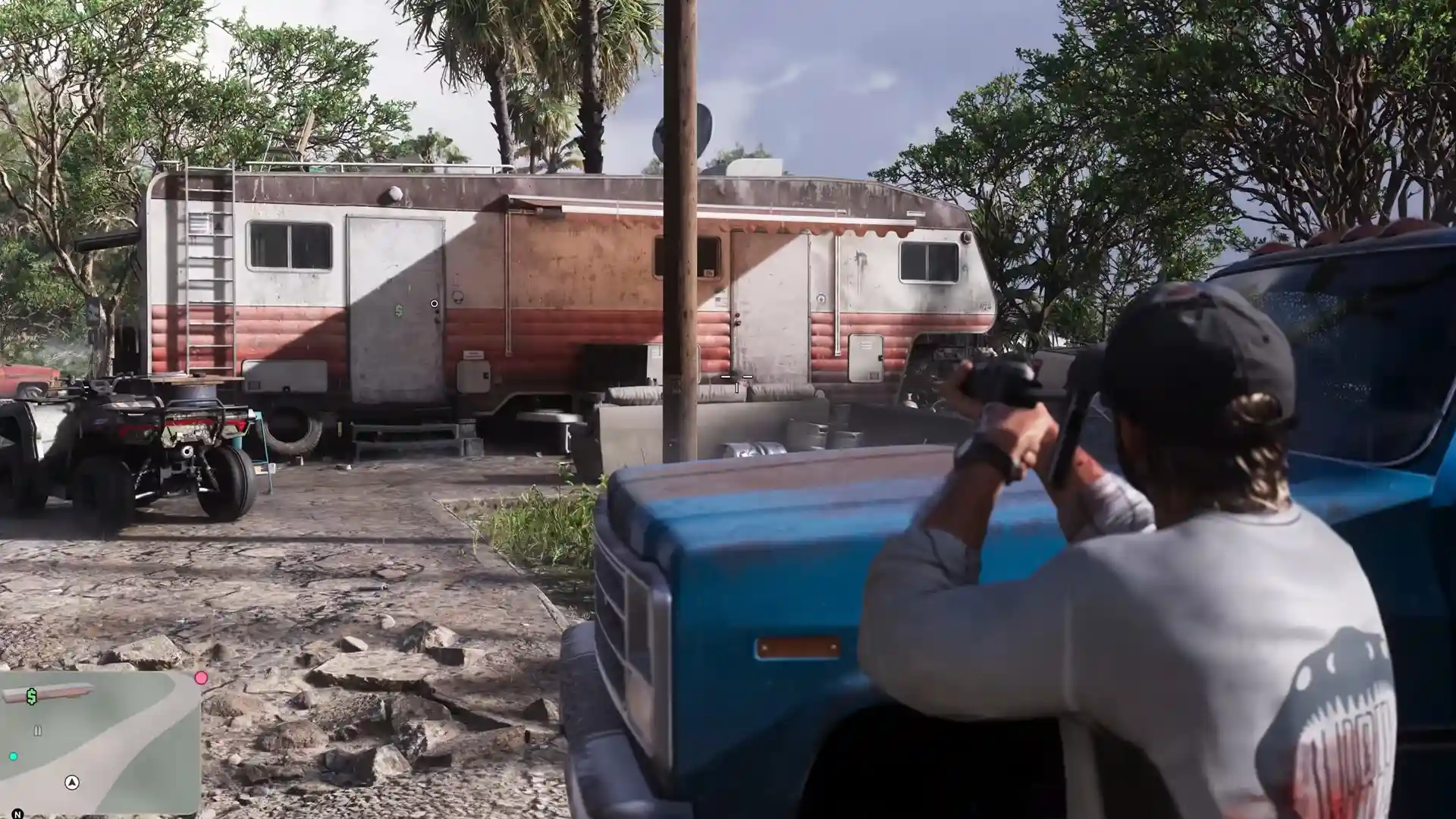
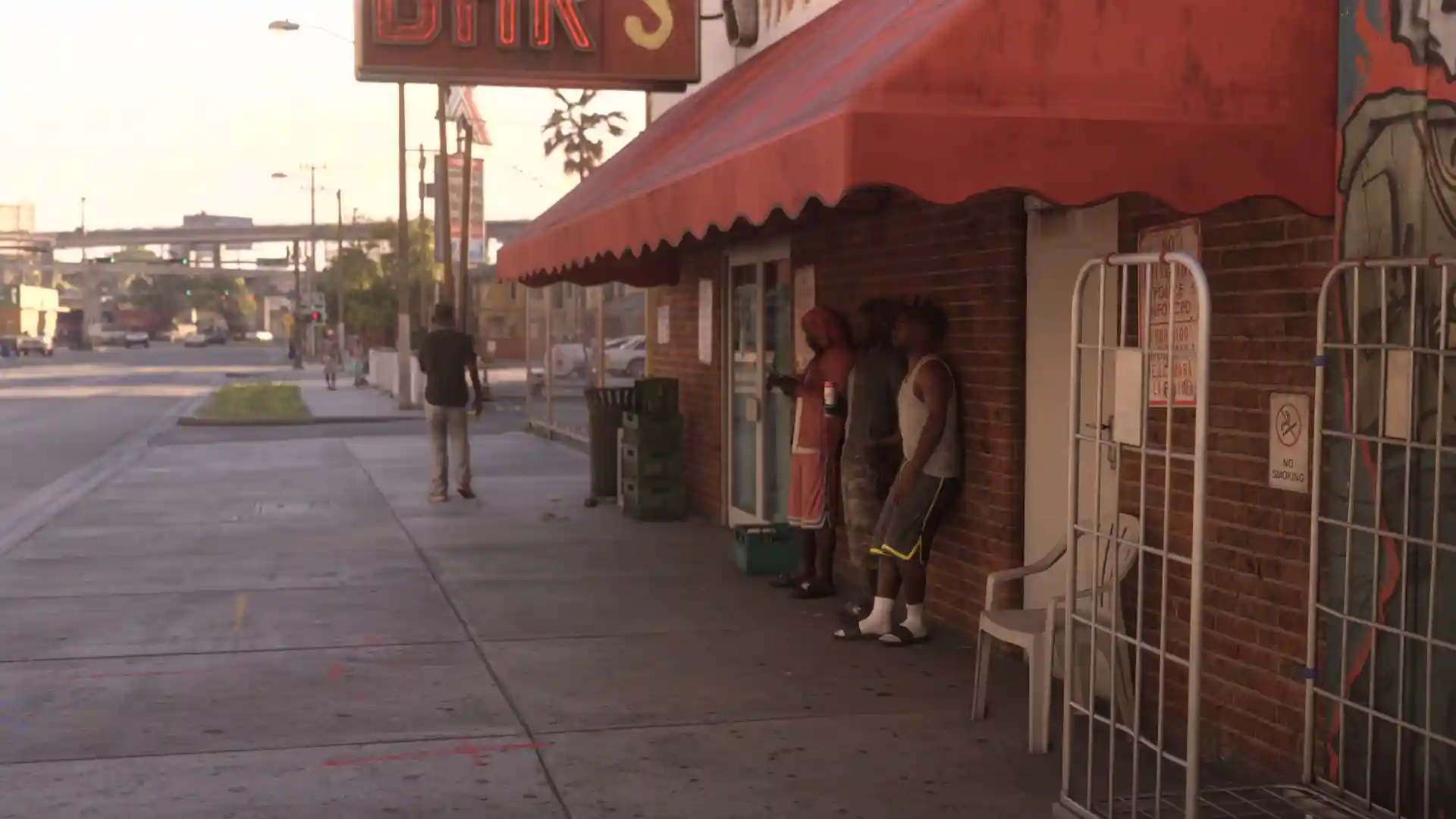
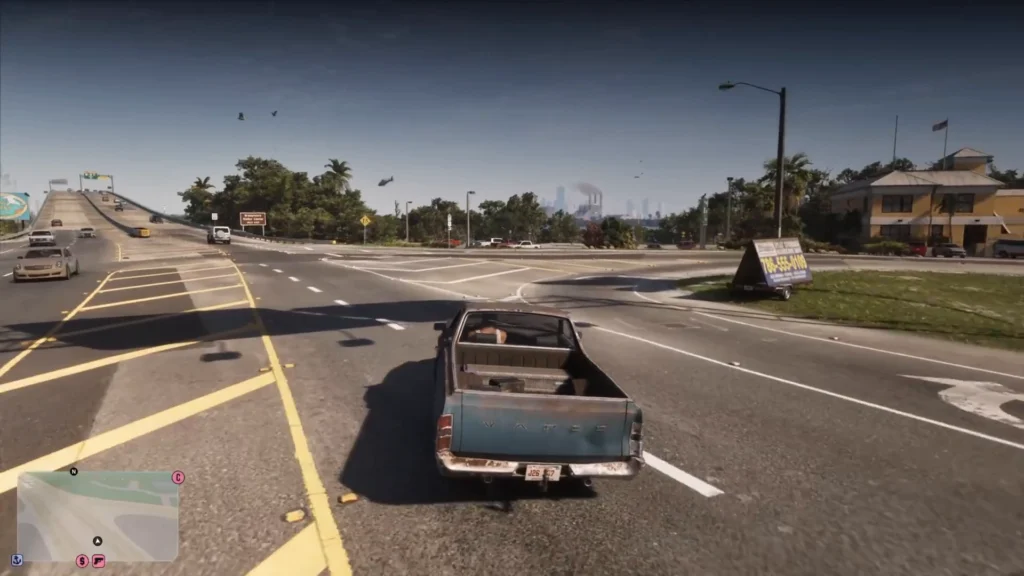
The GTA 6 vignette effect darkens the edges and the corners of your screen, especially along the top, and so far, there’s no option to turn it off completely. Despite people’s complaints, Rockstar itself has confirmed that the effect is intentional. However, I should mention that a bug made the darkening stronger than intended. The studio says that issue has been fixed, but the vignette itself remains. Let me show you what you can do to at least reduce the effect.
Drift to:
Can You Turn Off the GTA 6 Vignette?
No, GTA 6 doesn’t currently have a setting to disable the vignette effect. The dark gradient is part of Rockstar’s intended visual presentation, rather than something you can switch off in the Display menu. Many players found the visual effect to be either off-putting or even straight-out distracting.
Michael Kane, Rockstar’s Vice President of Dynamic Art, confirmed that the vignette is an artistic choice and that the game doesn’t support an on/off toggle. That applies to the current PS5 and Xbox Series X & S versions. You’ll find several Visual Effects settings under the Display tab, but sadly none of them directly controls the game’s vignette effect.
What Did Rockstar Fix About the GTA 6 Vignette?
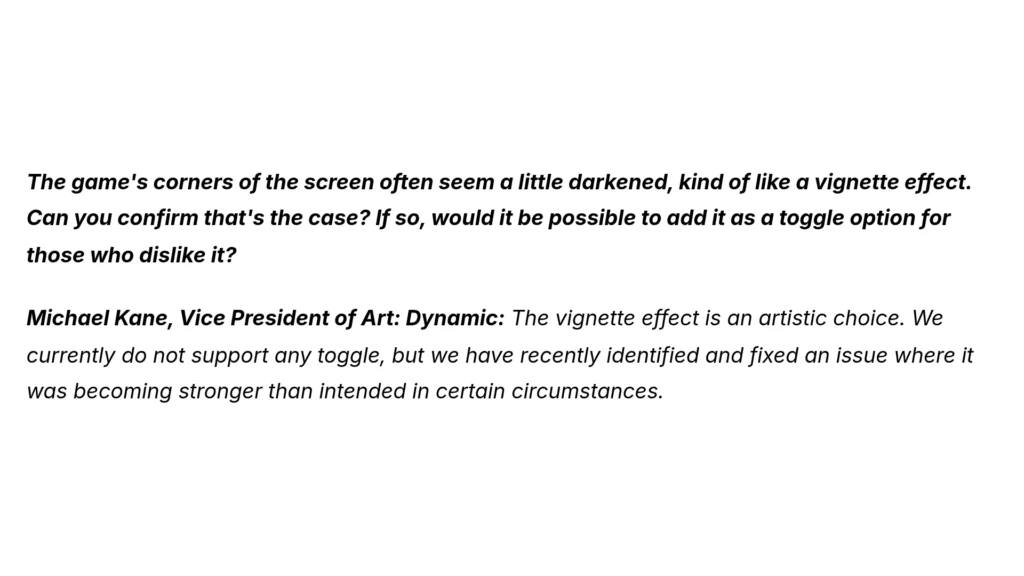
Yes and no. The vignette effect wasn’t removed entirely by Rockstar, but there were these certain circumstances where the vignette effect was displayed stronger than it was intended to be. Rockstar fixed this extra vignette intensity, not the vignette itself. The dark corners remain part of the game’s intended HUD.
However, Rockstar hasn’t said which exact game version contained this correction or explained which situations triggered the problem. It also hasn’t confirmed when the correction will reach every platform. For now, make sure your GTA 6 is updated to the latest version. You can check the exact details of the game’s overall settings over at the
How to Reduce Dark Screen Edges in GTA 6
Look, I know the vignette effect can be distracting. It certainly was for me, especially if you become aware of it (it’s like becoming aware of your own blinking or breathing). If you want to reduce the effect even a little bit, GTA 6 has other display effects that you can adjust that influence the vignette as well. Check them out if the vignette comes off as extra distracting during combat or your overall gameplay experience.
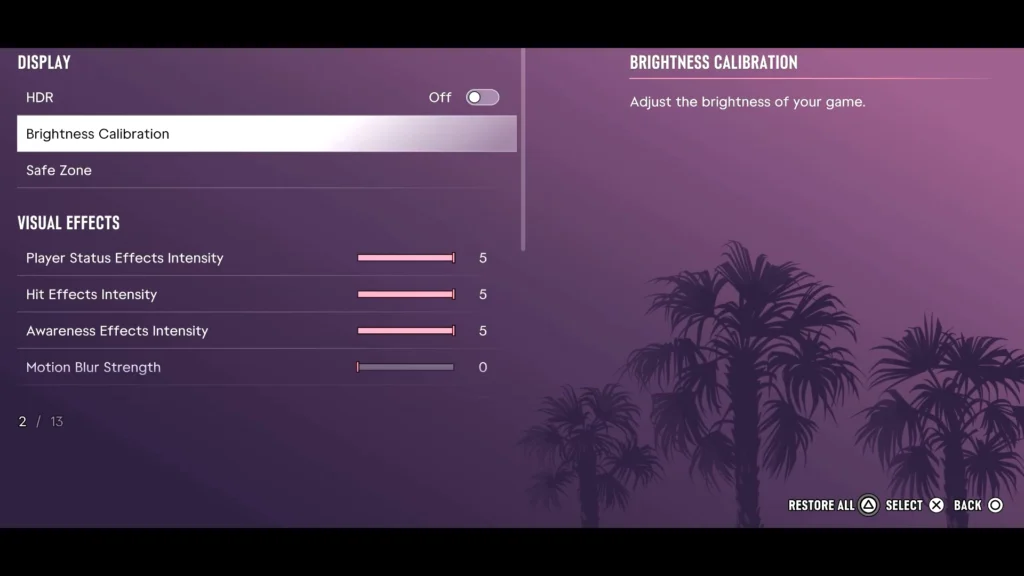
Adjust the Visual Effects Settings
Open the Pause Menu > Settings > Display > Visual Effects. You’ll find three settings options there:
| Setting | Default | What It Controls |
|---|---|---|
| Player Status Effects Intensity | 5 | Things related to your character’s status like low health and low stamina. |
| Hit Effects Intensity | 5 | Visual effects on the screen from incoming damage and nearby bullets. |
| Awareness Effects Intensity | 5 | Warnings on the edges of your screen in response to cops and any offscreen threats. |
If you lower these settings’ sliders from 5 to 1, you’ll notice a substantial difference, at least I did. If you prefer stronger warning indicators, leave that Awareness Effects Intensity high. You don’t have to sacrifice the game’s useful features just to clean up the picture.
Check Brightness and HDR Calibration
Since you can’t turn off the vignette effect, you can only try to reduce its intensity. One way to do that is to check whether your brightness or HDR calibration is making the vignette more noticeable. Open Settings > Display > Brightness Calibration and check the settings there. Raising the SDR value from its default number of 15 to 20 will help a little bit, although the ideal setting depends on your display.
For HDR, check that your console and television are calibrated properly. On PS5, you can adjust the system HDR settings under Settings > Screen and Video > Video Output. Also check that Brightness Reduction is disabled if the overall picture looks unusually dim. Motion Blur Strength and Safe Zone are settings that didn’t affect my vignette effect, so you can try them as well but they probably won’t do much for you.
Why Does GTA 6 Have a Vignette?
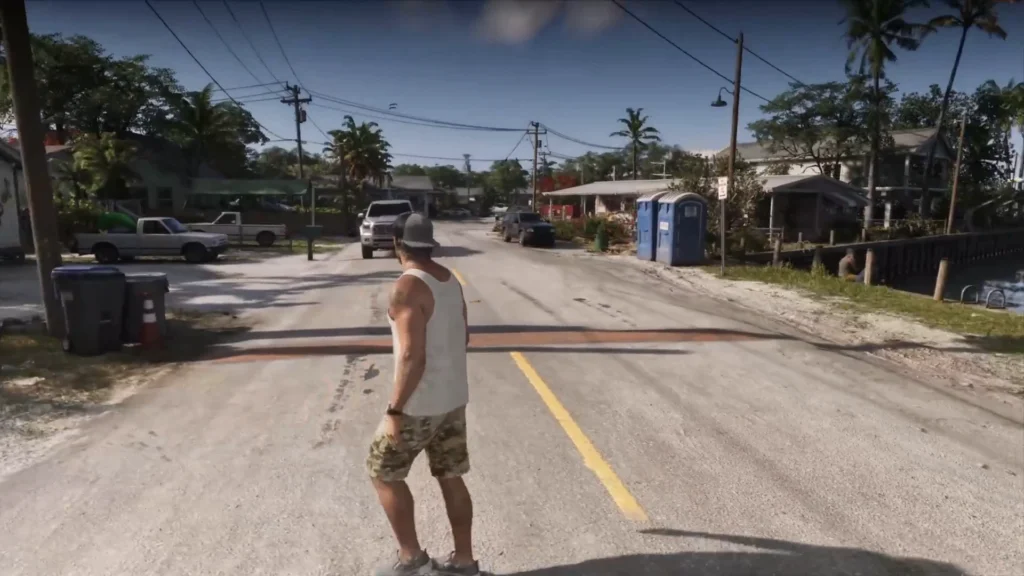
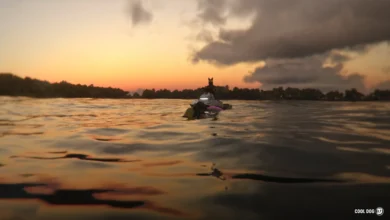
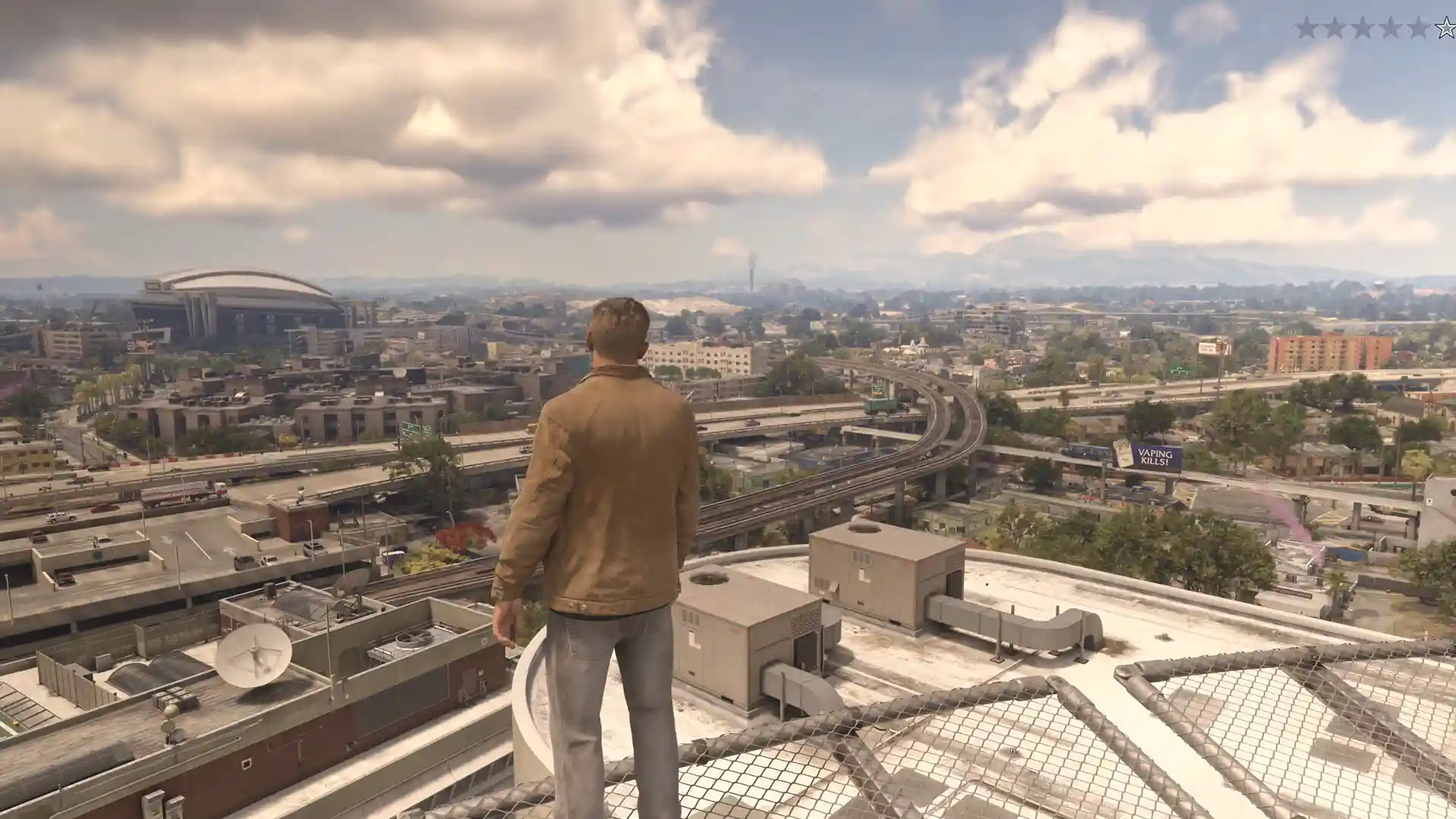
The GTA 6 vignette is especially noticeable near the top of the screen, especially, especially, when the gradient can make bright skies appear way darker. Rockstar has explicitly claimed it is an artistic choice, meaning it belongs to the game’s intended visual design rather than being a graphics bug. The thing is, previous games by Rockstar have also had this annoying vignette effect. RDR2 comes to mind, as the vignette effect was also present there, but to be honest, it wasn’t as noticeable in that game. Perhaps because the sky in GTA 6 seems brighter than in RDR2.
The effect itself is there to add an intensity effect during gameplay or a cinematic effect during cutscenes. It might break the player’s immersion a little bit, but it is a sacrifice Rockstar was willing to make. Artistic choices are supposed to be that way.
Do Sunglasses Cause the GTA 6 Vignette?
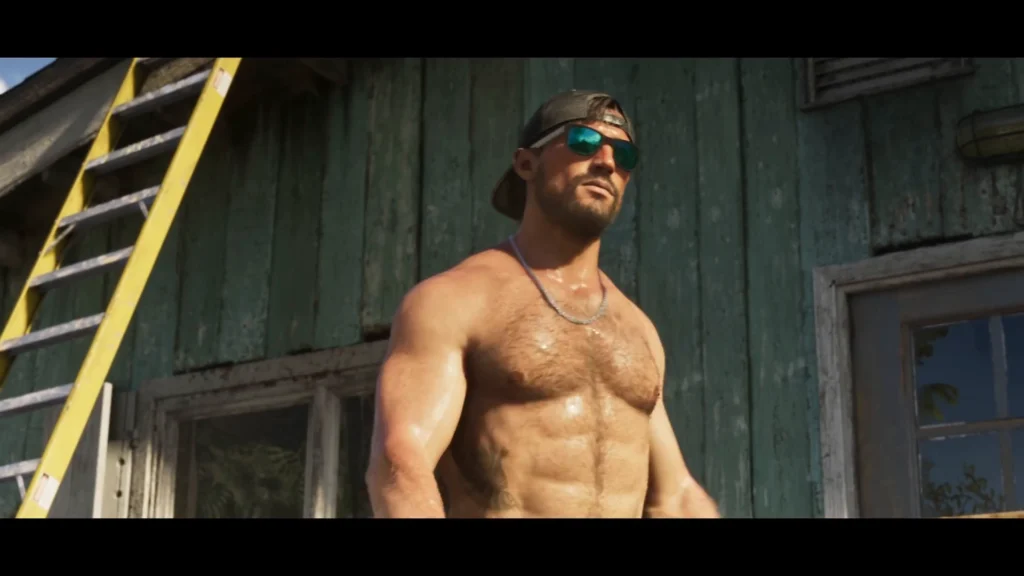
Well, no. The GTA 6 vignette effect is there even when Lucia or Jason aren’t wearing sunglasses. A lot of fans were speculating that the vignette effect became active each time they wore sunglasses because a certain dark gradient appeared around the image whenever they wore the sunglasses. But I tried this myself, and the results proved the vignette became only a bit stronger when you wear the glasses, but it doesn’t remove the vignette effect when you remove them. You can test this yourself by taking off equipped shades through the Loadout wheel, then comparing the screen in the same location under similar lighting.
Will GTA 6 Get a Vignette Toggle?
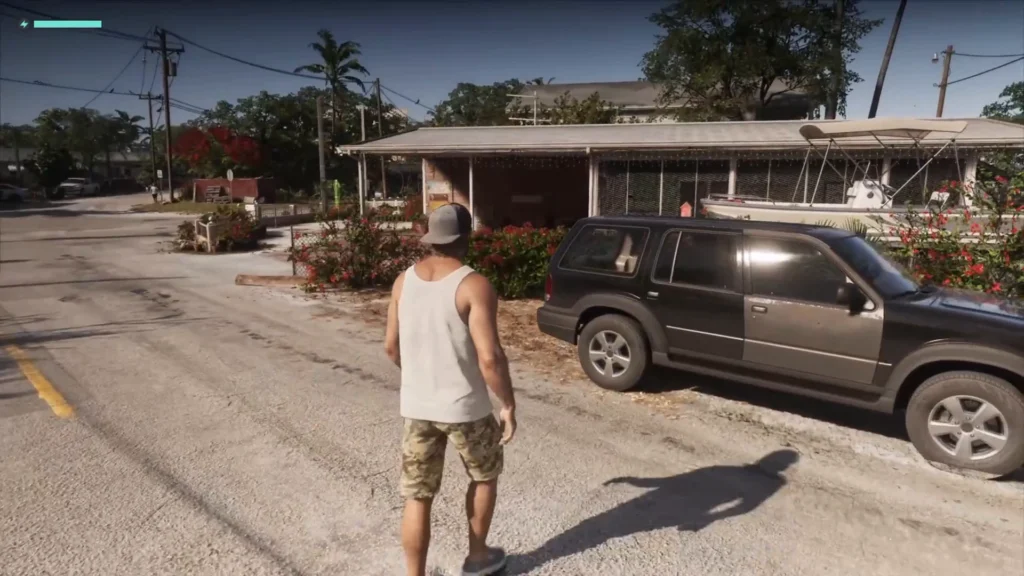
Probably not, since Rockstar is very adamant on the vignette being a main feature of the game. But I think if enough players keep being annoyed by it, some noble knight will step up and make a “GTA 6 Vignette Removal Mod.” And I’d highly support that. If that mod ever comes out, I’ll make sure to keep you updated and put the link to it right here. For now, just try reducing the effect as much as needed for it to become something you can ignore.