

FM27 pre game editor can make your next Football Manager 27 career more interesting, but finding the free tool shouldn’t feel harder than winning the Champions League with a third-division club. If you can’t find it on Steam or your custom database refuses to appear, you’re in the right place.
The FM27 Pre-Game Editor is free and arrived with the full game on November 10, 2026. It’s separate from the paid In-Game Editor and lets you prepare database changes before starting a new career.
Table of Contents
How to Download the FM27 Pre-Game Editor
The editor is a separate application, so you won’t find it inside FM27’s normal career menus. The installation method depends on your storefront.
Download on Steam
Open Steam and head to Library → Home. Find the dropdown labeled Games and enable Tools.
Look for Football Manager 27 Editor, select it, and click Install. You can then launch it directly from your Steam Library. If you can’t find it, I recommend checking the Tools filter first. It’s easy to miss.
Download on Epic Games
Open the Epic Games Launcher and head to Library. Set the sort order to Alphabetical A-Z and clear any active filters.
Find Football Manager 27 Pre-Game Editor and select Install. Make sure you install it in the same location as Football Manager 27.
Download on PC Game Pass and Microsoft Store
For PC Game Pass, open the Microsoft Store and search for Football Manager 27 Editor. Select the Pre-Game Editor and click Get.
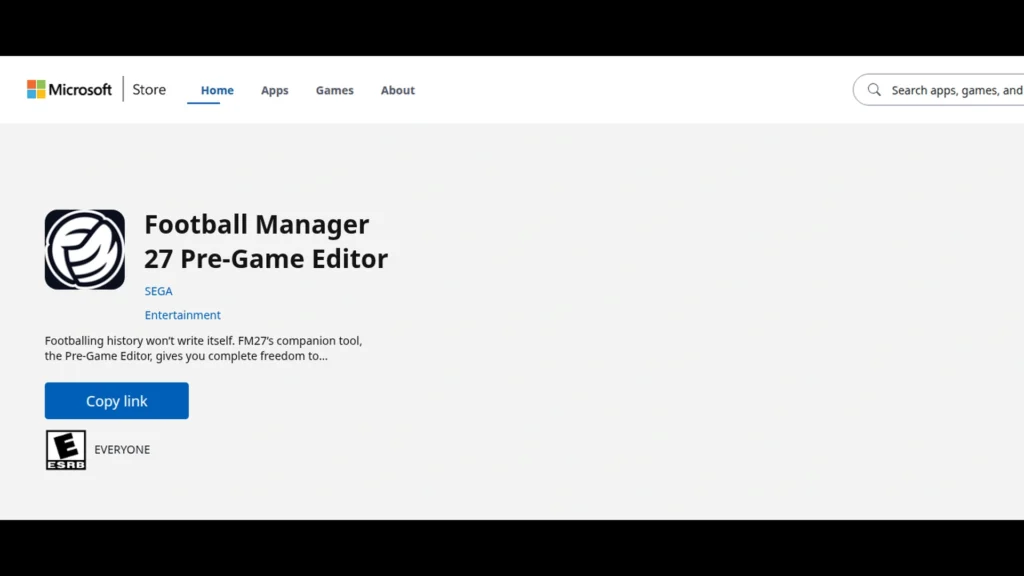
You can also use the FM27 Pre-Game Editor Microsoft Store page to access the correct application directly.
How to Use Editor Data Files in FM27
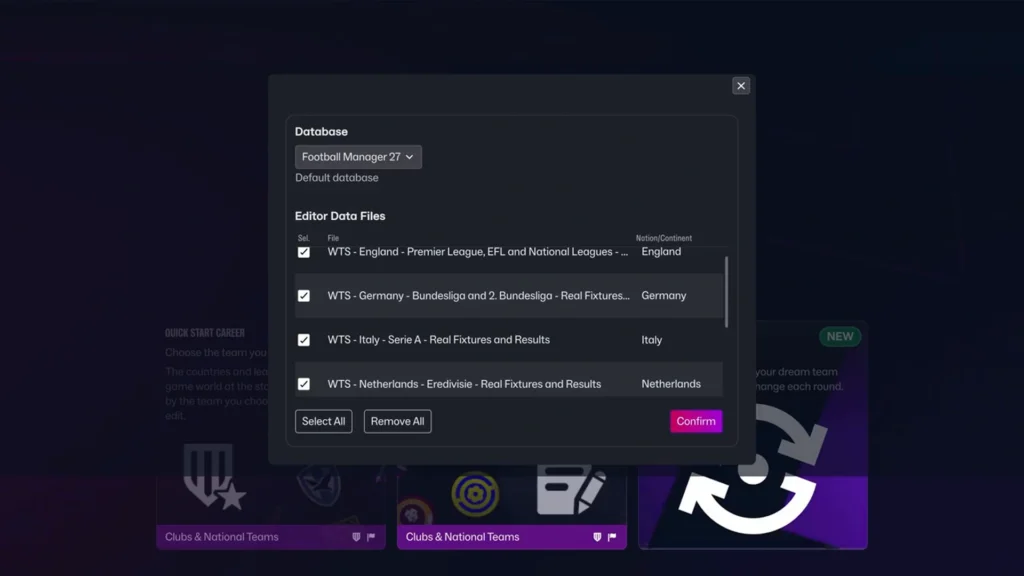
The Pre-Game Editor lets you prepare database changes for a new career. These changes can be saved as .fmf files, which FM27 can load during career setup.
If you’ve created or downloaded a compatible editor file, place it in the following Windows directory:
Documents\Sports Interactive\Football Manager 27\editor data
Create the editor data folder if it doesn’t exist.
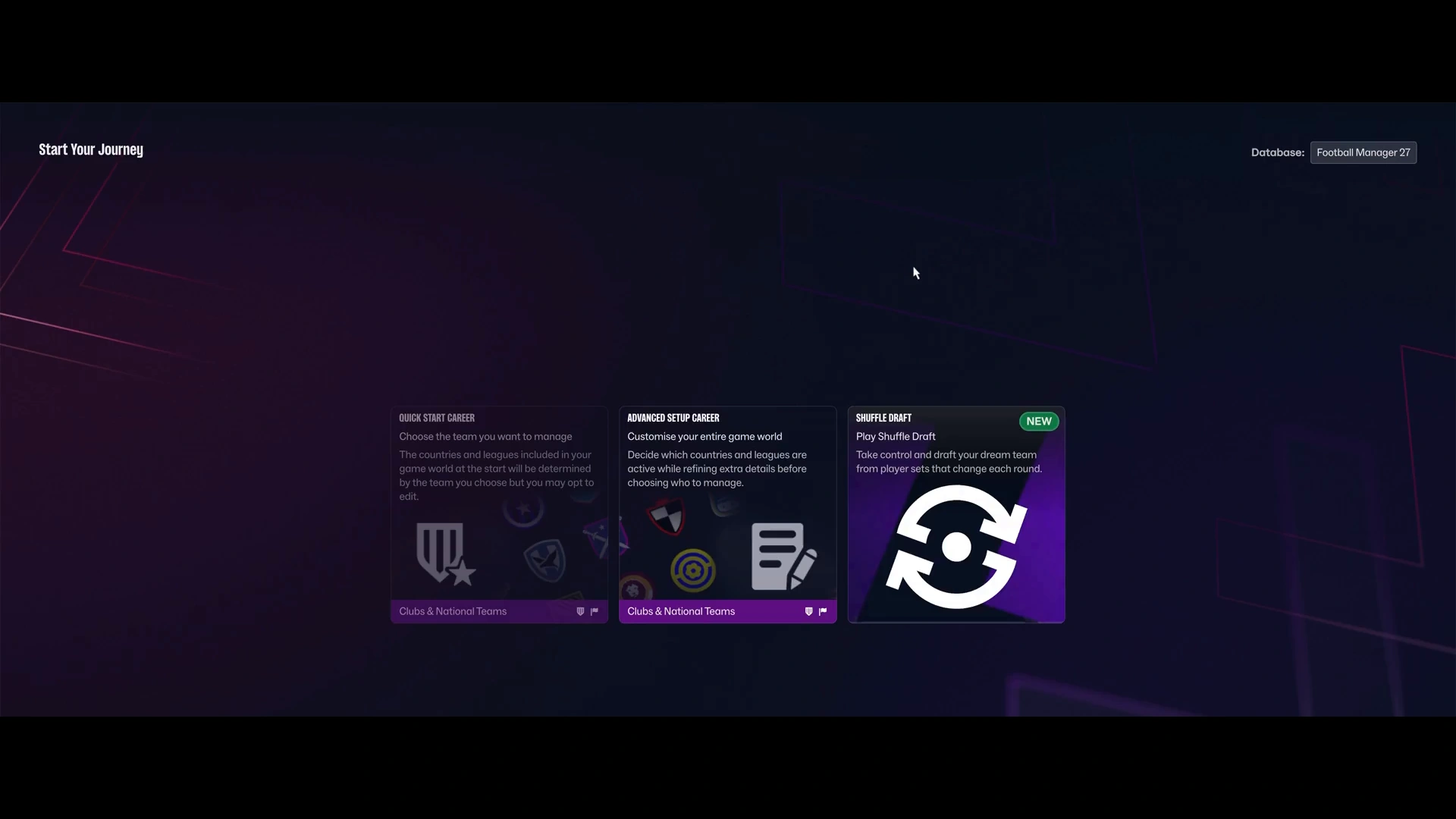
Now open FM27 and start a new career. Find Database in the top-right corner, select your editor file, and proceed to Advanced Setup.
Remember that pre-game changes only apply to new careers. They won’t modify an existing save.
How to Fix FM27 Pre-Game Editor Issues
If the editor won’t load its database or FM27 can’t find your .fmf file, the solution depends on the problem. Here’s what to check before you waste time on the wrong fix.
FM27 Pre-Game Editor Database Won’t Load
The editor may open without displaying a usable base database. If the database selection is empty, you won’t be able to access the records you need.
There’s no confirmed universal fix for this issue yet. Moving custom .fmf files won’t help if the editor itself can’t load its base database.
FM27 Editor Files Not Showing Up
If your custom database doesn’t appear when you start a new career, check where the editor saved the file. Some installations may place the .fmf file here:
Documents\Sports Interactive\Editor 27\editor data
However, FM27 expects editor data in:
Documents\Sports Interactive\Football Manager 27\editor data
If your file is in the first folder, try copying it into the second. Then start a new career and check the Database selection again. This workaround may help if the problem is simply the file location, but it won’t resolve every database issue.
FM27 Pre-Game Editor vs In-Game Editor
Despite their similar names, the two editors serve different purposes. The Pre-Game Editor is free and lets you prepare database changes before a new career begins. The In-Game Editor is paid DLC that works inside an active career. It lets you modify supported information, such as player attributes or club finances, while you play.
So if you just want a custom database for your next career, there’s no need to purchase the In-Game Editor. Sadly, it won’t increase your club’s transfer budget.