

Hell Let Loose Vietnam crashing pc problem is annoying a lot of players right now. You launch into a match, open the map, or step off a boat, and the game throws a LowLevelFatalError or the UE-HLL Vietnam Crash Reporter and just dies. Don’t worry. I went through every fix people have actually confirmed working and ranked them from quickest to last resort. Let’s try them out.
What You’ll Read:
Verify Your Game Files
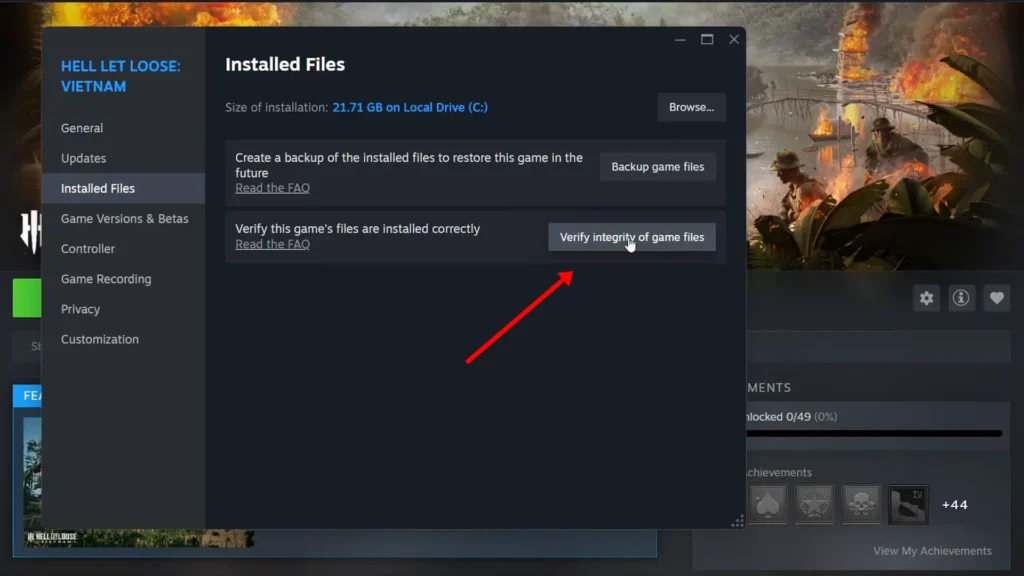
Corrupted files are the most common crash cause, so start here. Right-click Hell Let Loose Vietnam in your Steam library, open Properties, go to Installed Files, and click Verify Integrity of Game Files. Steam checks every file against the original and re-downloads anything that’s broken.
Force DirectX 11 or 12 Through Launch Options
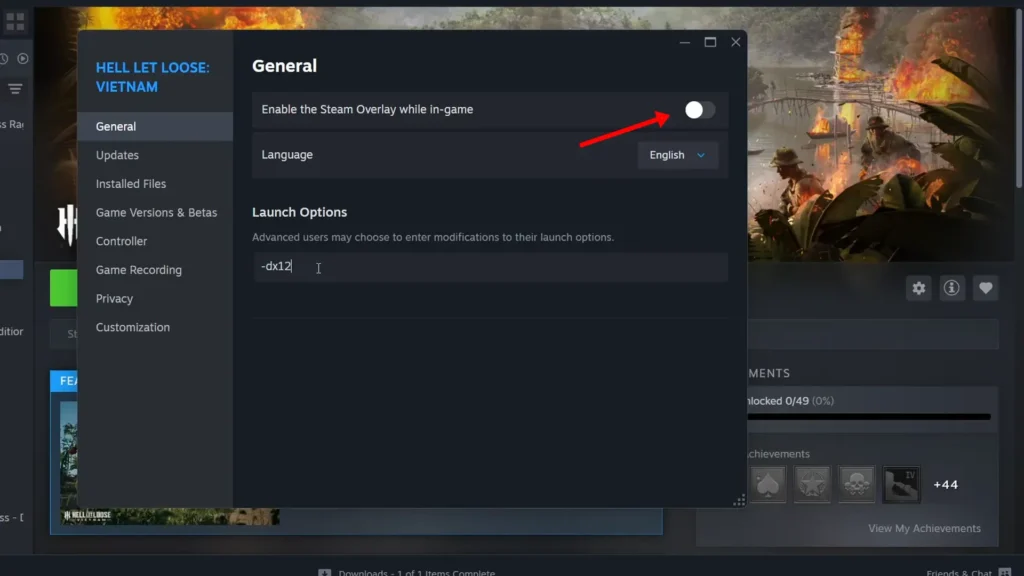
Right-click the game in Steam, open Properties, and add -dx11 to the launch options. Launch the game and see if it still crashes. If it does, swap it out for -dx12 and test again.
Heads up before you commit to this one: it’s not a clean win. One Redditor running a 7900XTX said -dx11 stopped the crashes completely, but lowered their FPS to 20 or lower near buildings. So it’s probably not worth the workaround. Treat this as a diagnostic step, not a permanent fix.
Try the Easy Anti-Cheat Compatibility Fix
This one’s buried in a Reddit comment, not in any official guide, and it’s had the best results of anything reported so far. Go to your game’s local files (Steam → right-click → Properties → Installed Files → Browse), open the Easy Anti-Cheat folder, and find EasyAntiCheat_EOS_Setup.exe. Right-click it, open Properties, go to the Compatibility tab, and turn on both Run as administrator and Disable fullscreen optimizations.
One player who applied this went from crashing on 90% of spawns to zero crashes over a full hour of play. Several others in the same thread confirmed it worked for them too. It’s not universal but it’s cheap to test and has the strongest track record of the fixes in this list.
Update or Roll Back Your GPU Drivers
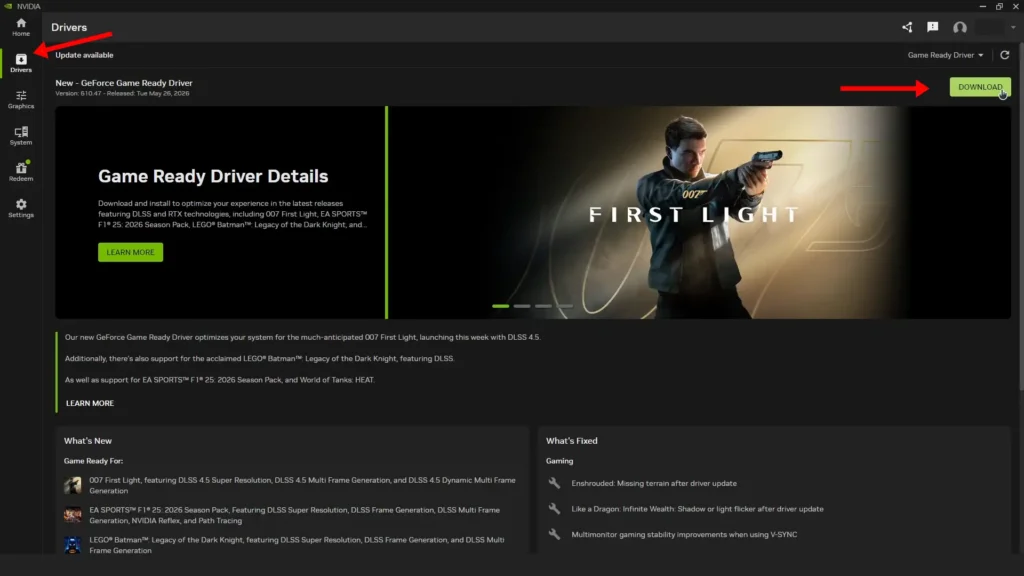
NVIDIA users: open the NVIDIA app, go to the Drivers tab, and install the latest Game Ready Driver.
AMD users: do the same through AMD Adrenalin. Restart your PC once it’s done.
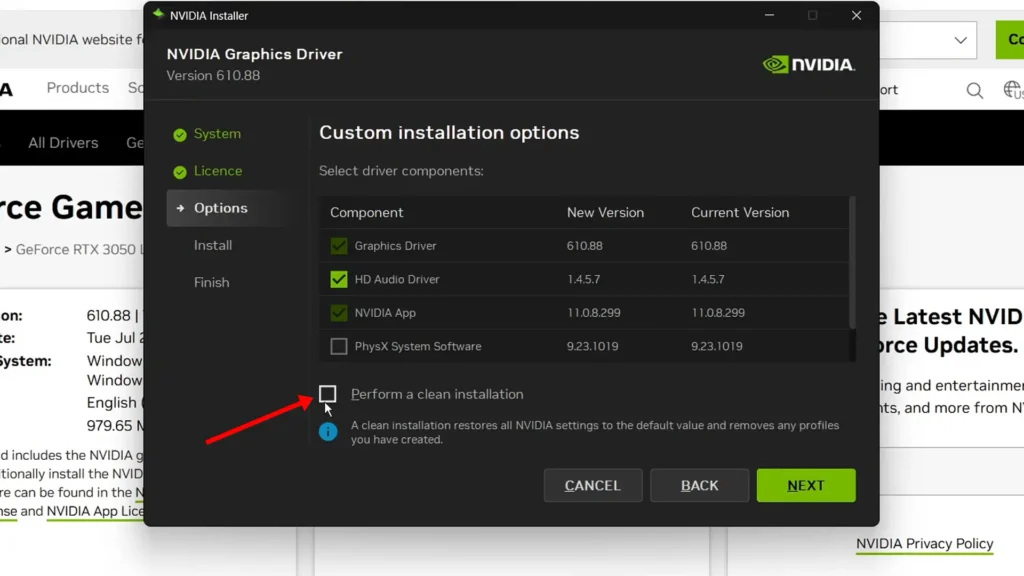
If you’re already on the latest driver and still crashing, go the other direction. On NVIDIA’s driver download page, click “view more versions” and grab an older one instead. Pick custom install, check “perform a clean installation,” and restart after. AMD’s driver page has the same option under “previous versions.” A fresh driver isn’t always a stable one, and this game seems to be one of those cases for some setups.
AMD Users: Check Anti-Lag Settings
AMD players are reporting way more crashes than NVIDIA users in this game, and one specific setting keeps coming up: AMD Anti-Lag. A few Redditors traced an annoying white flickering on the ground back to it, and turning Anti-Lag off made the flickering stop.
To check it, open AMD Adrenalin, go to Gaming, select Hell Let Loose Vietnam (or the global profile), and toggle Radeon Anti-Lag off. It won’t fix every AMD crash on its own, but combine it with the Easy Anti-Cheat fix above and the -dx11 launch option if you’re still struggling.
Turn Off Overlays and Background Apps
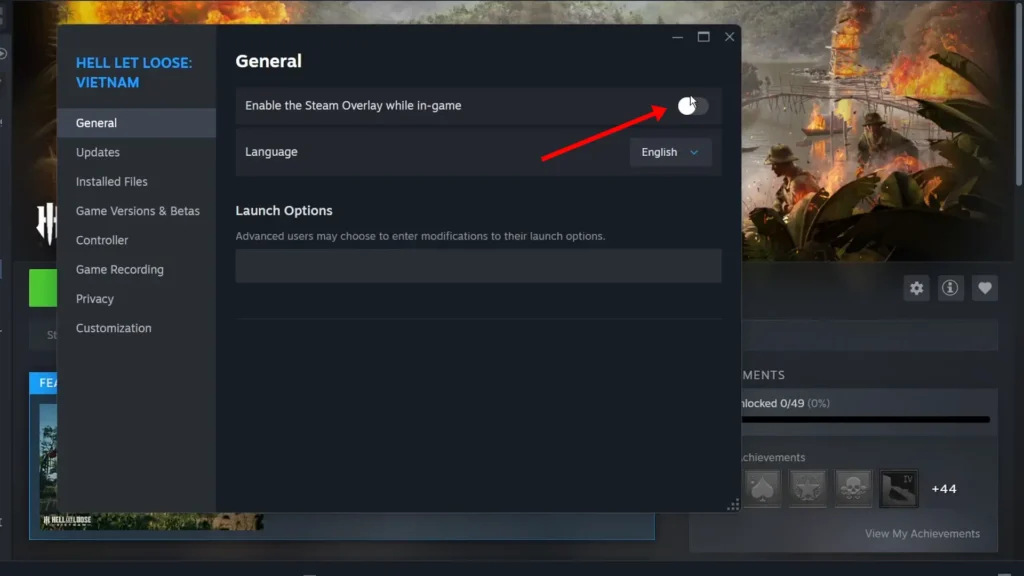
Overlays fight with Unreal Engine games more than people expect, and this game is no exception. Start with Steam’s own overlay: right-click the game, Properties, and turn off “Enable the Steam Overlay while in game.”
Then close anything else running on top of the game. Discord has its own overlay toggle in Settings, the NVIDIA app and AMD Adrenalin both have theirs, and Overwolf or OBS should just be closed outright if you’re not actively using them. If you’re running MSI Afterburner, RivaTuner, or any overclocking software, set everything back to default and close it too. Overclocked components are a separate crash risk on top of the overlay conflicts.
Clear DirectX Shader Cache and NVIDIA Cache
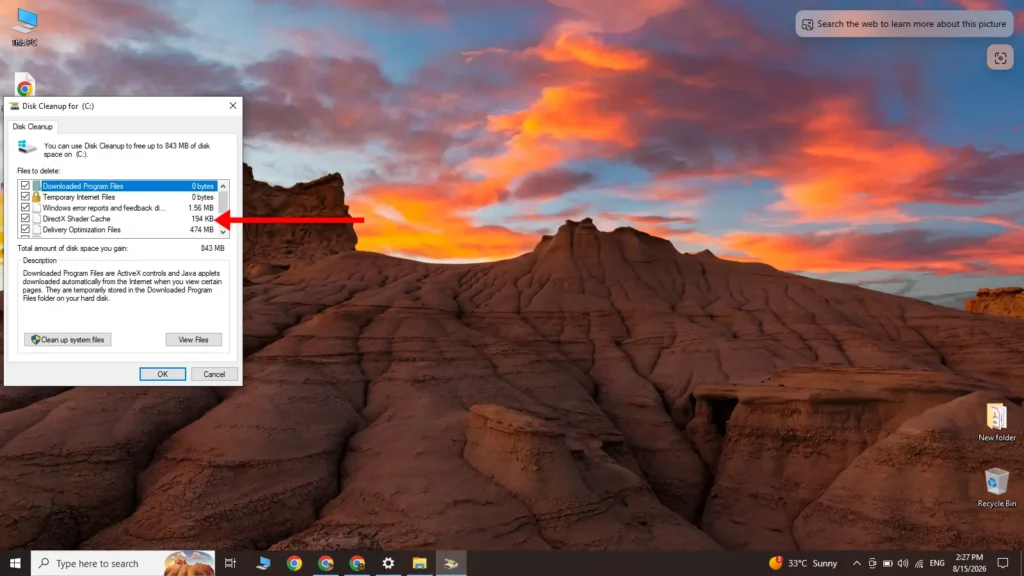
A corrupted shader cache is a quiet crash cause because nothing about your setup looks wrong. Type “disk cleanup” into Windows search, open it, and check the box for DirectX Shader Cache before running the cleanup.
NVIDIA users can go a step further and clear NVIDIA’s own cache. Close every NVIDIA app and service first (check Task Manager to be sure nothing’s still running), then go to C:\Users\[your username]\AppData\Local\NVIDIA and delete the contents. Do the same in the AppData\LocalLow\NVIDIA folder.
Note: You’ll need to unhide AppData first if you can’t see it from View menu, then check “Hidden items.” Restart your PC once you’re done.
Allow the Game Through Antivirus and Firewall
Security software sometimes blocks the game’s executables without telling you, especially Easy Anti-Cheat’s setup file. In Windows Security, go to Virus & Threat Protection, scroll to Manage Ransomware Protection, and add every .exe in the game’s install folder as an allowed app, including the main game executable, any secondary exe files in the Vietnam folder’s Binaries\Win64 path, and the Easy Anti-Cheat setup file.
Do the same in Windows Defender Firewall: Control Panel → System and Security → Windows Defender Firewall → Allow an app through the firewall. Add each exe again, and make sure both Private and Public are checked for all of them. If you run a third-party antivirus like Avast, Norton, Bitdefender, or McAfee, add the same files there too.
Reinstall DirectX and Visual C++ Redistributables
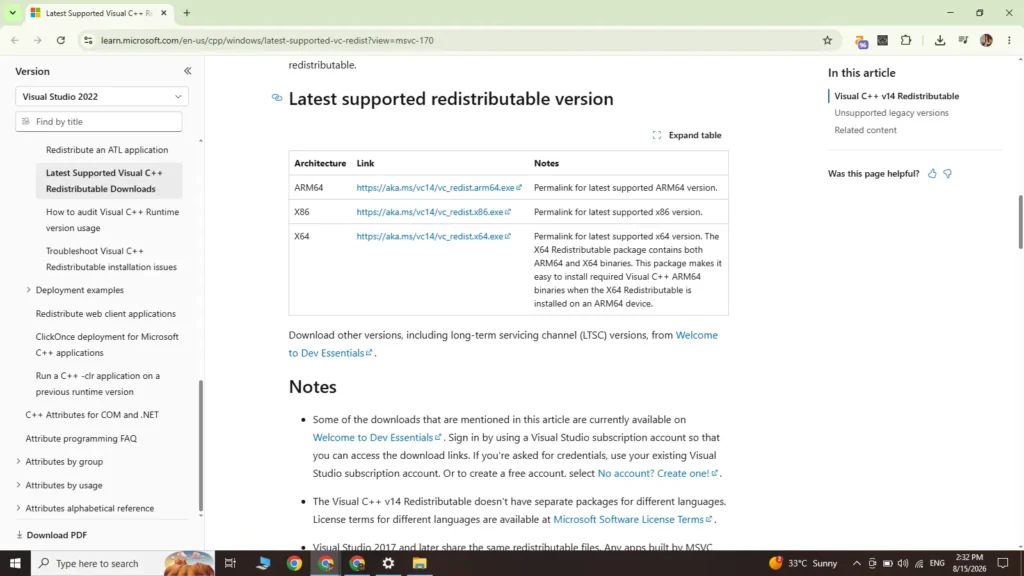
Missing or outdated redistributables cause the exact kind of low-level crashes players are experiencing. Download both the x86 and x64 Visual C++ redistributable installers from Microsoft and run each one. If you get a repair option, click repair; if it offers install, click install. Restart your PC once both are done.
Grab the DirectX installer from the same source and run it too. It’ll check your system and install anything missing. This step alone has fixed launch crashes for players following the dedicated crash-fix videos for the game.
More Fixes to Try
If you’ve made it this far and you’re still crashing, these are worth a shot. Just know a couple of them come with price.
| Fix | How | Note |
|---|---|---|
| Rename the config file | AppData\Local\Vietnam\Saved\Config, rename the folder | Wipes your saved settings |
| Rename the saved game folder | Back up the Vietnam folder first, then rename it | Wipes your save progress |
| Disable integrated graphics | Device Manager → Display adapters → disable the integrated GPU | Re-enable it after you’re done playing |
| Disconnect extra monitors | Run on a single display | Also try dropping your refresh rate to 60-120Hz |
| Turn off hardware-accelerated GPU scheduling | Windows Settings → Graphics settings → Advanced | Requires a restart |
| Switch to Power Saver mode | Control Panel → Power Options | Test if High Performance mode is the trigger |
| Unplug external devices | HOTAS, wheels, pedals, extra controllers, USB adapters | Rules out a peripheral conflict |
| Remove any undervolt | Reset your GPU/CPU voltage to stock | Undervolting can cause instability in demanding scenes |
| Reinstall to a different drive | Move the install to your C: drive, or to a different SSD if it’s already there | Last resort if nothing else works |
That’s every Hell Let Loose Vietnam crashing PC fix players have found so far. Which one worked for you? Have you found a new fix yourself? Let us know in the comments below.
FAQ
Does verifying game files delete my save progress?
No. Verifying integrity only checks and repairs game files, not your saves or settings. It’s safe to run as often as you want.
Has Team17 released an official fix?
Not yet. Team17 support is currently asking affected players to send in DxDiag reports so they can investigate further, which means there’s no confirmed patch — just the community workarounds above.
Why does the game still crash on a high-end PC?
Because this looks like an engine-level optimization issue, not a hardware limit. Players running an RTX 5090 and a 7900XTX have both reported repeated crashes, sometimes within minutes of launching, so a strong rig doesn’t guarantee stability right now.

Hell Let Loose: Vietnam